Policy Audit Release 1.14
August 13, 2026
Manage Policies Using the New Policy Tab Interface
With this release, we have introduced a new interface for the Policy tab that provides a more organized and intuitive experience for managing policies. The new interface organizes policy management into dedicated tabs for Workspace, Library, and Tasks, making it easier to locate, filter, and manage policies.
Workspace
The Workspace tab serves as the central location for managing your policies.
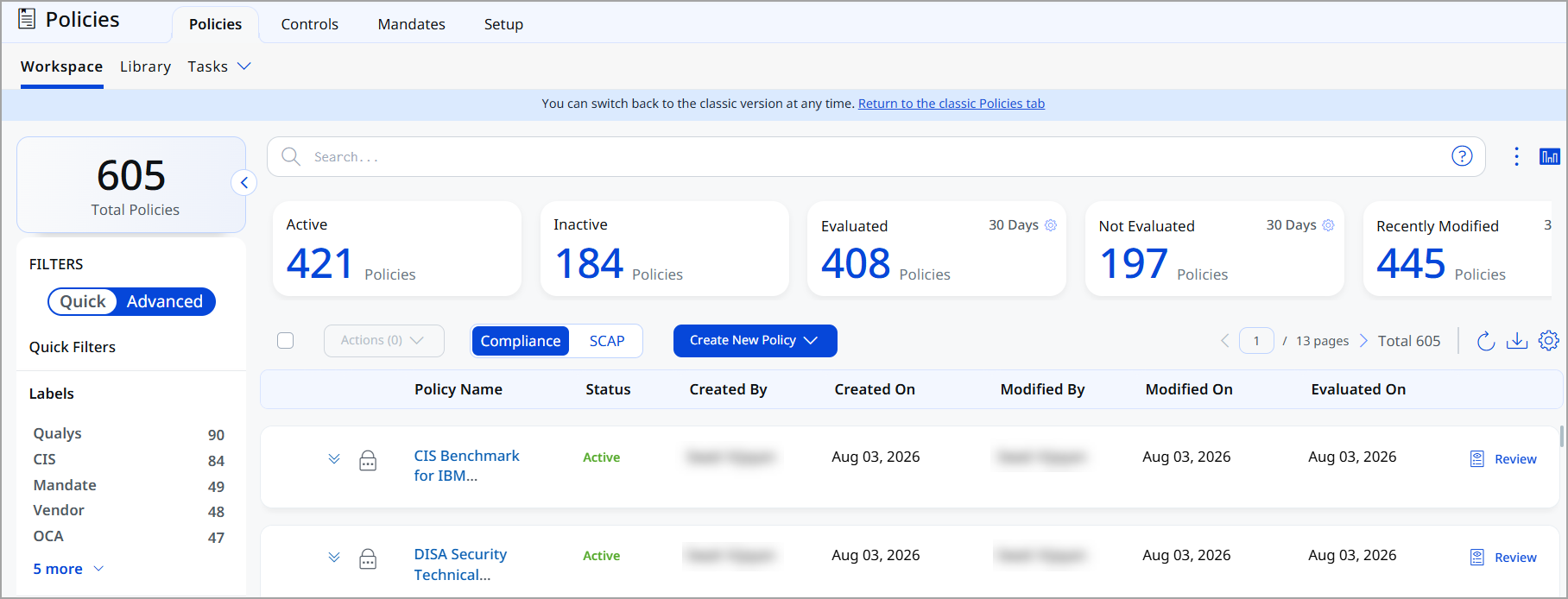
It provides access to the following:
- Quick filters to view policies by various labels, locked policies, unlocked policies, locked at import policies, and policies locked by you.
- Advanced filters based on Labels, Technology, Asset Tags, Asset Groups, Created By, Creation Date, Modified By, Modification Date, and Evaluation Date.
- Summary cards displaying policy statistics, such as active and inactive policies, evaluated and non-evaluated policies, and recently modified policies.
- Review the details of policies.
The Workspace also supports the existing policy management actions, such as viewing, editing, deleting, activating, deactivating, locking, and unlocking policies.
The new Policies tab interface, in the Workspace tab, also provides support for viewing and managing SCAP policies. In Quick filters, we have dedicated filters available to help identify and manage SCAP policies alongside other policy types.
Library
A new Library tab provides a centralized view of Qualys-managed policy library details.
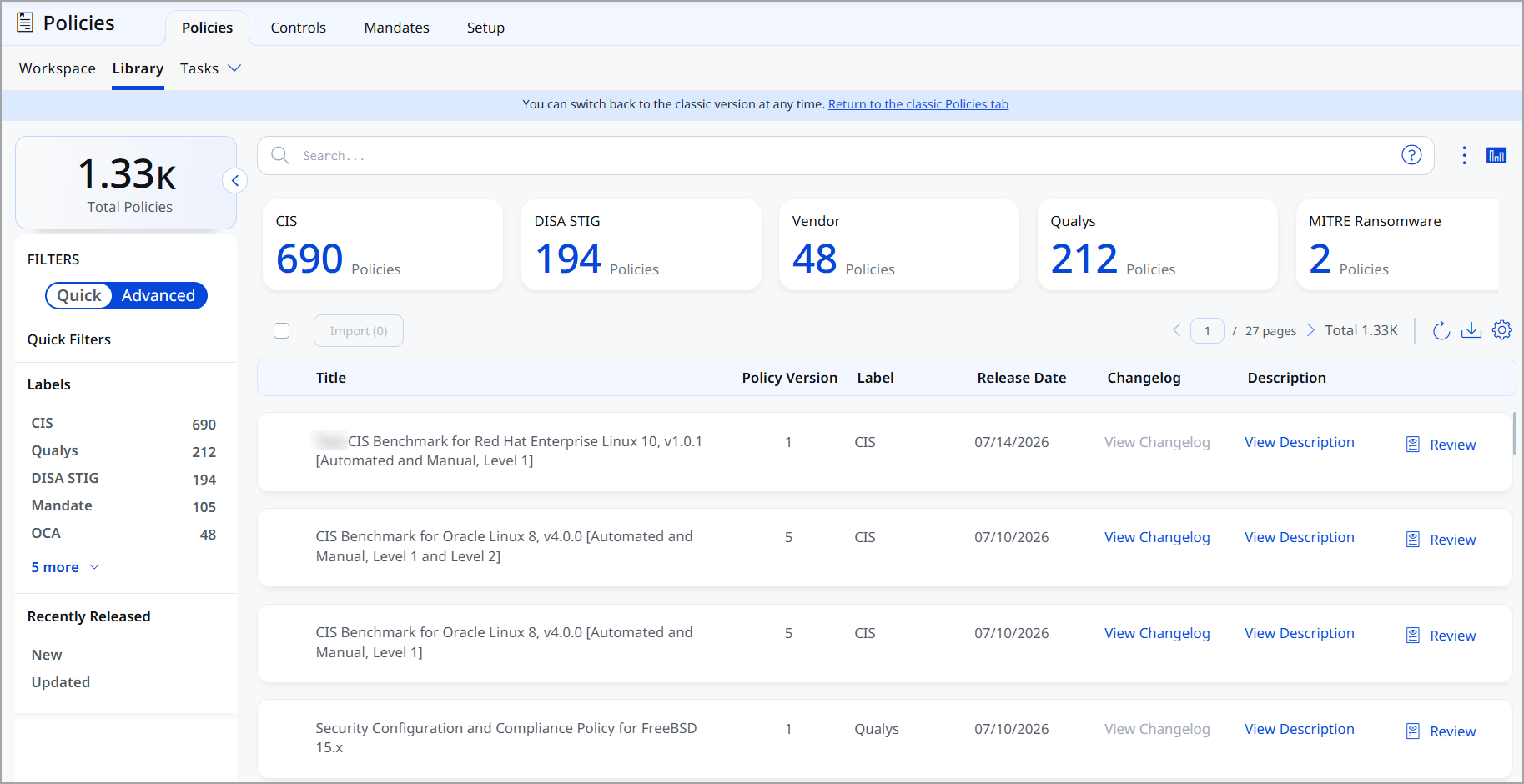
Using this tab, you can:
- Browse library policies by category.
- Search and filter library policies using quick and advanced filters:
- Quick filters include predefined labels, such as, CIS, DISA STIG, and other supported compliance standards.
- Advanced filters include Labels, Technologies and Release Dates.
- You can even view the Changelog, Description, and Review the details of the policies.
- Select Import to import details of a single or multiple policies.
Import a single Library Policy or in Bulk
From the Library tab you can import either a single or multiple library policies.
To do so, select the policies to be imported and select Import. The Import Policies window is displayed.
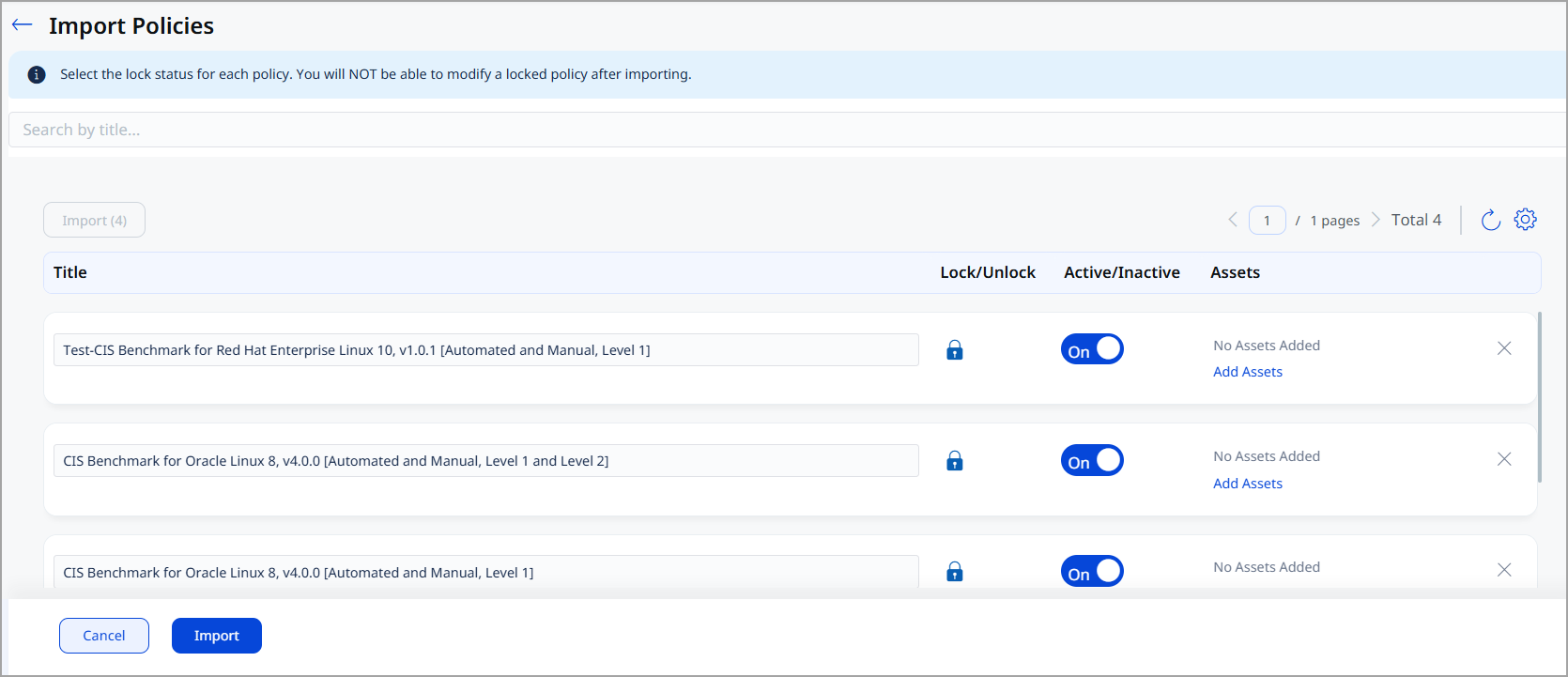
Here, you can perform the following actions:
- Add Assets - Select Add Assets. You are redirected to the Asset Details window. Add the required asset groups or Asset Tags and select Save. The assets groups or asset tags are added to the policy.
- Active/Inactive - Turn the toggle on or off based on your requirement. On suggests the policy remains active. Off suggests the policy remains inactive.
- Lock/Unlock - Select the lock icon to either lock the policy or unlock the same.
- Title - In title, you can edit the name of the policy.
Review the details and select Import to begin importing the policies
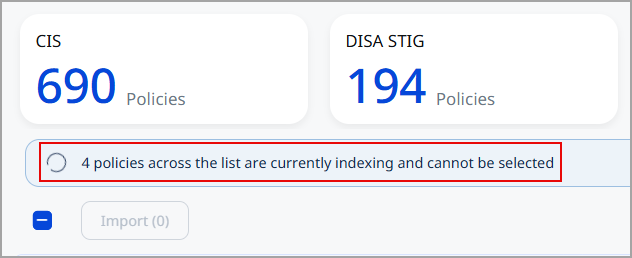
After the import process begins, you are redirected to the Library tab, where you can track the import status of the selected policies.
Tasks
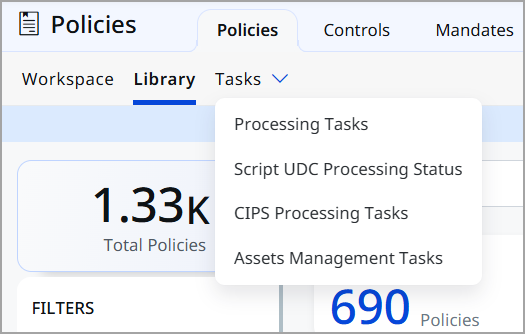
The Tasks tab provides quick access to policy-related background processing tasks, allowing you to monitor activities such as policy evaluations and other policy processing operations.
Switch to Classic Policies Tab
To switch to the classic Policies tab, select Return to the classic Policies tab.
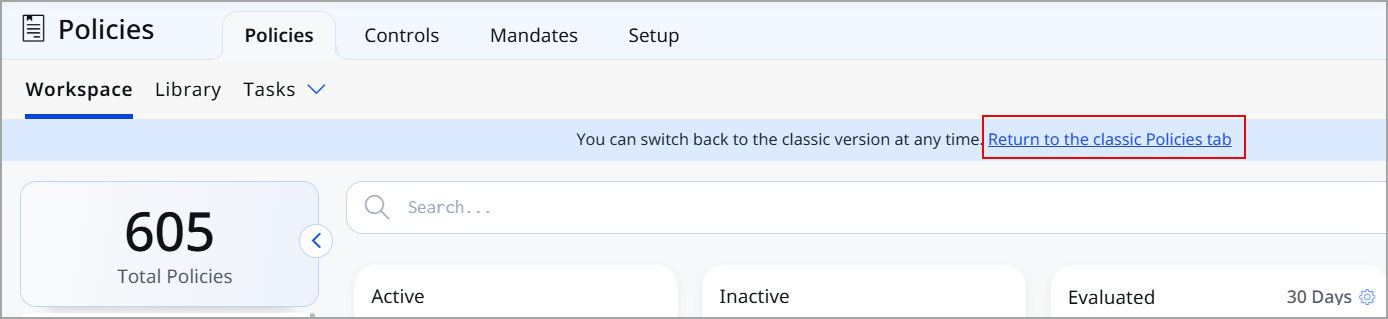
Similarly, to switch back to the Policies tab, select Try it now.

New QQL Tokens for Policy Search
We have introduced several new QQL tokens that help you search and filter policies more efficiently. These tokens allow you to locate policies based on attributes such as the policy creator, creation and evaluation dates, release date, associated technologies, asset tags, SCAP version, policy status, and control ID.
- Search Policies by Creator Using QQL Token
Use thepolicy.createdByQQL token to search for policies created by specific users.
For example,
policy.createdBy:"John Doe" - Search Policies by Creation Date Using QQL Token
Use thepolicy.createdDateQQL token to search for policies created within a specified date range.
For example,
policy.createdDate:[2026-01-01 .. 2026-07-14]

policy.createdDate:[2026-07-01 .. 2026-07-14] - Search Policies by Release Date Using QQL Token
Use thepolicy.releaseDateQQL token to search for policies based on their release date.
For example,
policy.releaseDate:[2025-07-15 .. 2026-07-15] - Search Policies by Status Using QQL Token
use thepolicy.statusQQL token to search for policies based on their status.
For example,
policy.status:ACTIVE - Search Policies by SCAP Version Using QQL Token
Use thepolicy.scapVersionQQL token to search for policies based on their SCAP version.
For example,
policy.scapVersion:"1.2"
Enhanced User Access and Role Management for PAF
We have enhanced user access and role management for Policy Audit Fix (PAF) to provide greater flexibility in managing user access and permissions.
Expanded PAF Access for Existing User Roles
Previously, PAF capabilities were available through the Audit Fix Manager, Audit Fix Unit Manager, and Audit Fix Viewer roles. Existing user roles such as Reader, Scanner, and Auditor could not access PAF features.
With this release, Reader, Scanner, and Auditor users can now be granted access to PAF capabilities based on their assigned permissions. This enables organizations to extend PAF functionality to existing users without requiring PAF-specific user roles.
Removal of Audit Fix Unit Manager Role
The Audit Fix Unit Manager role has been removed to simplify PAF role management.
Existing users assigned the Audit Fix Unit Manager role are automatically migrated to the Audit Fix Manager role. This migration ensures that existing users retain the required access to PAF functionality after the Unit Manager role is removed.
Enhanced Audit Fix Manager Role Assignment
The assignment of the Audit Fix Manager role has been enhanced for subscriptions using PAF.
When PAF is enabled for the first time, the applicable Manager user is assigned the required PAF Manager permissions, ensuring that PAF can be administered and access can be managed for other users.
Once PAF is enabled, and any new user roles created post that, are not auto-assigned any roles. They are required to be assigned roles by their managers.
Custom Role Support for PAF
You can now use the Administration application to create custom roles with PAF-specific permissions.
Before creating a custom role and configuring PAF permissions, contact your Technical Account Manager (TAM) or Qualys Support to enable this capability for your subscription.
Once enabled, you can create a custom role, select the required permissions for the Policy Audit Fix (PAF) module, and assign the custom role to applicable users. This provides more granular control over the PAF capabilities available to each user.
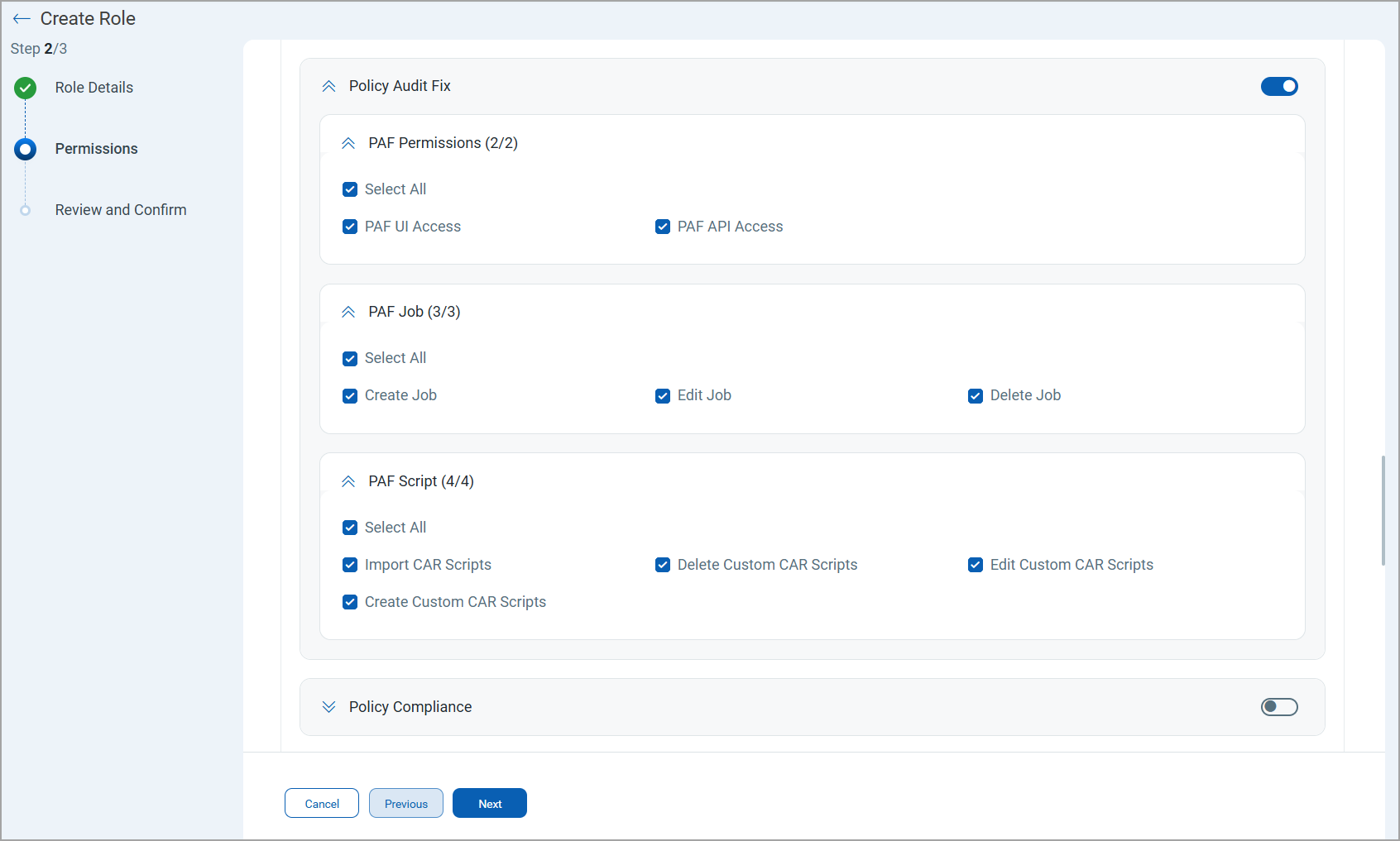
For more details on creating a custom role in the Administration application, refer to the Overview of Roles and Permissions section in the Online Help.
Search Assets by Criticality Score Using QQL Token
With this release, you can use the new asset.criticalityScore QQL token in the Posture tab to filter assets based on their Asset Criticality Score (ACS). This helps you quickly identify assets with a specific criticality score and prioritize compliance assessment and remediation activities accordingly.
Examples:
Show assets with a criticality score 5
asset.criticalityScore:5
Show assets with a criticality score 2
asset.criticalityScore:2
Support for New Authentication Technologies
With this release, we have introduced the following new Authentication technologies:
- Oracle WebLogic Server 15c
- PingFederate
Oracle WebLogic Server 15c
Oracle WebLogic Server 15c technology is supported for Policy Audit authenticated scans using scanners and agents. This technology is now available for use at the following places, at both the scanner and the agent:
- Policy Editor
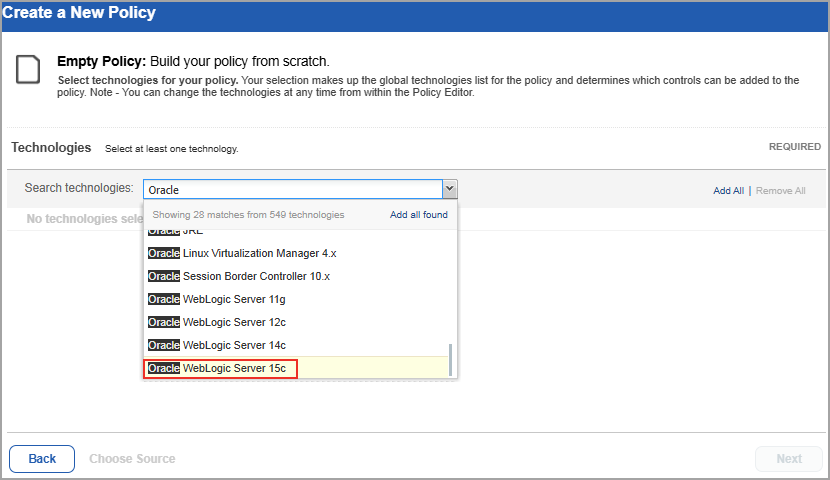
When you create or edit a policy, Oracle WebLogic Server 15c is now available in the list of supported technologies.
- Search Controls
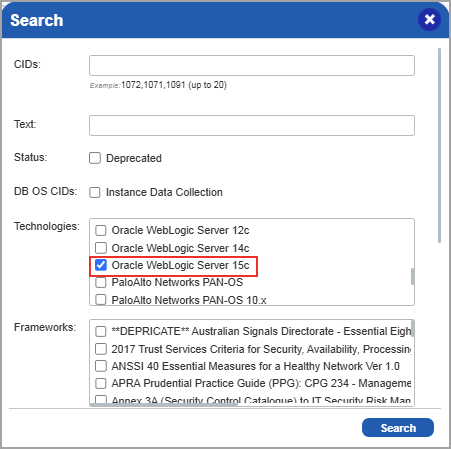
When you search for controls, you see Oracle WebLogic Server 15c in the list of technologies. Go to Policies > Controls > Search and under Technologies, select Oracle WebLogic Server 15c in the list.
- Authentication Report
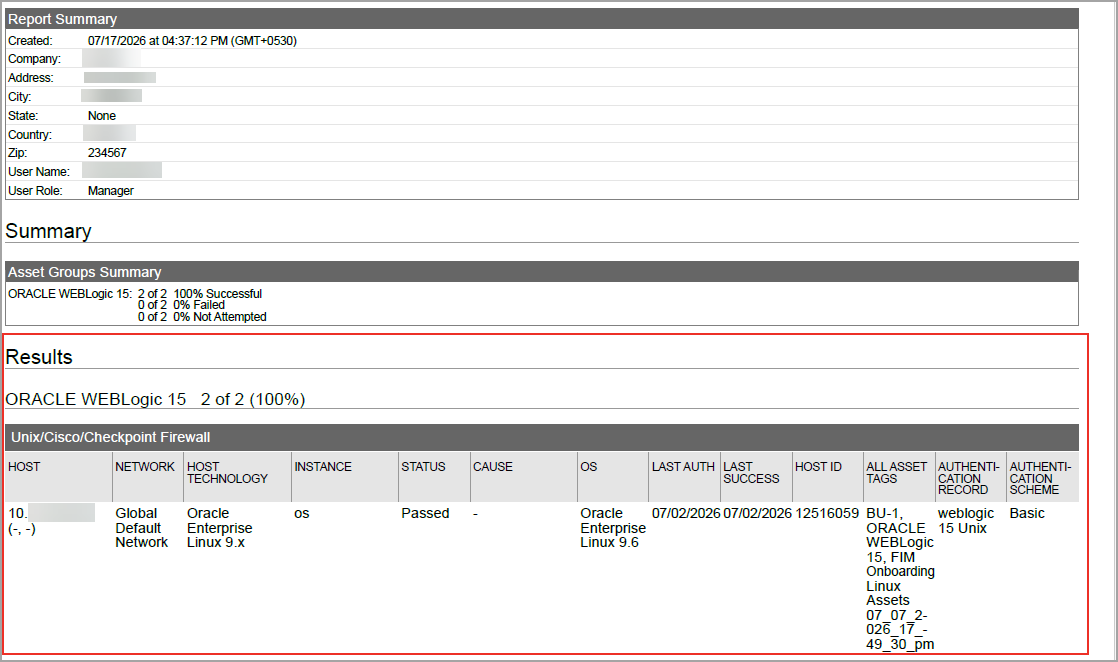
You can view the Oracle WebLogic Server 15c in the authentication report. In the Results section of the report, the Oracle WebLogic Server 15c details are displayed.
- Scan Results
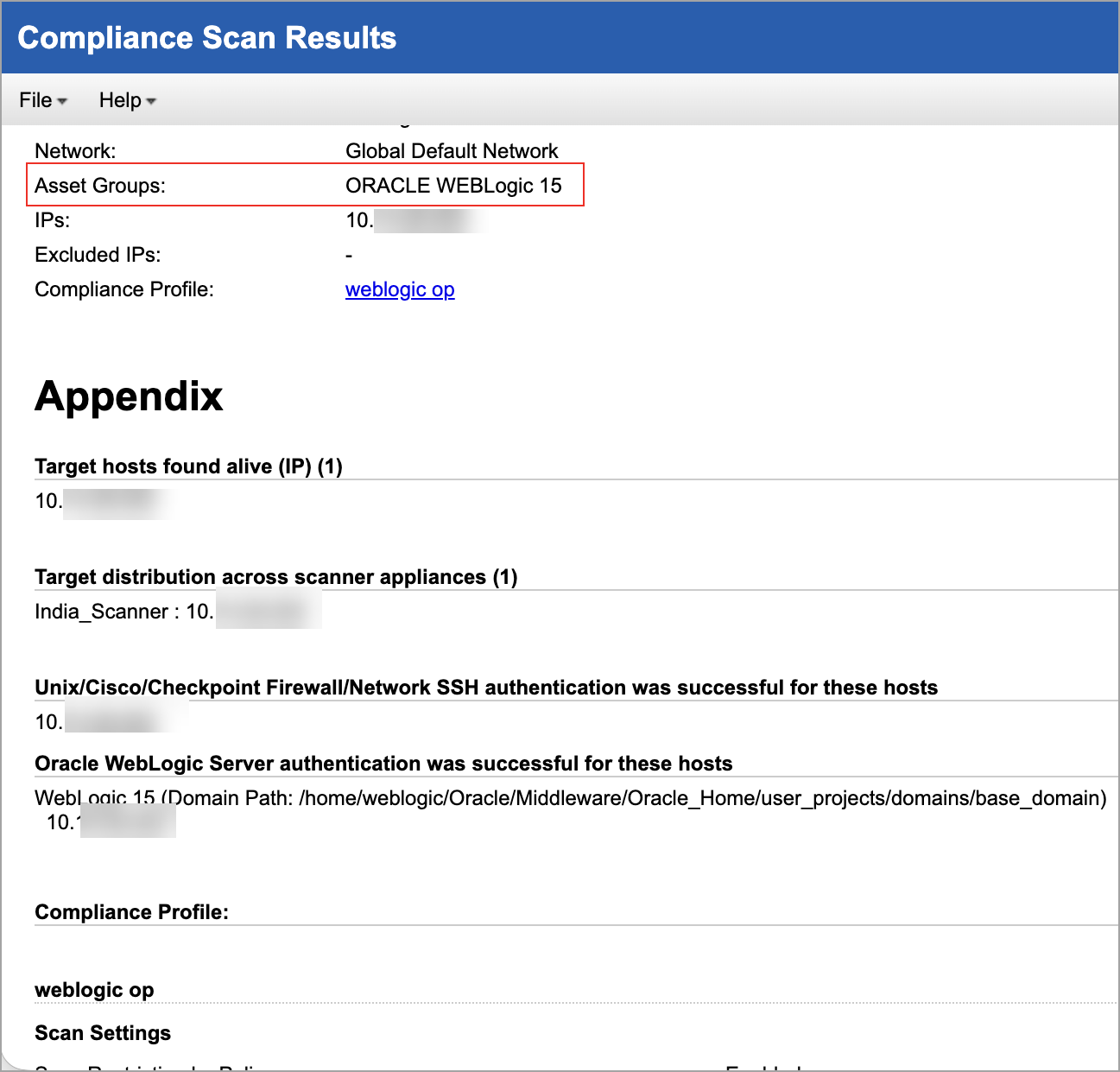
Oracle WebLogic Server 15c is now listed under Application technologies found based on OS-level authentication in the Appendix section of a compliance scan result.
Middleware Asset
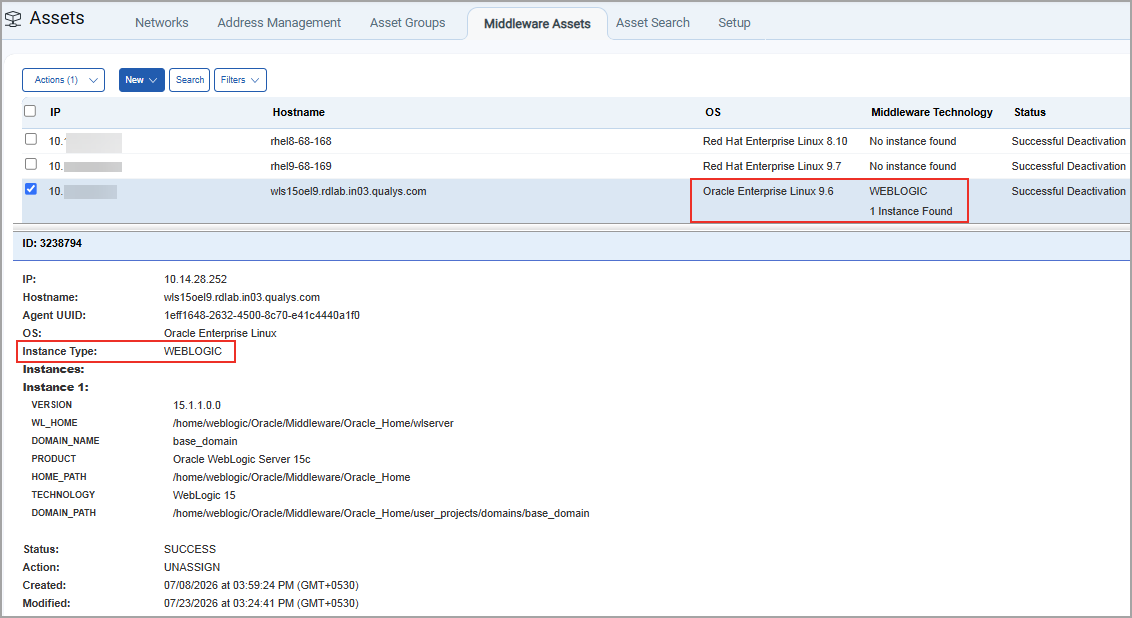
If you are using Cloud Agent for Policy Audit (PA), Oracle WebLogic Server 15c is auto-discovered by the Cloud Agent. When a Oracle WebLogic Server is detected on a host by an agent scan, it is displayed on the PA > Assets > Middleware Assets.
Sample Report
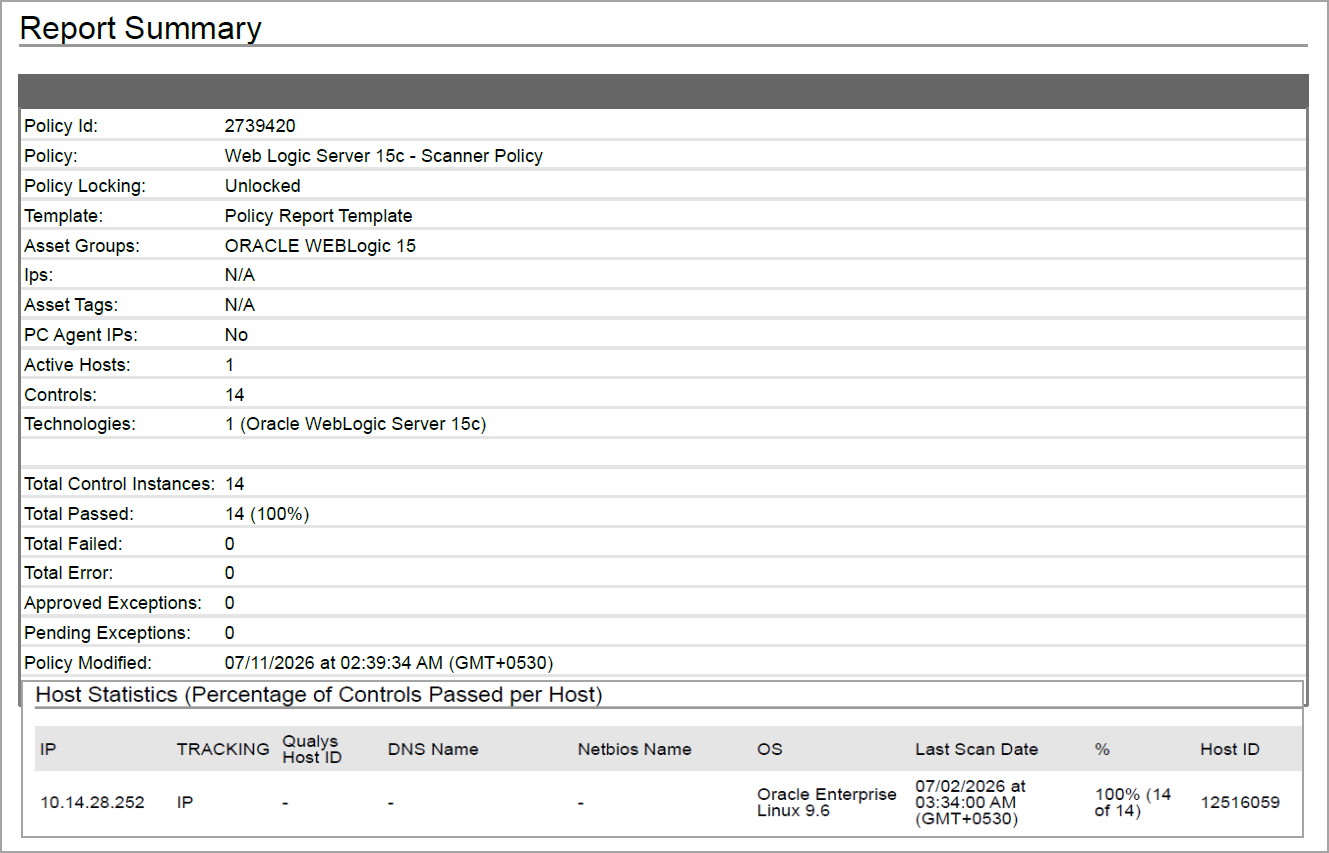
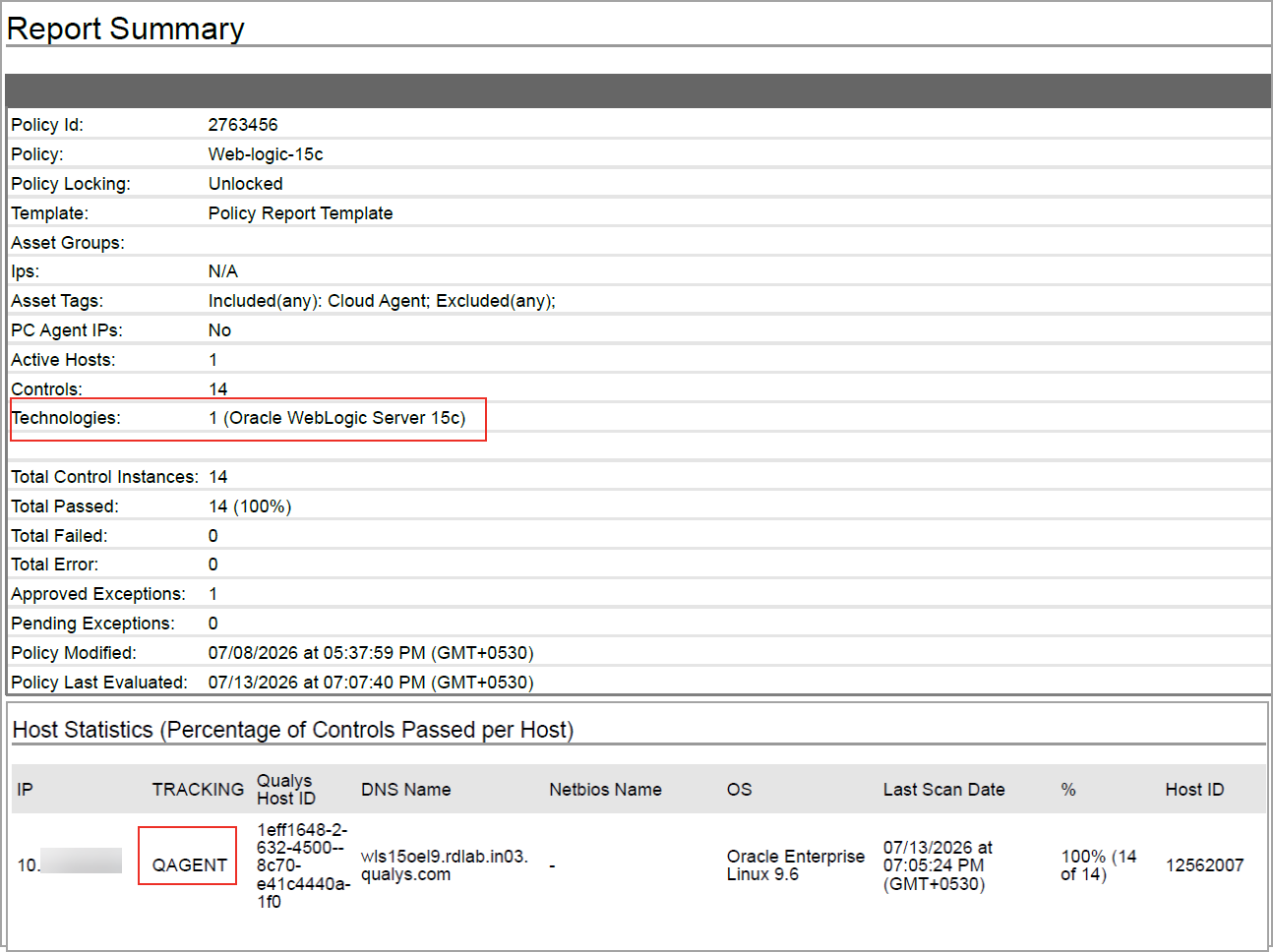
The sample report displays the tracking method and the instances for the scanner and the agent.
-
Scanner
In Compliance Reports, you can view the instances of Oracle WebLogic Server 15c for scanned hosts. The sample report displays the scanner's tracking method as IP with an instance of Oracle WebLogic Server 15c.
-
Agent
In Compliance Reports, you can view the instances of Oracle WebLogic Server 15c for scanned hosts. The sample report displays the tracking method for the agent as AGENT with an instance of Oracle WebLogic Server 15c.
PingFederate
PingFederate technology is supported for Policy Audit authenticated scans using scanners and agents. This technology is now available for use at the following places, at both the scanner and the agent:
- Policy Editor
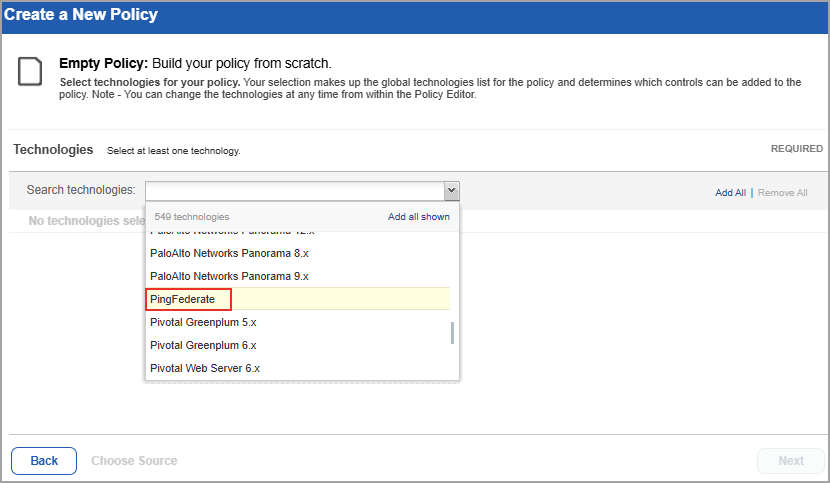
When you create or edit a policy, PingFederate is now available in the list of supported technologies.
- Search Controls
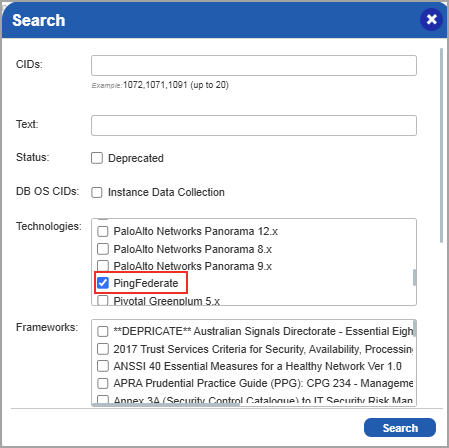
When you search for controls, you see PingFederate in the list of technologies. Go to Policies > Controls > Search and under Technologies, select PingFederate in the list.
- Authentication Report
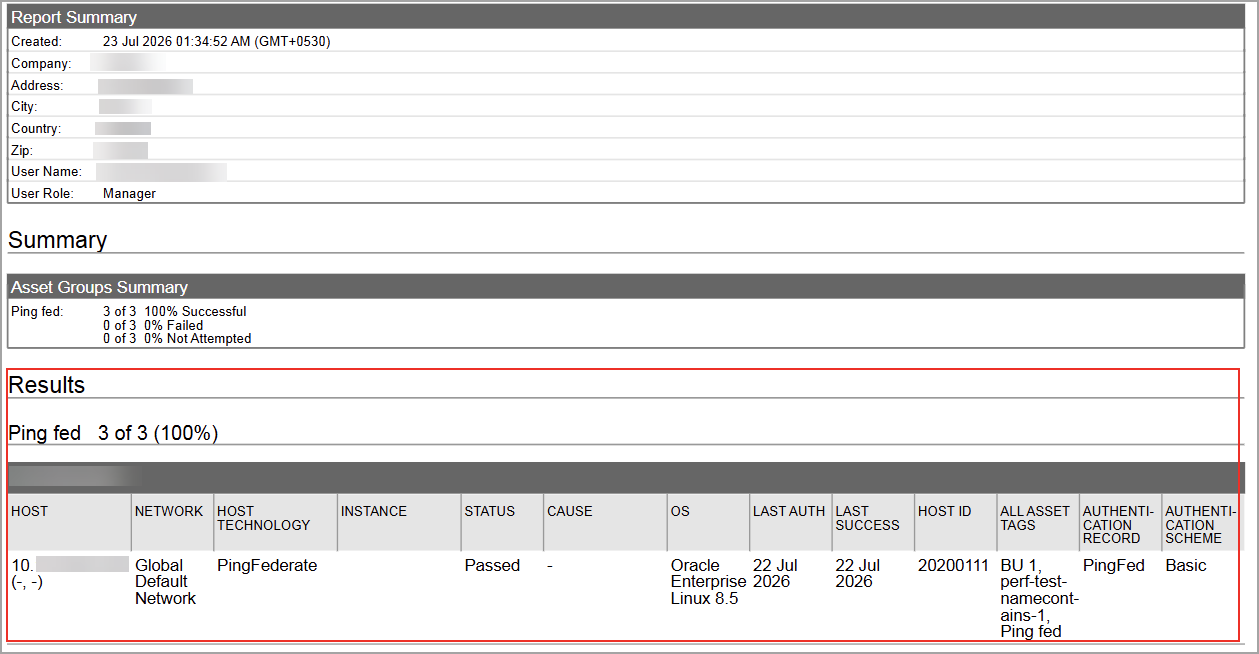
You can view the PingFederate in the authentication report. In the Results section of the report, the PingFederate details are displayed.
- Option Profile
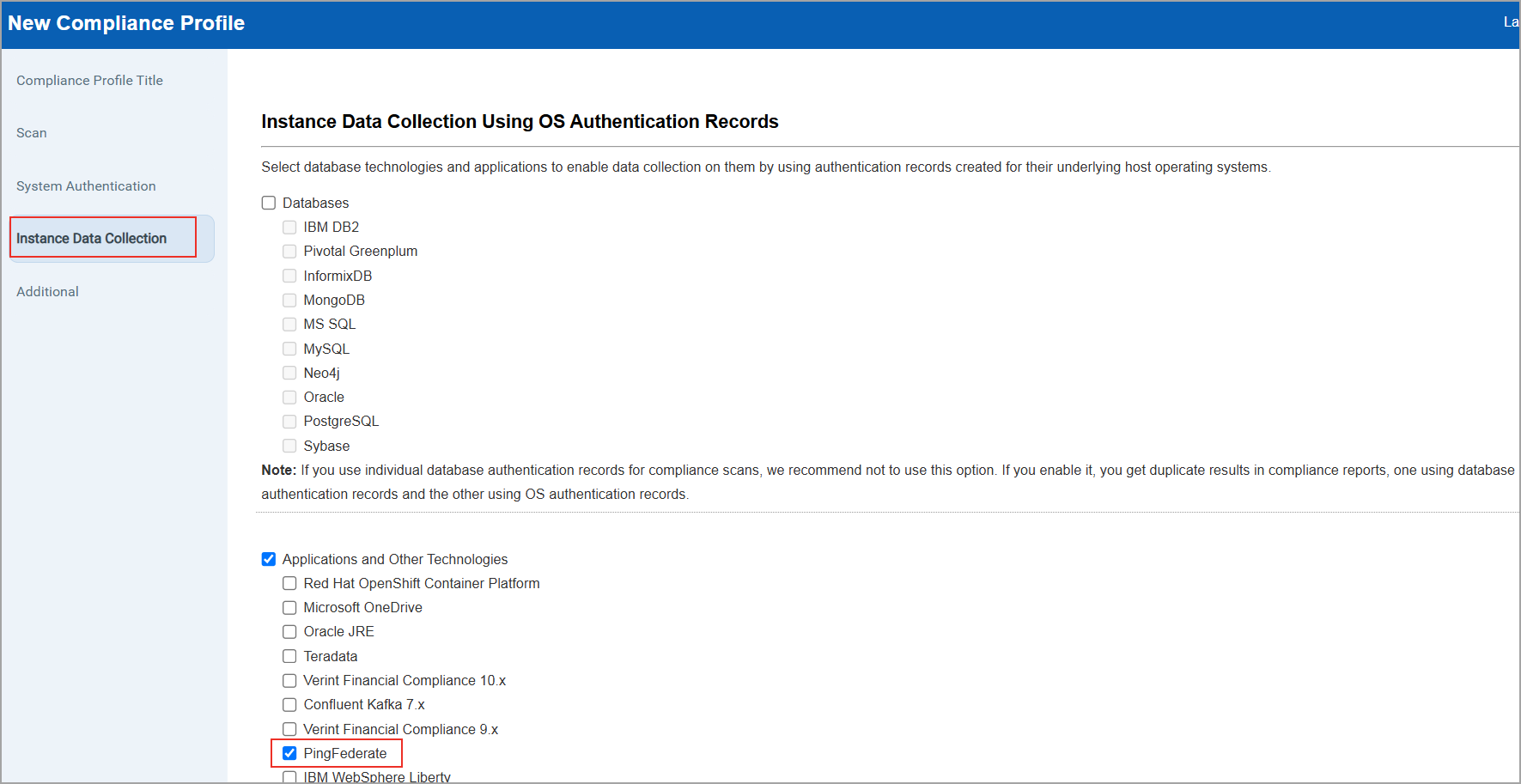
Make sure you have enabled the OS Authentication-based Technology option. Under Scans, select Option Profiles > New > Compliance Profile > Instance Data Collection. PingFederate is available under Application and Other Technologies.
- Scan Results
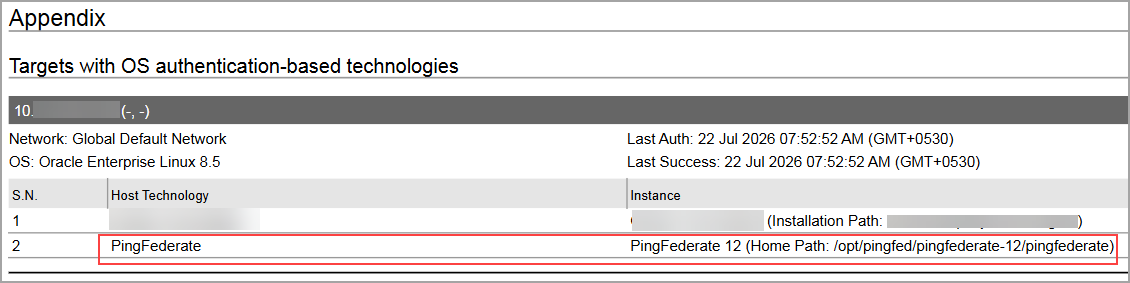
PingFederate is now listed under Application technologies found based on OS-level authentication in the Appendix section of a compliance scan result.
Middleware Asset
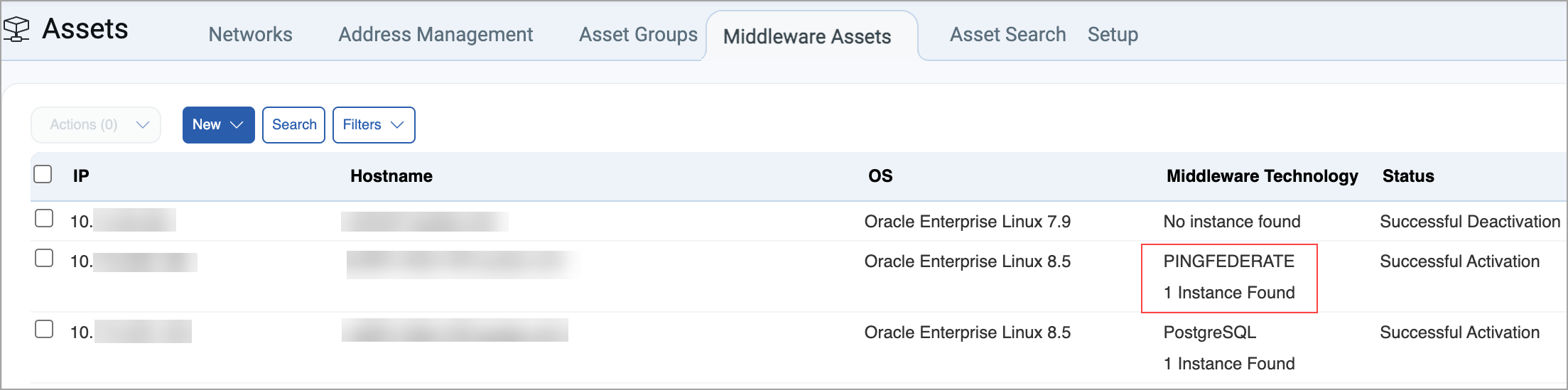
If you are using Cloud Agent for Policy Audit (PA), PingFederate s auto-discovered by the Cloud Agent. When a PingFederate is detected on a host by an agent scan, it is displayed on the PA > Assets > Middleware Assets.
Sample Report
The sample report displays the tracking method and the instances for the scanner and the agent.
-
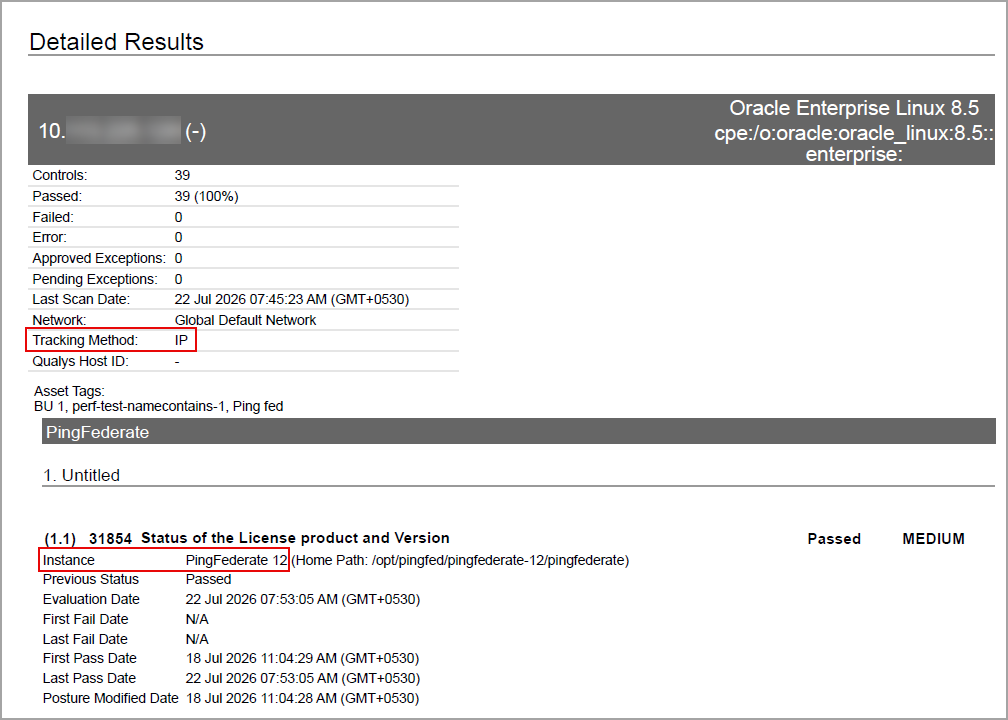
Scanner
In Compliance Reports, you can view the instances of PingFederate for scanned hosts. The sample report displays the scanner's tracking method as IP with an instance of PingFederate.
-
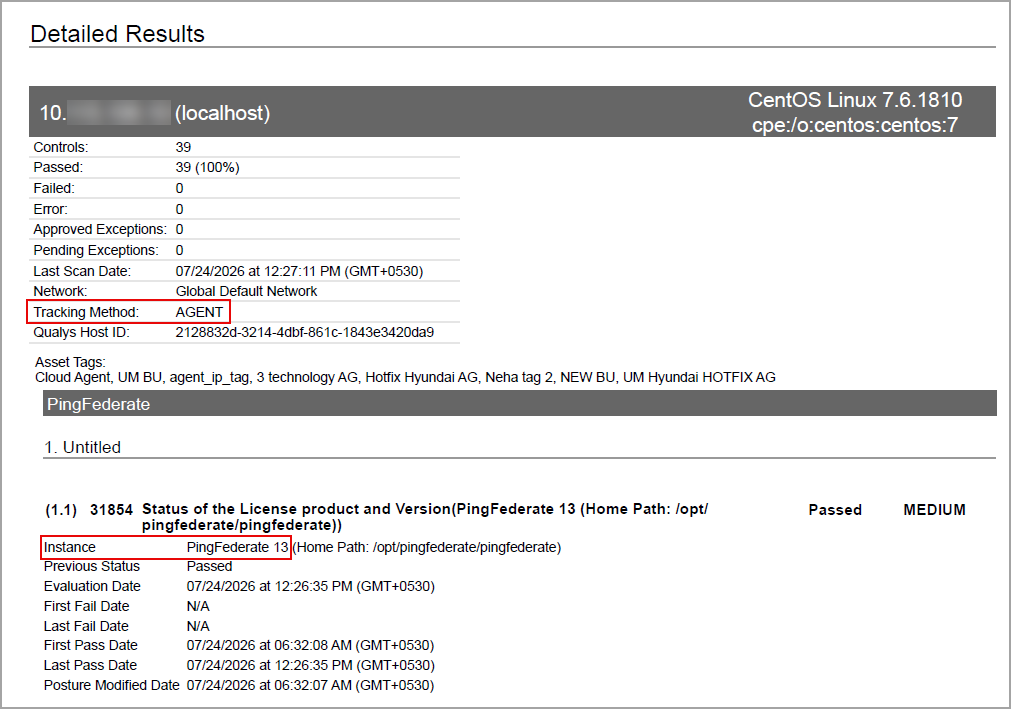
Agent
In Compliance Reports, you can view the instances of PingFederate for scanned hosts. The sample report displays the tracking method for the agent as AGENT with an instance of PingFederate.
Cloud Perimeter Scan Support for Oracle Cloud Infrastructure
You can now discover and scan Oracle Cloud Infrastructure (OCI) assets using Cloud Perimeter Scan. Previously, Cloud Perimeter Scan supported AWS, Azure, and Google Cloud Platform (GCP), requiring organizations with OCI workloads to use separate processes to identify and assess exposed OCI resources. This enhancement extends Cloud Perimeter Scan support to OCI, enabling a consistent vulnerability management experience across major cloud platforms.
Cloud Perimeter Scan now supports OCI compute instances, allowing you to discover and assess OCI assets using the same workflows available for other supported cloud providers. With the OCI support, Qualys strengthens its multi-cloud security posture, allowing you to seamlessly secure workloads across AWS, Azure, GCP, and OCI from a single platform.
With this enhancement, you can:
- Launch Cloud Perimeter Scans for OCI environments.
- Select OCI connectors when configuring Cloud Perimeter Scans.
- Include IP addresses associated with OCI Load Balancers and Application Gateways in perimeter scans.
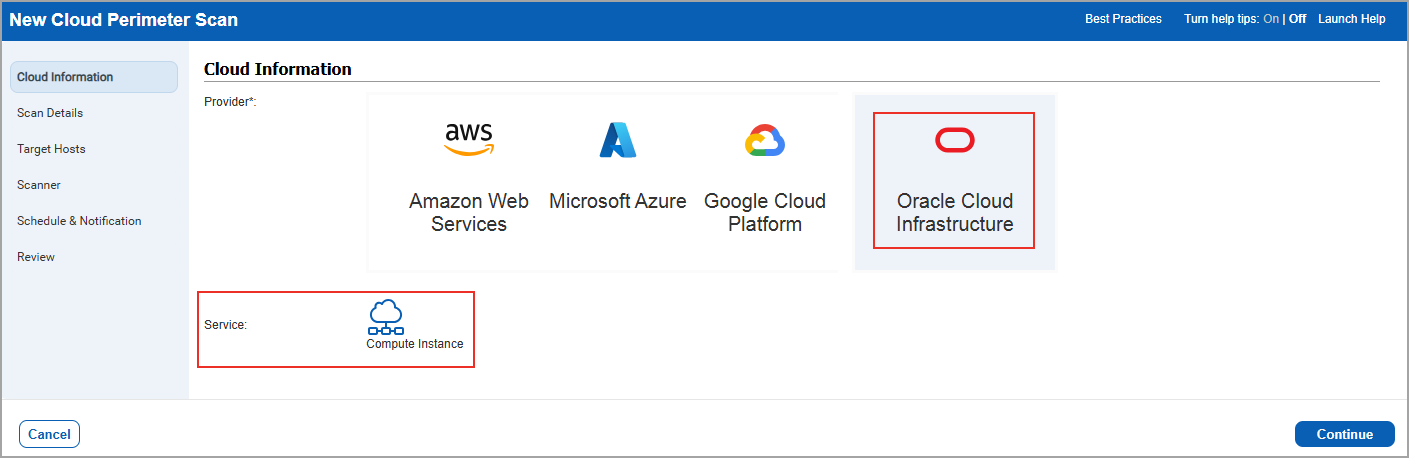
You can configure OCI Cloud Perimeter Scan by navigating to Scans > New > Cloud Perimeter Scan > Cloud Information > Oracle Cloud Infrastructure. You can create or update OCI Cloud Perimeter Scans. Once you launch the scan, you can generate the reports and it supports all file formats such as PDF, DOCX, CSV and XML.
Benefits
- Discover and scan OCI assets using the same Cloud Perimeter Scan workflow available for AWS, Azure, and GCP.
- Generate reports for OCI assets using existing Qualys reporting workflows.
- Gain visibility into supported OCI resources, including compute instances, load balancers, and application gateways.
- Use a consistent scanning, reporting, and management experience across major cloud providers.
Update - Policy Creation using Compliance Framework
We previously introduced the ability to create policies using controls mapped to Compliance Frameworks, enabling quick alignment with industry standards such as CIS, DISA, and others for accurate compliance posture evaluation.
This feature previously required contacting your Technical Account Manager (TAM) or Qualys Support to enable. It is now enabled by default for all users.
For more details on the feature, refer to the Automated Policy Creation using Compliance Framework section in UI Release Notes for release 1.5.
Issues Addressed
The following reported and notable customer issues are fixed in this release:
| Component/Category | Description |
| PA - Reports | When the user attempted to generate a Control Chaining Policy Report, some previously imported policies were not displayed in the policy selection dropdown. This issue occurred when the policies were imported into the subscription before they were disabled in the Policy Library. Although the imported policies remained active in the users subscription, they were unavailable for selection when generating the report. Relevant code changes have been made to fix the issue. |
| PA - Scan Processing | When the user performed a Policy Audit scan on an asset that had a valid Agent Correlation ID, the existing Agent Correlation ID could be cleared if the scan results did not include the correlation ID. As a result, the Cloud Agent asset and the corresponding scanner-detected asset were not merged as expected, causing duplicate asset entries to appear. Relevant code changes have been made to fix the issue. |
| PA - Reports | When the user attempted to generate a Policy Audit report using the Group by Control option, the report generation process consistently stopped when the progress reached 5%. Relevant code changes have been made to fix the issue. |
| PA - Scan | When the user configured multiple scheduled compliance scans with identical target IP ranges to run within a short time interval, the scans were initiated successfully. However, the results of the second scan were incorrectly marked as discarded and were not processed, resulting in the loss of scan data. Relevant code changes have been made to fix the issue. |
| PA - Scan Processing | When the user added assets to an Asset Group with tags included in the asset scope, the expected tags were not assigned to the associated assets, resulting in incorrect asset tagging. Relevant code changes have been made to fix the issue. |