Policy Audit Release 1.9
March 12, 2026
Update - View QDS in Downloaded Reports
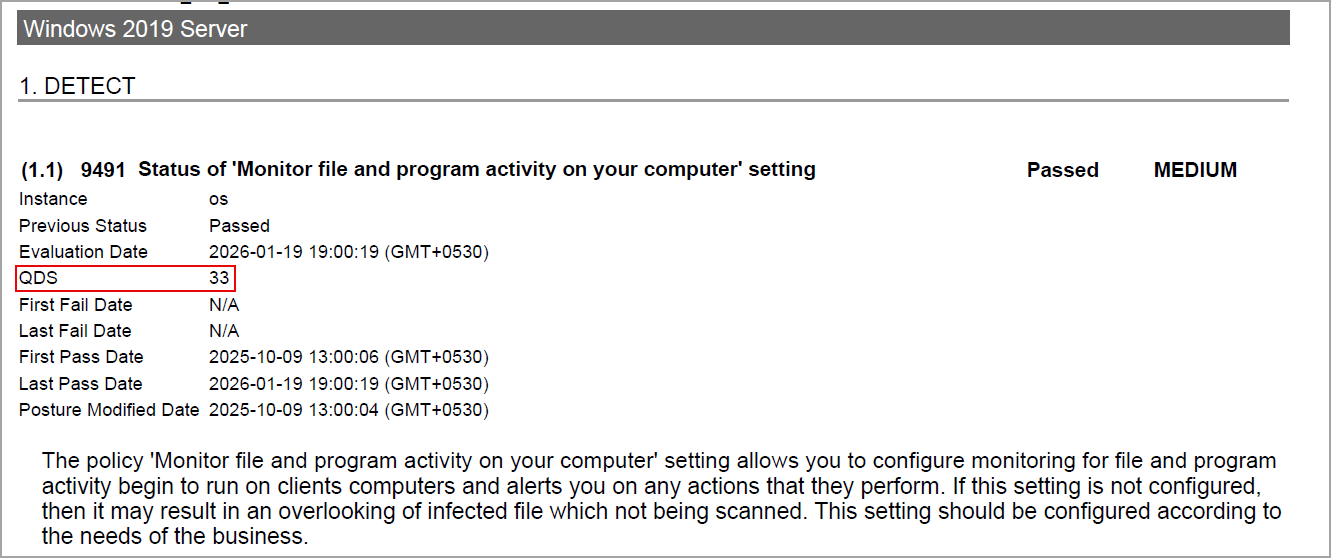
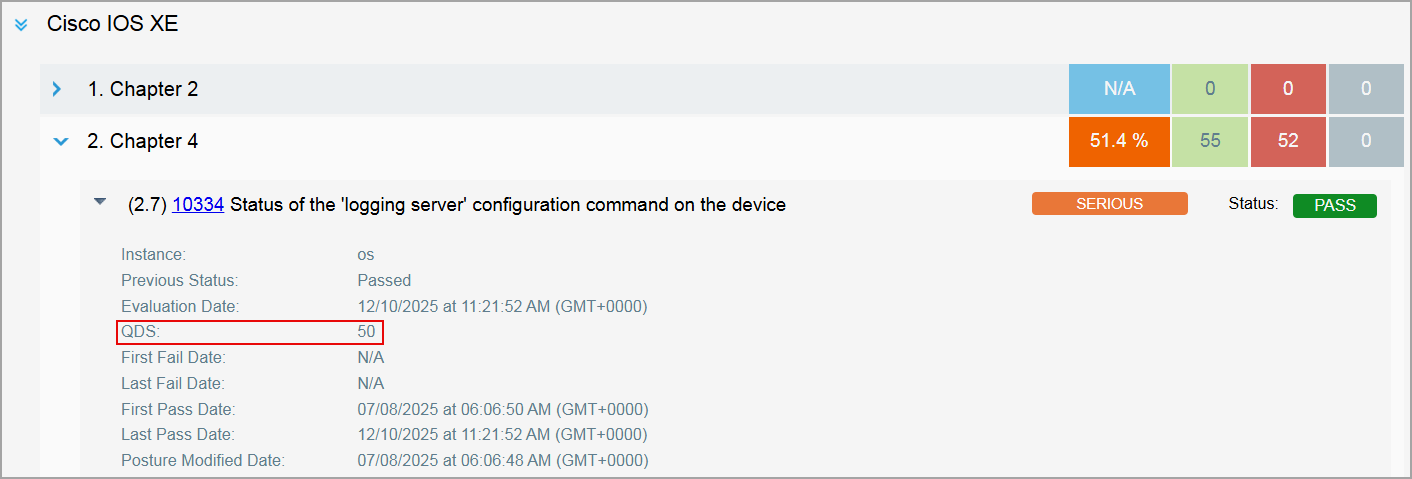
In the previous release, we introduced the feature to display the Qualys Detection Score (QDS) in the downloaded CSV reports. With this release, we have extended support to view QDS in PDF, HTML, and XML formats report.
To enable the QDS column in the downloaded reports:
- Navigate to Reports > Templates.
- Select New > Policy Template > Layout.
- Under Score, select the QDS checkbox.
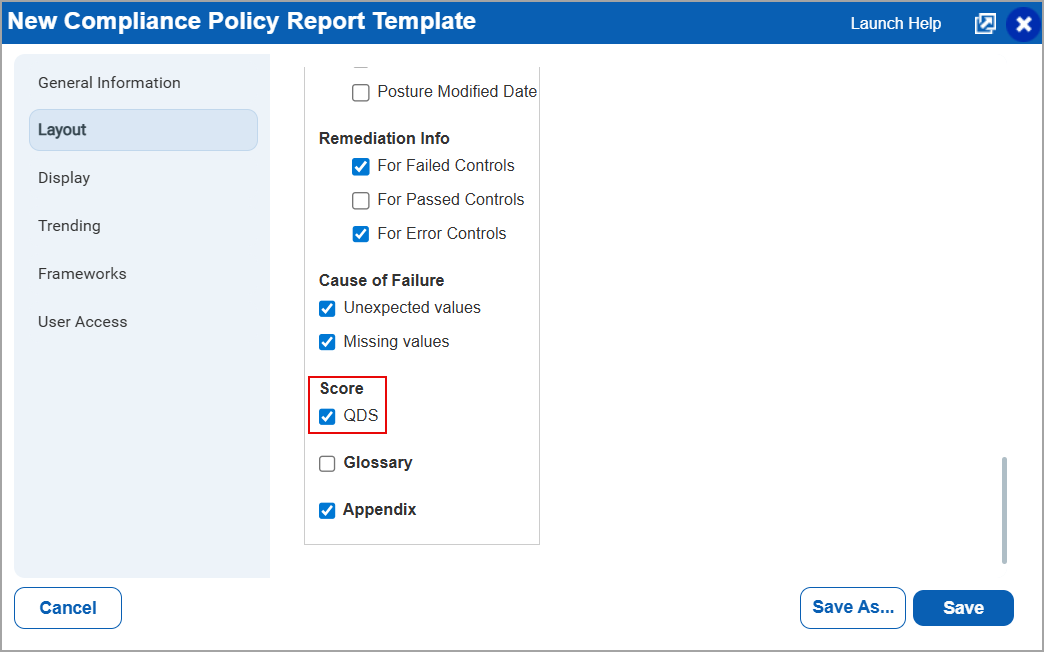
The QDS information is included in the downloaded report.
By default, the QDS option is not selected.
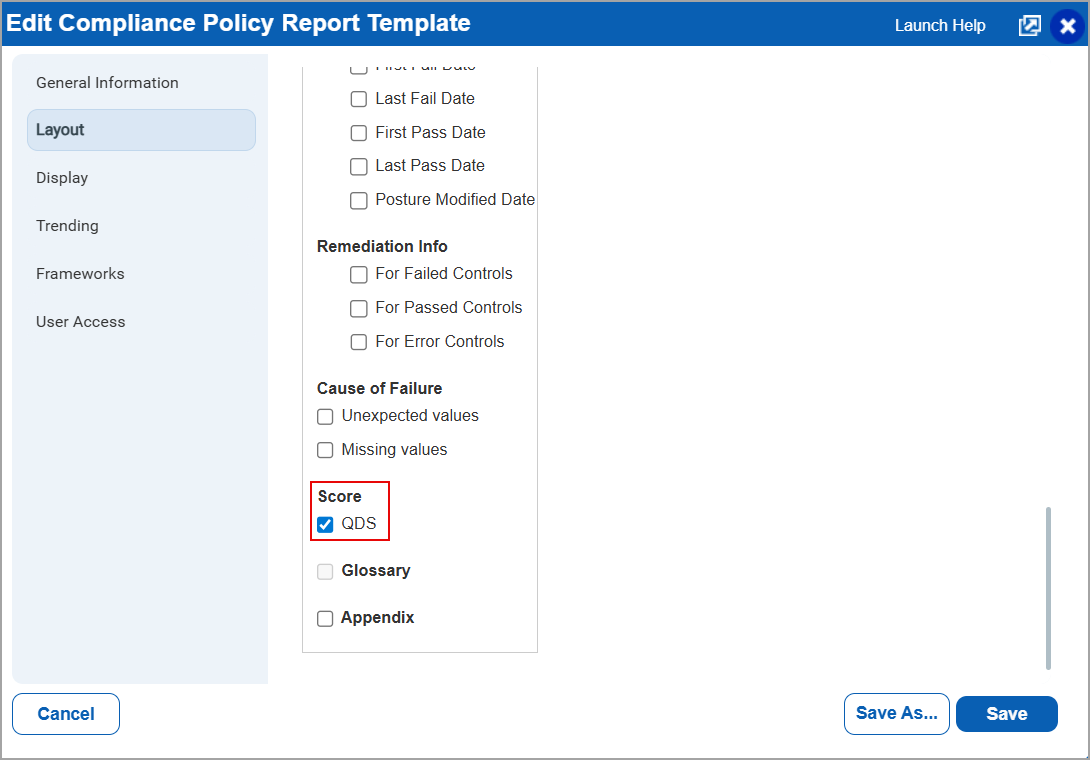
You can also edit existing Policy Report Templates to display the QDS information. To do so, refer to the following information:
- Navigate to Reports > Templates.
- Select a report template > Quick Actions > Edit.
- In the Edit Complation Policy Report Template dialog box, select Layout > under Score, enable QDS.
- Select Save.
QDS displayed in PDF report format.
QDS displayed in HTML report format.
QDS displayed in XML report format.
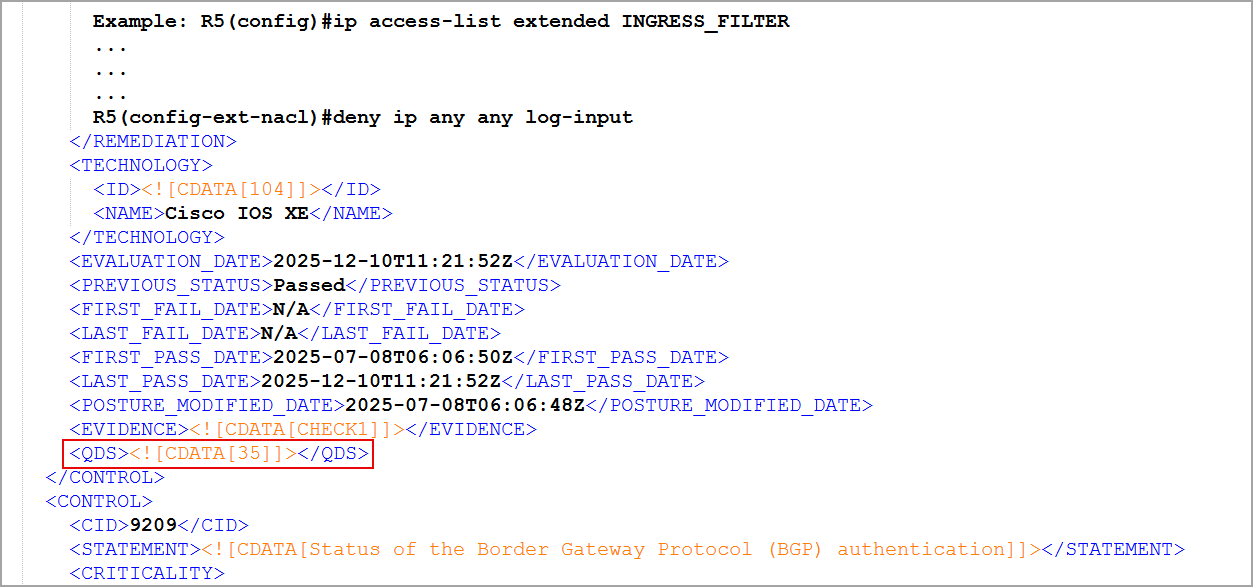
- The QDS option is displayed only for the Policy templates Group by Host and Group by Control options.
- To enable this feature for your account, contact your TAM or Qualys support.
- For details on viewing QDS in CSV report format, refer to the View QDS in Downloaded CSV Compliance Reports section in the UI Release Notes 1.7.
View Posture Count Details in Activity Logs
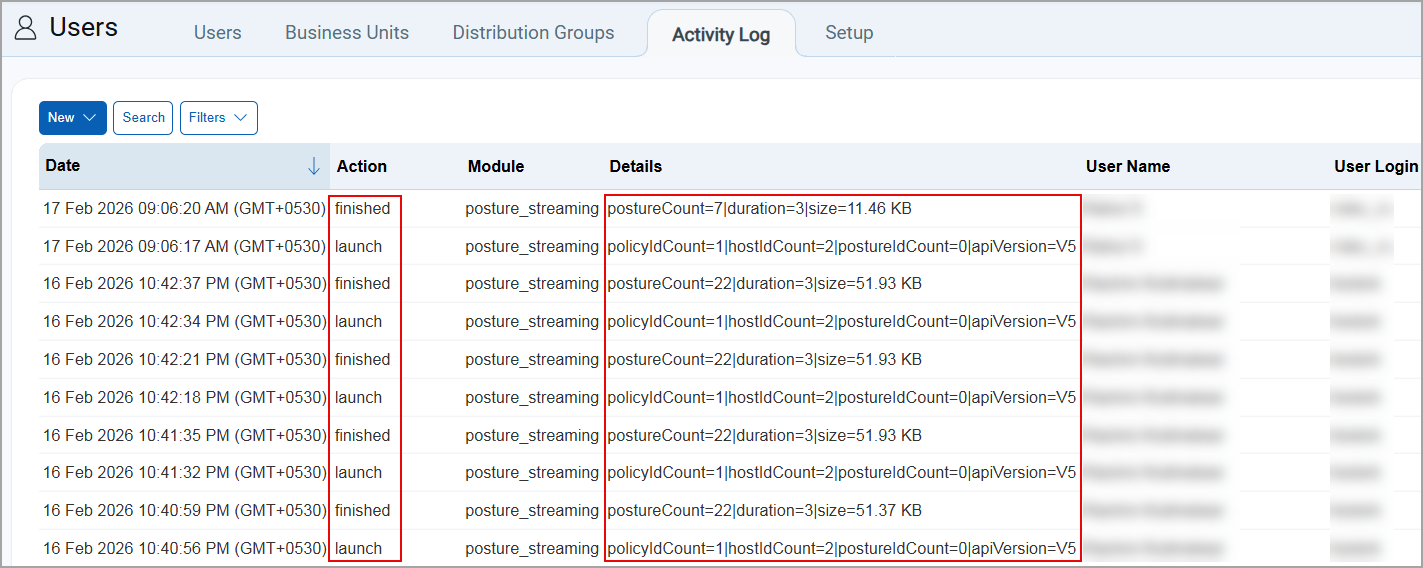
With this release, you can view the total count of postures (Posture Count) for a user in the Activity Logs tab under Users. This helps in understanding how many postures associated with a policy a particular user is compliant with.
In the Activity Logs tab, different details are displayed based on the action type, Finished and Launch.
- Launch indicates that the posture operation is in progress. The log displays the total number of policy IDs, host IDs, and the API version used to perform the operation.
- Finished indicates that the posture operation has completed. The log displays the posture count, completion duration, and policy size.
This feature is supported only for version 5.0 of the Posture Info API.
- For details on the Posture Info API V5.0, refer to the Get Posture Info API page in the API User Guide.
- To enable this feature for your account, contact TAM or Qualys Support.
Issues Addressed
The following reported and notable customer issues are fixed in this release:
| Component/Category | Description |
| PA | When the user accessed the Scans page in the Policy Audit application and selected Launch Help, a 404 Not Found error was displayed due to an incorrect help link. Relevant code changes have been made to fix the issue. The link has been updated with the correct one. |
| PA - Policy Editor | When the user tried to create a new policy using hosts, the page became unresponsive at the first step due to the large number of assets to be displayed. Relevant code changes have been made to fix the issue. |
| PA - Reports | When the user generated a compliance report in CSV format, the Extended Evidence column was misaligned due to Microsoft Excel’s limit of 32,000 characters per cell. Relevant code changes have been made to fix the issue. |
| PA - Exceptions | When the users created an exception, the assignee did not receive email notifications for the exception status levels pending, approved, reopened, or rejected. Relevant code changes have been made to fix the issue. |
| PA - Scan Backend | When a non-POC Manager user performed a compliance scan on an account with agent correlation enabled, agent merging did not function properly, resulting in duplicate asset entries. Relevant code changes have been made to fix the issue. |
| PA - SCAP | When the user configures an SCAP scan and adds a distribution list to it and launches an SCAP scan, the scan fails and crashes during execution. Relevant code changes have been made to fix the issue. |