Chrome Enrollment
-
Admin can distribute the Qualys Cloud Agent for Android from the MDM app store.
For your reference, here are the instructions on distribution of Qualys Cloud Agent.
- Configuring Qualys Cloud Agent Enrollment Details with Airwatch
- Configuring Qualys Cloud Agent Enrollment details with Intune
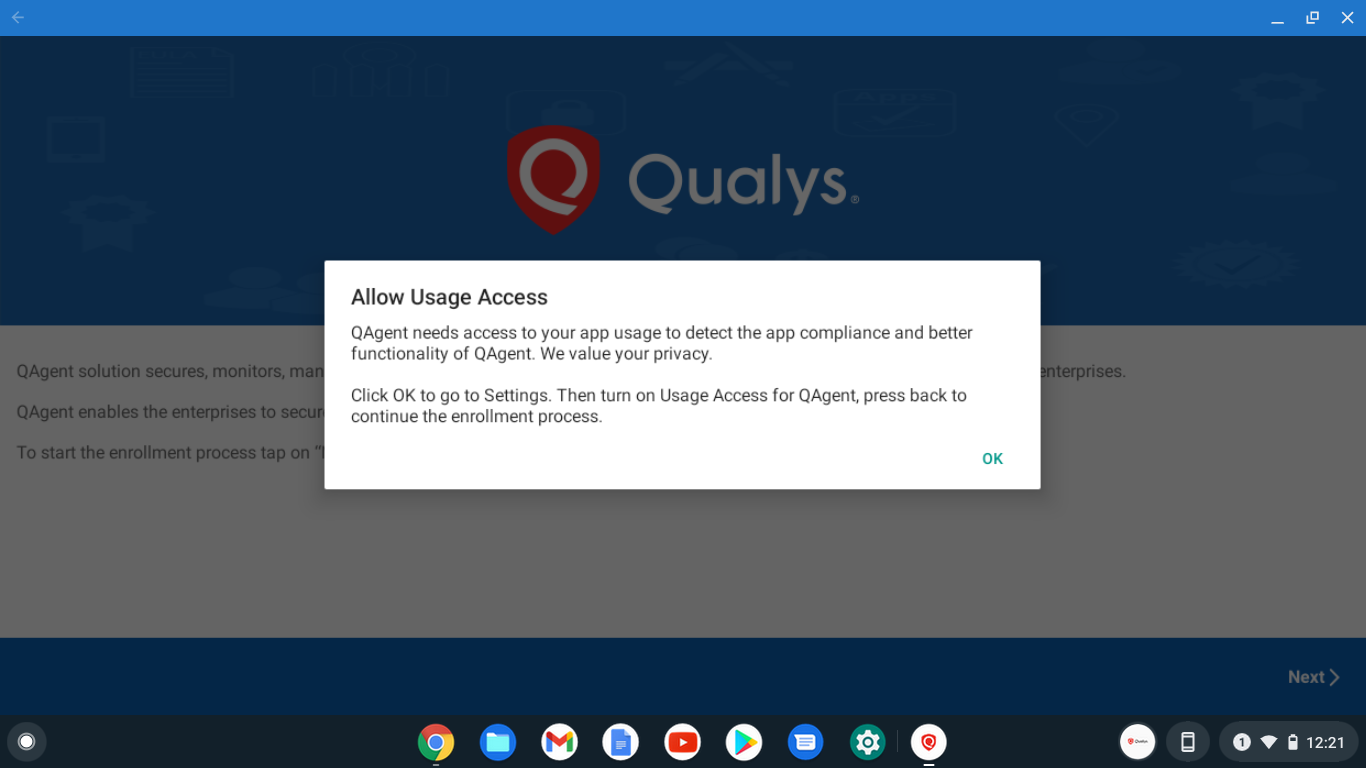
Once the Agent is successfully distributed, you need to launch the Agent (app you just downloaded). You will be prompted with the following screen. Tap Ok to allow usage access to Qualys MDM agent.
Once access is allowed, press back button of phone to continue the enrollment process and follow the instructions to allow other required permissions. Tap Next to continue.
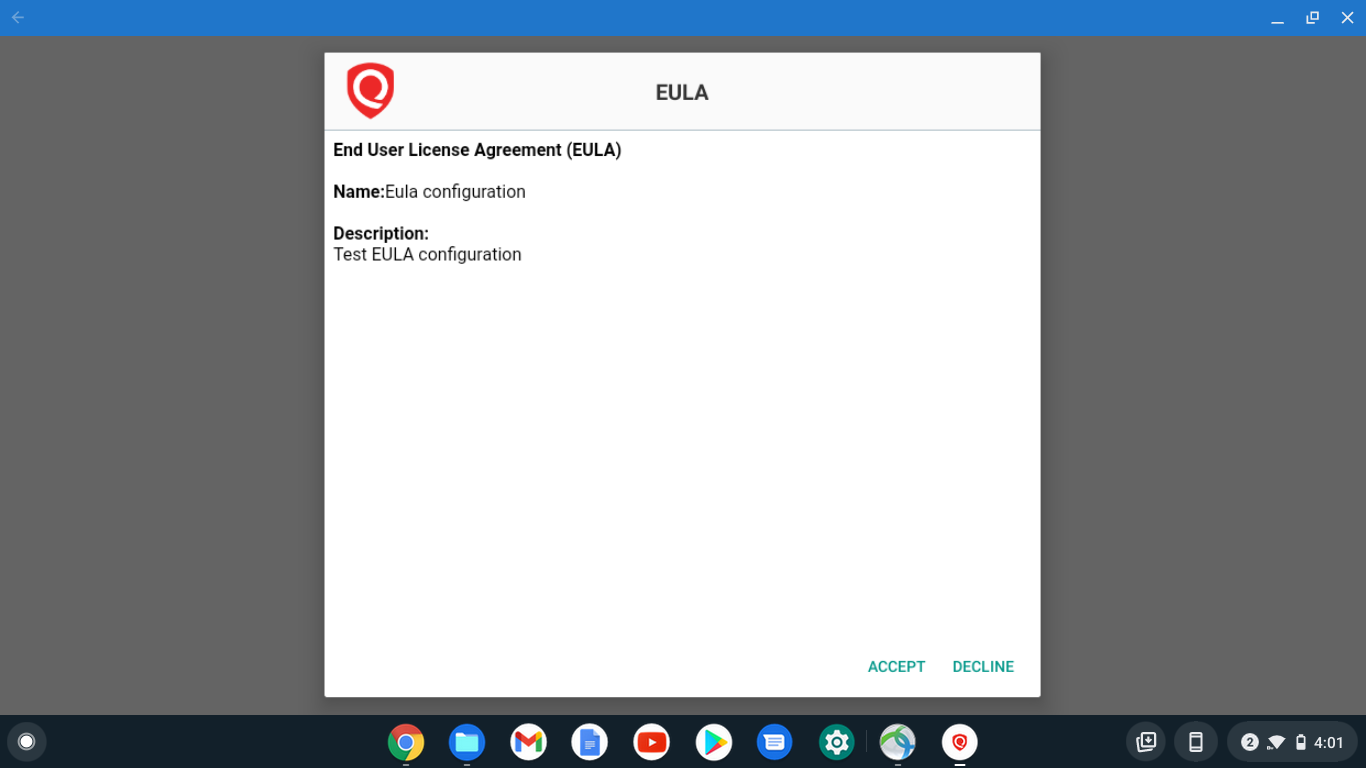
- If EULA is not configured for your organization, you will be redirected to step 3. If EULA is configured and you have already accepted it, then you will be redirected to step 3, else you will be presented with a EULA. If you decline the EULA, you will not be able to enroll the device.
-
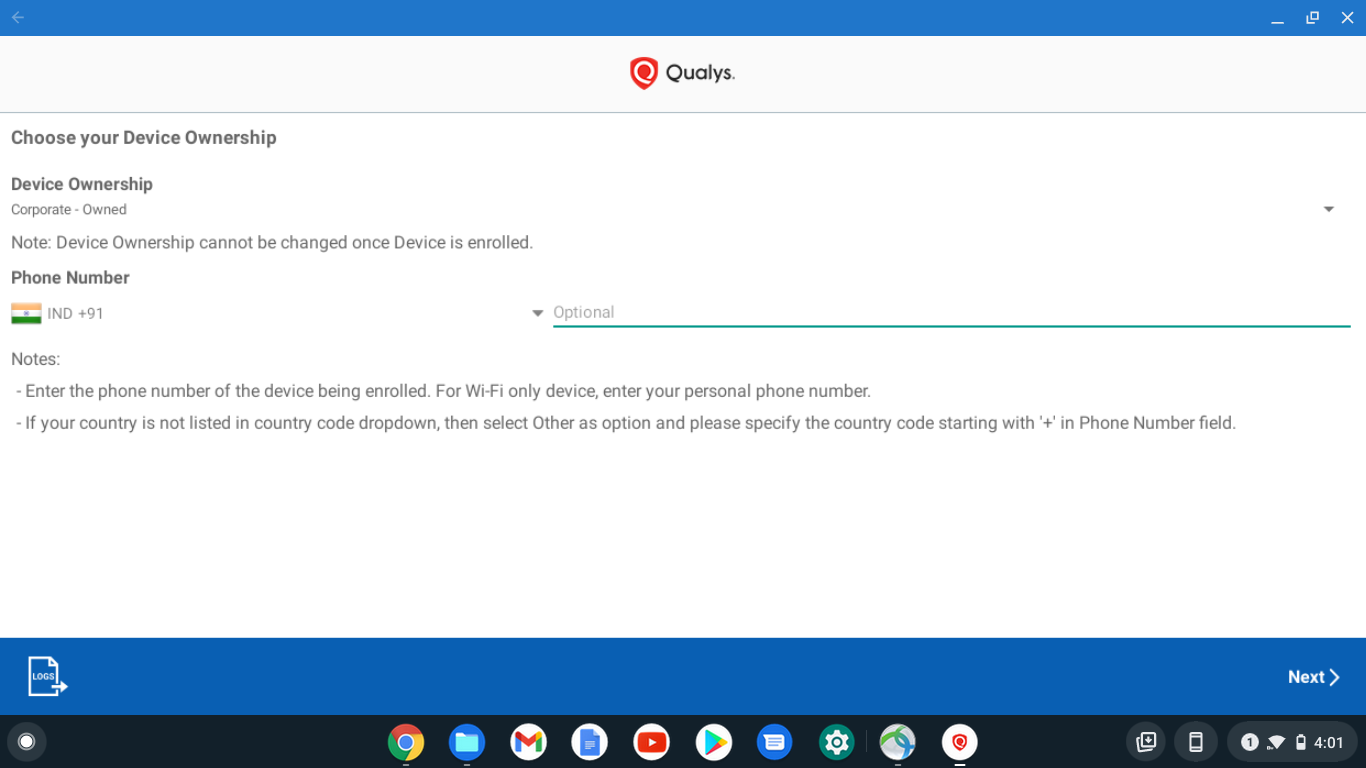
If your organization has set Default Ownership, then Device Ownership drop-down will be read-only. Otherwise, you will need to select the Device Ownership.
If the device is owned by Organization, select Corporate - Owned. If it is not owned by Organization, select Employee - Owned.
Enter your phone number in the space provided.
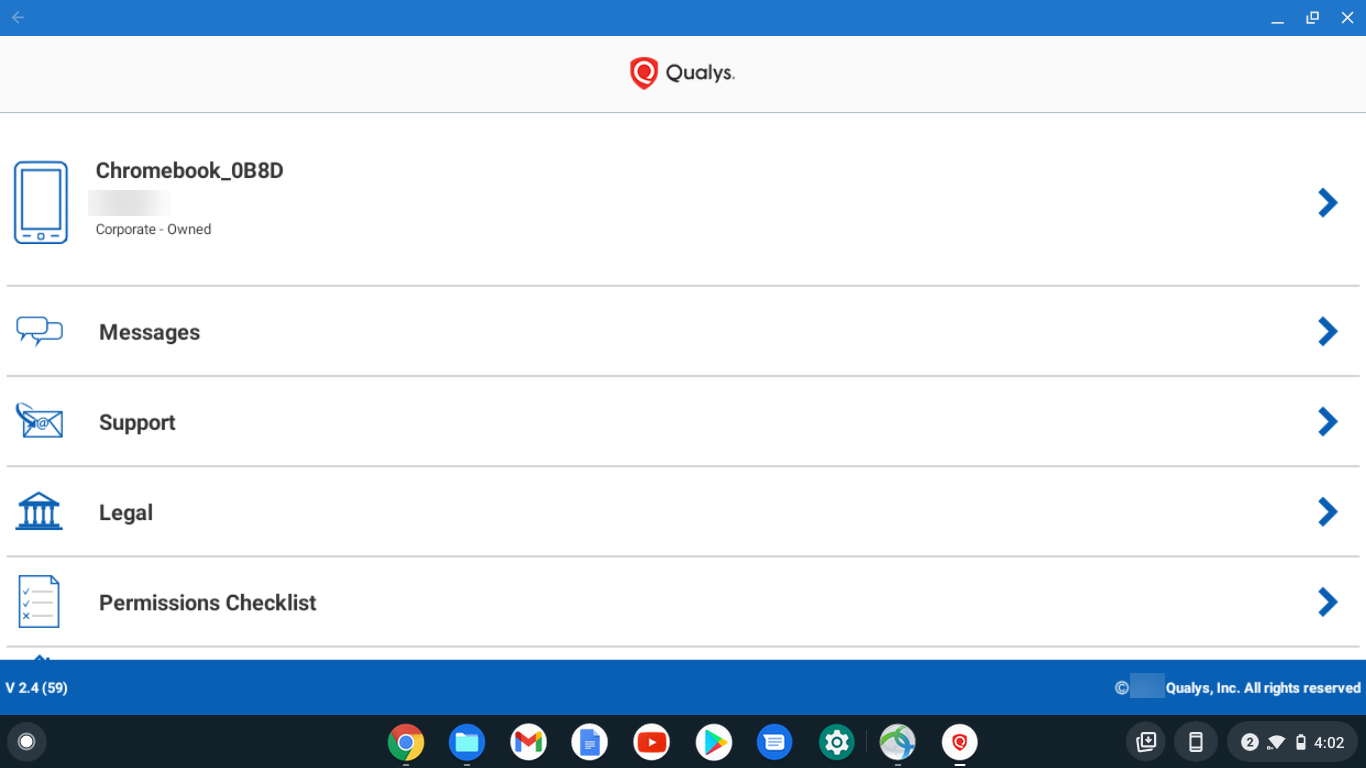
- Once your device is successfully configured with your Organization server, you’ll be redirected to the following screen.