Creating Asset Tags in VMDR OT
Asset tagging helps to organize assets in your organization. You can apply tags manually or configure rules, but it isn't automatically classifying your assets in logical, hierarchical, business-contextual groups. The most powerful use of tags is accomplished by creating a dynamic tag. Dynamic tag automatically assigns tags to the assets based on search criteria in the dynamic tagging rule.
On the Tags tab, you can view a list of various tags applied to the assets and the option to create a new tag.
You need permissions related to tagging activities. There are various permissions like Create User Tag | Edit User Tag| Delete User Tag |Modify Dynamic Tag Rules| Add/Remove Tags.
Create a Tag
Configure tags to apply them to assets.
To create tags, follow these steps:
- Navigate to Tags and click Create Tag.
- Enter the Basic Details and Tag Properties for your tag.
- Give your tag a name.
- Select Mark as Favourite if you want to create a tag as favourite. Favourite is displayed with yellow star in the list.
- (optional) Add a description for your tag.
Asset Criticality ScoreAsset Criticality Score
This score represents the criticality of the asset to your business infrastructure.
- You can set the asset criticality score between 1 to 5. Score 1 being the lowest criticality and 5 being the highest criticality assigned to an asset, when selected.
- If you don't select asset criticality score, by default the asset criticality score '2' will be applied to that asset.
For more information on ACS, refer to Asset Criticality Score (ACS).
You can change the criticality score from tags, but it doesn't get applied immediately to assets. The changed criticality score gets applied only after the next scan.
Set Tag Color:
Color coding is a great way to organize tags. You can assign different colors to different tag.
Select Parent Tag:
When creating a child tag, you can select a parent tag from existing tags in your account.
To select an existing tag, click Select and then choose a tag from the Select Tags pop-up.
You can also create a new tag for a parent.
Click Create and, again similar form to create a tag display. You can not create a new parent from this new tag.
- (Optional) Set up a dynamic tag type.
If there is no dynamic rule, your tag will be saved as a static tag.
There are two types of tags - Static and Dynamic.
By default, static tag is created. Dynamic tag allows you to define Tag Rules.
You can select Evaluate Rule on Creation check box to evaluate dynamic rule once it is created or updated.
These rules help to identify the assets to apply tags.
Rule Description Container Security Applies the tag to container assets that match the specified container asset type. You can provide the image or container query for defining assets. Asset Name Contains Applies the tag when any part of the asset name contains the substring(s) you enter. Use the "|" (vertical bar) to separate multiple substrings without spaces. Business Information Applies the tag to assets based on business information attributes. Asset Inventory Applies the tag to assets from CyberSecurity Asset Management. Asset Inventory tag rules are available only if you have the following subscription:
- VMDR (Trial/Purchase) + GAV/CSAM (Trial/Full)
- Non-VMDR/VM + CSAM (Trial/Full)IP Address In Range(s) Applies the tag to assets with an IP in the range you enter (e.g. 172.31.254.0-172.31.254.25 or 172.31.254.0/25). IP Address In Range(s) + Network(s) Applies the tag to assets with an IP address in the specified range and belonging to the specified network(s). Network Addresses Applies the tag to assets that match the specified network address criteria.
Available criteria: IPv4, IPv6, DNS, and NetBIOSOpen Ports Applies the tag to assets whose port listing matches the ports you enter (for example: 80,123). Asset Search Applies the tag to assets based on search results using a custom query. Vulnerability Detection Searches Applies the tag to vulnerabilities or detections that match the vulnerability detection query you enter. Select assets in your account to test the rule.
- A green color Pass tells you the asset matches the rule.
- A red color Fail tells you the asset does not match the rule.
- Click Create to save the tag. When you save your dynamic tag, it is applied to all discovered assets that match your defined rule. You can filter the assets list to show only those that match your new tag rule.
When you save your static tag, you can apply it to your asset from the Assets tab.
Create a Dynamic Tag
For example, let us create a dynamic tag based on the passive sensor id.
To create, follow these steps:
- Enter the basic details.
- Navigate to Tags > Create Tag.
The Create New Tag window is displayed.
- Provide the Name for the tag.
- (Optional) Provide a Description for the tag.
- Select Mark as Favourite if you want to create a tag as a favourite.
The favourite tag is displayed with a yellow star in the list.
- Navigate to Tags > Create Tag.
- (Optional) Configure Tag Properties.
You can assign different colors to different tags for better organization of the tags.
-
If you are creating a child tag, you can Select Parent Tag from existing tags in your account or create a new parent tag.
To select an existing tag,
-
Click
 and select a tag from the Select Tags window.
-
Click Add Tags.
-
- Select Tag Type as Dynamic.
- Select Asset Inventory from the Rule list.
Here we want to tag the assets by passive sensor ID.
- Enter the query.
Keep the passive sensor Id in backticks for an exact match.
We recommend the following search queries for the Asset Inventory rule for creating dynamic tags.
Token passiveSensor.id operatingSystem passiveSensor.location hardware.category2 hardware.manufacturer hardware.model passiveSensor.name - (Optional) To test the rule of applicability on your assets, click to select assets for testing.
To check rule applicability, select the assets from the list and click Apply.
- A green color Pass tells you the asset matches the rule.
- A red color Fail tells you the asset does not match the rule.
Click Add to add another set of assets to test rule applicability. Click Remove All to clear the assets in the list.
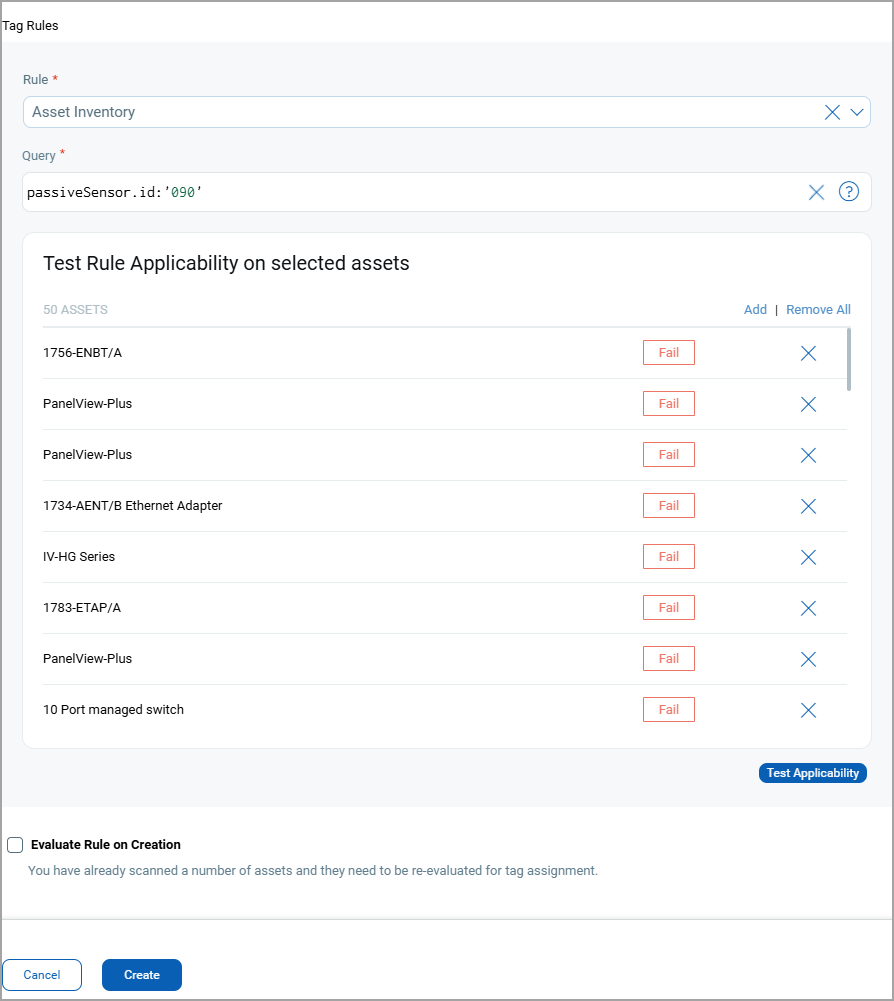
- (Optional) Select Evaluate Rule on the Creation check box to evaluate the dynamic rule once it is created or updated.
This applies to all the assets that satisfy the rule, including assets that are scanned earlier.
-
Click Create to save the tag.
Tag is created successfully.
You can view the created tag on the Tags tab.
You can also view the details of the tag on the Assets tab.