Vulnerability Details
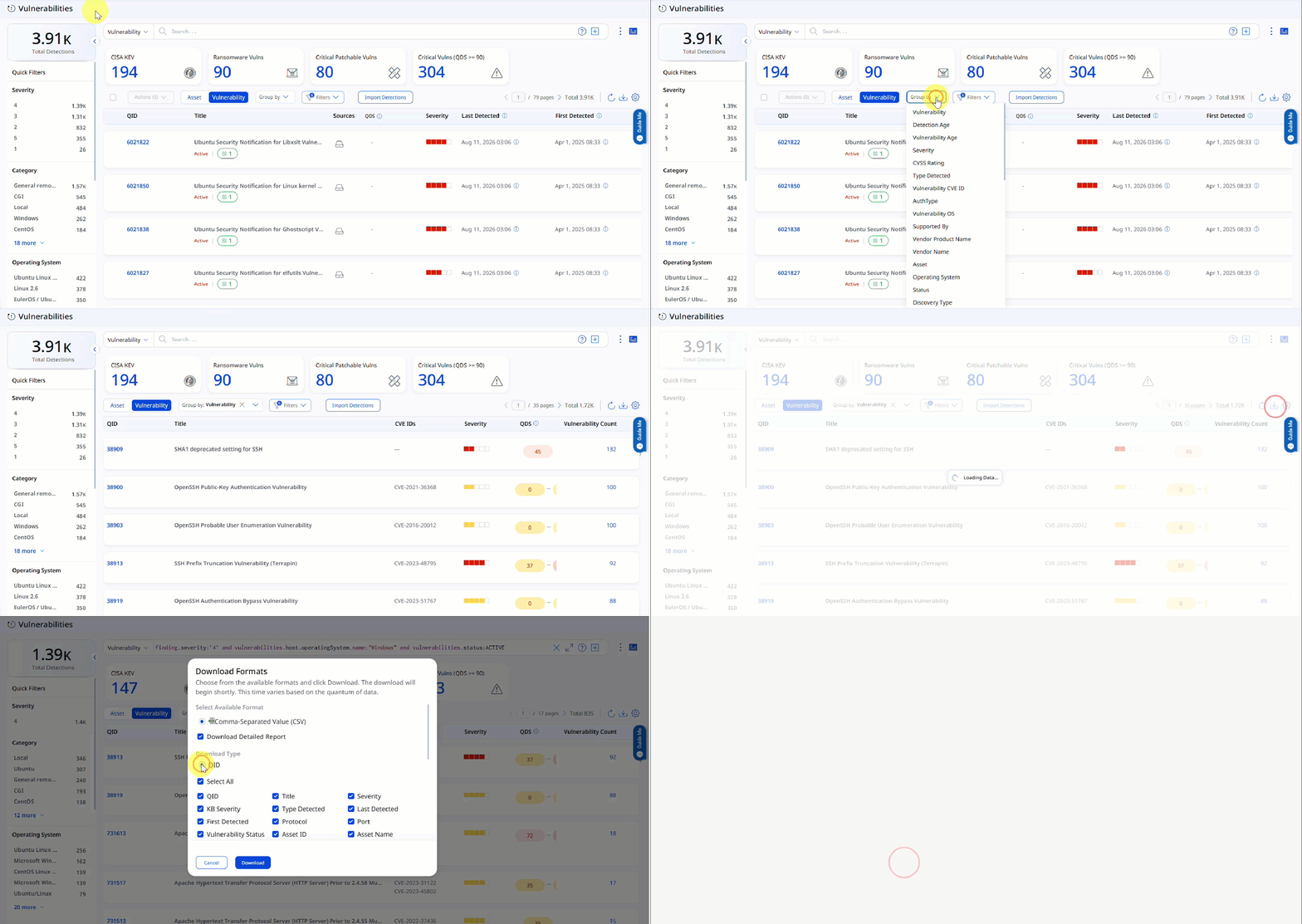
Under the Vulnerabilities tab, select Vulnerability to view the vulnerabilities detected on your assets. You can also use the various metadata filters, Group by options, and custom query capabilities.
You can download the vulnerability records if the list of vulnerabilities exceeds 200 per asset. The download is limited to 10,000 vulnerability records.
The following are some of the columns listed on the Vulnerability page:
-
QID: The QID is the unique Qualys ID number assigned to the vulnerability. The QID column lists the unique vulnerability ID.
-
Title: The Title column lists vulnerabilities detected on the assets.
-
QDS: The QDS column lists the score that Qualys has assigned to a detection. This score is the Qualys Detection Score (QDS) and can range from 1 to 100, categorized into four severity levels. For more information, refer to Understanding Qualys Detection Score.
-
Severity: The Severity column depicts the severity of the vulnerability. The severity value can be set by the user and by Qualys. For information about customer and Qualys severity, refer to Customer and KB Severity Level.
-
Asset: The Asset column shows the asset name on which the vulnerability was detected. Click the asset to view the asset details.
-
Tags: The Tags column lists the tags you applied to assets. For more information about adding tags to the list in the Tags column, refer to Add Tags.
Add or Remove Columns
You can add or remove columns on the Vulnerability tab in the VMDR module to customize the table view to suit your needs.
To add or remove columns on the Vulnerability tab, on the menu bar, click Settings  > Columns, then select or clear the checkboxes, as required.
For example, on the Vulnerability tab, to display the Title, Sources, and Severity columns, click Settings > Columns, and then select these checkboxes. The selected columns appear in the table on the Vulnerability tab. Also, you can clear the checkboxes for the columns you do not want to display. To know more about this functionality, refer to Asset Details.
The column QID on the Vulnerability tab remains unchanged. You may add or remove the other columns as required, apart from the QID column.
View Vulnerability Details
From the QID column, select the QID to view the complete vulnerability information.
-
Detection Summary: It displays asset details, tags, vulnerability results, vulnerability description, and detection logic.
-
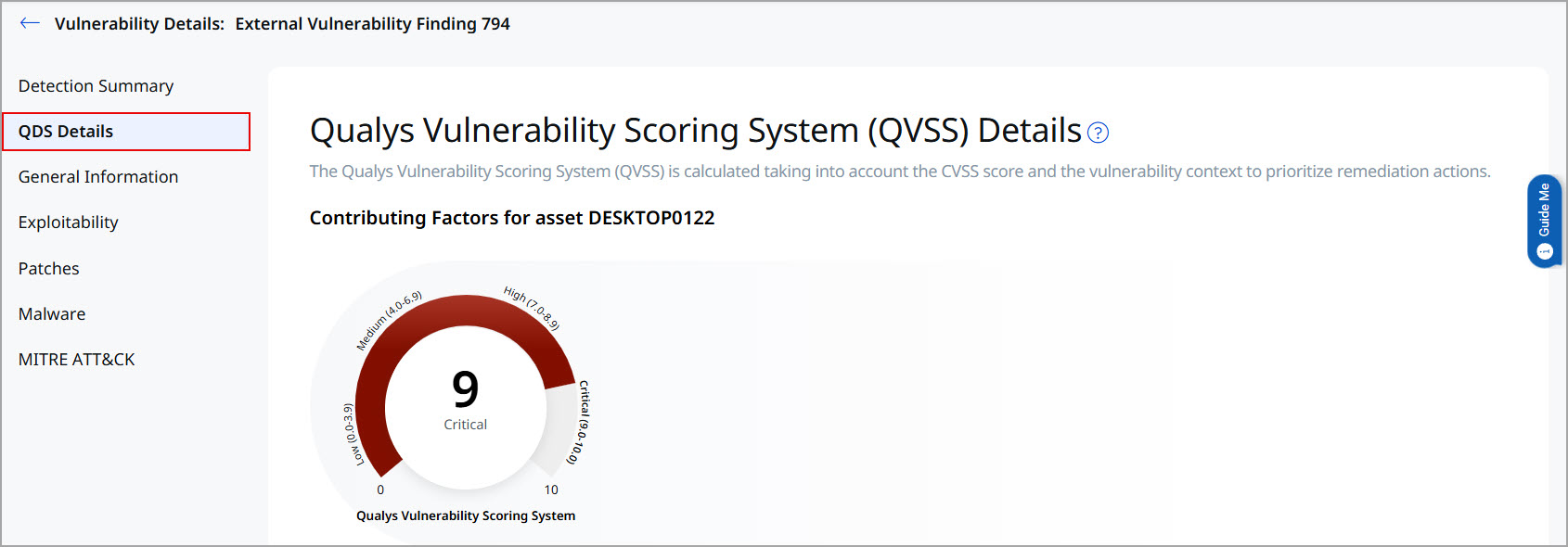
QDS Details: It displays the Contributing Factors for an asset. The QDS contributing factors for an asset are:
- Highest Contributing CVE: Click the CVE number, and the Additional Insights will display the Technical Attributes, Recency, and Remediation.
- Associated Malware and Threat Actors: Click on the Malware count to view the data in the Additional Insights section.
- Exploitability: It displays the date when the exploitability recently trended. The Recency section of the Additional Insights graph displays the time when the CVE trended.
- Additional Insights: When you click Additional Insights, it displays more information about the vulnerability's Technical Attributes, Temporal Attributes, Trending, and Remediation.
Search Vulnerability Details
The Vulnerabilities tab provides an integrated, incremental search and browse experience to help you find information about all your assets.
Search Vulnerability or Asset
In the Vulnerabilities page, click Vulnerability to display vulnerability data or Asset for asset data. You can easily browse the data list and explore details. For example, click the QID 105170 to view details for that vulnerability.
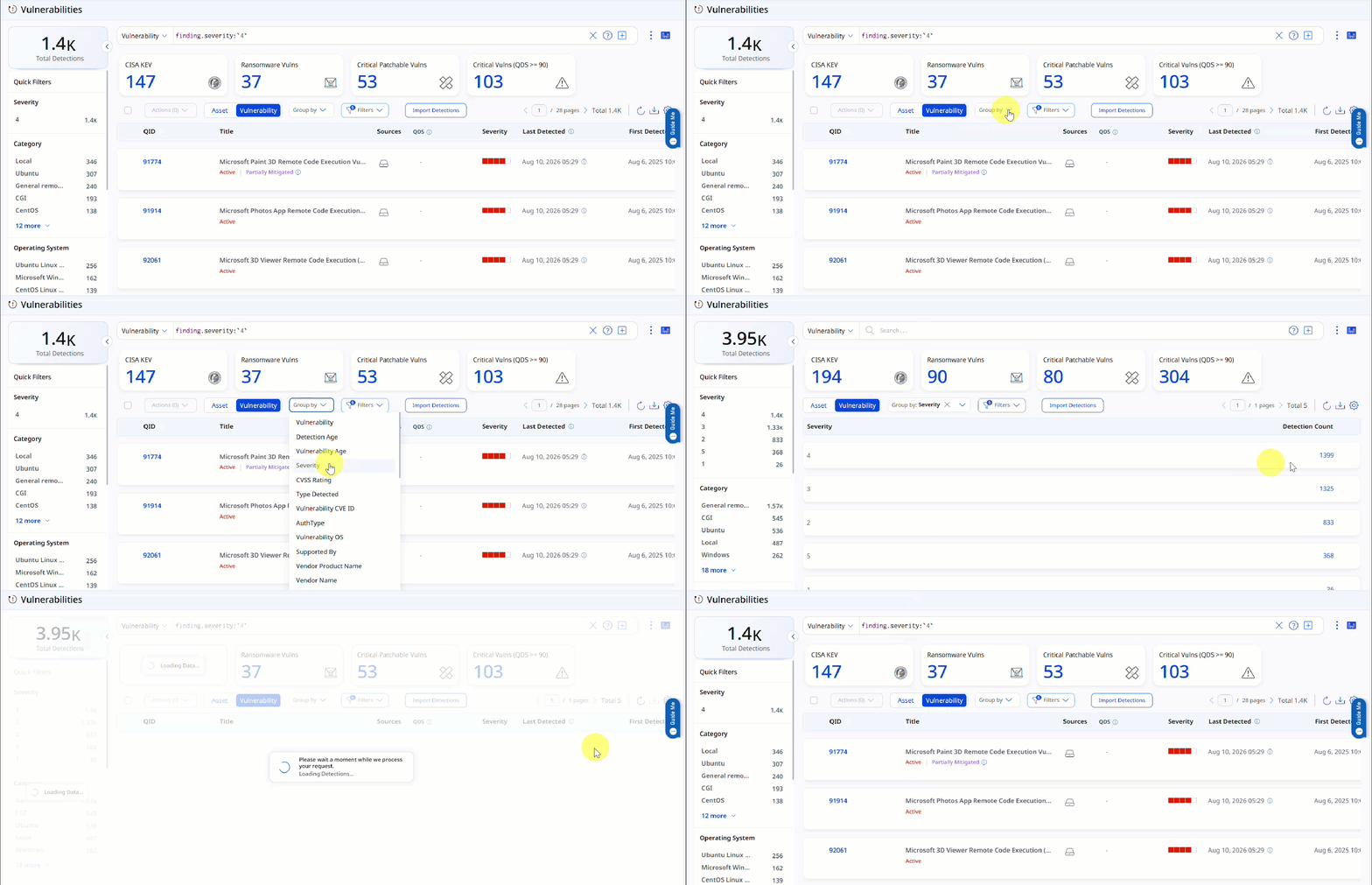
Group by
The Group by option allows you to organize your data. For example, you can select Group by > Severity and then click any value listed in the Detection Count column to view the list of assets with the assigned severity.
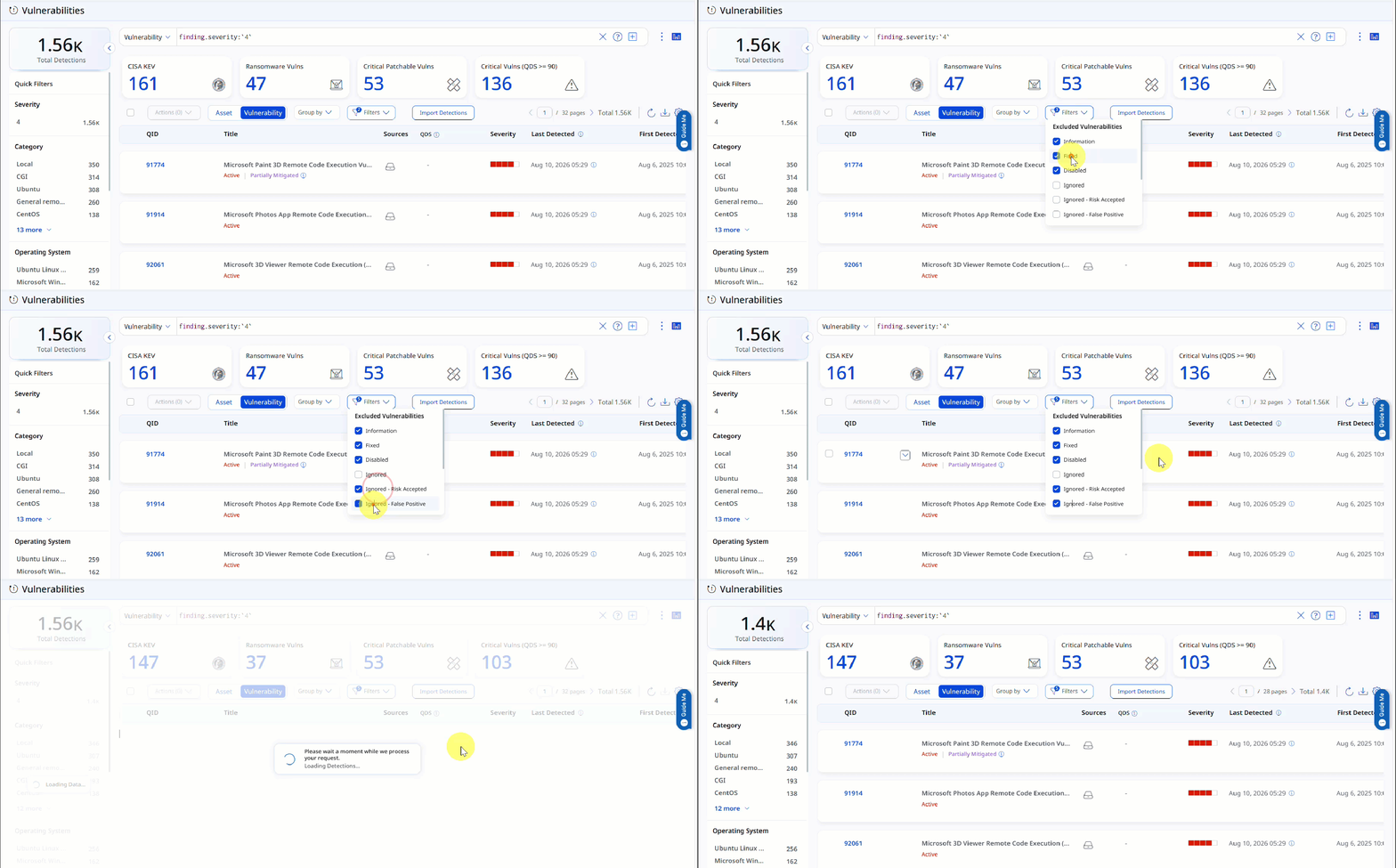
Filters
The Filters list allows you to select the type and filter the vulnerabilities.
A list of severity 4 vulnerabilities appears. Notice that the query search box displays your query.
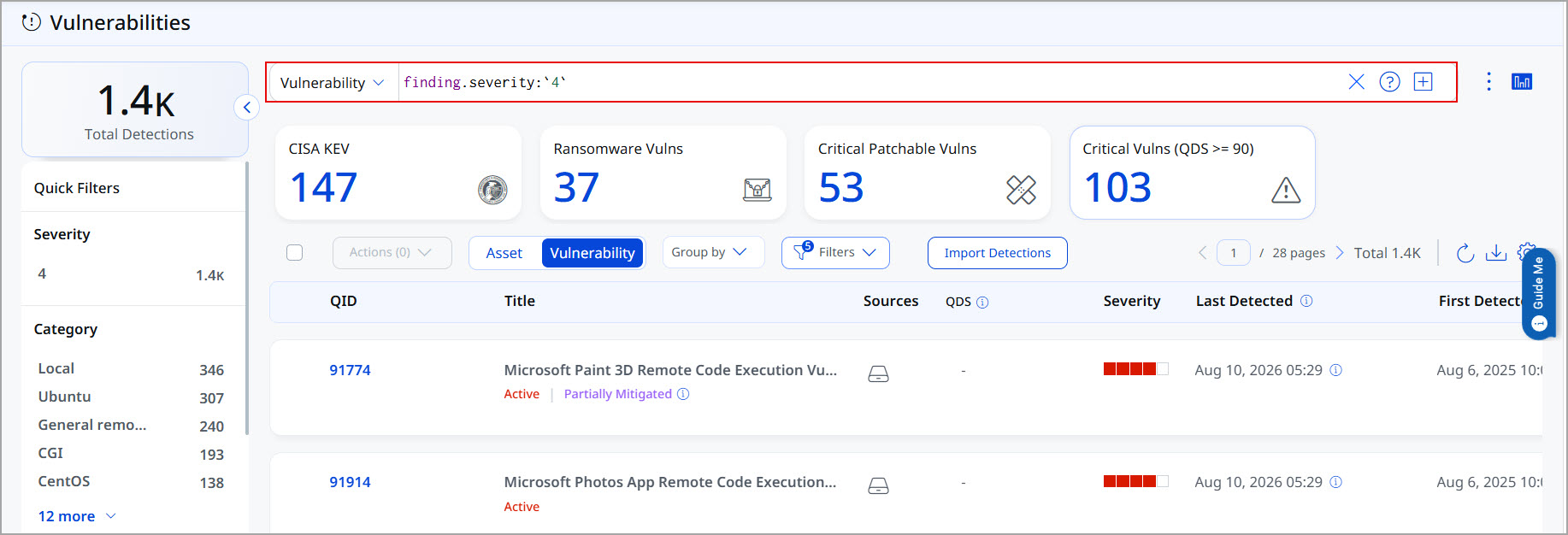
Query Search and Syntax Help
You can see that you have fewer total vulnerabilities. Use the metadata filters on the right to further narrow your search. For example, to get specific results, select Windows in the query: finding.severity:`4` and finding.host.operatingSystem.name:"Windows".
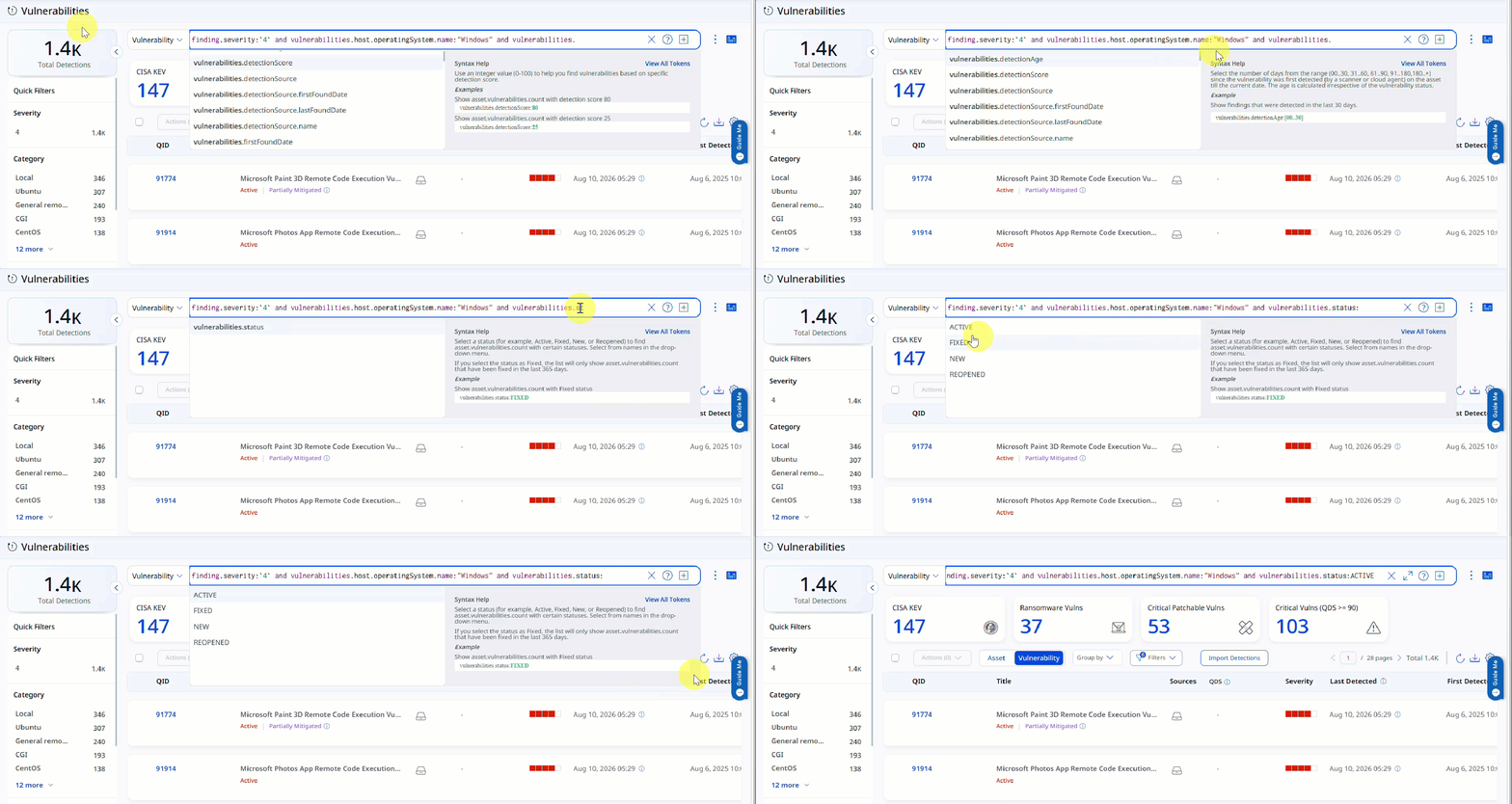
Using the query box, you can add more query logic. For example, say you want to see only New vulnerabilities. Just type "and", then start typing "status". Select the token name vulnerabilities.status, and then in the list, click the token value Active. The Syntax Help appears on the right to help you form your query. Press the Return key to run the query when you are ready.
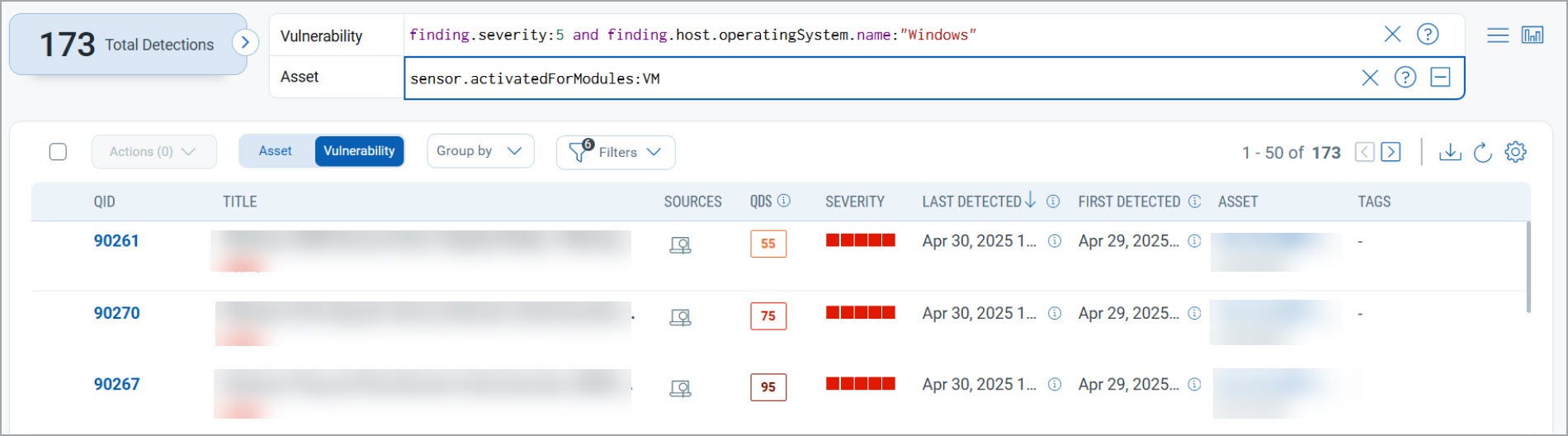
You may click  to add another query and search the vulnerability index and the asset index. The queries in the two boxes use the AND operator together. Press the Return key when you are ready to run the queries. Our sample queries further narrowed the results, and we have identified a total of two vulnerabilities.
Using our advanced search capabilities, you can easily create robust queries using the many available search tokens. Need help with how to search? Click here.
Quick Summary
Using the Toggel Graph  button, you can easily view the frequently-used QQL queries and save and manage them. You can create widgets from frequently used queries for easy future reference. Looking for the different actions on the search queries? See Search Actions.
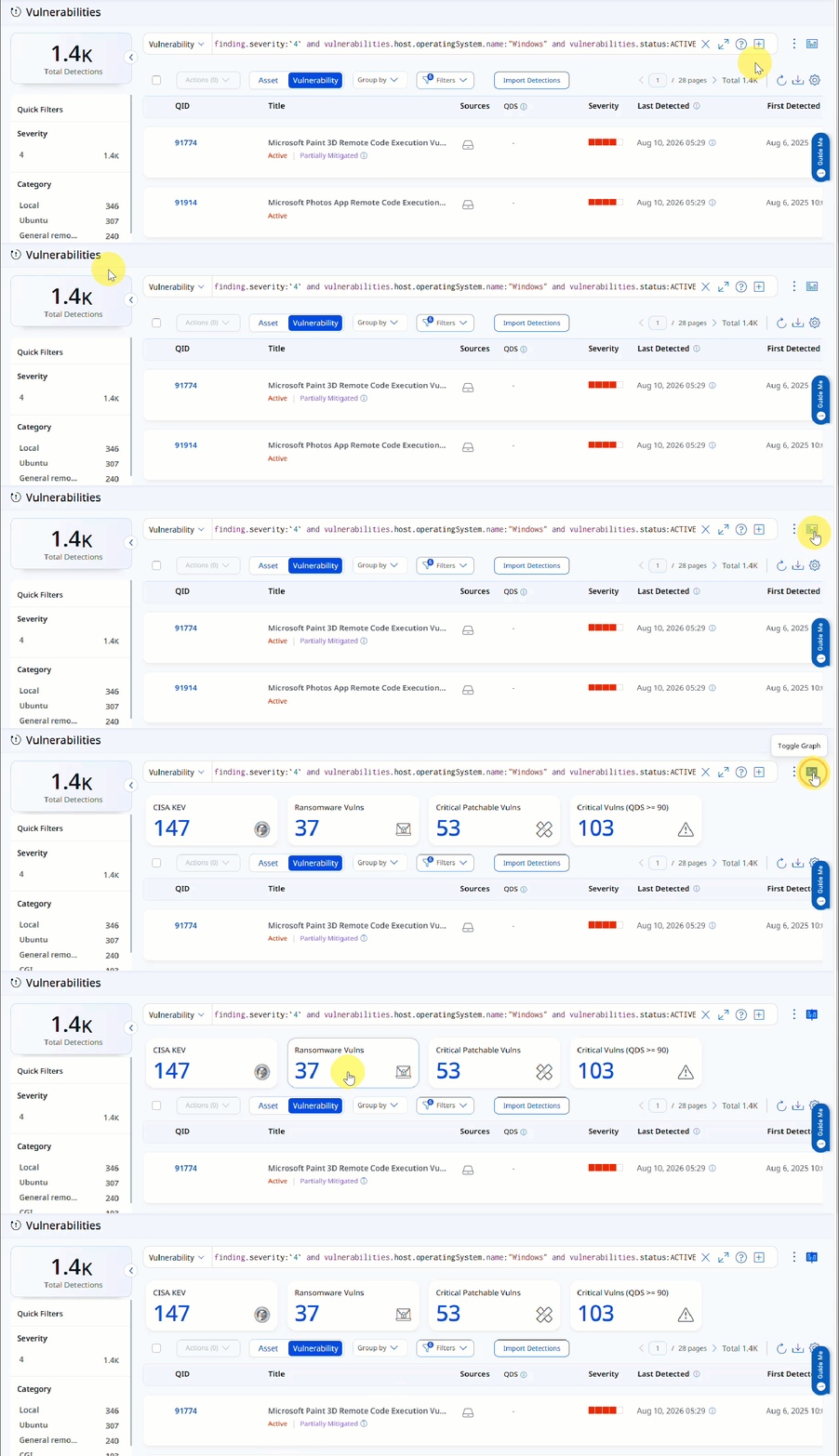
Download Data
You could also export the search results to your local system and share them with other users. You can export results in CSV format. It just takes a minute to export search results. Click the download  button. The Download Formats dialog box opens from where you can download vulnerability data based on CVE or QID. Additionally, you can select specific check boxes or select the Select All check box based on the data you want to download.
Contact Qualys Support if the CVE and QID options are not displayed in the Download Formats dialog box.
Click Download. The details are downloaded in the CSV format.
When you download reports using the CVE option under Download Type, the CVE Description cell in the downloaded report may be empty for some entries. This occurs when the CVE ID is not published in the National Vulnerability Database (NVD). This is expected behavior.
Using the Group by Vulnerability option to download the vulnerability data, you can only download the data based on selected QID fields. The report contains the asset data on which the QID is detected.