User Settings
|
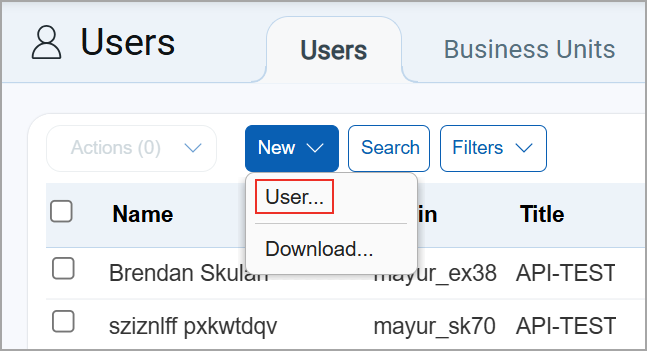
Managers, User Administrators and Unit Managers can add users, up to the number allowed for the subscription service level.
|
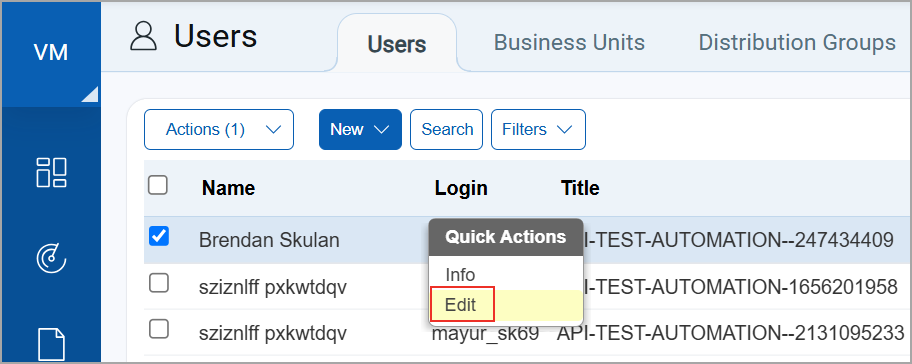
Make changes like assign different assets, move to a new business unit, change the user's role or permissions.
|
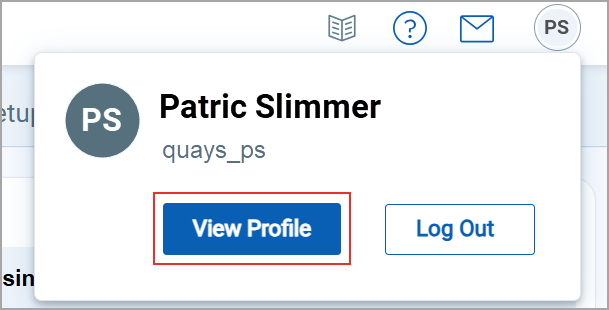
Update your contact information, opt in/out of email notifications, add password reset information, and more.
|
You can activate the unique email ID validation feature for your subscription by contacting your technical account manager or Qualys Support. Once activated, you must specify a unique email ID for every user. If an email ID is already associated with another user, an error message is displayed to prompt you to provide a different email ID.
|
Grant Access Permissions You can grant a user's account access to various apps like VM, PA, etc. and other apps on our Cloud Security Platform. Learn more about Control User Access Permissions. |
|
User Roles and Permissions Each user is assigned a pre-defined user role (Manager, Unit Manager, Scanner, etc) which determines the actions the user can take. Additional permissions may also be granted. Learn more about User Roles and Permissions for VM/VMDR, PA, SCA. |
|
Business Units You can assign a user directly to a business unit in your account by selecting the business unit name. Select Unassigned if you do not want to assign the user to a business unit. Managers and Auditors cannot be assigned to business units. The first user you add to a business unit must be a Unit Manager. The first Unit Manager will be the initial primary contact for the business unit. How to configure business units |
|
Asset Groups Assigned asset groups identify the assets (IP addresses, domains and scanner appliances) the user has access to for scanning, reporting, etc. If the user is in a business unit then only the asset groups in the business unit are available. How to configure asset groups Want to assign assets to the user by asset tag? See Tag-based User Scoping |
|
Time Zone By default we'll use your browser's time zone (Auto) but you can make another selection. Your selection will become the default for new schedules and reports though some reports always appear in GMT regardless of this setting. Learn more about Dates/Times in Reports. |
|
Email Notifications Opt in/out of email notifications. The notifications available depend on several factors like subscription settings and user role. Learn more about notifications. |
|
Session Timeout In the Security section, you can specify a session timeout for individual users. This user-specific timeout takes precedence over the role-based, tellout. For information about role-based session timeout, see Set Security Options. |
|
User Identity and Contact Details You can create a user by providing basic information, such as user identity, contact details, address/location, and Organization information. This section also includes the following optional, case sensitive fields
Users with Manager and Unit Manager roles can add or modify the External ID and API External ID. The Point of Contact (POC) user for a subscription can always edit External ID and API External ID. |
|
Express Lite User? Express Lite subscriptions may have a total of 3 user accounts and each user is assigned a Manager role. |
Looking for something else?
Manage Your Users | Change Your Password | Change the Primary Contact | VIP Two-Factor Authentication | SAML SSO