View Image Details
The Assets > Images tab shows the discovered images along with their metadata information.
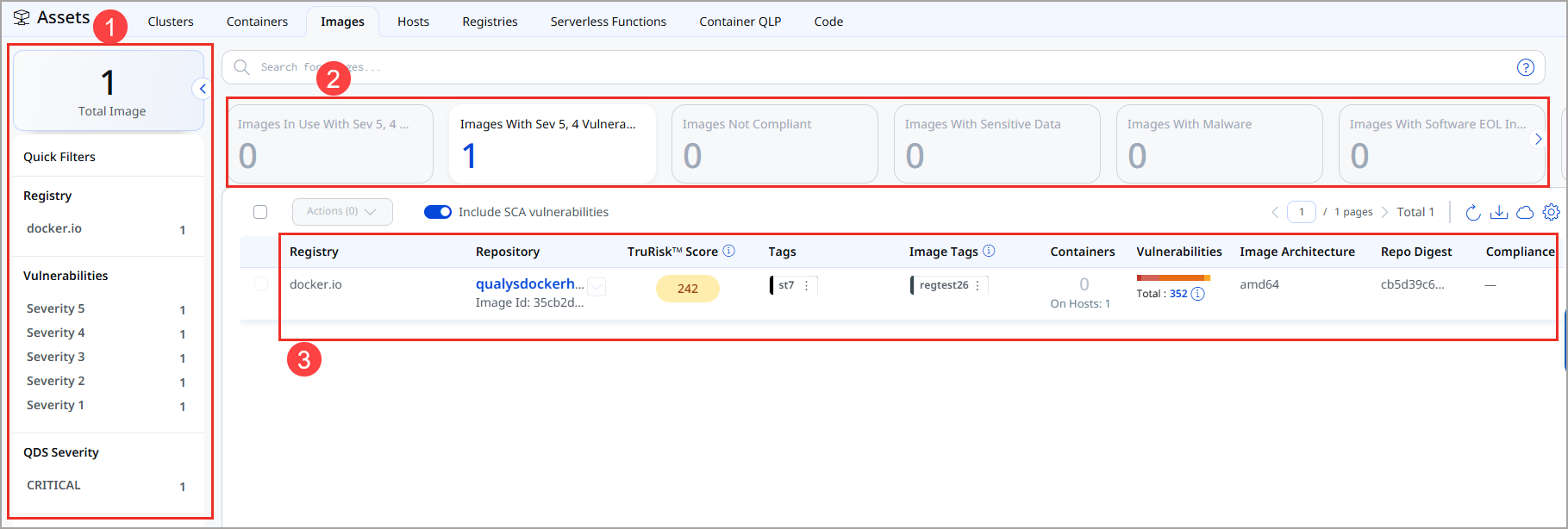
1. Quick Filters
This section consists of the following sections.
- Total Images - This tile shows the total number of images present in your account.
- REGISTRY - Gives you a quick overview of the registries present in your account.
- IMAGES IN USE - Indicates the number of images that are used by a container that is either running, stopped, or deleted in the last 1, 7, and 30 days.
- VULNERABILITIES - Shows the total number of images based on the severity level of their vulnerabilities (Severity 1 to Severity 5).
- QDS SEVERITY - Shows the total number of images present in your account categorized using QDS severity.
- COMPLIANCE POSTURE - Shows total number of compliant and non-compliant images.
2. Tile Section
The section shows you information about the images using the following tiles.
- Images in Use With Sev 5, 4 Vulnerability - Last 1 Day: Indicates the number of images that
- have vulnerabilities of Severity 4 or 5
and - are used by a container that is either running, stopped, or deleted in the past 1 day.
- have vulnerabilities of Severity 4 or 5
- Images With Sev 5, 4 Vulnerability: Indicates the number of images that have Severity 4 or 5 vulnerabilities.
- Images Not Compliant: Indicates the number of non-compliant images.
- Images With Secrets: Indicates the number of images having secrets.
- Images With Malware: Indicates the number of images having malware.
- Docker Hub Official Images: Indicates the number of DockerHub images.
3. List Section
This section lists all images in your environment along with their details.
| Column | Description |
| Registry | Indicates the Registry in which the image is saved. For example, docker.io, azurecr.io, and so on. |
| Repository | Indicates the Repository associated with the image. |
| TruRisk™ Score | Indicates the TruRisk™ Score of the selected image. To know more, refer to TruRisk Score and QDS in Container Security. |
| Tags | Indicates user tags associated with your account. These tags are created by your admin. |
| Image Tags | Shows tags associated with the image. |
| Containers | Shows a number of containers spawned using that image. |
| Vulnerabilities | Shows the number of vulnerabilities found in the image. Click the column header to sort images by vulnerability count. |
| Image Architecture | Shows architecture of the image. |
| Repo Digest | Shows repository digest. |
| Compliance | Provides the number of Compliance Controls applied to the image. |
To customize which columns are displayed, click the gear icon (⚙) at the top of the list, then select Columns. You can show or hide the following columns: Registry, TruRisk™ Score, Tags, Image Tags, Containers, Vulnerabilities, and Created.
View Image Details
Select View Details from the Quick Actions menu for any image in the list to get comprehensive information about the image. You can view detailed information about the image and its associations with containers, drift containers, and hosts.
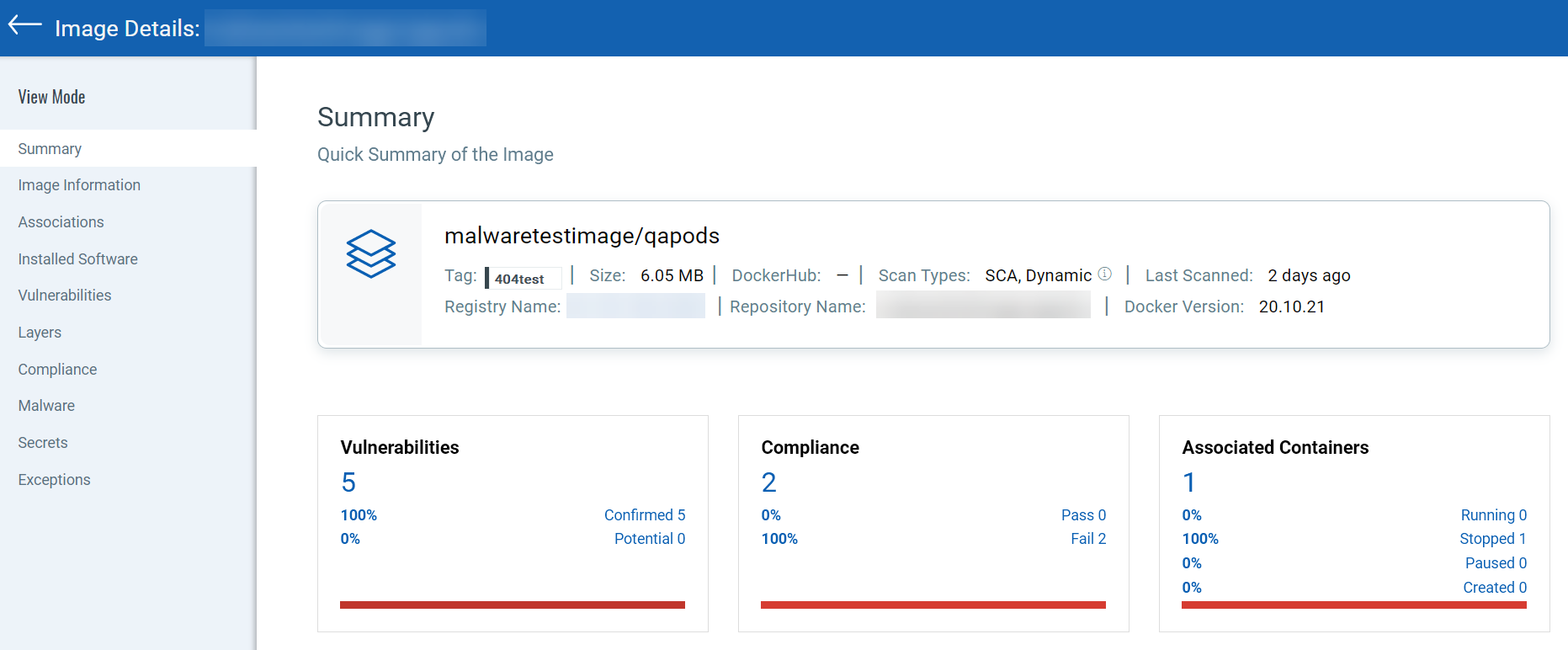
See various sections of an Image Details page below.
- The Summary tab provides a quick summary of the image and all other sections present under View Mode. It includes image details such as, tag, size, scan type, last scan and secret details, along with registry and repository details. Along with this, the Summary page displays cards for found vulnerabilities, compliance, and associated containers.
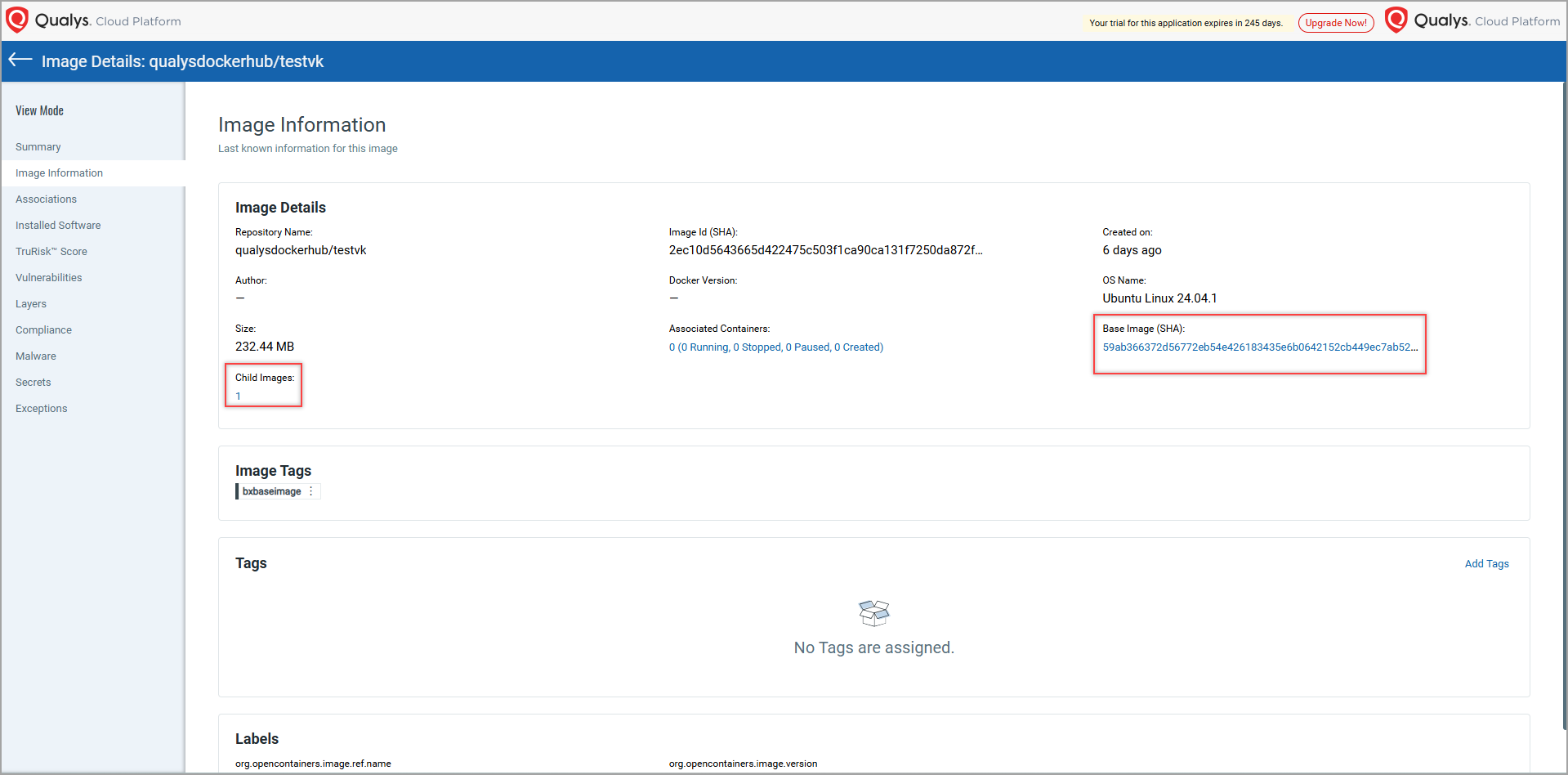
- The Image Information tab provides more information about the image such as image size, creation date, image SHA, base and child images, user-scoping tags, and labels.
You can see Base image details only if the base image is scanned before the child images. Hence, ensure to scan the Base image first.
- The Associations tab provides details of the container and hosts associated with the image.
- The Installed Software tab displays installed software having vulnerabilities, and for which fixes (patches) are available. It also detects if the software is artificially intelligent (AI).
Software with Fix Version values as Null or None, or '-' are considered as Unpatchable (no fix version).
- The Vulnerabilities tab provides vulnerability information, such as confirmed and potential vulnerabilities with their severity. For each vulnerability, you can see the vulnerability age (in days). Age is calculated from the point Qualys published the vulnerability.
- Show patchable vulnerabilities toggle bar - Use this toggle bar to see image vulnerabilities that can be patched.
You can use the Show patchable vulnerabilities toggle bar to see the vulnerabilities that can be patched (vulnerabilities for which a patch is available).
- Include exempted vulnerabilities toggle bar - Use this toggle bar to include exempted vulnerabilities in the list. When enabled, an Exempted column appears showing true for exempted vulnerabilities and false for non-exempted ones.
- Show patchable vulnerabilities toggle bar - Use this toggle bar to see image vulnerabilities that can be patched.
- The Layers tab displays a list of layers the image is made of, along with per-layer vulnerability counts by severity (Critical, High, Medium, Low, Informational). Use this tab to identify which layer introduced a vulnerability and focus remediation on specific layers.
End-of-life (EOL) vulnerabilities that cannot be attributed to a specific layer are assigned to the top layer of the image.
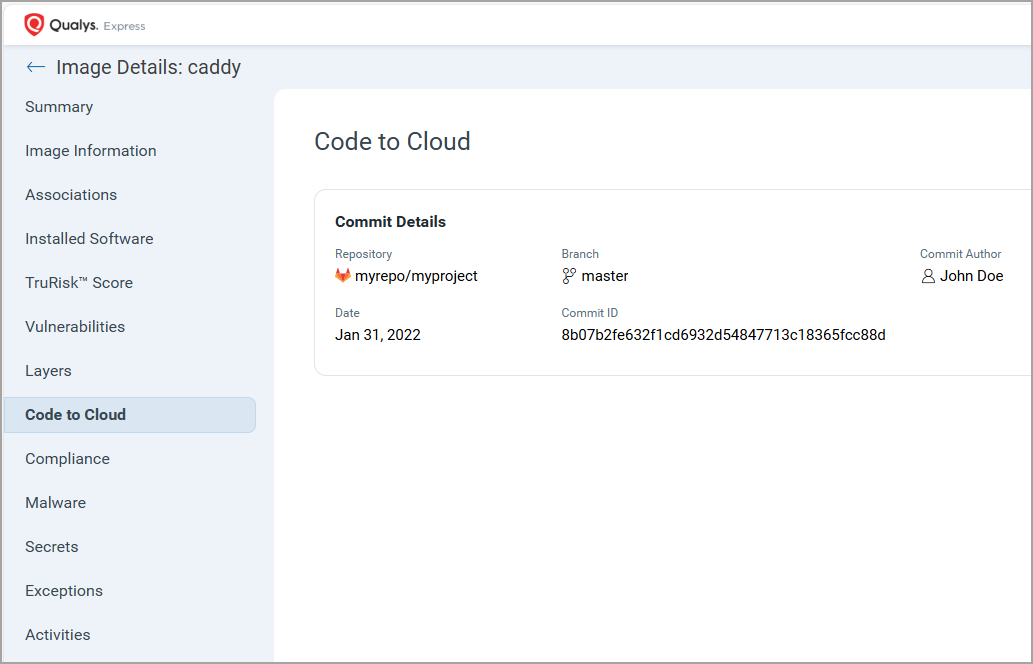
- The Code to Cloud tab shows commit details - the source code commit that was used to build this container image, linking the running image back to its origin in source control.
It provides traceability from a deployed image back to the exact source code commit that produced it. This helps security and DevOps teams quickly identify who committed what and when, making it easier to investigate vulnerabilities or policy violations at the code level rather than just at the image level.
- The Compliance tab provides a list of controls that were scanned with control details (CID, criticality, statement, category, technologies). For more information, see Compliance Scanning in Container Security.
- The Malware tab shows the malware detected for the image. For more information, see Malware Scans.
- The Sensitive Data tab shows secrets and sensitive information detected within the image's filesystem (such as API keys, credentials, certificates, or tokens embedded in image layers). For more information, see Detecting Container Secrets.
- The Exceptions tab shows the vulnerability exceptions associated with the image. For more information, see Defining Vulnerability Exceptions.
- The Activities tab tracks all key operations, issues, and notifications related to the image - such as scan events, policy evaluation results, sensor detections, or errors.
Images Not Scanned
The 'Blacklisted images' and images present in 'Image Exclusion List' are not scanned by Qualys Container Sensor and hence are not listed under the Images tab.
Blacklisted Images
The images matching any of the following Regexes are Blacklisted and hence are not scanned by CS Sensor.
- ".*/amazon-ecs-pause:.*"
- ".*/amazon-ecs-agent:.*"
- ".*/pause-amd64:.*"
- ".*/pause:.*"
- ".*/k8:.*"
- ".*bodhi/bodhi-ocr-python.*"
- ".*datadog.*"
- ".*calico/node.*"
- ".*filebeat/filebeat.*"
- ".*rubie-platform/docker-dd-agent.*"
- ".*srecm/cadvisor.*"
- ".*cml-ccp-k8s/cni.*"
- ".*entkubernetes/fluent-bit.*"
- ".*kubesphere/fluent-bit.*"
- ".*jtblin/kube2iam.*"
Image Exclusion List
Qualys Container Sensor also maintains a default list of system images as part of 'Image Exclusion List' in order not to perform vulnerability scans on them and focus on application images. You can configure the image exclusion list using the Sensor Profile tab. To know about configuring the Image Exclusion list, refer to Creating a Sensor Profile. If required, you can also scan images present in the Image Exclusion List. To know about this, refer to Sensor Deployment Help.