EDR Release 3.8.4
August 11, 2026
Configuration Tab for Quarantined Assets
You can now view the exact configurations applied to an asset when it is quarantined, so you can confirm what was allowed on that asset without cross-checking it against your default asset configuration.
When an asset is quarantined, it is isolated from the network and blocked from running applications, except for what is explicitly allowed such as specific applications, domains, and IP addresses. You can also override these defaults by adding extra allowances at the time of quarantine. For example, allowing an additional application to run. Previously, there was no record of which configurations, including any overrides, were applied to a specific quarantined asset.
The applied configurations are available on the new Config tab in the Quarantine Asset details window, alongside the existing Details tab. To view the Config tab, go to Responses > Remediation > Log, and open any Quarantine Asset entry.
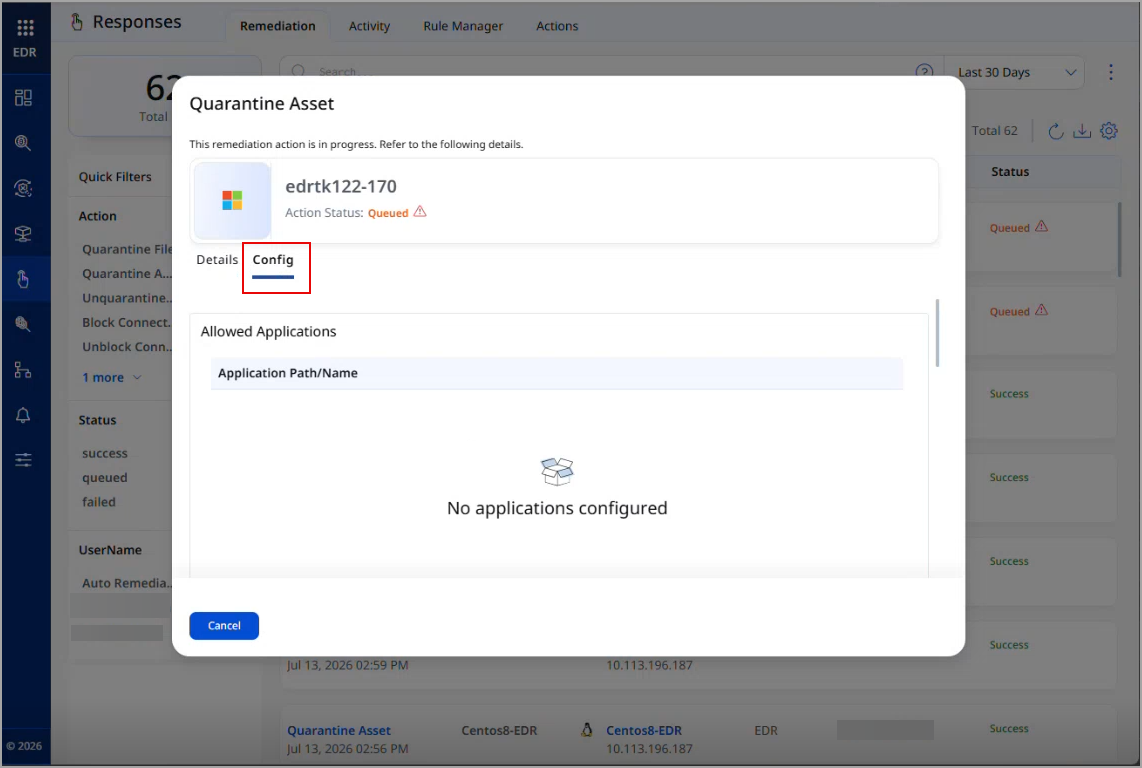
The Config tab shows the following for the quarantined asset:
- Allowed applications
- Allowed domains
- Allowed IP addresses
- The notification message displayed to the end user
Any overrides added during quarantine process apply only to that specific asset and do not modify your existing default configuration.
The Config tab is available for the Quarantine Asset action only, on both Windows and Linux assets wherever Cloud Agent quarantine is supported.
For more information, refer to EDR Online Help.
Enhanced User Interface for EDR
With this release, we have introduced an improved user experience across all EDR pages. You can see updates across fonts, colors, typography, and buttons, making the interface more intuitive and easier to use. This release features User Interface and design system enhancements that improve visual consistency, readability, and usability across the application, resulting in a cleaner, more intuitive user experience.
Key benefits are:
- Cleaner, more consistent screens
- Easier-to-read and understandable text
- Important information stands out better, with less clutter
- Faster comprehension of risk, status, and numbers
User Interface Consistency and Clarity
Introducing the new and improved user interface with the following key upgrades:
- Easier-to-read labels and text, with ALL CAPS replaced by sentence-style text
- Consistent text style for status and source names across the application
- Uniform text colors in tables, filters, page numbers, and tabs
- Aligned colors and text styles for tabs and page navigation throughout the application
- Clear visual indicators for buttons and options, showing active, inactive, or secondary states
- Better emphasis on important information, with subtle styling for less critical details to help users focus
Charts, Metrics, and Data Presentation
You can view the following updates:
- Updated chart color schemes for improved clarity and accessibility
- Compact, more readable numeric formats for better visibility
- Refined color gradients for risk scores and meters to enhance interpretation.
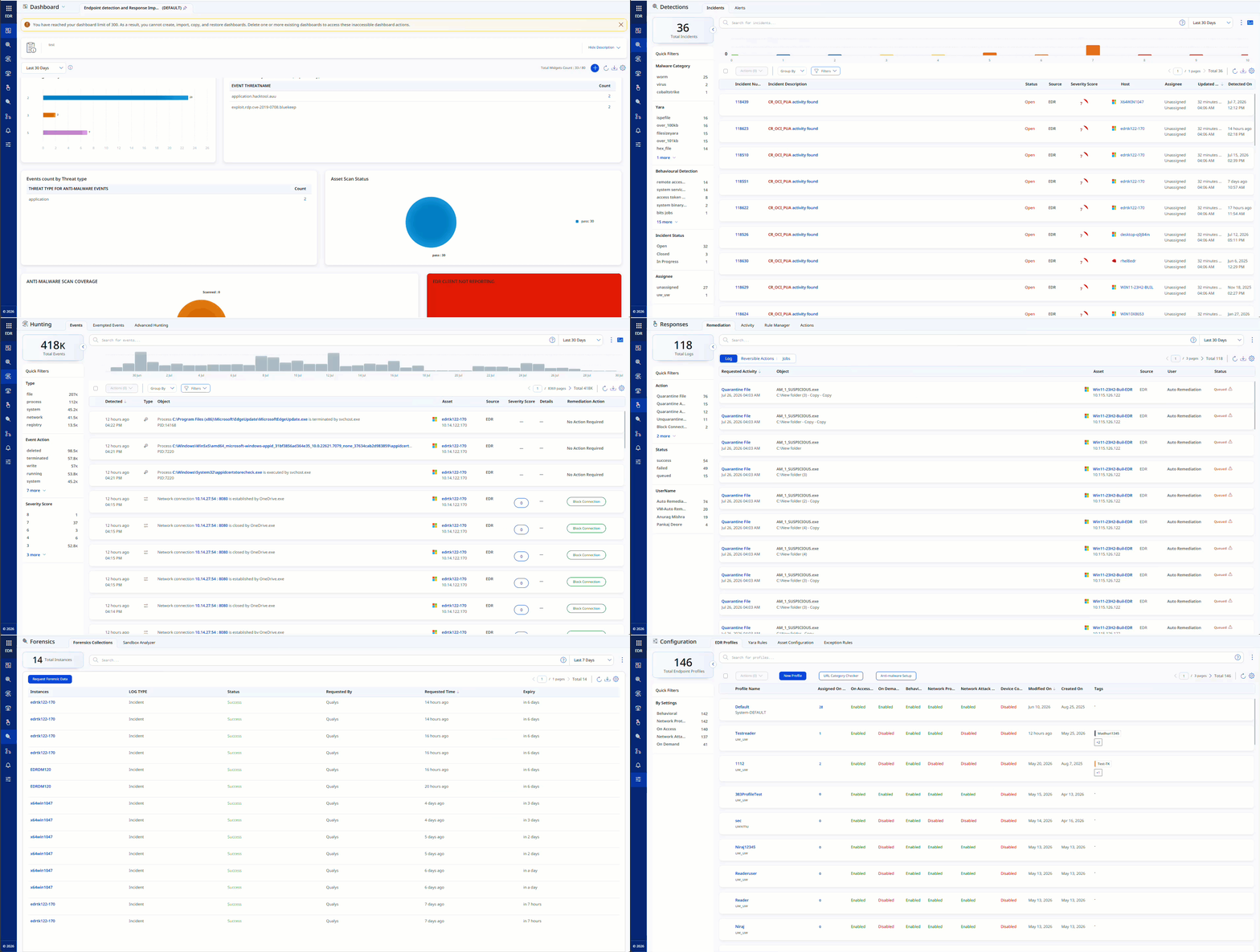
Configurable Trigger Criteria for Email Alert Notifications
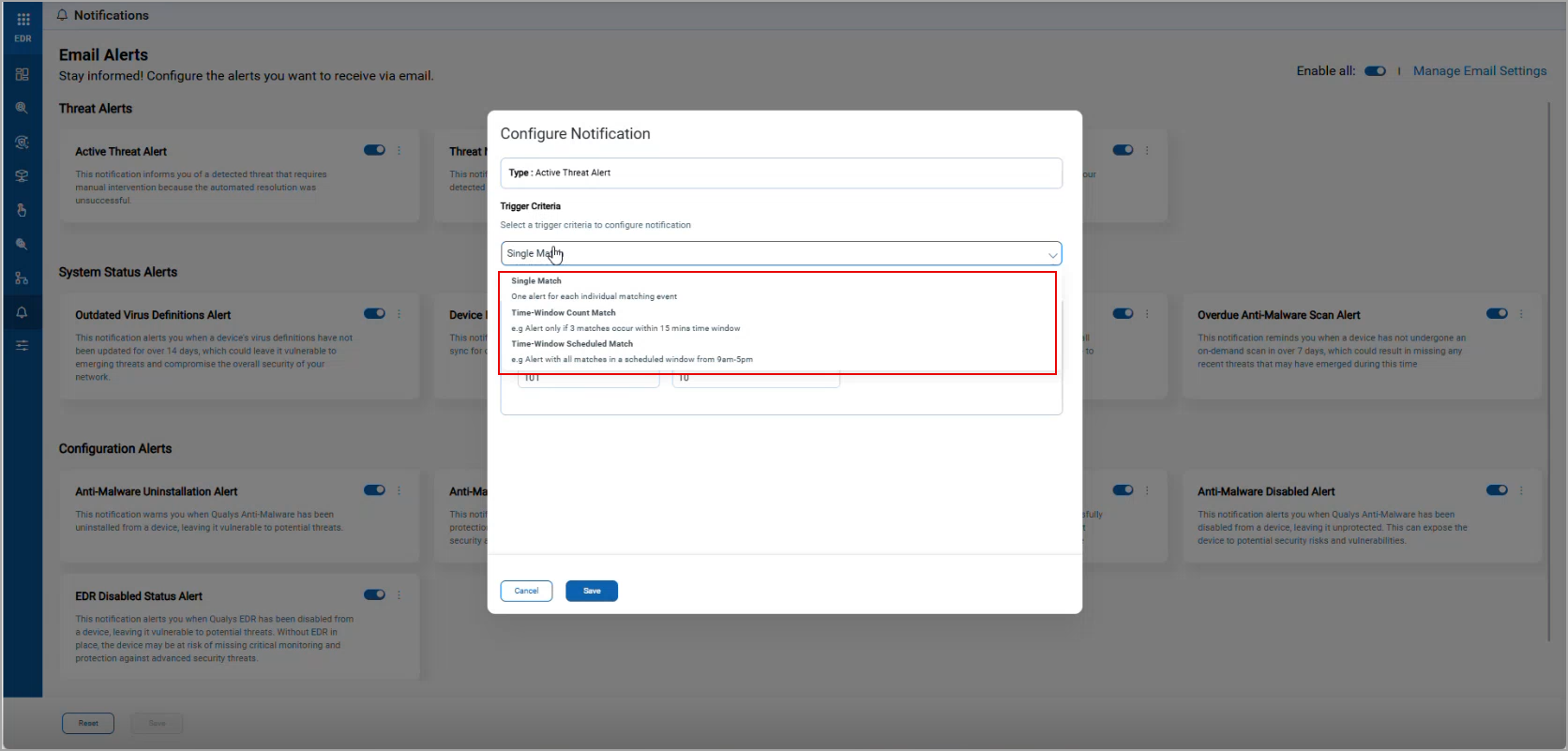
You can now control how and when you receive email notifications for EDR alerts by choosing from three trigger criteria, Single Match, Time-Window Count Match, or Time-Window Scheduled Match, so you can align alert frequency with your team's monitoring workflow instead of receiving a separate email for every event.
Previously, notifications were sent per matching event with no way to consolidate or schedule them. Each trigger criteria type now determines when the notification job evaluates matching events and sends an email:
- Single Match sends one email per matching event, capped by a Max Email Limit and an Email Cooling Period (hours). Once the limit is reached, no further emails are sent until the cooling period elapses.
- Time-Window Count Match sends a single email once a configured number of matching events occurs within a configured time window (for example, 5 matching events within 15 minutes).
- Time-Window Scheduled Match sends notifications on a recurring Daily, Weekly, or Monthly schedule instead of in near real time.
Aggregation of notifications is available for the Active Threat Alert and Threat Neutralization Alert when using Time-Window Count Match or Time-Window Scheduled Match. Using this option, you can group matching events by Malware Family, Hash, or Severity, and enable Send emails only for new events to avoid repeating previously reported matches.
Trigger criteria is configured on the Configure Notification window for each alert type, available from Notifications > Email Alerts.
Not all trigger criteria are available for every alert type. Alerts based on time-based queries, such as the Overdue Anti-Malware Scan Alert, Device Disconnected Alert, and Outdated Virus Definitions Alert, support only Time-Window Scheduled Match, since these alerts are evaluated against conditions measured over an extended period such as, a scan not having run in 7 days.
For more information, refer to EDR Online Help.
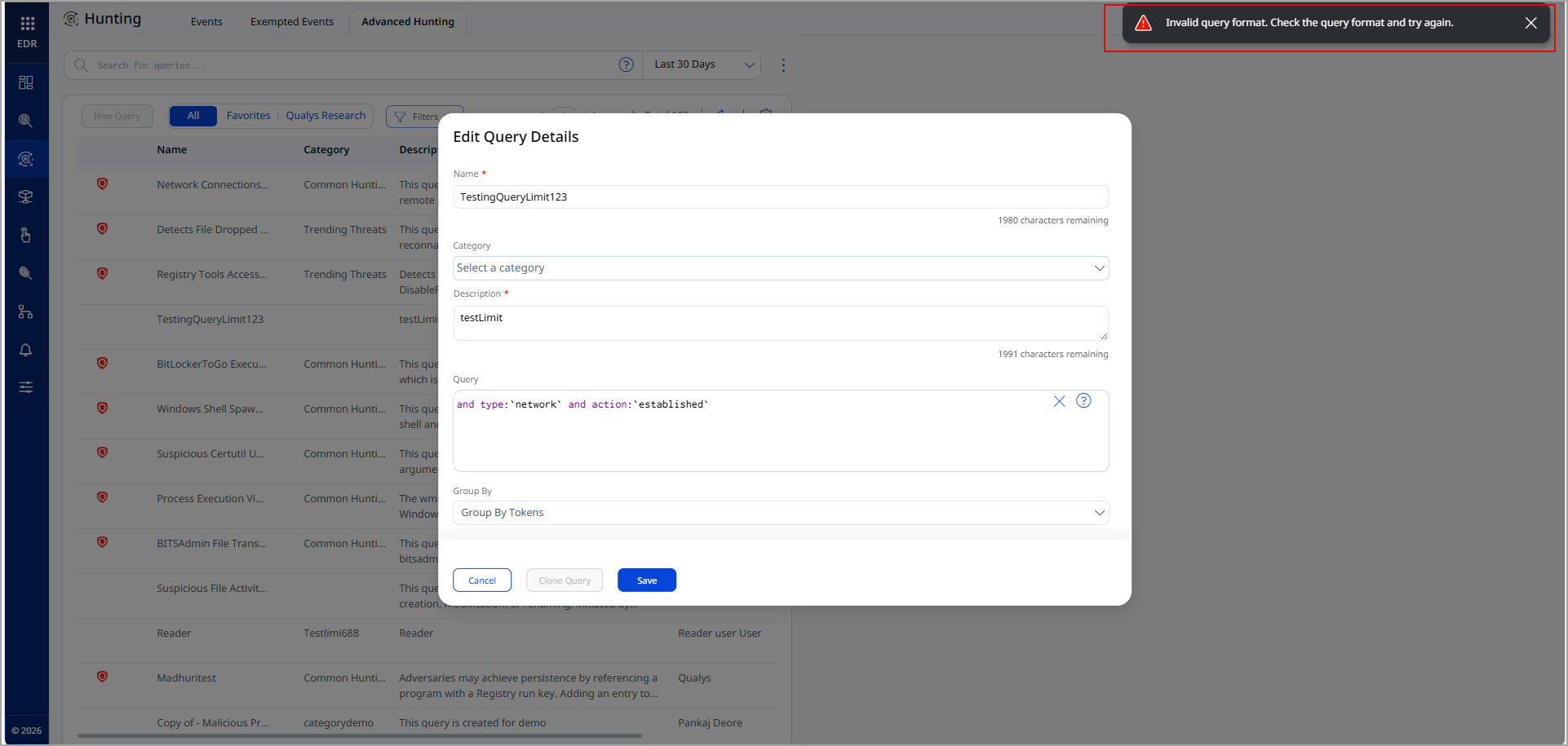
Query Validation Before Saving in Advanced Hunting
You can no longer save a query with invalid query format on the Advanced Hunting page. This prevents broken queries from being saved and surfaced later, ensuring your saved queries are always valid and ready to run.
Previously, a query could be saved even if it contained invalid format. Now, the Save button is automatically disabled whenever the query format is invalid, whether you are creating a new query or editing an existing saved query.
When the query format is invalid, the Save button is disabled displaying a message as below:
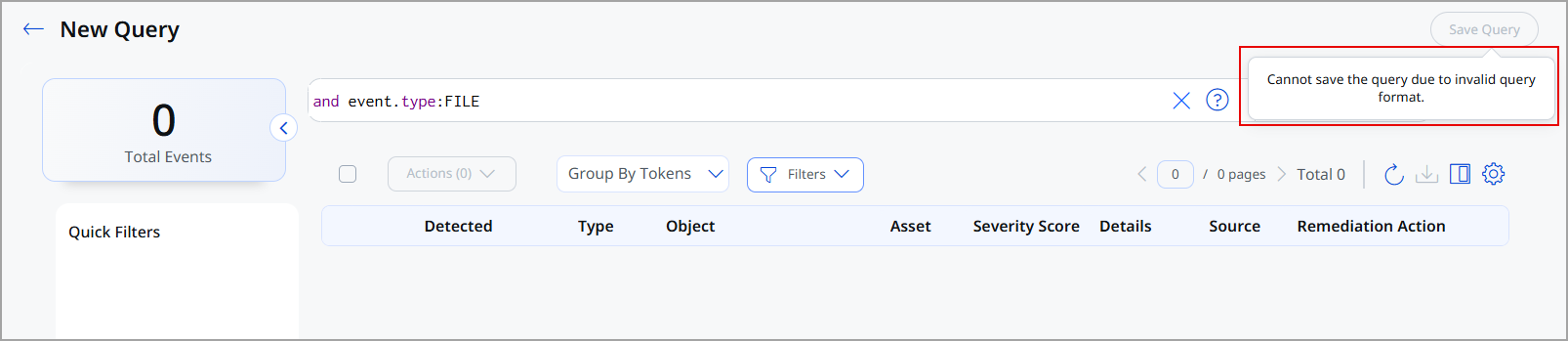
If you attempt to save an invalid query from the edit modal, an error message is displayed as below:
Path Type Deprecated for Exclusions
The Path type for exclusions will be deprecated in an upcoming release. Going forward, use the Folder or File type instead when adding exclusions. All Path type exclusion data will be recategorized to Folder or File.
The Path Type field is available when adding an exclusion manually on the Exclusions tab of an EDR Profile.
We recommend recategorizing any existing Path type exclusions to Folder or File before the next release. If this is not done, Qualys will automatically migrate the remaining Path type exclusion data on your behalf after the next release.
New QQL Tokens
We have introduced the following new tokens in this release:
| Token | Tab | Description |
|---|---|---|
| event.action | Response > Auto Remediation Rule | Use this token to search for the action associated with an event, such as a running process. Example: event.action: running
|
| event.source | Response > Auto Remediation Rule | Use this token to search for the source of an event, such as EDR or Anti-Malware. Example: event.source: EDR
|
| event.antiPhishing.phishingUrl | Hunting > Events | Use this token to search for a URL identified as malicious or suspicious for phishing activity, such as credential theft, fake login pages, or social engineering attacks. Example: event.antiPhishing.phishingUrl: "hxxp://fake-login-page.com"
|
| event.antiPhishing.username | Hunting > Events | Use this token to search for the user account under which phishing-related activity or an access attempt was detected. Example: event.antiPhishing.username: johndoe
|
| event.antiPhishing.userType | Hunting > Events | Use this token to search for the category or privilege level of the user account associated with phishing-related activity, such as local user, domain user, administrator, or system account. Example: event.antiPhishing.userType: Administrator
|
| event.antiPhishing.phishingType | Hunting > Events | Use this token to search for the classification of the phishing attack identified by the anti-phishing engine, based on the attack technique or target. Example: event.antiPhishing.phishingType: "Credential Phishing"
|
| event.antiRansomware.itemCount | Hunting > Events | Use this token to search for the total count of files, objects, or entities identified, blocked, encrypted, or processed as part of an anti-ransomware detection event. Example: event.antiRansomware.itemCount: 25
|
| event.antiRansomware.detectionId | Hunting > Events | Use this token to search for the unique identifier associated with a ransomware detection event. Example: event.antiRansomware.detectionId: "AR-2026-00451"
|
| event.antiRansomware.restoreStatus | Hunting > Events | Use this token to search for the restore status of files affected by a ransomware event, such as restored, partially restored, failed, or pending. Example: event.antiRansomware.restoreStatus: Restored
|
Updated QQL Token
Refer to the following table to learn more about the updated token in this release.
| Old Token | New Token |
|---|---|
| asset.id | qualys.agent.id |