Create Port Rule
Create a port rule to mark ports as authorized, unauthorized, or needs review on the assets you scope with asset tags. A QDS is associated with each unauthorized port, and unauthorized ports contribute to TruRisk™ aggregation.
Navigate to: Inventory > Rules > Port > Create Rule
Use this to
- Mark ports as authorized, unauthorized, or needs review.
- Scope the rule to the right assets with asset tags.
- Set the QDS assigned to unauthorized ports.
Before you begin: Create the asset tags you want to use for the rule scope, so that you can select them when you choose the assets to include or exclude.
Create a port rule
Complete these four steps to create a port rule.
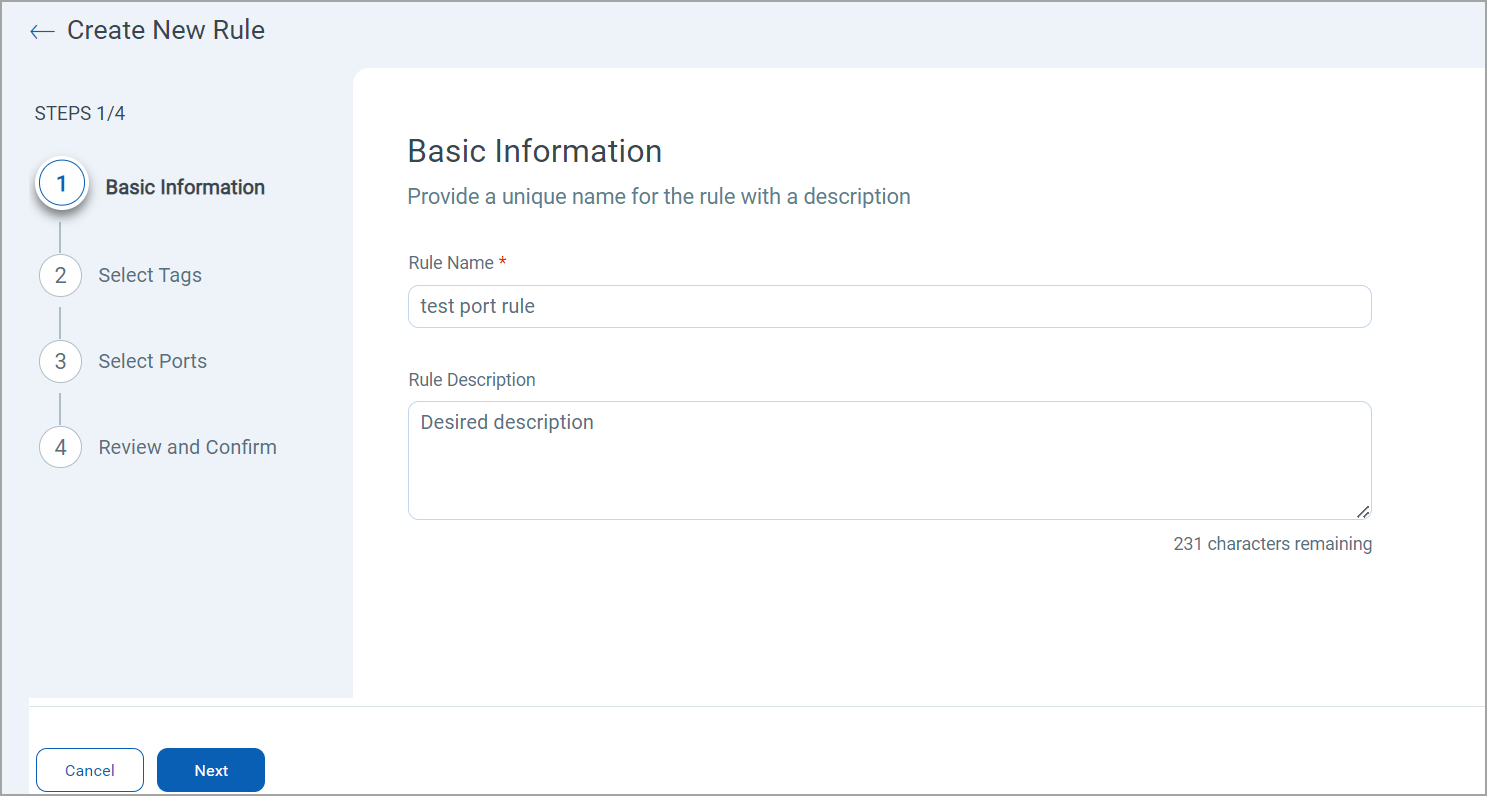
Step 1: Basic Information
Enter the rule name and description, then click Next.
Step 2: Select Tags
Select tags to include and exclude the assets from the rule.
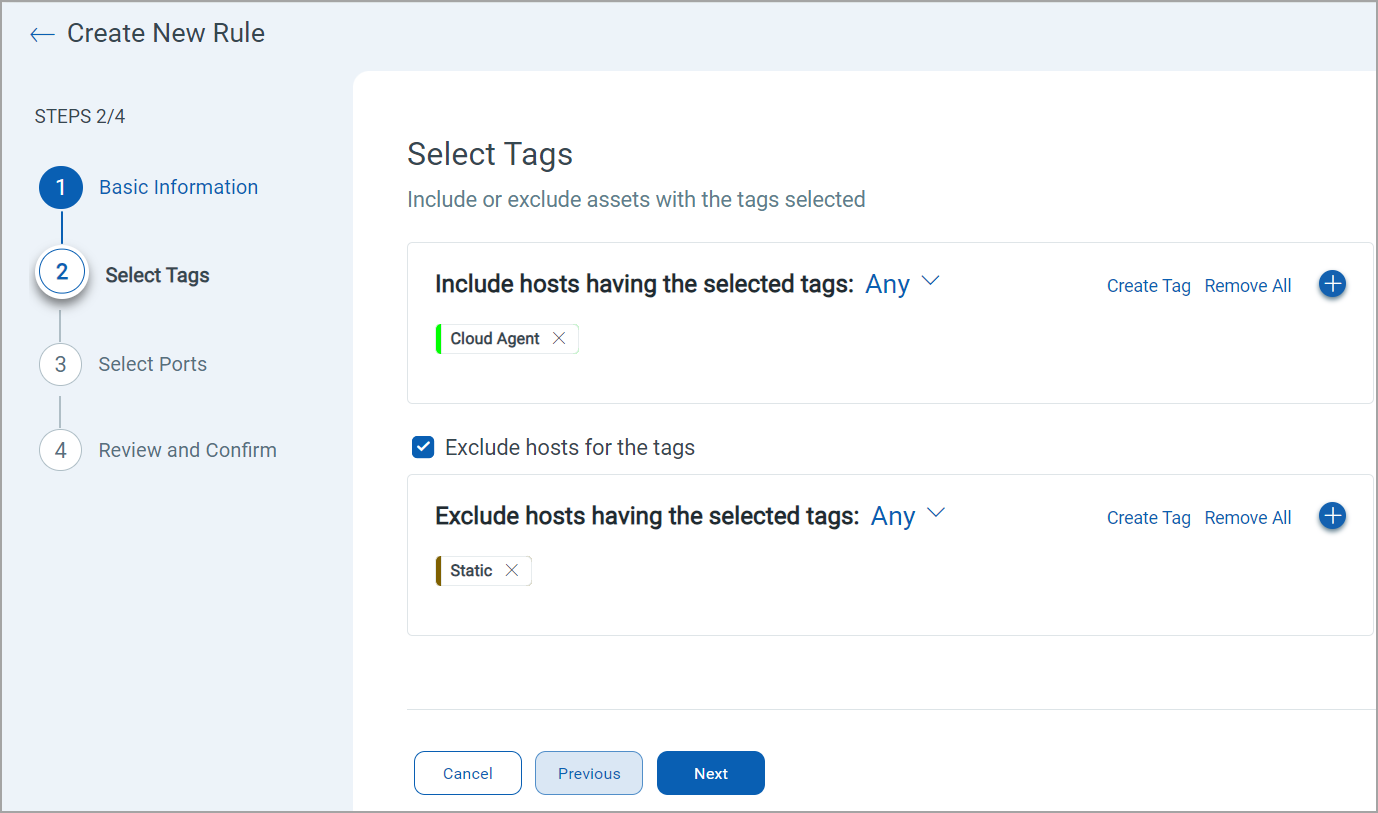
Click  to search for and select asset tags. The drop-down controls how the tags are matched:
- Any — an asset is included or excluded when it carries any one of the selected tags.
- All — an asset is included or excluded only when it carries every selected tag.
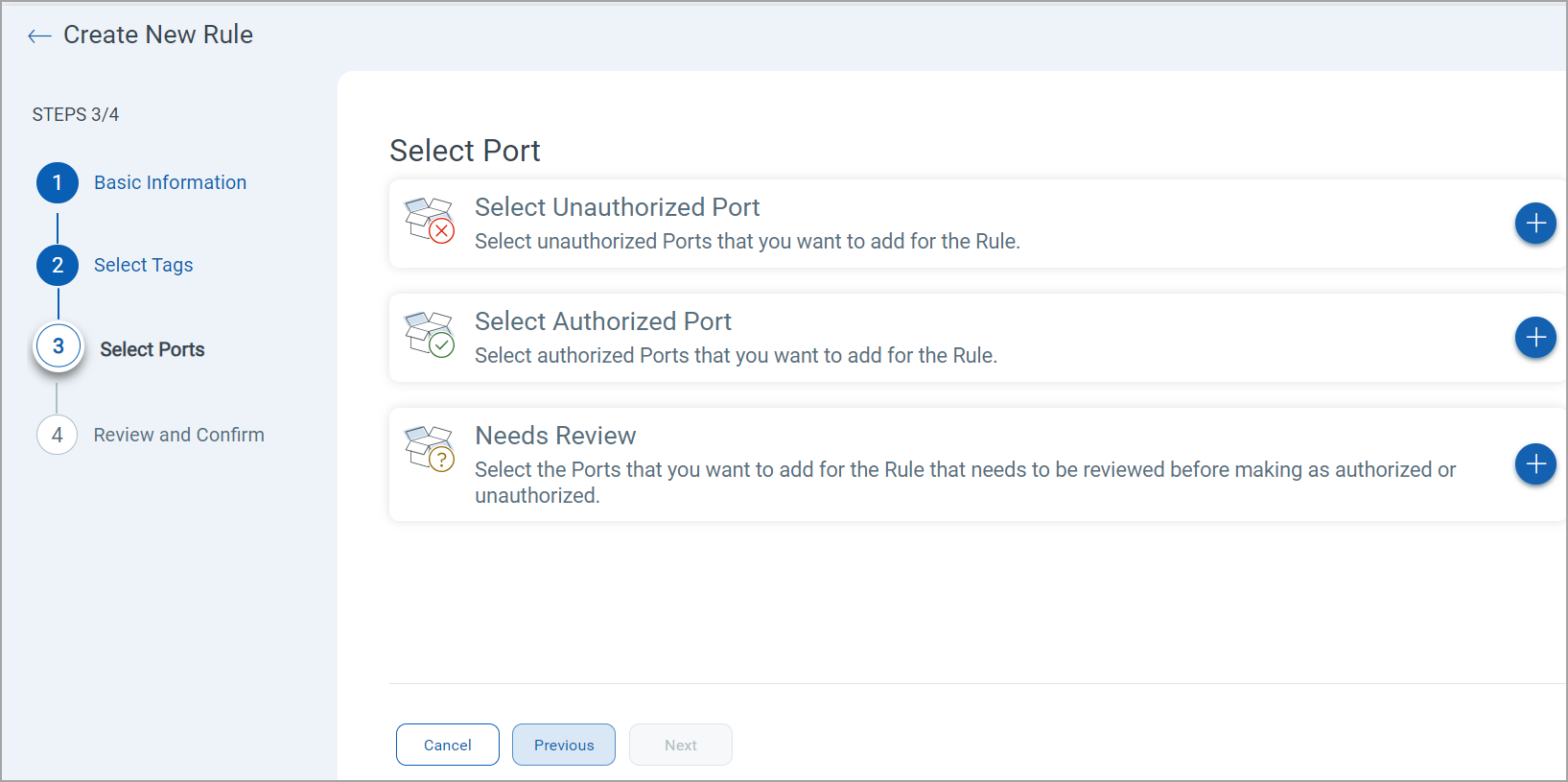
Step 3: Select Port
Add the ports you want to mark as Authorized, Unauthorized, or Needs Review. Click next to the type you want. In the Add Ports pop-up, enter the port, select the protocol, and click Add.
Step 4: Review and Confirm
Verify the details and click Next.
A new port rule assigns a QDS of 80 to each unauthorized port by default. You can change this value.
Review and confirm the details, then click Finish. The rule is created.
After the rule is created, open the port list for an asset in scope to confirm that the ports you added are shown with the authorization status you expect.
What to do next
Go on to View Port Rules or Reorder Port Rule.