Download Execution Report
Download the execution report for a purge rule to see which assets the rule purged, in CSV format.
Navigate to: Inventory > Rules > Purge
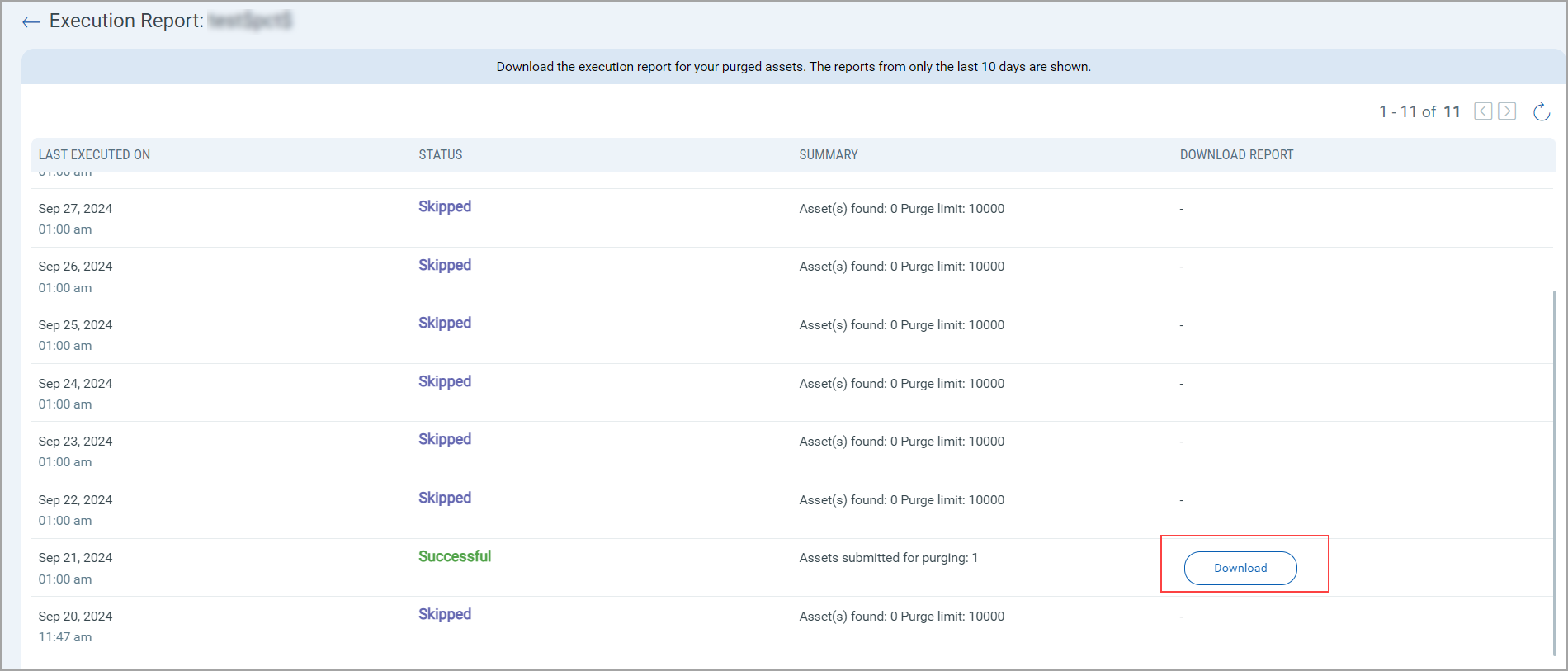
Only the reports from the last ten days are shown. A report is generated, and available to download, only when the rule status is "Successful".
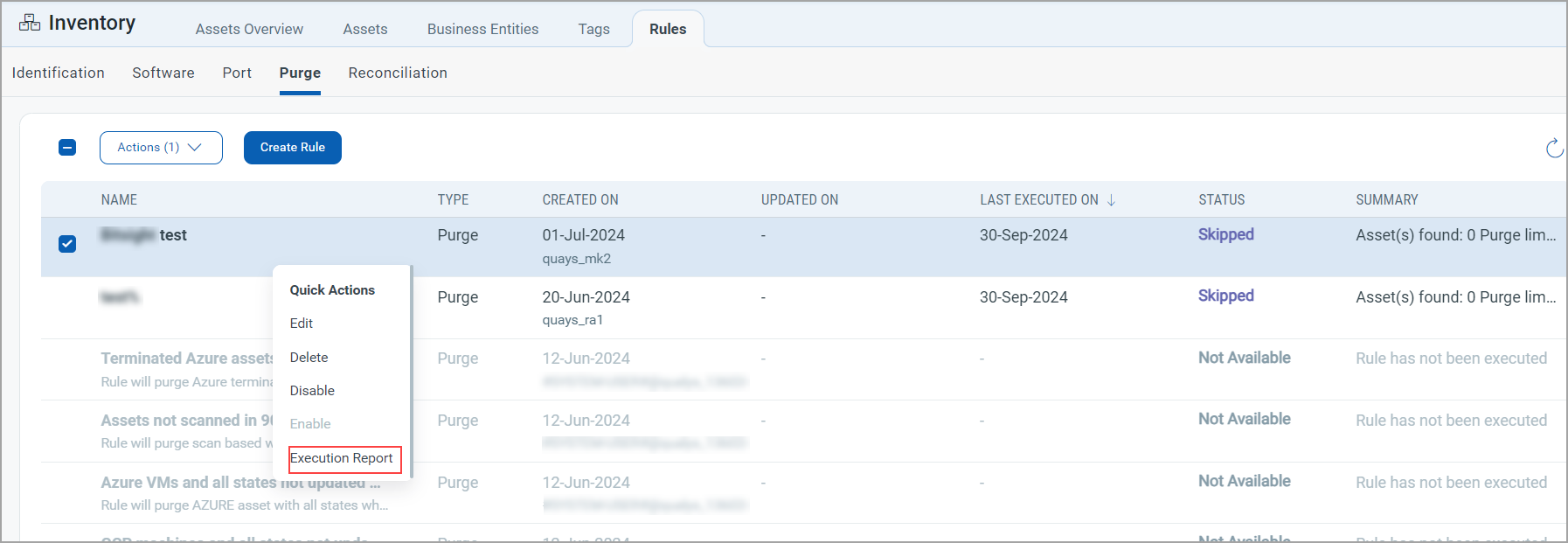
- Go to Inventory > Rules > Purge, then click Execution Report in the Quick Actions menu of a rule.
- Click Download in the Download Report column. The report downloads as a CSV file.
The report includes details such as the asset name and ID, operating system, and tracking method.
Download the report soon after a rule runs and keep a copy outside Qualys ETM if you need a longer record, because only the most recent reports remain available for download.