Create and Save Monitoring Profile Rules: Paths, Monitoring Options, and Filters
FIM enables you to configure and save a Monitoring Profile Rule in the FIM User Interface by specifying rule fields, monitoring options, and inclusion or exclusion filters. It contains:
- Rule fields, including Rule Name, Severity, Rule Type, and Path
-
Monitoring options for File, Directory, and Registry
-
Inclusion and exclusion filters, including pattern format examples
-
Windows and Linux configuration scenarios, including common Save Disabled reasons
You can use these details to correctly configure and save Monitoring Profile Rules in FIM. Understanding the rule configuration requirements helps you avoid common configuration errors and ensures that monitoring starts immediately after the rule is saved.
This helps you to select appropriate monitoring options, inclusion and exclusion filters, prevent configuration errors, optimize monitoring performance, reduce false positives, and ensure continuous monitoring of critical system changes.
File Integrity Monitoring – Save Rule Reference
Each section mentioned below explains a specific rule component, how it works, and how you can apply it to monitor files effectively.
- Quick Rules
- Understanding Paths
- Advanced Filters (Inclusion /Exclusion)
- Filter Targeting
- Pattern Rules
- Monitoring Checkboxes
- Save Rule Cases for Windows
- Save Rules Cases for Linux
Quick Rules (What Blocks Save)
Quick Rules provide a basic way to define what you want to monitor. Use Quick Rules to enter simple paths or directories when you do not need advanced filtering. This option is recommended for straightforward monitoring requirements.
The Save button is disabled when the required rule conditions are not met. Before saving a rule, make sure you meet the following requirements.
Required Monitoring Selections
-
Select at least one monitoring checkbox in your rule configuration.
-
For Registry Value rules, select at least one Value monitoring option.
Root Path Restrictions
Some base paths require Inclusion filters to narrow the scope of monitoring. Make sure you add at least one filter for the following:
| Rule Type | Base Path | Recommendation |
|---|---|---|
| Windows Directory | C: or other root drives |
Avoid monitoring the C:\ root directory. We recommend configuring at least one inclusion filter in this scenario. |
| Linux Directory | /, /root, /var, /opt, /usr |
At least one inclusion filter is required if you specify only a root directory without any subdirectories. |
| Registry Key | HKEY_LOCAL_MACHINE or HKEY_USERS | Add at least one Inclusion filter |
Some monitoring options appear only when specific features are enabled.
Example: File Access appears only when the File Access Monitoring (FAM) feature is enabled. If it is not enabled for you, then contact your Technical Account Manager (TAM).
Understanding Paths (Windows vs Linux)
File paths determine the location of files and directories that FIM monitors. You can enter absolute paths, directory paths, or file names. Ensure that each path is valid for the selected platform to avoid incorrect matches or monitoring gaps.
Rules use platform-specific path formats.
Windows Paths
Use the standard Windows directory format with backslashes (\).
Example: C:\Windows\System32\services.exe |
Use \ as the folder separator. Do not include invalid characters such as: / " < > |
Windows Pattern ExamplesWindows Pattern Examples
*.exe*.dlldrivers\*.sysTemp\*
Linux Paths
Use the standard Linux directory format with forward slashes (/
Example: /etc/hosts |
Use / \ " < > : |
Linux Pattern ExamplesLinux Pattern Examples
*.lognginx/*.logauth*tmp/*
Advanced Filters (Inclusion / Exclusion)
Advanced filters help you narrow or expand the scope of monitoring.
Use filters to control exactly what your rule monitors within the base path.
Inclusion Filter
Use an inclusion filter to monitor only specific paths or patterns.
Example: Windows\System32\*.exe |
The above example pattern is an Inclusion Filter used within a Directory‑type File Integrity Monitoring (FIM) rule.
It tells FIM to monitor only the .exe files directly inside the Windows\System32 directory, and ignore everything else.
If your base path is C:\Windows\ or C:\Windows\System32, then the pattern Windows\System32\*.exe is relative to the base path.
| Example Meaning | Description |
|---|---|
|
|
A relative directory path under the base path. |
|
|
A wildcard pattern where:
|
| Matches |
Examples:
|
| Does not match |
Examples:
|
Exclusion Filter
Use an exclusion filter to ignore specific paths or patterns.
Example: Temp\* |
It means that Files in the Temp directory are ignored.
Filter Targeting
Filter targeting lets you apply filters to files, directories, or both. This option helps you control where the filter is applied.
Filters apply to different resource types depending on the rule.
| Rule Type | Targeting Options / What you can target |
|---|---|
| Directory / Symlink | Files or directories |
| Registry Key | Key or value |
| File | Usually not required |
Directory / Symlink rules: Use filters to monitor only the files or subdirectories you care about.
Registry Key rules: Apply filters to specific keys or values to avoid unnecessary monitoring.
File rules: Filters are usually not needed; monitor the file directly.
Pattern Rules
Pattern rules allow you to match files based on naming patterns or file extensions. Use pattern rules to monitor sets of files that follow similar naming conventions, such as log, configuration, or temporary files.
Patterns are relative to the base path/key. Do not use full base paths in patterns.
Example - Base Path
C:\Windows\System32 |
Example - Correct Pattern
drivers\*.sys |
Example - Incorrect Pattern
C:\Windows\System32\drivers\*.sys |
Wildcards
| Wildcards | Meaning |
|---|---|
* |
Multiple characters |
? |
Single character |
Monitoring Checkboxes (Global Reference)
Monitoring options let you specify the types of changes you want to track. Select one or more checkboxes to monitor actions such as file creation, modification, deletion, permission changes, and ownership changes.
When configuring the rules, select the monitoring options that apply to your scenario.
File Monitoring Options
Use these for file rules or files inside Directory rules:
-
File Access: Monitor when the File Access Monitoring (FAM) feature is enabled
-
File Creation: Monitor when new files are created
-
Name Changes: Monitor when file names change
-
Changes to Attributes (Windows only): Monitor modifications to file attributes
-
File Removal: Monitor when files are deleted
-
Changes to Security Settings: Monitor permission changes
-
File Content Changes: Monitor changes to file contents
Directory Monitoring Options
Use these for Directory or Symlink rules:
-
Directory changes: Monitor modifications to the directory
-
Directory Name Changes: Monitor when directory names change
-
Changes to Attributes (Windows only): Monitor attribute changes
-
Directory Removal: Monitor deletions
-
Changes to Security Settings: Monitor permission changes
-
Directory Creation: Monitor new directories
-
File changes inside the directory:
-
File Access (optional feature)
-
File Creation
-
Name Changes
-
Changes to Attributes (Windows only)
-
File Removal
-
Changes to Security Settings
-
File Content Changes
-
Registry Monitoring Options (Windows only)
Use these for Registry Key rules:
Key changes
-
Key Name Changes
-
Key Removal
-
Key Creation
-
Changes to Security Settings
Value changes
-
Value Removal
-
Value Write Changes
Save Rule Cases for Windows
The following examples show how to configure FIM rules for common Windows monitoring scenarios. Use these examples as guidelines when creating rules that track changes in system directories, configuration files, or application data locations.
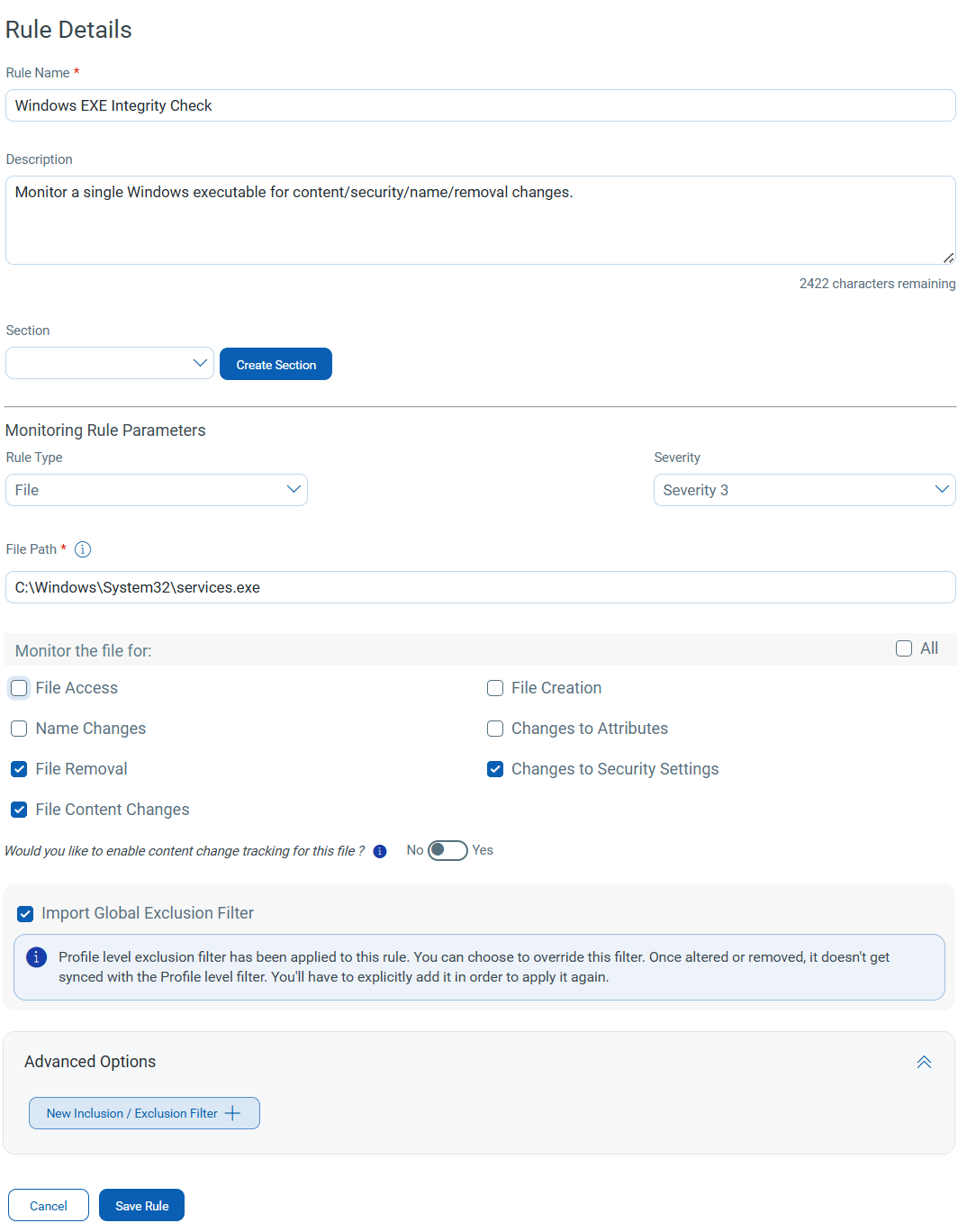
Case 1: Windows File Rule – Monitor one EXECase 1: Windows File Rule – Monitor one EXE
Name: Windows EXE Integrity Check
Description: Monitor a single Windows executable for content/security/name/removal changes.
Rule Type: File
Severity: 3
File Path: C:\Windows\System32\services.exe
Monitoring Options: Select at least one from below.
Recommended selections-
-
File Removal
-
Changes to Security Settings
-
File Content Changes
Optional selections-
-
File Access (if available)
-
File Creation
-
Name Changes
-
Changes to Attributes
Inclusion Filters (optional): Usually, this is not needed for a file rule, but if used, keep patterns short and relative (example services.exe is already specific)
Exclusion Filters (optional): Usually, this is not needed.
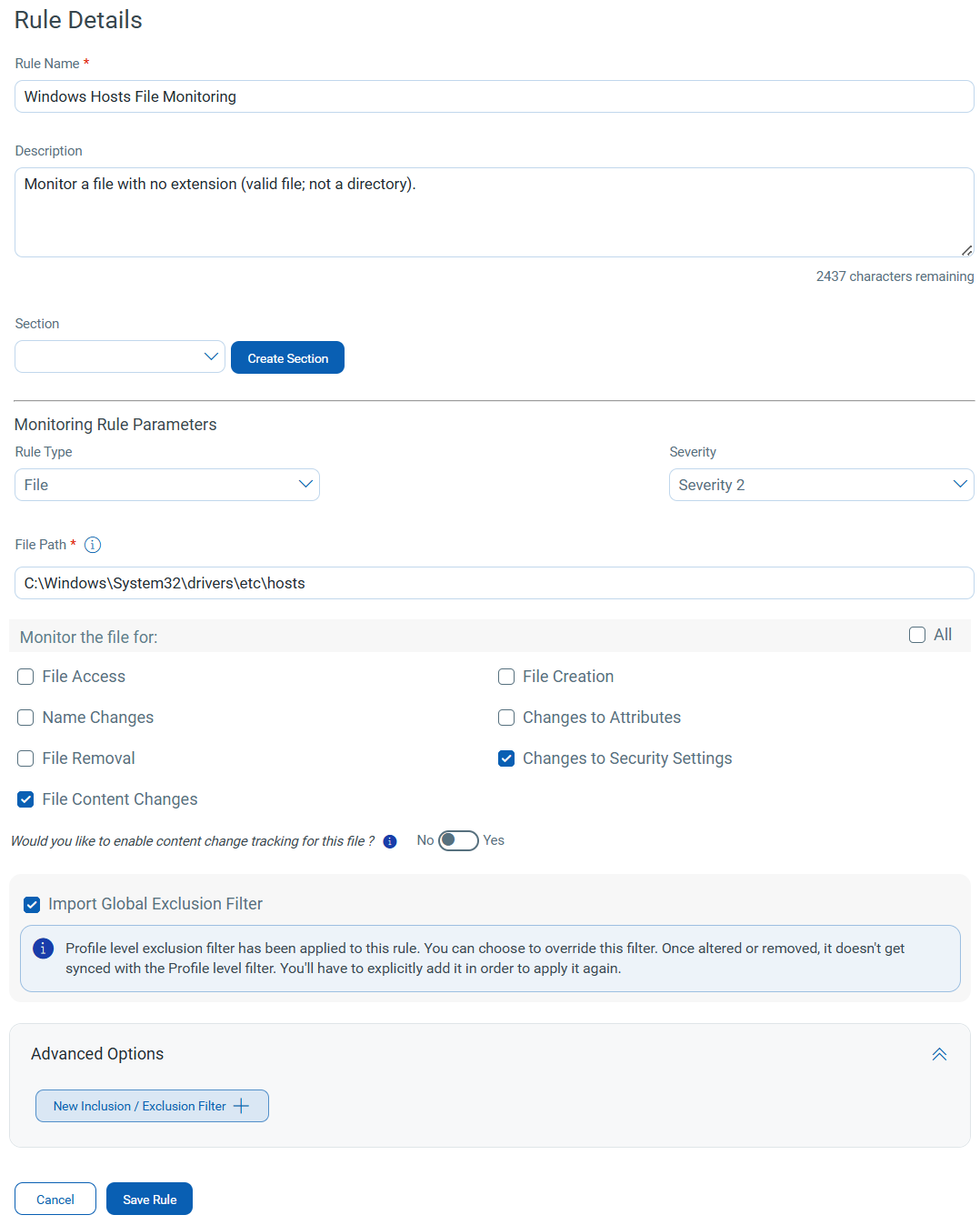
Name: Windows Hosts File Monitoring
Description: Monitor a file with no extension (valid file; not a directory).
Rule Type: File
Severity: 2
File Path: C:\Windows\System32\drivers\etc\hosts
Monitoring Options: Select at least one from below.
Recommended selections-
-
Changes to Security Settings
-
File Content Changes
Optional selections-
-
File Access (if available)
-
File Creation
-
File Removal
-
Name Changes
-
Changes to Attributes
Inclusion Filters (optional): Not required.
Exclusion Filters (optional): Not required.
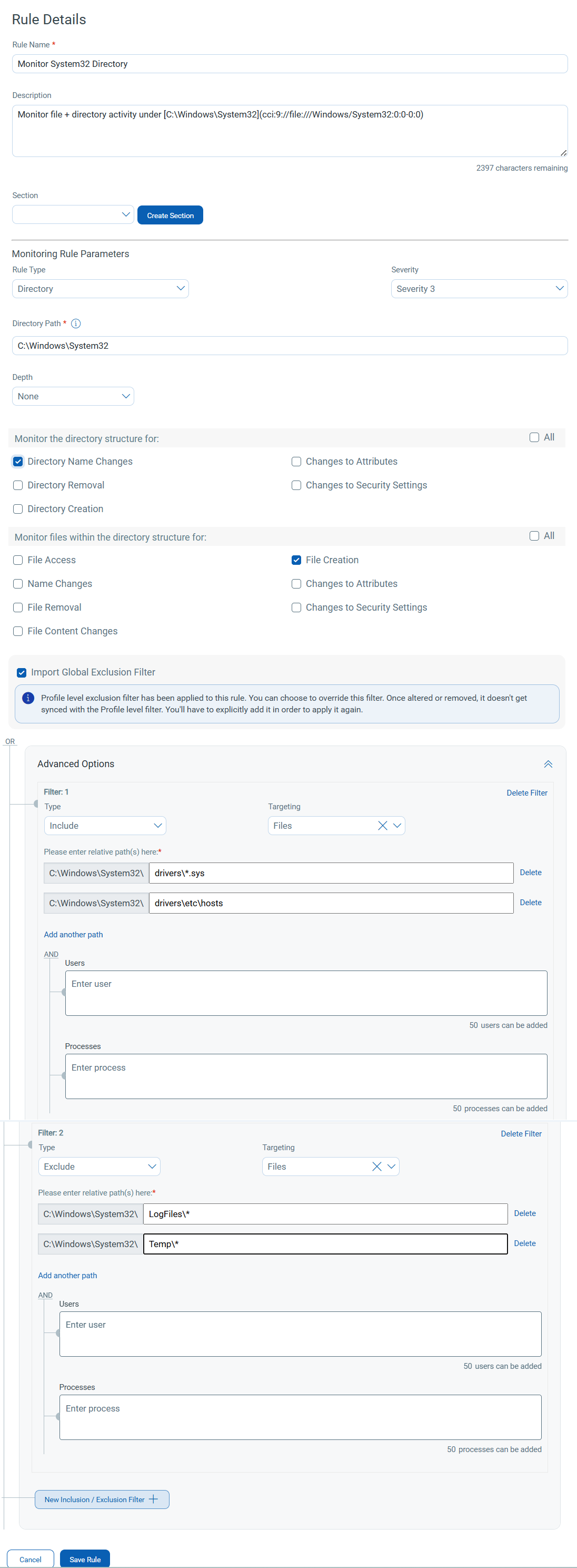
Name: Monitor System32 Directory
Description: Monitor file + directory activity under [C:\Windows\System32](cci:9://file:///Windows/System32:0:0-0:0)
Rule Type: Directory
Severity: 3
Directory Path: [C:\Windows\System32](cci:9://file:///Windows/System32:0:0-0:0)
Monitoring Options: Select at least one from below.
Directory monitoring (directory changes)-
-
Directory Name Changes
-
Changes to Attributes
-
Directory Removal
-
Changes to Security Settings
-
Directory Creation
File monitoring (file changes inside this directory)-
-
File Access (if available)
-
File Creation
-
File Removal
-
Name Changes
-
Changes to Attributes
-
Changes to Security Settings
-
File Content Changes
Inclusion Filters (optional):
Files-
-
*.exe -
*.dll -
drivers\*.sys -
drivers\etc\hosts
Directories-
-
drivers\ -
drivers\etc\
Exclusion Filters (optional):
Files-
-
LogFiles\* -
Temp\*
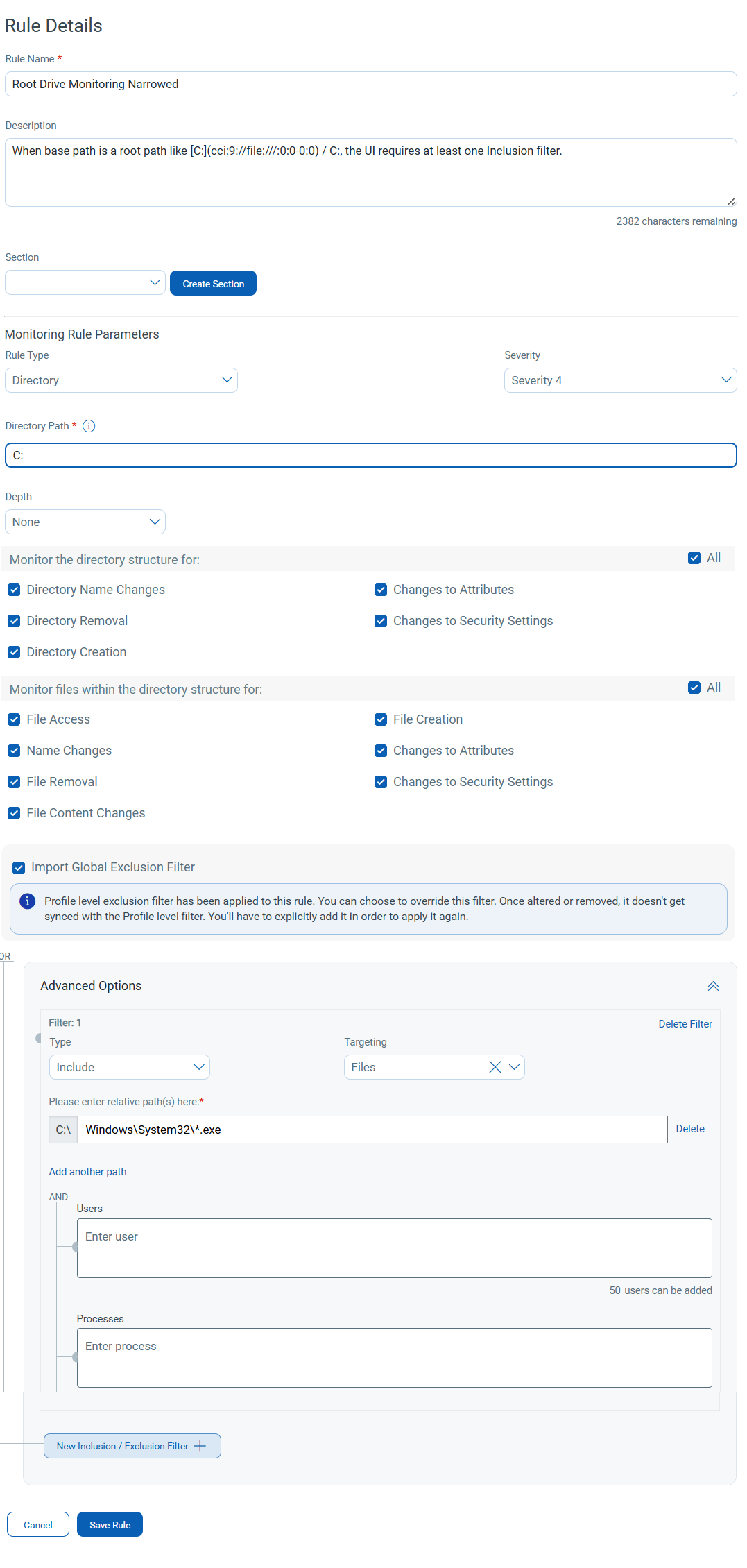
Name: Root Drive Monitoring (Narrowed)
Description: When base path is a root path like [C:](cci:9://file:///:0:0-0:0) / C:, the UI requires at least one Inclusion filter.
Rule Type: Directory
Severity: 4
Directory Path: [C:](cci:9://file:///:0:0-0:0)
Monitoring Options: Select at least one from below.
Directory monitoring-
-
Directory Name Changes
-
Changes to Attributes
-
Directory Removal
-
Changes to Security Settings
-
Directory Creation
File monitoring-
-
File Access (if available)
-
File Creation
-
File Removal
-
Name Changes
-
Changes to Attributes
-
Changes to Security Settings
-
File Content Changes
Inclusion Filters (required):
Files-
-
Windows\System32\*.exe -
Windows\System32\*.dll -
Windows\System32\drivers\*.sys
Exclusion Filters (optional):
Files-
-
Windows\Temp\* -
Users\*\AppData\Local\Temp\*
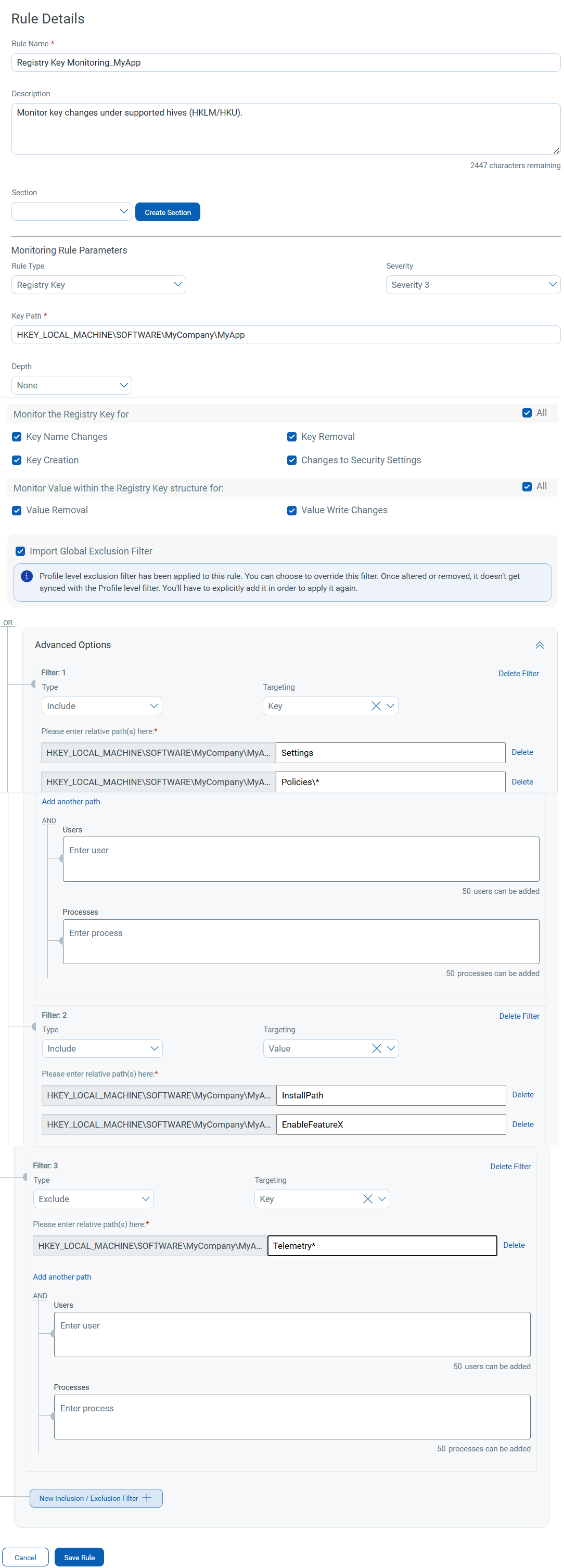
Name: Registry Key Monitoring (MyApp)
Description: Monitor key changes under supported hives (HKLM/HKU).
Rule Type: Registry Key
Severity: 3
Kay Path: HKEY_LOCAL_MACHINE\SOFTWARE\MyCompany\MyApp
Monitoring Options: (must pick at least 1 from Key or Value)
Key monitoring-
-
Key Name Changes
-
Key Removal
-
Key Creation
-
Changes to Security Settings
Value monitoring (file changes inside this directory)-
-
Value Removal
-
Value Write Changes
Inclusion Filters (optional):
Key-
-
Settings -
Policies\*
Value-
-
InstallPath -
EnableFeatureX
Exclusion Filters (optional):
-
Telemetry*
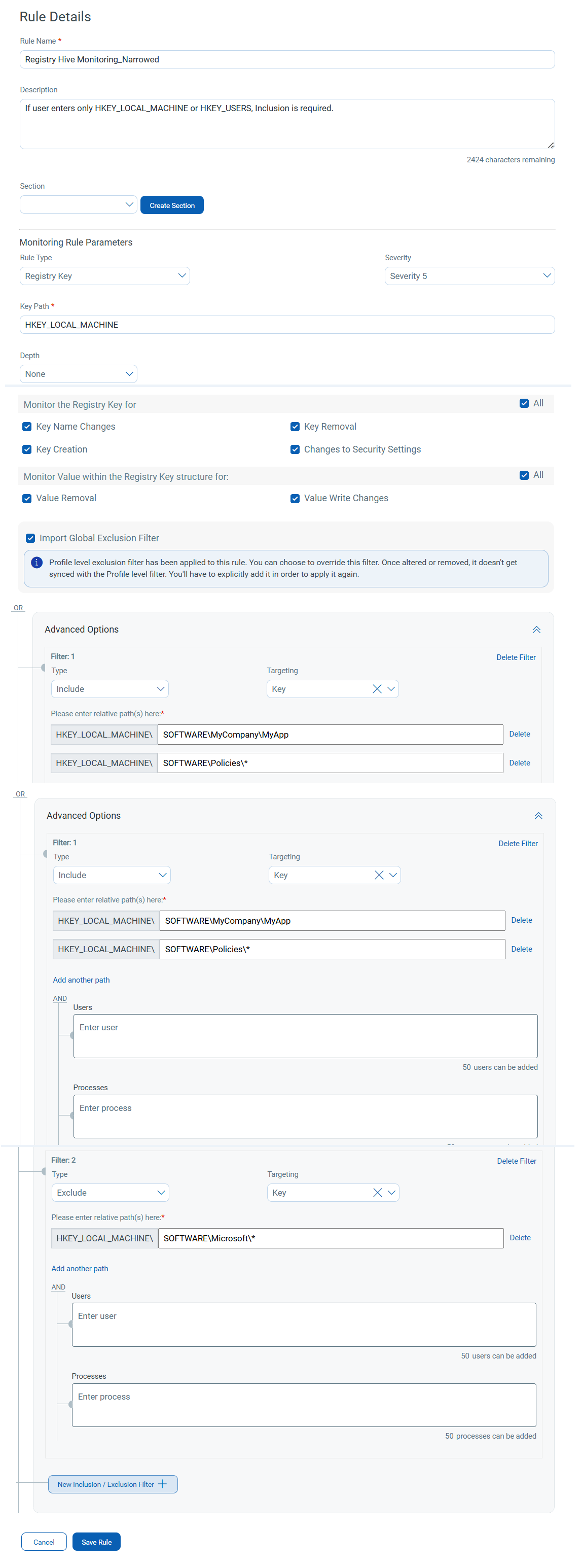
Name: Registry Hive Monitoring (Narrowed)
Description: If the user enters only HKEY_LOCAL_MACHINE or HKEY_USERS, Inclusion is required.
Rule Type: Registry Key
Severity: 5
Kay Path: HKEY_LOCAL_MACHINE
Monitoring Options: (must pick at least 1 from Key or Value)
Key monitoring-
-
Key Name Changes
-
Key Removal
-
Key Creation
-
Changes to Security Settings
Value monitoring-
-
Value Removal
-
Value Write Changes
Inclusion Filters (required):
Key-
-
SOFTWARE\MyCompany\MyApp -
SOFTWARE\Policies\*
Exclusion Filters (optional):
-
SOFTWARE\Microsoft\*(example)
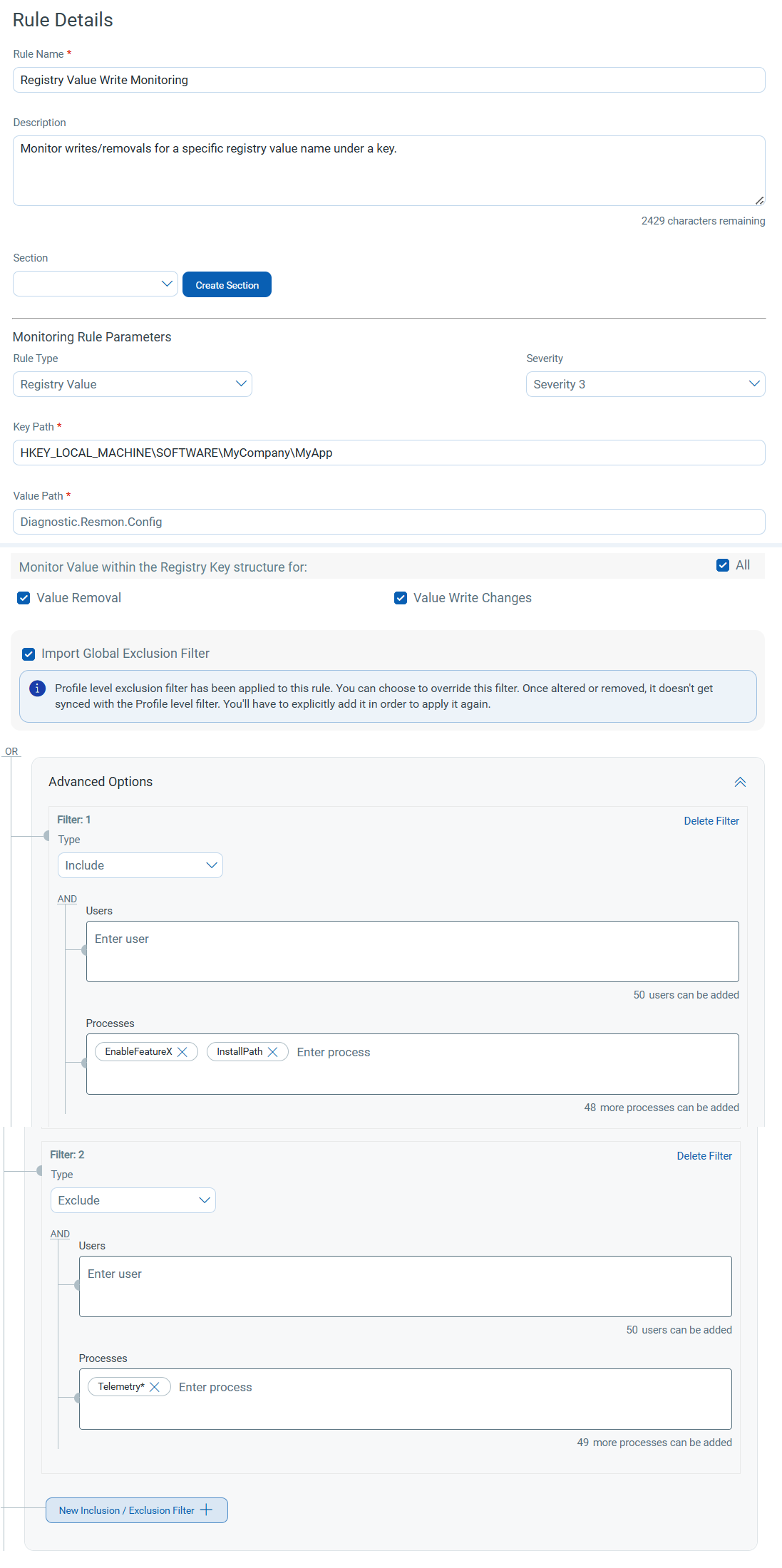
Name: Registry Value Write Monitoring
Description: Monitor writes/removals for a specific registry value name under a key.
Rule Type: Registry Value
Severity: 3
Key path: HKEY_LOCAL_MACHINE\SOFTWARE\MyCompany\MyApp
Value Path/ Value Name: EnableFeatureX
Monitoring Options: (Pick at least 1 from Key or Value)
Value monitoring-
-
Value Removal
-
Value Write Changes
Key monitoring is still visible for the registry area, but for saving, Value monitoring selection is mandatory for the value-type rule.
Inclusion Filters (Optional):
Value-
-
EnableFeatureX -
InstallPath
Exclusion Filters (optional):
-
Telemetry*
Save Rule Cases for Linux
The following examples illustrate Linux-specific rule configurations. Use these examples to monitor changes in system paths, configuration directories, log files, or application resources on Linux systems.
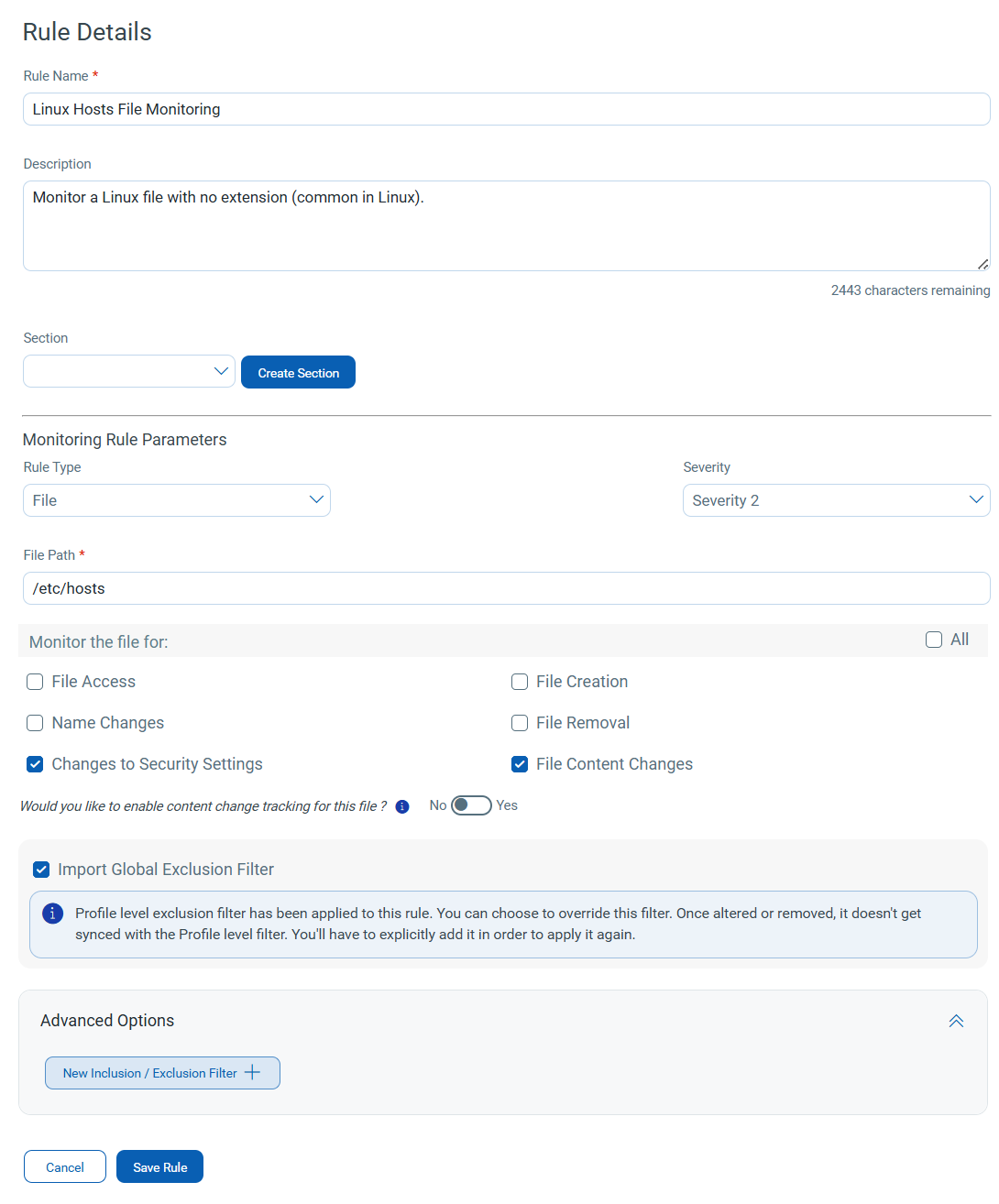
Name: Linux Hosts File Monitoring
Description: Monitor a Linux file with no extension (common in Linux).
Rule Type: File
Severity: 2
File Path: /etc/hosts
Monitoring Options: Select at least one from below.
Recommended selections-
-
Changes to Security Settings
-
File Content Changes
Optional Selections-
- File Access (if available)
-
File Creation
-
File Removal
-
Name Changes
Linux rules do not include the "Changes to Attributes" option.
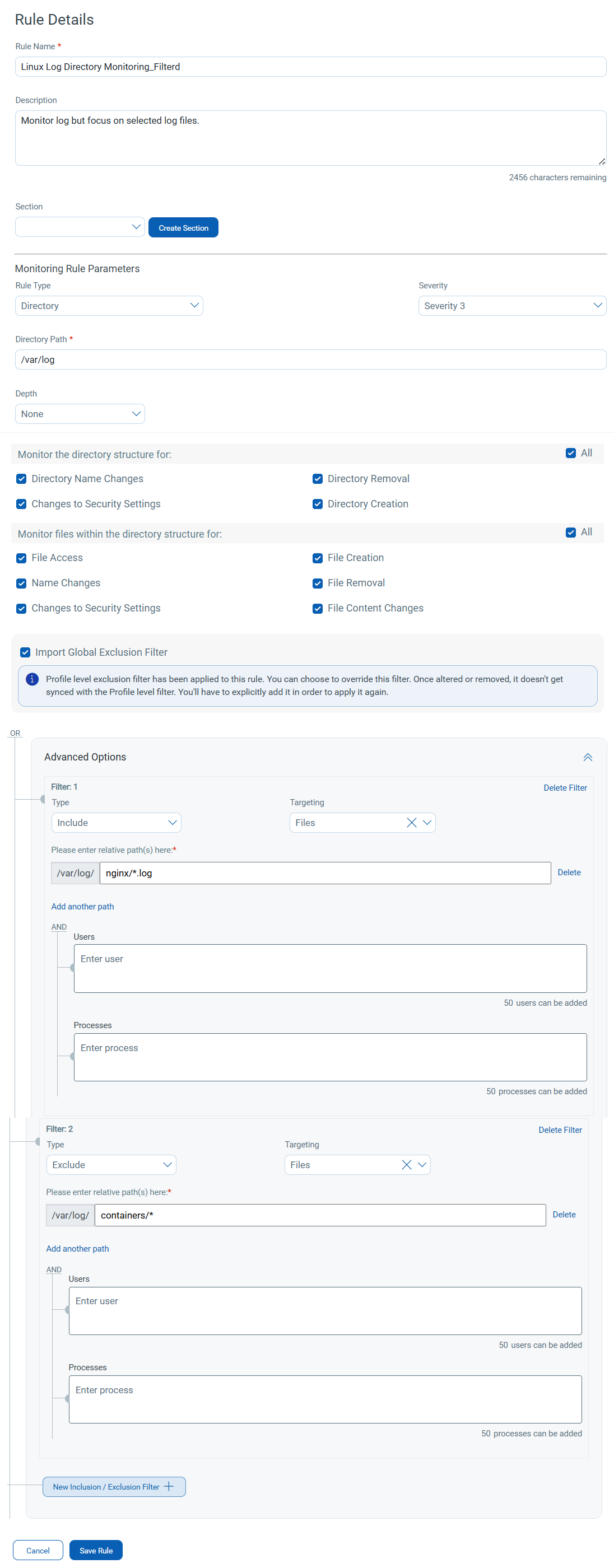
Name: Linux Log Directory Monitoring (Filtered)
Description: Monitor log but focus on selected log files
Rule Type: Directory
Severity: 3
Directory Path: /var/log
Monitoring Options:
Directory monitoring (directory changes)-
-
Directory Name Changes
-
Directory Removal
-
Changes to Security Settings
-
Directory Creation
File monitoring-
-
File Access (if available)
-
File Creation
-
File Removal
-
Name Changes
-
Changes to Security Settings
-
File Content Changes
Inclusion Filters (recommended):
Files-
-
nginx/*.log -
syslog* -
auth*
Exclusion Filters (optional):
-
containers/* -
tmp/*
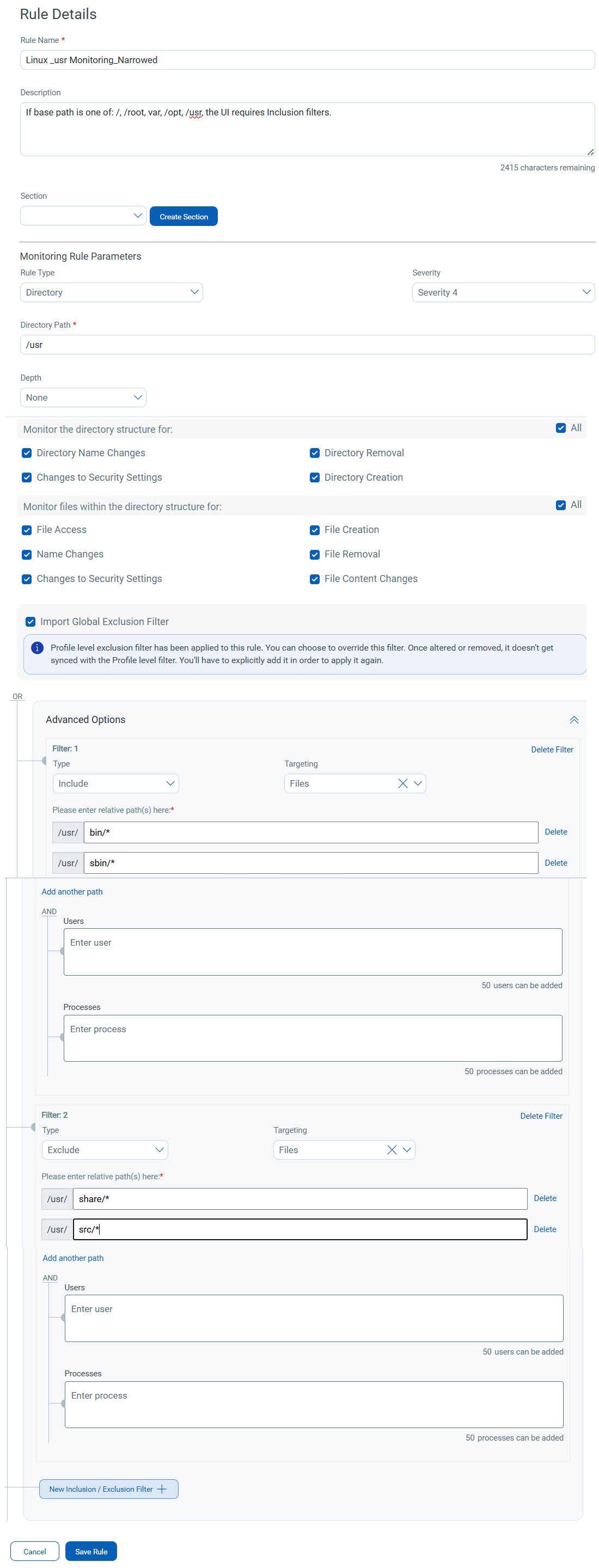
Name: Linux /usr Monitoring (Narrowed)
Description: Paths such as /, /root, /var, /opt,/usr
Rule Type: Directory
Severity: 4
Directory Path: /usr
Monitoring Options:
Directory monitoring (directory changes)-
-
Directory Name Changes
-
Directory Removal
-
Changes to Security Settings
-
Directory Creation
File monitoring-
-
File Access (if available)
-
File Creation
-
File Removal
-
Name Changes
-
Changes to Security Settings
-
File Content Changes
Inclusion Filters (required):
Files-
-
bin/* -
sbin/*
Exclusion Filters (optional):
-
share/* -
src/*
Troubleshooting: Save Rule Disabled
If the Save Rule button is disabled, review the following conditions.
| Issue | Description | Resolution |
|---|---|---|
| Missing inclusion filters for root paths | Root or root-like paths require at least one inclusion filter. Without an inclusion filter, the rule cannot be saved. |
|
| Invalid filter patterns | The specified filter pattern does not follow the required format. |
Verify the following:
|
| Feature-dependent options missing | Some monitoring checkboxes appear only when specific features are enabled for you. If the feature is disabled, the checkbox is not available. | Enable the required feature (for example, File Access Monitoring) or select from the available monitoring options. |