File Integrity Monitoring Release 4.9.4
September 09, 2026
Create Incident for Individual Events
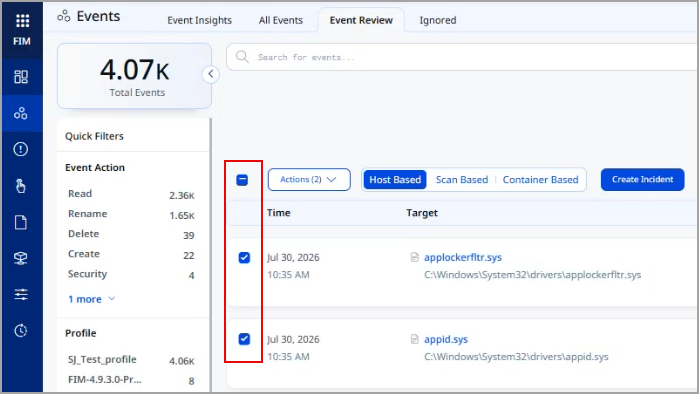
You can now select individual events on the Event Review tab and create an incident for only those events, so you can raise an incident for a chosen set of file changes without building a search query that isolates exactly those events.
Previously, the Create Incident button became available only after you filtered events with a QQL query in the search bar, and the incident then covered every event that the query returned. You could not pick a few events from the search results and create an incident for only those events.
Each event on the Event Review tab now has a checkbox. When you select one or more events, the Create Incident button becomes available, and the Create Incident window displays the number of events the incident will include.
One incident supports a maximum of 100 selected events. To associate more events with one incident, use a QQL query in the search bar, which supports up to 500K events for a single incident.
For more information, refer to FIM Online Help.
This Year and Year to date Timeframe Options
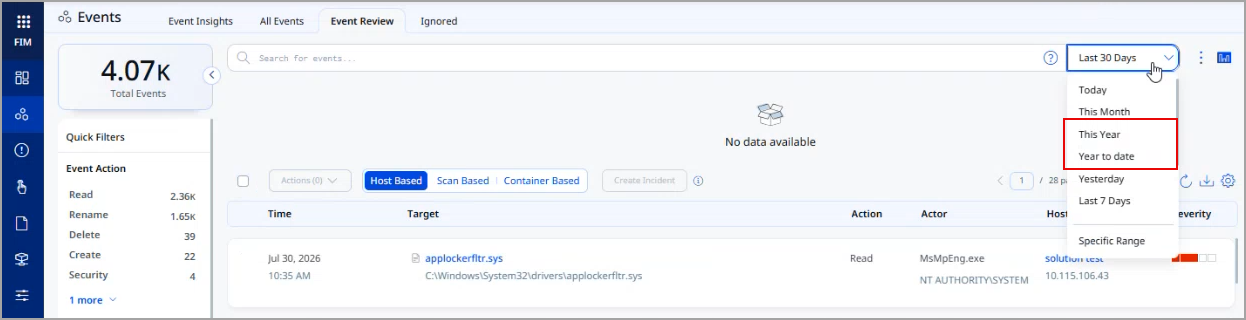
You can now filter events and incidents by This Year or Year to date, so you can report on a full calendar year or on the year so far, such as for an annual audit, without defining a custom date range each time.
Previously, the timeframe filter offered only day, week, and month-level options, such as Today, Yesterday, Last 7 Days, Last 30 Days, and This Month. To cover the current year, you had to select Specific Range and manually set the start and end dates.
This Year covers the current calendar year, from January 1 through December 31. Year to date covers January 1 of the current year through the current date.
You can select This Year and Year to date from the timeframe filter alongside the existing options, as follows:
- On the All Events, Event Insights, Event Review, and Ignored tabs.
- On the All Incidents tabs.
- On the Activity tab of the Responses Page.
- On the Activity Logs page.
- On the Dashboard page.
The screenshot below shows the This Year and Year to date timeframe options on the Events page.
Event Limit for Ignore and Restore Actions
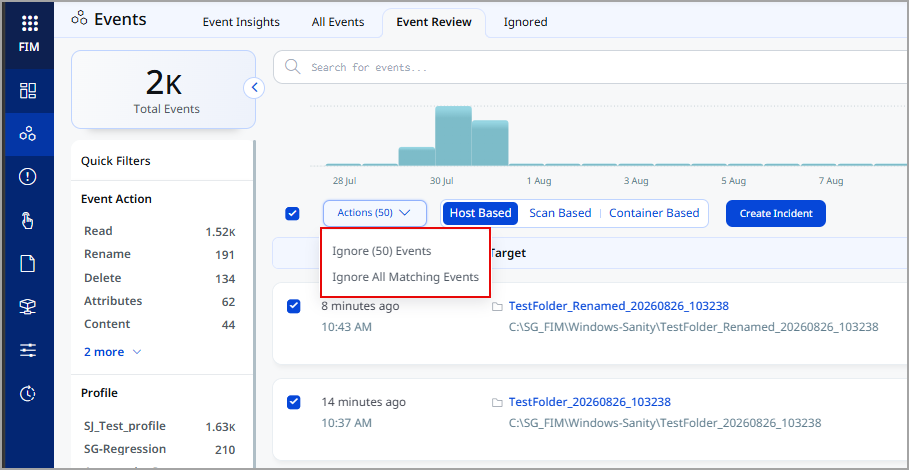
The ignore and restore action now accepts up to 100 events. On the Event Review tab, you can select up to 100 events for a single ignore action. On the Ignored tab, you can select up to 100 events for a single restore action. When you select more than 100 events, FIM disables the Actions button and shows a warning when you point to it.
To ignore or restore more events than the limit allows, reduce your selection to 100 or fewer events.
The screenshot below shows the 50 selected events for single ignore action on the Event Review tab.
Similarly, you can restore events 100 or fewer in a single Ignored Tab.
For more information, refer to FIM Online Help.
Enhanced User Interface
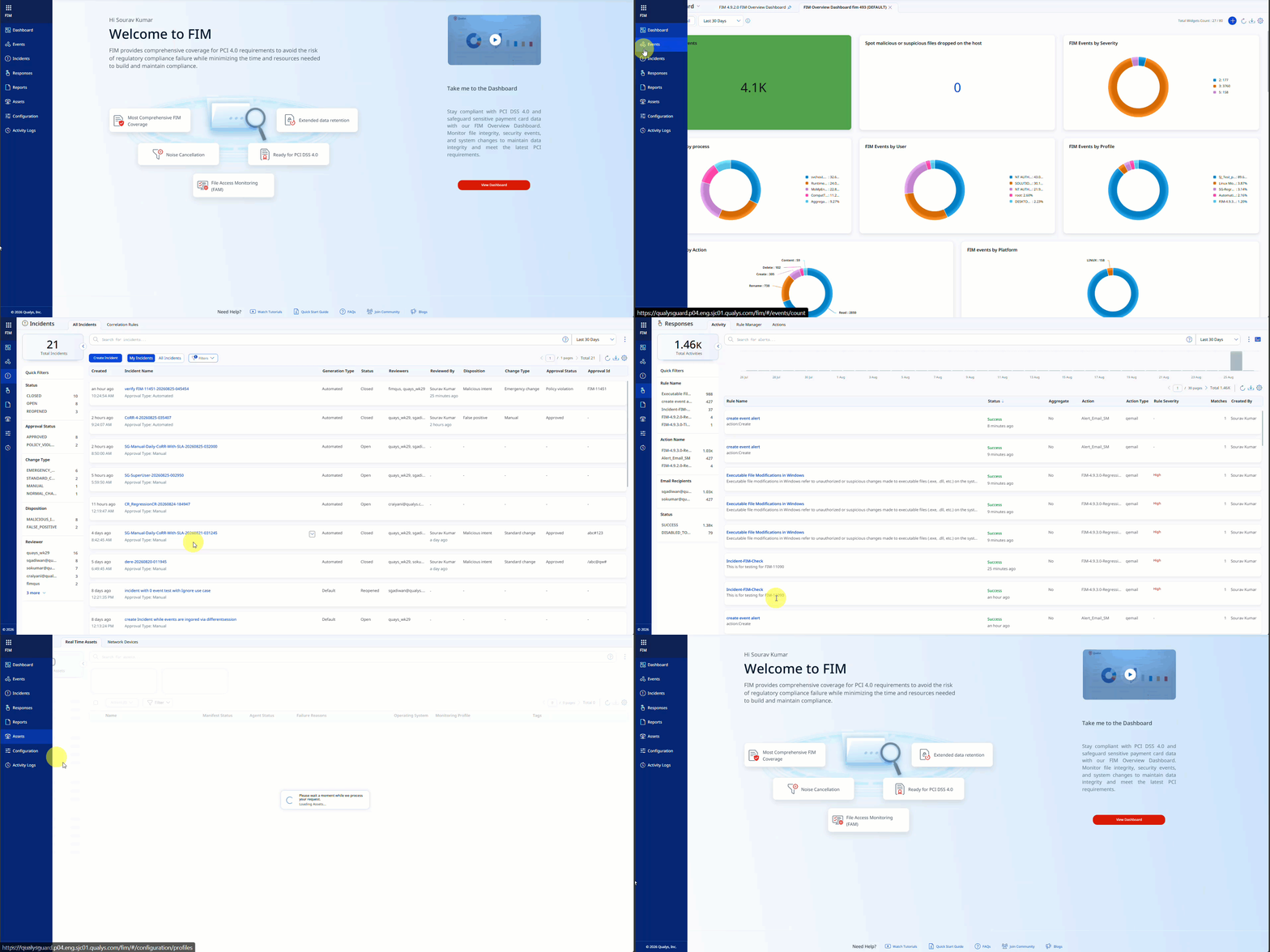
With this release, we have introduced an improved user experience across all FIM pages. You can see updates across fonts, colors, typography, and buttons, making the interface more intuitive and easier to use. This release features User Interface and design system enhancements that improve visual consistency, readability, and usability across the application, resulting in a cleaner, more intuitive user experience.
Key benefits are:
- Cleaner, more consistent screens
- Easier-to-read and easier-to-understand text
- Important information stands out better, with less clutter
- Faster comprehension of risk, status, and numbers
User Interface Consistency and Clarity
Introducing the new and improved User Interface with the following key upgrades:
- Easier-to-read labels and text, with ALL CAPS replaced by sentence-style text
- Consistent text style for status and source names across the application
- Uniform text colors in tables, filters, page numbers, and tabs
- Aligned colors and text styles for tabs and page navigation throughout the application
- Clear visual indicators for buttons and options, showing active, inactive, or secondary states
- Better emphasis on important information, with subtle styling for less critical details to help users focus
Charts, Metrics, and Data Presentation
You can view the following updates:
- Updated chart color schemes for improved clarity and accessibility
- Compact, more readable numeric formats for better visibility
- Refined color gradients for risk scores and meters to enhance interpretation.
New Tokens in FIM
| Token | Tab | Description |
|---|---|---|
| incident.approvalId | Incidents > All Incidents | Search for incidents by the ID of the approval or audit record that the incident references, such as a ServiceNow Change Request or another ITSM approval record. Example: incident.approvalId: "CHG0030021" |
| rule.approvalId | Incidents > Correlation Rules | Search for correlation rules by the ID of the approval or audit record that the rule references, such as a ServiceNow Change Request or another ITSM approval record. Example: rule.approvalId: "CHG0030021" |