Configure Connection to Qualys Applications
Once you install the Qualys Core app, you need to configure a connection with Qualys.
Perform the following steps to configure the connection to Qualys applications:
- Go to Qualys Core > Configuration > Connectors to add a new connector and click New.
-
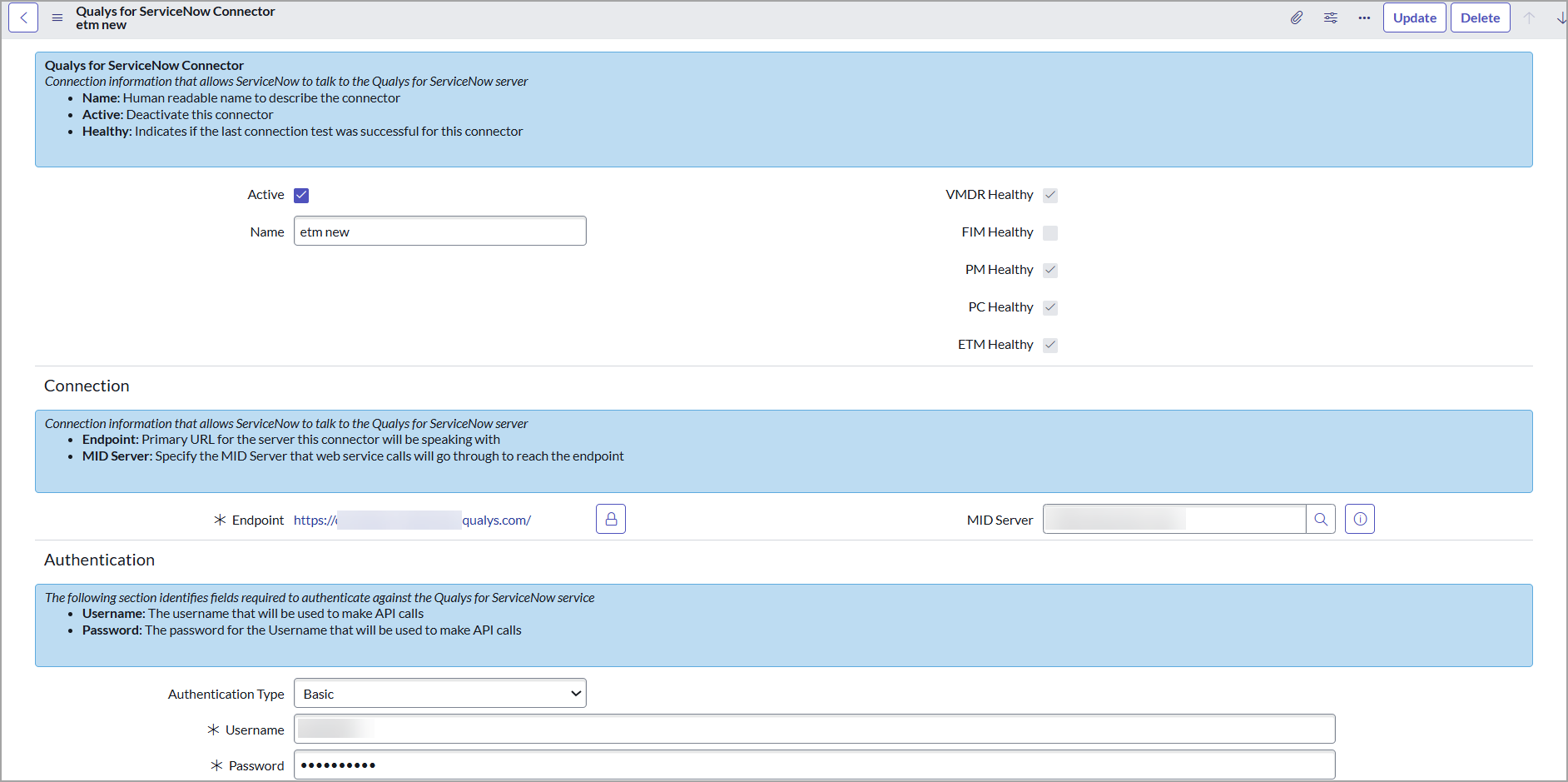
Enter the required details to create the connector:
- Name - Provide a name for the connector.
- Active - Select this option to activate the connector that you create.
- Endpoint - Enter primary URL for the Qualys server that this connector connects to get data from Qualys. To identify the endpoint URL, refer to the API URLs in https://www.qualys.com/platform-identification/.
- MID Server - The MID server can work as a proxy serveror middleman between ServiceNow and Qualys pod, wherein the ServiceNow instance work with limited reachability to outside sources. This is an optional field. To know how to set up MID server, refer to MID Server.
- VMDR Healthy, FIM Healthy, PM Healthy, and ETM Healthy checkboxes indicate whether this connector's last test connection with respective applications was successful.
These check boxes are not available while configuring a new connector. Once a connector is created and click Test the connector, the check boxes are selected based on the successful connection.
- Authentication
The Qualys application supports two authentication methods for connecting to your Qualys account:
- OIDC (OpenID Connect)
- Basic Authentication.
You can choose either method based on your organization’s security policies and access setup.
Configure OIDC Authentication
Use this method if your Qualys environment is configured for OpenID Connect with Client ID and Client Secret.
API authentication is supported using Qualys-managed tokens via a user-level client. To create a user-level client, see Set up Token-based Authentication from UI.

Provide the details in the following required fields:
-
Client ID
Enter the Client ID received from your Qualys OIDC configuration.
-
Client Secret
Enter the corresponding Client Secret.
Basic Authentication
Use this method if your Qualys setup uses a standard Username and Password.

Provide details in the following required fields:
-
Username
Enter Qualys username used for API access.
-
Password
Enter password for the above username.
- Click Submit to create the connector.
- After configuring and saving the connector, click the connector you have created from the Connectors list, and click Test the Connector from the Related Links.
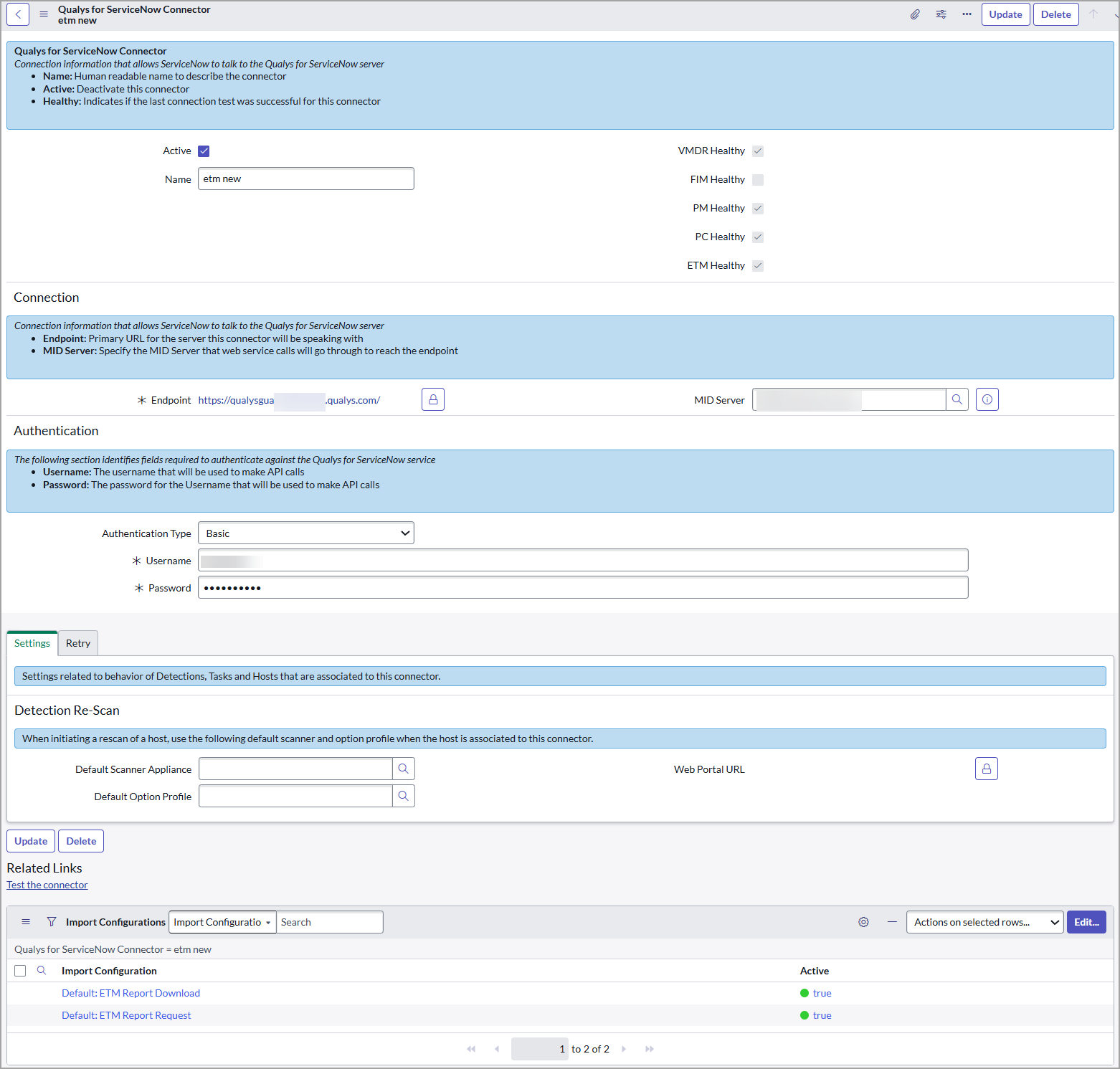
If the connection is healthy, proceed to import data. Use the error message and the system logs to resolve the error.