Customer Management Functions
Learn more about executing the following activities or functions from the Qualys Managed Risk Operations Center (mROC) Manage Customers tab.
- Partners with the Manager role can add, view, and delete customers.
- Partners with the Sub Manager can view customer details.
Add a Customer
You can add the existing customer that is already added from the portal back office.
Complete the following steps to add the existing customer:
- Navigate to the Manage Customers tab and click Add Existing Customer. The Add Existing Customer pop-up is shown.
- Select the required Qualys platform from the Platform Name list.
- Enter the user name and the password in the Username and Password fields, respectively. Note that these are the credentials for the customer subscription.
- Click Add Customer.
A confirmation message is displayed that mentions that the existing customer has been successfully added. Also, the customer entry is added to the customers' page.
After the customer is successfully added, if you want to access the Qualys platform you entered for that customer, click the SSO Link from the SSO LOGIN column for the respective customer, and you are navigated to the respective Qualys platform.
View Customer Details
Complete the following steps to view the customer details:
- Navigate to the Manage Customers tab.
- Click View Details from the Quick Actions menu of the respective customer. You are redirected to the "View Details" page.
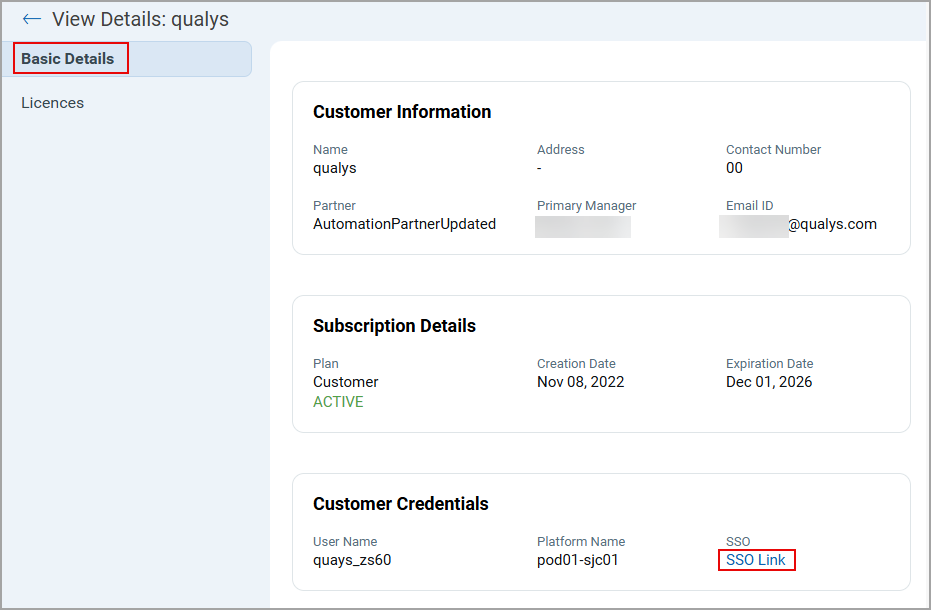
- Click the Basic Details tab. You can see the customer's basic information, subscription details, and customer credentials.
When you click the SSO Link from the customer Credentials section, you are navigated to the platform or the assigned POD.
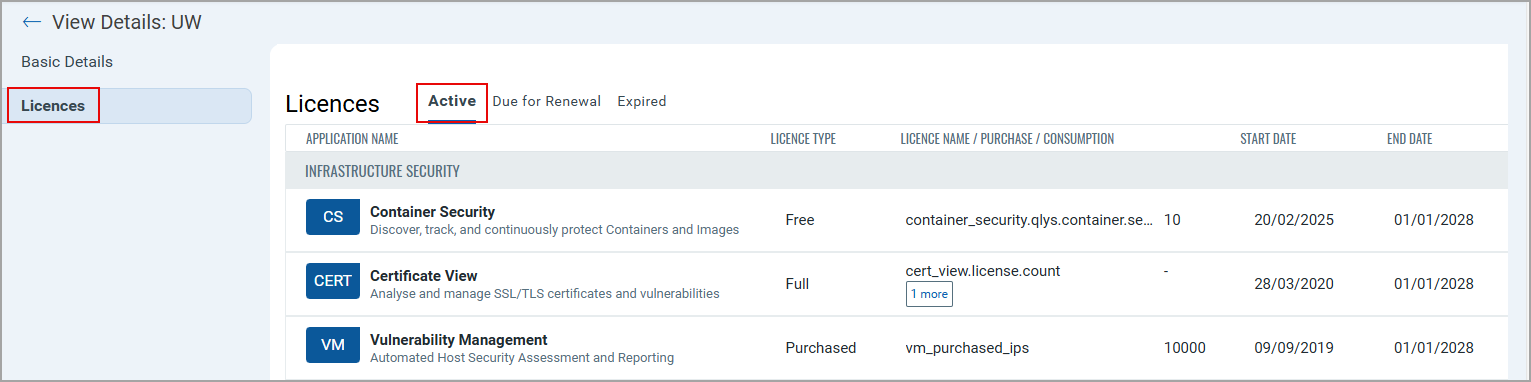
4. Click the Licenses tab. You can see Active, Due for Renewal, and Expired tabs. When you click the respective tabs, you can see the license-related details, such as Active licenses, License types, and whether the licenses are due for Renewal or expired.
Delete Customers
You can choose to delete an individual or multiple customers.
Navigate to the Manage Customers tab and complete the following steps:
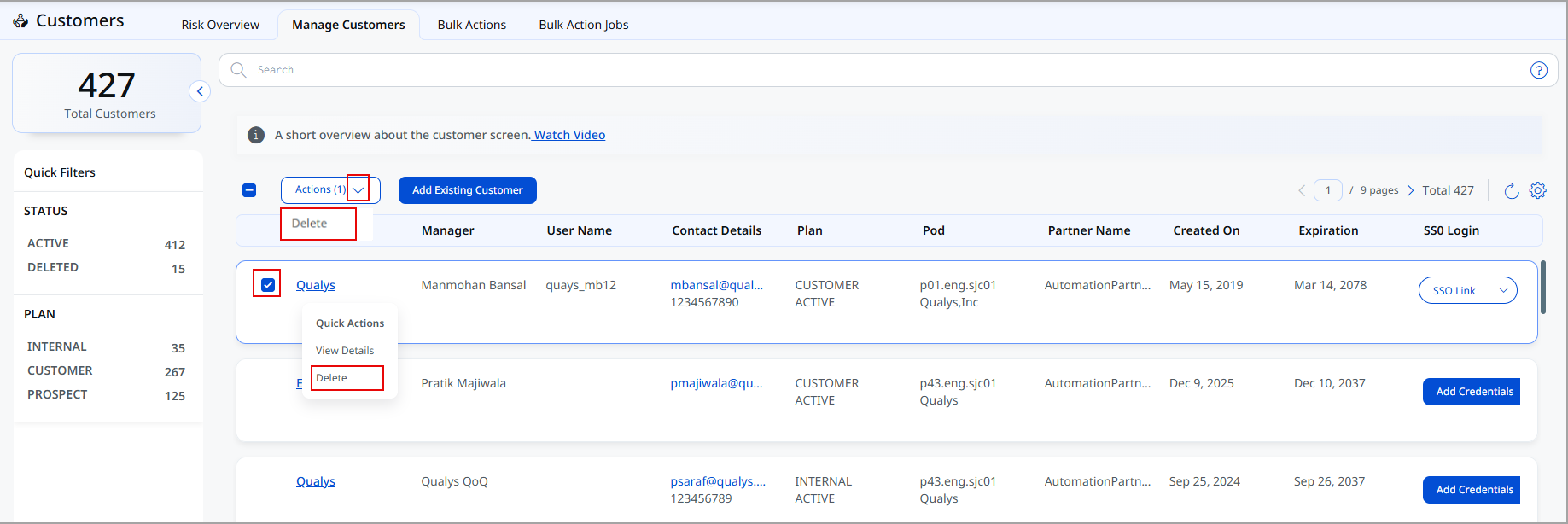
- To delete an individual customer, click Delete from the Quick Actions menu of the respective customer you want to delete. Alternatively, you can click Delete from the Actions list.
The message is displayed, mentioning the customer has been successfully deleted.
- To delete multiple customers, click the check boxes next to the customers and click Delete from the Actions list.
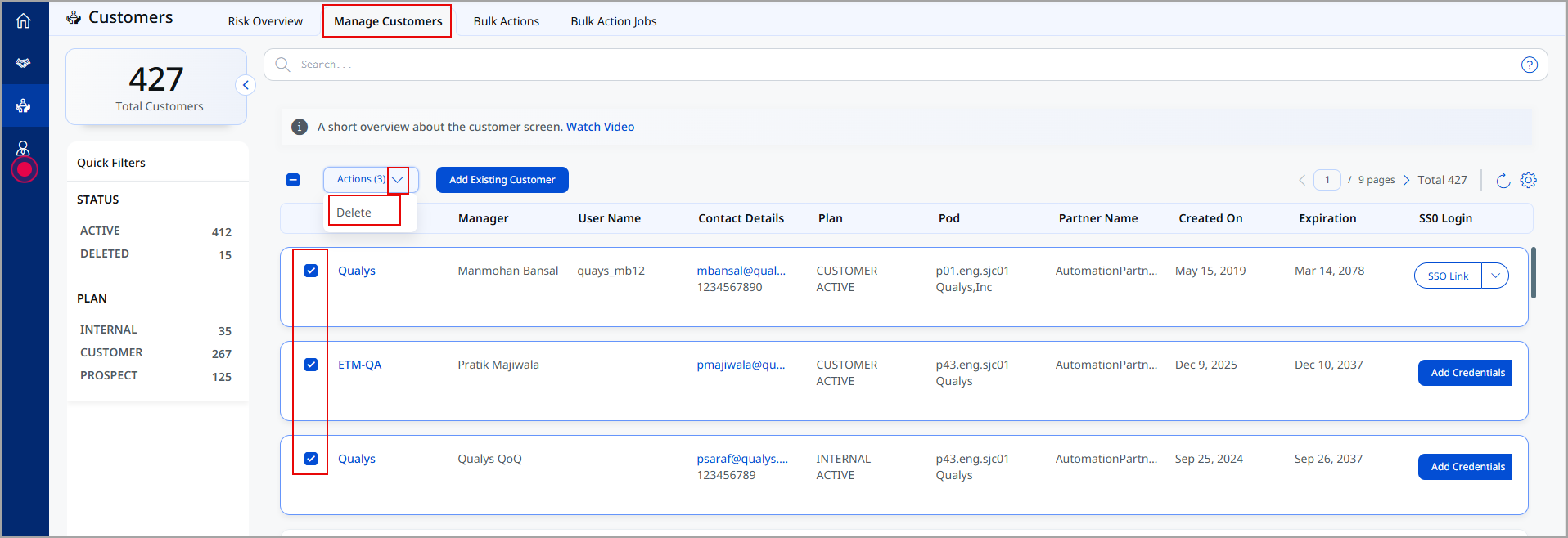
The message is displayed, mentioning the customer has been successfully deleted.