Manage Bulk Actions
Learn more about creating bulk action for API calls using Qualys Managed Risk Operations Center (mROC) from the Bulk Actions tab.
You can create multiple bulk action jobs and run them on the selected customers as required. You can view the job status from the Bulk Actions Job tab.
Create a Bulk Action
Complete the following steps to create a bulk action:
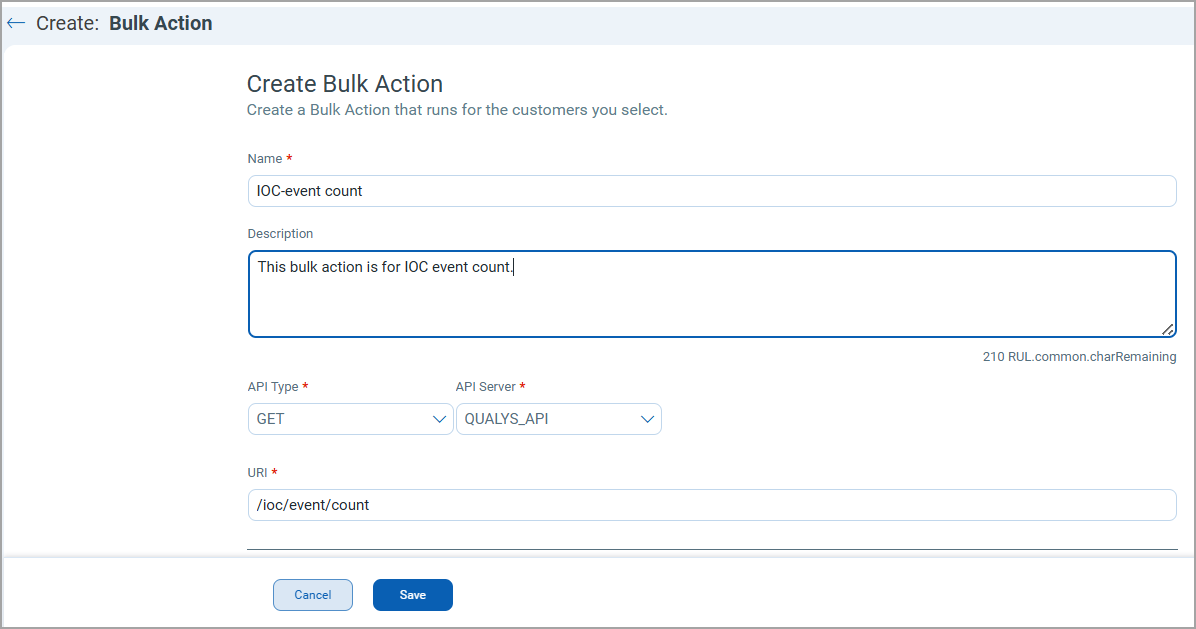
1. Navigate to the Manage Customers > Bulk Actions tab and click Create Bulk Action. The Create Bulk Action page is displayed.
2. Enter the following details in the first section:
a. Name: Enter an appropriate name for the bulk action.
b. Description (Optional): Enter a description for the bulk action.
c. API Type and API Server: Select the required API type and API Server from the list.
d. URI: Enter the required API URI you want to call in the bulk action.
You cannot enter a prohibited API call. For more information, see Prohibited API Calls .
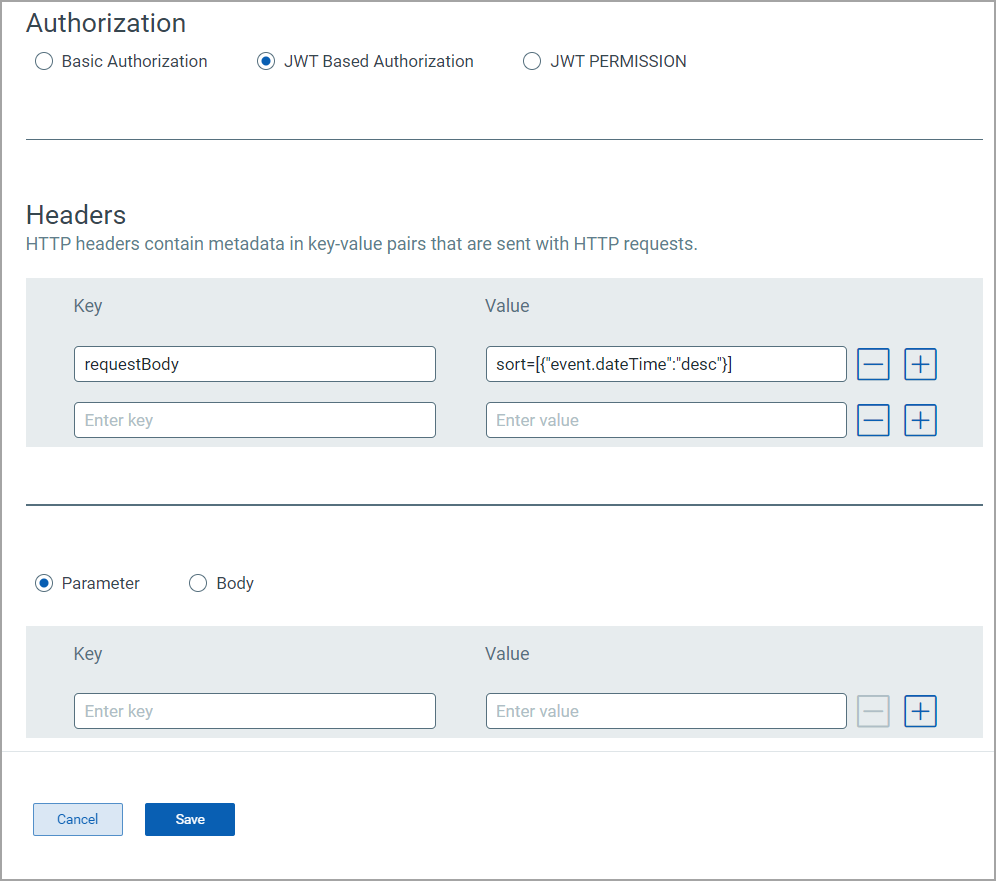
3. Under the Authorization section, select the required type of authorization. By default, the Basic Authorization option is selected.
4. Under the Headers pane, enter the following details:
a. Key: Enter the header key.
b. Value: Enter the value for the corresponding key.
c. To add additional entries, click  .
.
d. To delete an entry, click  .
.
5. If you select the Parameter option, enter the key and value in the corresponding fields.
6. If you select the Body option, enter the details of the bulk action body.
7. Click Save.
Delete a Bulk Action
To delete one or multiple bulk actions, navigate to the Manage Customers > Bulk Actions tab.
- To delete an individual bulk action, select the checkbox for the respective customer and click Delete from the Quick Actions menu. Alternatively, you can click delete from the Actions list.
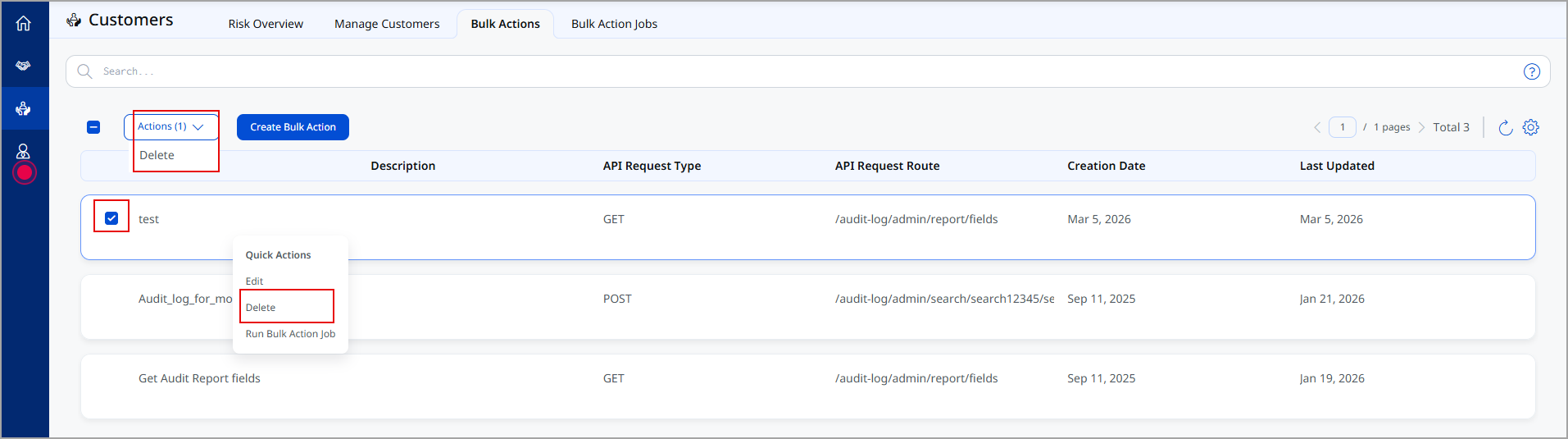
A message is displayed mentioning the bulk action has been successfully deleted.
- To delete multiple bulk actions, click the check-boxes next to the bulk actions and click Delete from the Actions list.
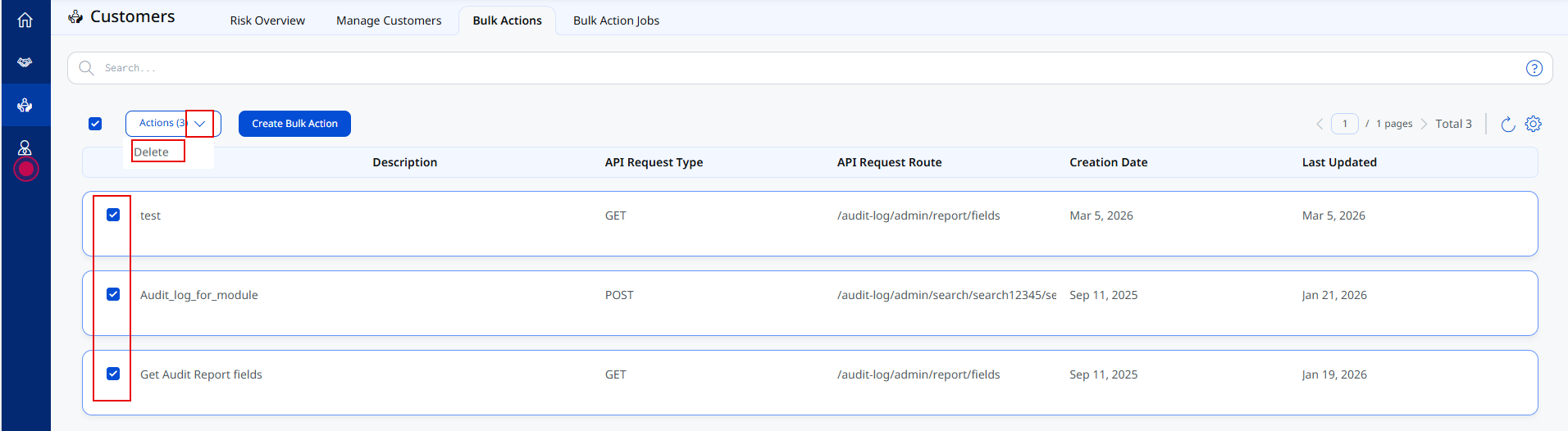
A message is displayed mentioning the bulk action has been successfully deleted.
Run a Bulk Action Job
You can run a bulk action job using the bulk job you created. When you run the bulk job, you can choose to run it for multiple customers.
Complete the following steps to run a bulk action job:
1. Navigate to the Manage Customers > Bulk Actions tab, select the required bulk action job, and from the Quick Actions menu, click Run Bulk Action Job. A Bulk Action Job Details page appears.
2. In the Job Name field, enter an appropriate name for the job.
3. To select the customers that you want to run the job on, perform either or both of the following:
Select customers directlySelect customers directly
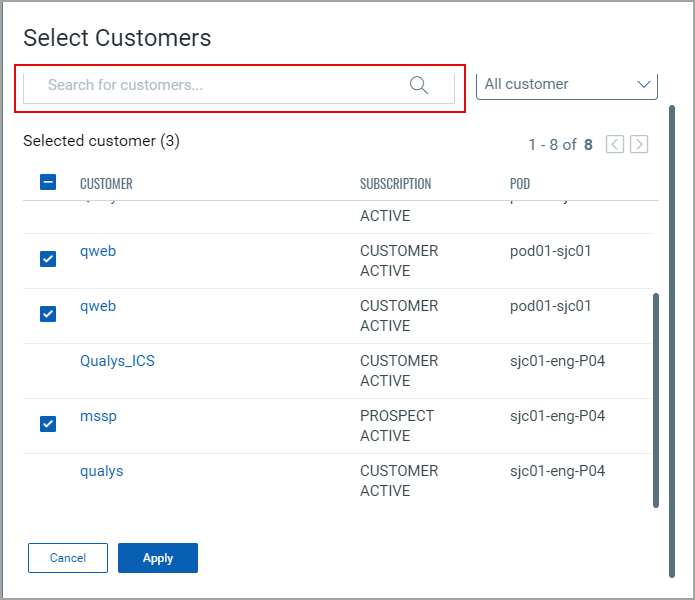
a. Click  for the Select Customers option. A Select Customers window is displayed.
b. Select the checkboxes for the required customers. Alternatively, you can also use the Search bar to search for the particular customer and select it.
c. (Optional) To remove a customer from the added list, select the checkbox and click Remove Selected.
d. Click Apply.
Select customers using tagsSelect customers using tags
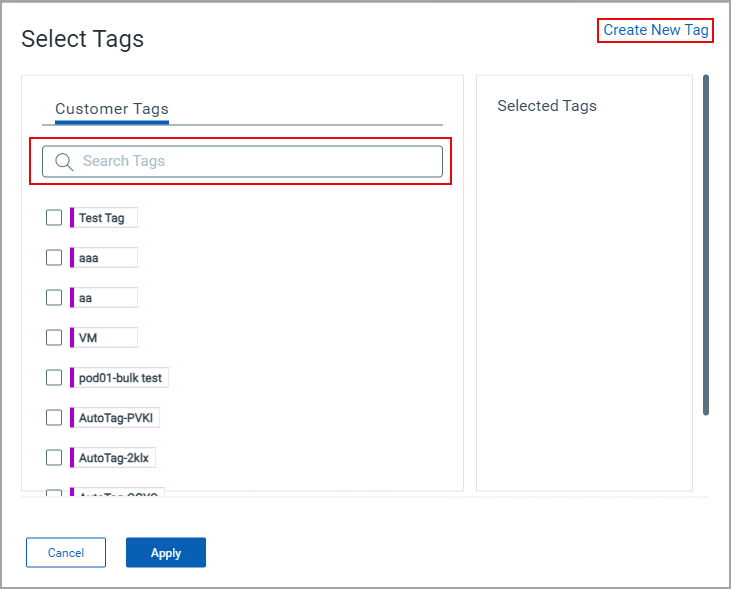
a. Click for the Select Using Tags option.
b. Select the checkboxes for the required tags. Alternatively, you can also use the Search bar to search for a particular tag and select it.
c. To create a new tag, click Create a Tag. For more information, see Create a Tag.
d. (Optional) To remove a tag from the added list, click X for the required tag, or click Remove All to remove all tags.
e. Click Apply.
4. Click Create and Run. A message is displayed that the bulk action job was created successfully.
You can see the status of the jobs that you run on the Bulk Action Jobs tab. For more information, see View Bulk Action Jobs.