Managed Risk Operations Center (mROC) Release 2.4.0
October 30, 2026
mROC 2.4.0 introduces role-based access control. Roles define what each team member can view and manage. User groups define which customers they can access. Risk Overview now also shows license status and consumption for each customer, and highlights customers exposed to Node2Shell and PHP2Shell vulnerabilities.
New Feature
Manage team access with role-based permissions
What Changed For You
Control what each team member can view and manage with role-based access control.
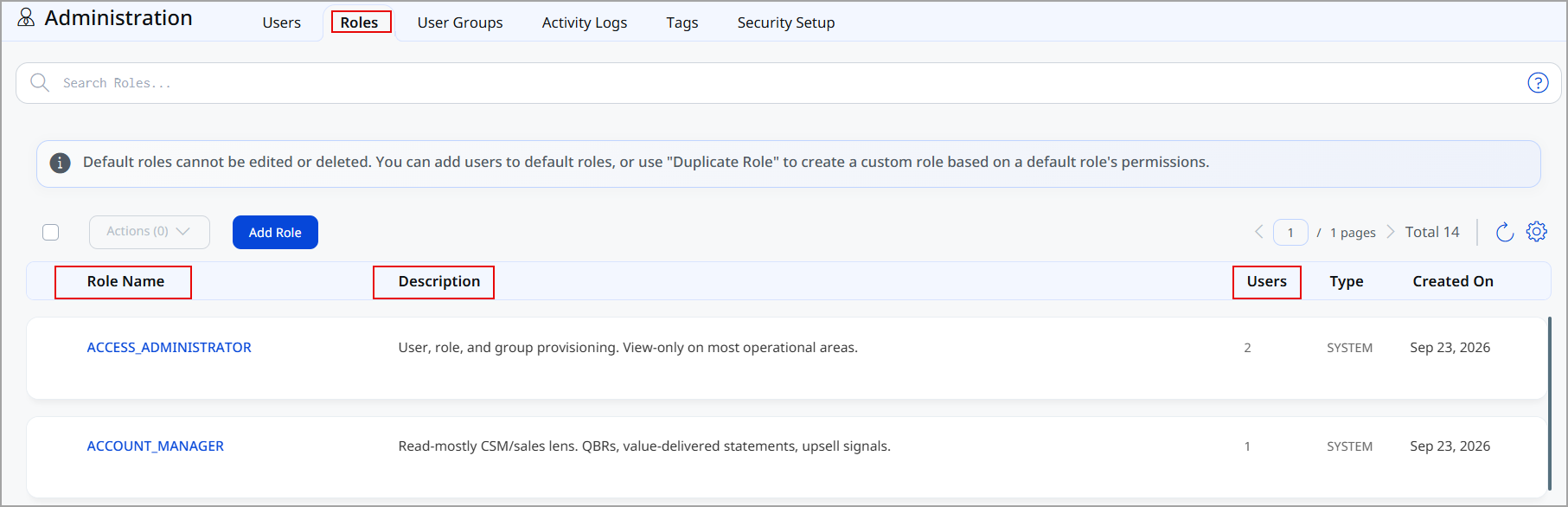
Limit each team member to the access their responsibilities require. mROC provides default and custom roles that define what team members can view and manage. Assign multiple roles when a team member has responsibilities across different areas.
Existing roles migrate automatically to the new roles:
- Manager → Partner Administrator
- Sub-Manager → mROC Analyst
Sub-Managers keep their existing customer access after the upgrade. Their assigned tags and individually assigned customers carry over. mROC also adds them to the SYSTEM_NO_CUSTOMER user group.
For more information, see Roles and Permissions.
Where to Find It
Go to Administration > Roles to review default roles or create custom roles.
New Feature
Set up customer access for your whole team in one step
What Changed For You
Assign customer access to a group of team members at once.
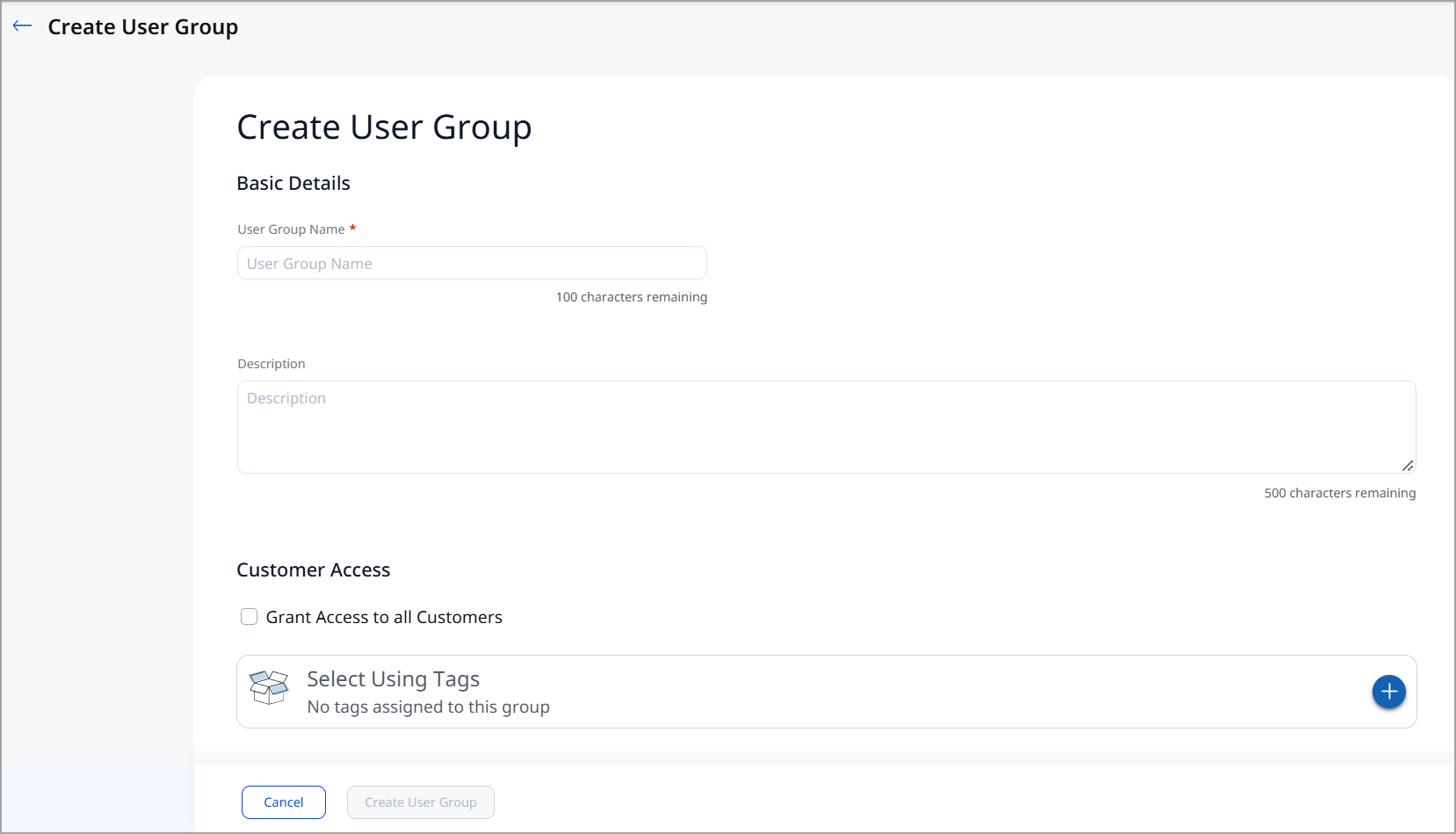
Use user groups to manage customer access for team members with similar customer responsibilities. When you create a user group, choose one of the following options to configure customer access:
- Grant Access to all Customers: The group can access every customer.
- Select Using Tags: The group can access customers associated with the selected customer tags. Select one or more tags. Access updates automatically when a customer's tags change.
Team members added to the group inherit its customer access. When customer responsibilities change, update the group to apply the new access to all its team members.
Assign individual customers to a team member to extend their access beyond the group. Each team member can access the customers from their user group and the customers assigned to them individually. The Manage Customers tab displays this combined list. Customers common to both appear only once.
: A team member can belong to only one user group.
For more information, see User Groups.
Where to Find It
Go to Administration > User Groups to create and manage user groups. Go to Administration > Users to manage access for individual team members.
New Feature
View license status to plan renewals and purchases
What Changed For You
Check customer license status directly from the Risk Overview page.
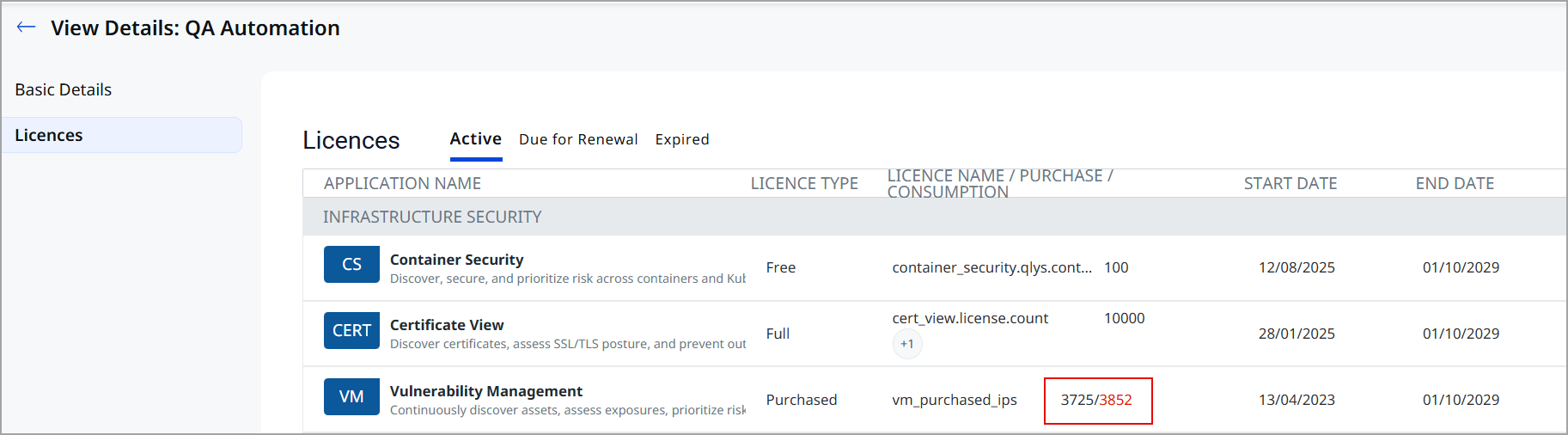
Plan renewals and purchases based on how each customer uses their licenses. Risk Overview now shows license status and consumption for each customer. Previously this was available only in Manage Customers.
Expired licenses and consumption above the purchased count appear in red.
For more information, see Risk Overview.
Where to Find It
Go to Risk Overview, open the Quick Action Menu for a customer, and select View Details.
Enhancement
Track Node2Shell and PHP2Shell Exposure Across Customers
What Changed For You
See which customers are exposed to Node2Shell and PHP2Shell vulnerabilities directly from Risk Overview.
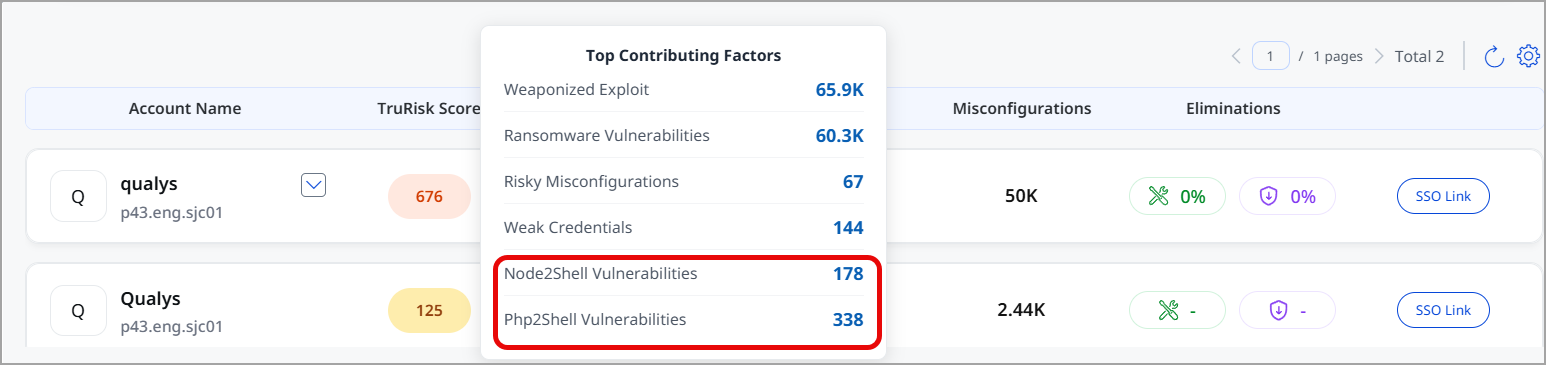
Risk Overview now includes Node2Shell Vulnerabilities and PHP2Shell Vulnerabilities as Top Contributing Factors and Quick Filters. Use them to see how these emerging risks contribute to each account's TruRisk™ Score and to prioritize investigation and remediation without manual searches.
- Top Contributing Factors: Each factor shows the number of associated findings for the account. Select a count to open ETM in that customer's tenant with the relevant filter applied.
- Quick Filters: The count next to each filter shows the number of affected customers. Select a filter to add its query to the search bar, such as
php2ShellVulnerabilities > 0.
After you identify affected customers, use the PHP2Shell Response Playbook to investigate and remediate the vulnerabilities in each customer's tenant.
For more information, see Risk Overview.
Where to Find It
Go to Risk Overview to view the new Top Contributing Factors and Quick Filters.
Partner tab removed from the mROC console
What Changed For You
The Partner tab no longer appears in the mROC console.
The tab and all its functions are removed. They are not available elsewhere in the console.