Tag-based User Scoping in NPS
Tag-based User Scoping (TBUS) allows you to control sub-user access to specific sensors using dynamic asset tags. This provides you with control over sensor visibility and ensures that sub-users can access only the sensors relevant to their assigned responsibilities.
As a Manager user with all permissions, you can assign asset tags created in the Qualys CyberSecurity Asset Management (CSAM) application to sub-users to restrict access to relevant sensors and assets that those sensors discover.
The Manager user with all permissions has unrestricted access to all sensors and assets, regardless of any tags applied to them.
Sensor and Asset Visibility for Sub-users
When a sub-user with the Create PS Scanner permission creates a new sensor, the sensor remains visible to the sub-user after registration is complete.
An information icon is displayed next to the sensor to indicate that the sensor is outside the sub-user's assigned scope.

Although the sensor remains visible in the NPS application, the assets discovered by the sensor are not visible to the sub-user in the CSAM application unless the sensor is included in the sub-user's assigned scope.
To allow the sub-user to view and monitor these assets, a Manager user with all permissions must include the required sensor in the sub-user's assigned scope. Once the sensor is included in the assigned scope, the sub-user can access the corresponding assets in CSAM.
Configure the User Scope
The following process describes how to configure sub-user access:
-
Create a dynamic asset tag.
In the CSAM application, create a dynamic asset tag using the Asset Inventory rule.
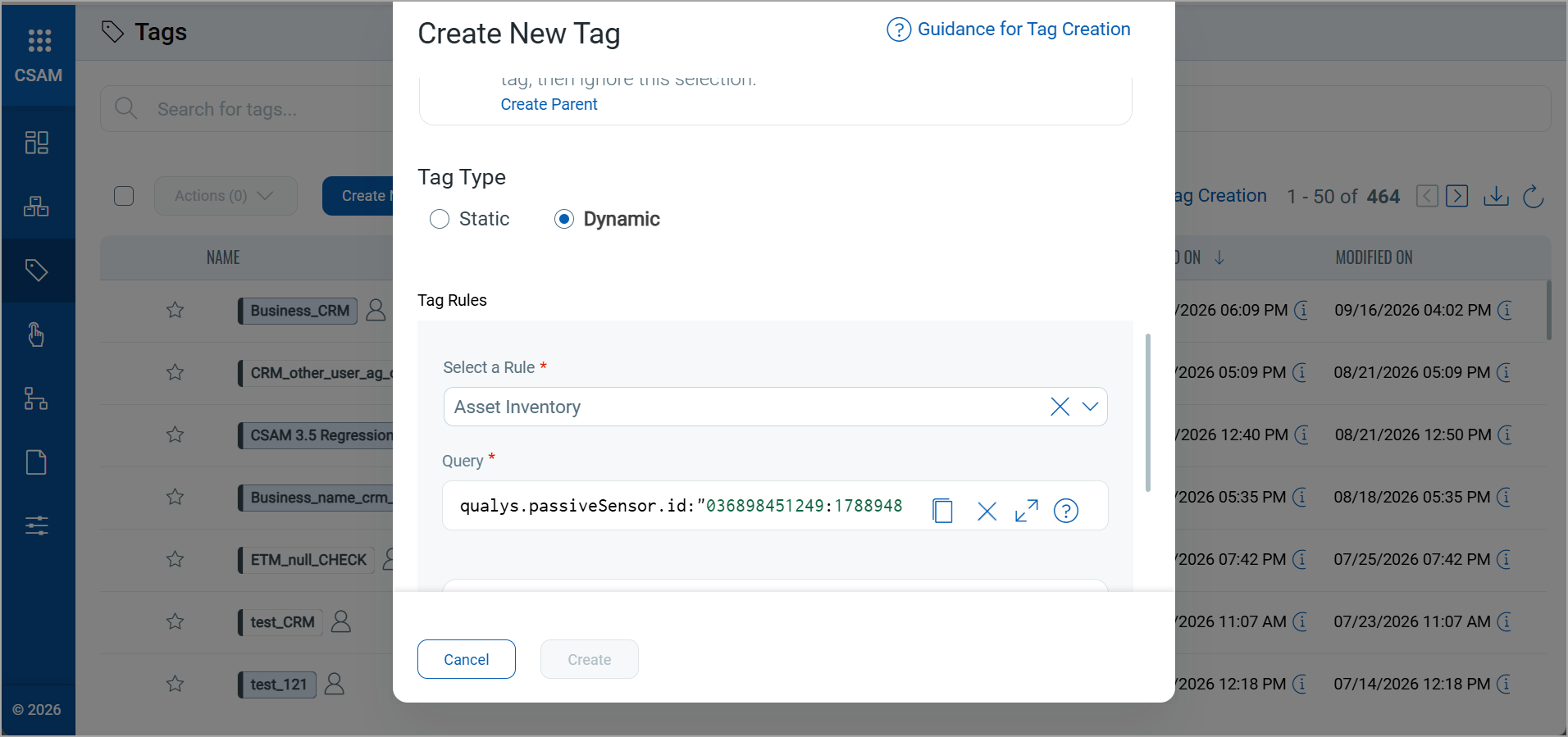
Use the
qualys.passiveSensor.id:token to specify the Network Passive Sensor IDs to include in the tag. For example,- Provide access to a single sensor:
qualys.passiveSensor.id:036898451249:1788948036:5375868:704:1788948036:5375868:704 - Provide access to multiple sensors using operators (AND/OR):
qualys.passiveSensor.id:036898451249:1788948036:5375868:704:1788948036:5375868:704 OR 075648451249:1788948036:5375868:704:1788948036:5375868:407
For more information on creating asset tags, refer to CSAM Online Help.
- Provide access to a single sensor:
-
Assign the asset tag to sub-users.
After creating the asset tag, assign it to the required sub-users through the Administration application. The assigned tag determines the sensors and assets included in their scope. For more information on managing users, refer to the Administration Online Help.
Configure Sensor Access Using Business Units
Business units allow you to manage sensor access for a group of sub-users instead of configuring access separately for each sub-user. You can group the sensor tags under a business unit and assign the business unit to the required sub-users. Sub-users can then access only the sensors included in the business unit assigned to them.
The following process describes how to configure sensor access using business units:
-
Create a business unit.
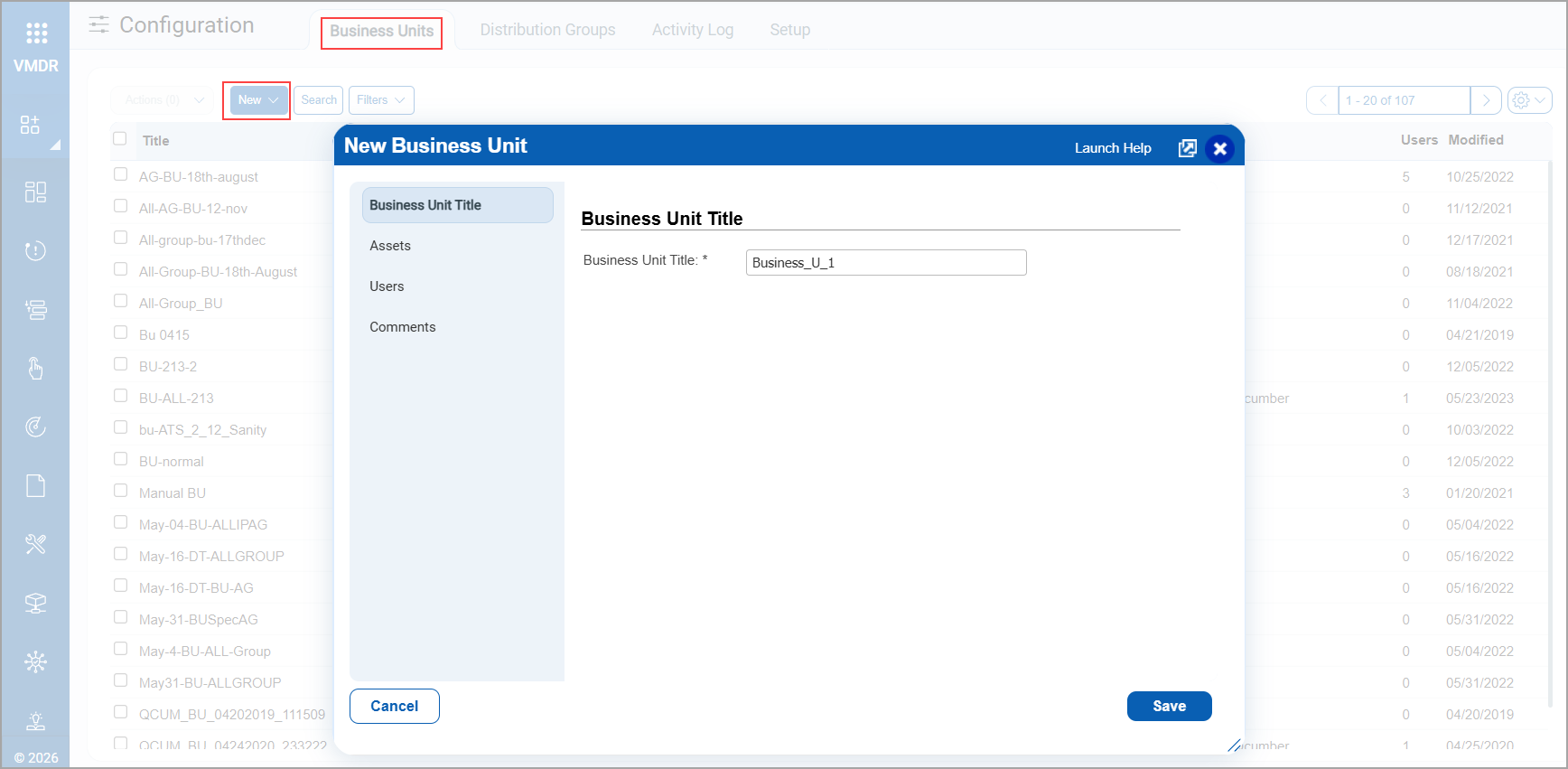
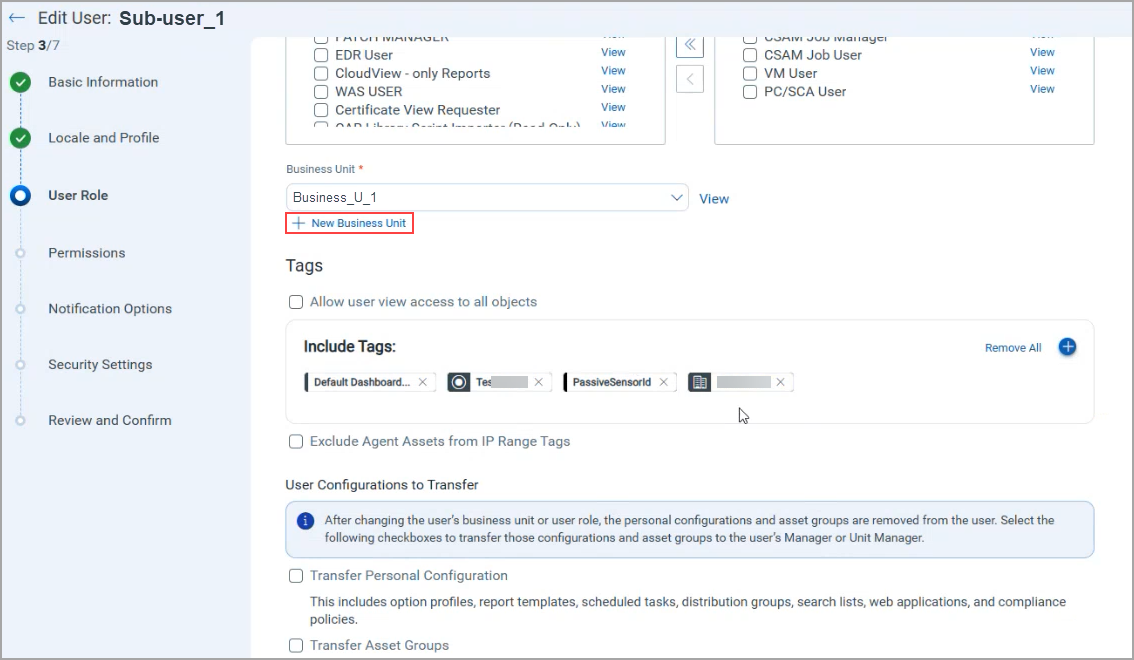
Create a business unit in the Qualys VMDR application or the Administration application.
- In the VM application, navigate to Configuration > Business Units and select New > Business Unit.
For more information on business units, refer to the VMDR Online Help.
- In the Administration application, create the business unit when you create or edit a user.
For more information on business units, refer to the Administration Online Help.
- In the VM application, navigate to Configuration > Business Units and select New > Business Unit.
-
Create a dynamic tag as a child tag of the business unit.
In the CSAM application, navigate to the Tags tab and, from the Quick Actions menu of the business unit tag, select Add Child Tag. The Create New Tag window is displayed.
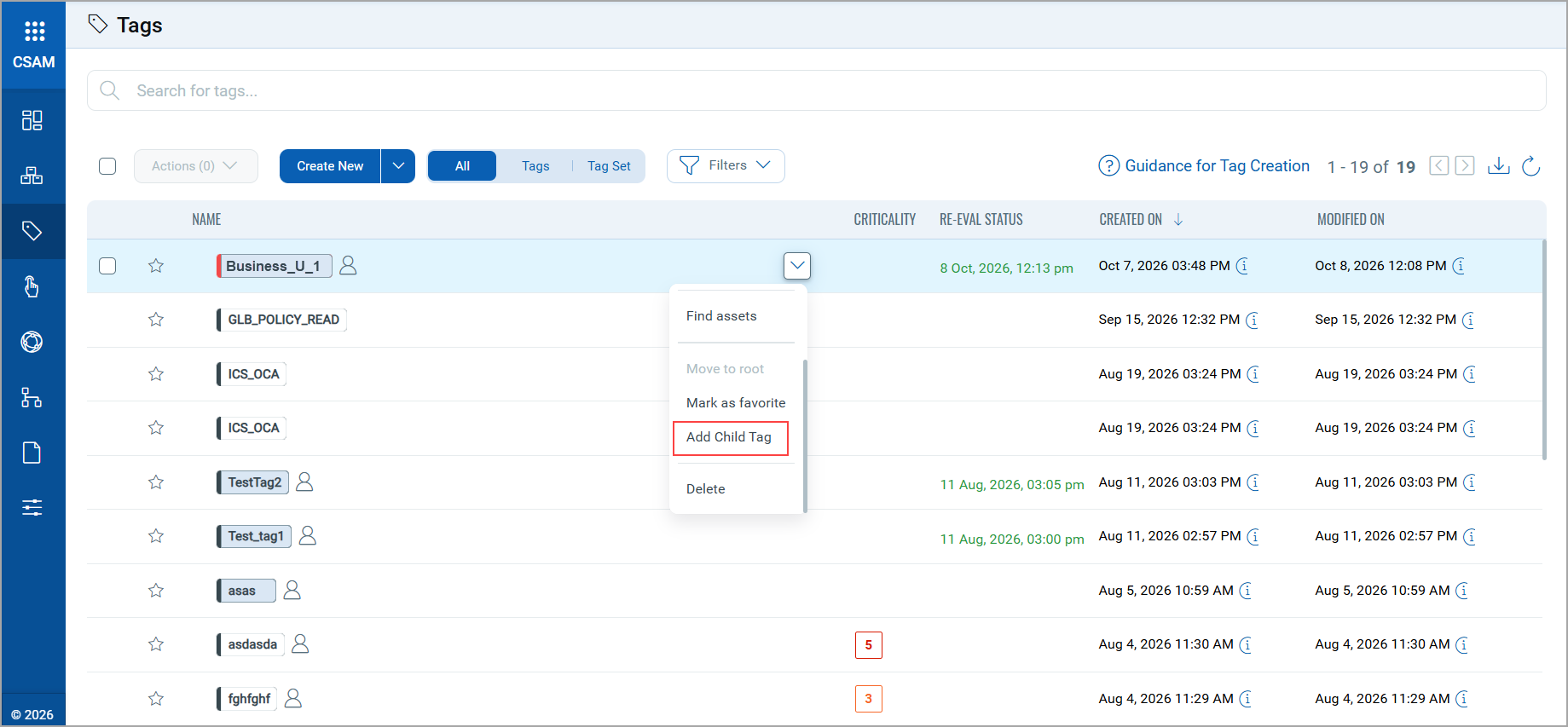
In CSAM, a business unit is displayed as a parent tag on the Tags tab.
Create a tag with the Dynamic tag type using the Asset Inventory rule. Use the
qualys.passiveSensor.id:token to specify the Network Passive Sensor IDs. For query examples, refer to Configure the User Scope.Select the Evaluate Rule on Creation check box to apply the tag to the matching assets when you save the tag. After you create the tag, it is displayed under the business unit tag.
For more information, refer to Create Asset Tags in the CSAM Online Help.
-
Assign the business unit to sub-users.
In the Administration application, create a new user or edit an existing user. In the User Role step, select the business unit.
For more information on creating and editing users, refer to the Administration Online Help.
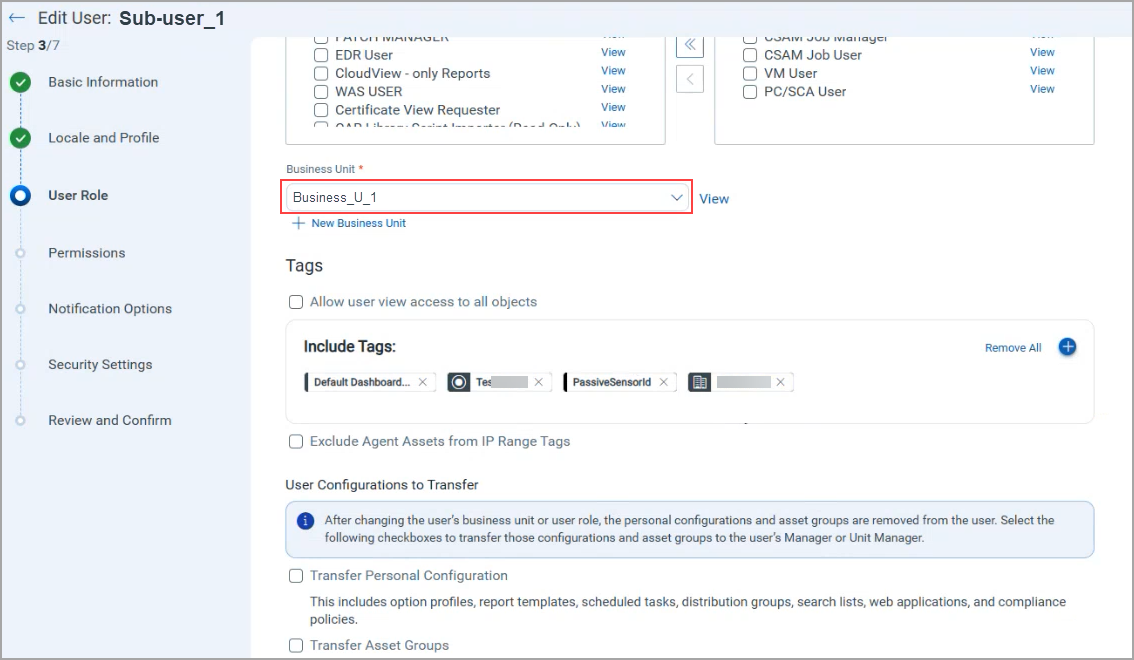
After you complete these steps, sub-users can access only the sensors included in the business unit assigned to them.
Related Topics