Deploying QFlows
When you save a QFlow workflow, you choose how to deploy it across your AWS environment. You can select the accounts and regions yourself (Manual Scope), or let QFlow choose the connectors automatically based on tags (Dynamic Scope).
|
Deployment Scope |
Use it when |
How the targets are chosen |
|---|---|---|
|
Manual Scope |
You want precise control over where the workflow is deployed. |
You select the accounts and regions. |
|
Dynamic Scope |
You want the scope of the workflow to stay up to date as your environment changes. |
QFlow automatically targets the connectors that match the tags you define. |
Contact your Technical Account Manager (TAM) or Qualys Support to enable this feature for your account.
Select a Deployment Scope
- In the workflow editor, click Save.
-
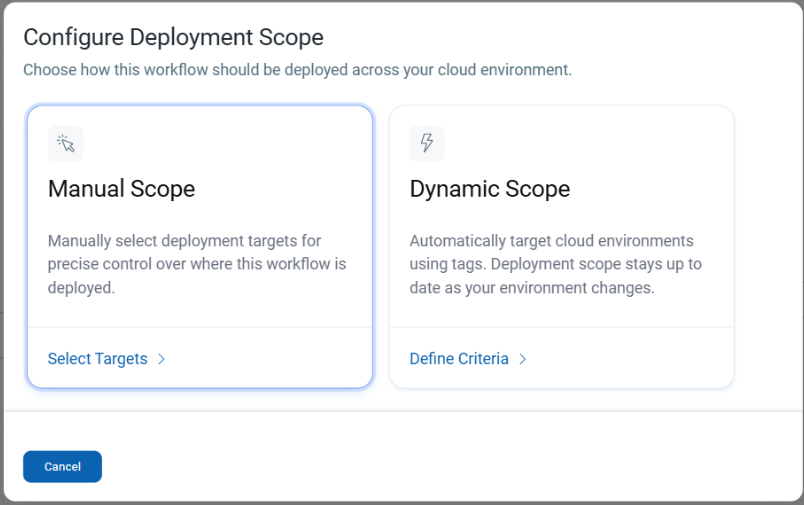
In the Configure Deployment Scope dialog, choose how to deploy the workflow:
-
Click Select Targets under Manual Scope to select the accounts and regions yourself.
-
Click Define Criteria under Dynamic Scope to target connectors based on tags.
-
Deploy Using Manual Scope
Use Manual Scope to explicitly select the accounts and regions where the workflow runs.
-
Click Select Targets under Manual Scope.
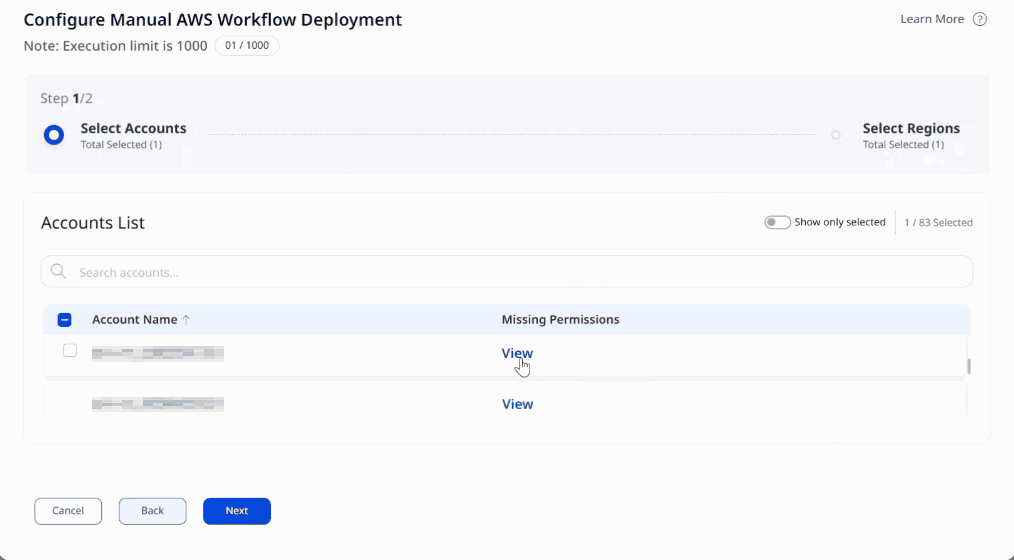
The Configure Manual AWS Workflow Deployment dialog opens. The note at the top of the dialog shows the execution limit (1000) and how much of the limit your selection uses.
-
In Step 1: Select Accounts, select the accounts for the deployment.
-
Use the search box to find an account.
-
Turn on Show only selected to review the accounts you have selected. The counter next to it shows how many accounts are selected out of the total.
-
Use the Missing Permissions column to check the AWS permissions of an account. Click View to see the details. For more information, refer to Viewing Missing AWS Permissions.
-
- Click Next.
-
In Step 2: Select Regions, select the regions where you want the workflow to run, and then save the deployment.
Deploy Using Dynamic Scope
Use Dynamic Scope to deploy the workflow to the connectors that have the tags you specify. QFlow adds the connectors that match your tags to the scope of the workflow automatically, so the scope stays current as your inventory changes.
-
Click Define Criteria under Dynamic Scope.
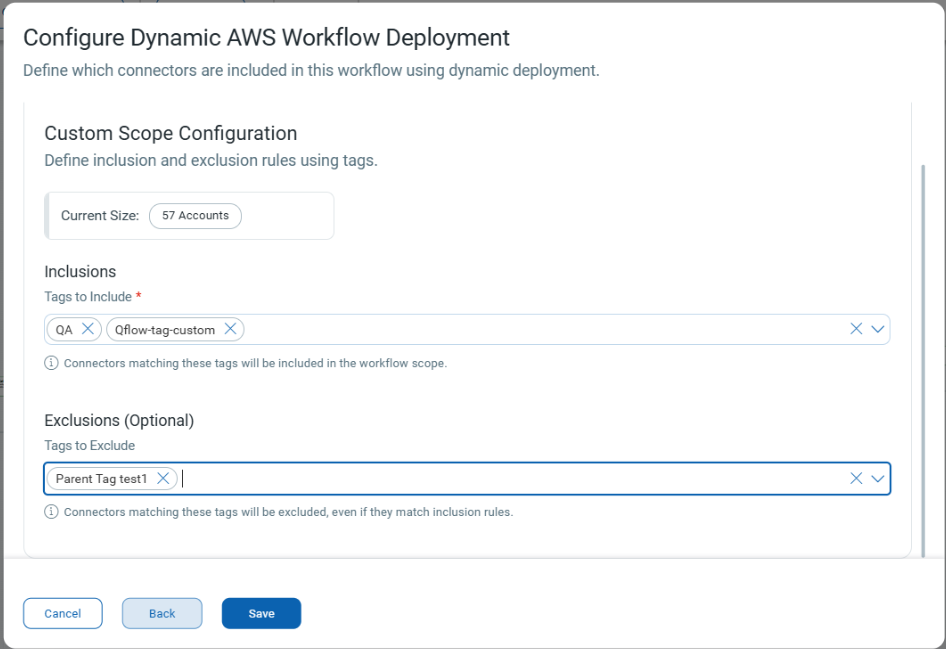
The Configure Dynamic AWS Workflow Deployment dialog opens. In Custom Scope Configuration, you define inclusion and exclusion rules using tags.
-
Under Inclusions, in Tags to Include, select one or more tags. This field is required.
Connectors that match these tags are included in the scope of the workflow.
-
(Optional) Under Exclusions, in Tags to Exclude, select the tags of the connectors you want to leave out.
Connectors that match these tags are excluded, even if they also match an inclusion tag.
-
Check Current Size to see the number of accounts that match your criteria. Click View Accounts to see the accounts and check whether any of them is missing permissions. For more information, refer to Viewing Missing AWS Permissions.
-
Click Save.