Upload Scan Results
This feature lets you view your vulnerability scan results in your Qualys account and create reports based on the findings. Only vulnerability scans can be uploaded. Be sure you have internet access to the Qualys Enterprise TruRisk™ Platform.
The Download Scan results feature does not support map scans.
Review the following important points before uploading the scan results.
- You need to switch back to CLOUD SYNC mode and reconfigure your scanner's network, if needed, so it can connect to the Qualys Enterprise TruRisk™ Platform.
- Any scanned IP not already in your account is added to your account (and counted against your total IPs allowed).
- Once uploaded, the full scan results are no longer available in the Scanner’s Web UI. However, you can still see the scan summary information.
- The scan duration that appears in the Scanner’s Web UI is not the same duration you see in the Qualys UI after the scan upload. The duration that appears in the Scanner’s Web UI when you view scan details represents the scan run time (how long the scan was actively running). The duration that appears in Scan Reports in the Qualys UI (after the scan upload) represents the time it took to upload and process the scan results. This does not include the scan run time because the scan occurred offline.
Avoid Upload Issues
When uploading the scan results, avoid the following actions:
- Do not reboot or reset the scanner between finishing the scan and uploading the results. Rebooting causes the cleanup of some scan data, which results in upload failure. Ensure that you strictly perform only suspend and resume switching from offline to online states when marking a scan for upload.
- Do not attempt the Reconnect to Datacenter option from the scanner console after finishing the scan and before the scan data is completely uploaded. This option would interrupt the upload, which would not be completed.
- To avoid network issues, make sure you have selected the correct network cable and network adapter before switching the scanner to CLOUD SYNC mode.
Upload Scan Results of Offline Scanner
You can upload the Offline Scanner's scan results to the following hypervisors:
- VMware Workstation
- Oracle VirtualBox
- VMware ESXi
To upload scan results, you need to switch to CLOUD SYNC mode.
Perform the following steps to upload scan results:
- Switch to CLOUD SYNC mode for uploading the scan results to the Qualys server.
To switch to CLOUD SYNC mode in the hypervisors, refer to the relevant sections below: -
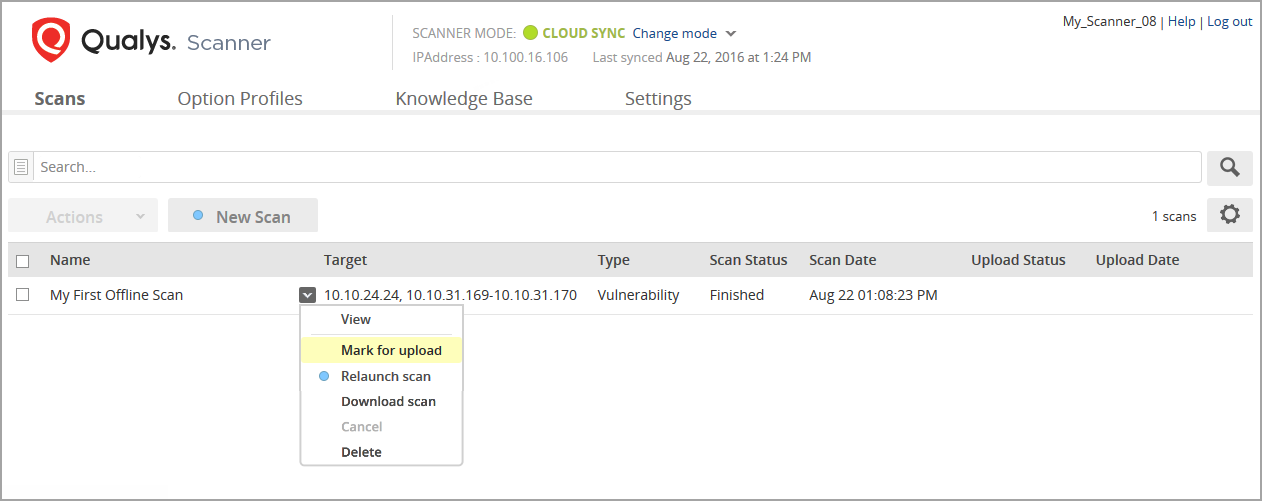
Once the scanner is switched to CLOUD SYNC mode and successfully connected to the Qualys server, select the scan you want to upload from the Scans list.
-
Choose Mark for upload from the quick actions menu.
The scan is uploaded the next time you sync.If you do not want to upload scan results, select Unmark for upload from the quick actions menu before syncing.