View MCP Servers
The MCP Servers tab displays the MCP name, last discovered date, URL, description, and associated endpoints. It provides a standardized and centralized view of MCP integrations.
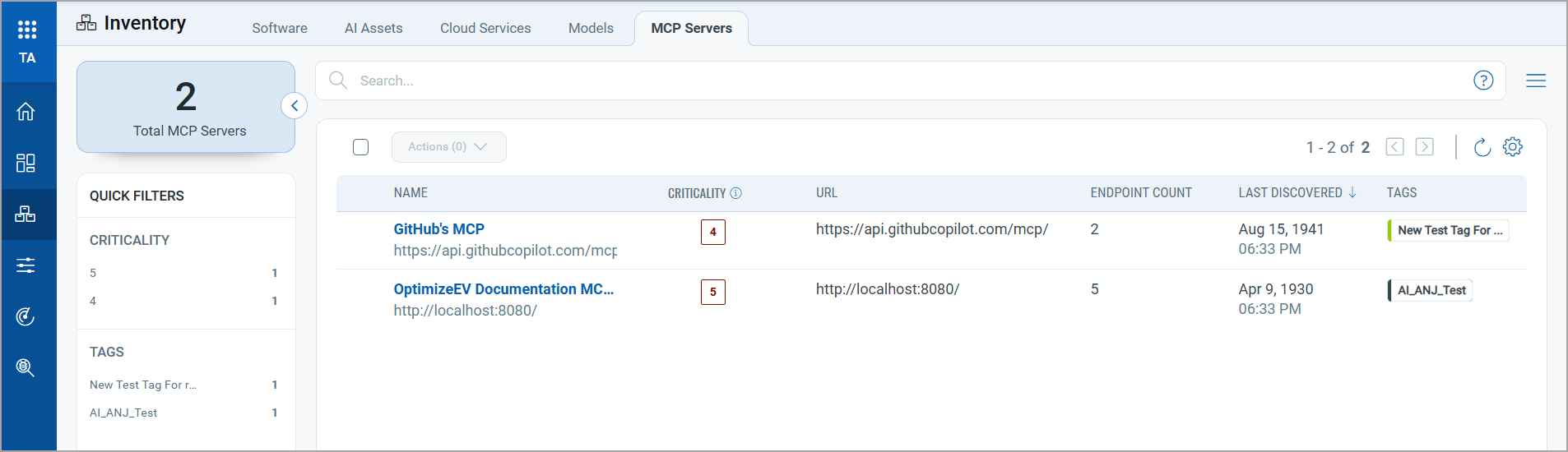
Add a New MCP Server
You can also add a new MCP server using the New MCP Server workflow. For details, see New MCP Server
Discover Potential MCP Servers
You can view the discovered MCP servers in your environment in the Potential tab in the MCP Servers tab.
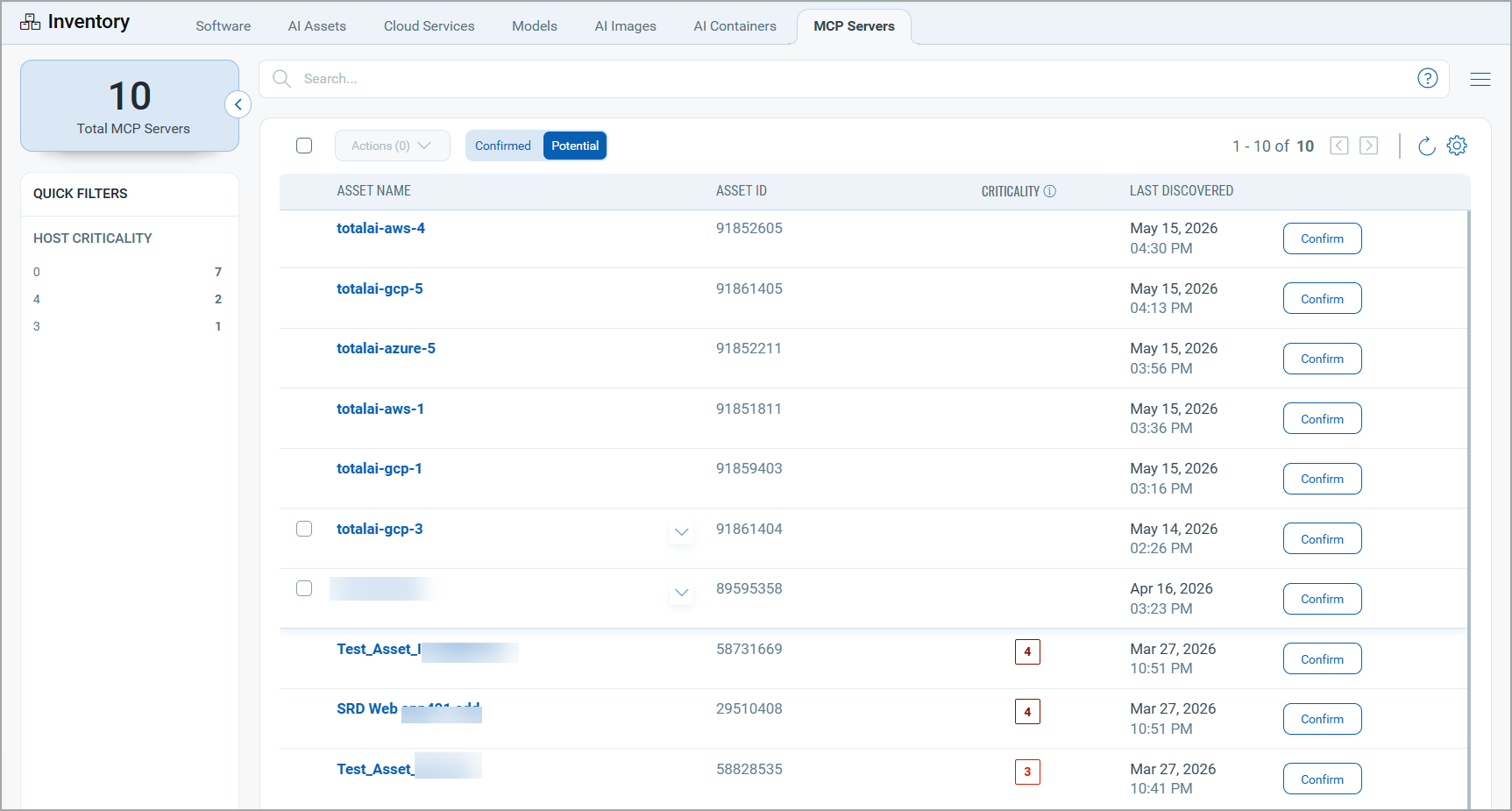
Click Confirm to move the discovered MCP servers to the Confirmed page. Once the MCP servers are listed in the Confirmed list, you can scan them.
Quick Actions
Using the Quick Actions menu, you can:
View - View the MCP server details, including scans launched on the MCP server and vulnerabilities detected.
View Last Scan Report - View the online report of the last scan for the MCP server. For details, see Scan Report.
Edit - Edit the selected MCP server settings and save the changes.
Launch Scan - Launch scan on the selected MCP server. The scan is available in the Scans tab.
Delete - Delete the MCP server from your subscription.