Start scanning your web applications
Scan your web applications and understand your security risk. By automating your scans you'll get security intelligence in real time.
A few things to consider...
Have you thought about the scanning options you should use? We can help you sort this out quickly - review the basics for some ideas.
I'm ready to start my scan. What are the steps?
Go to Scans > New Scan, and tell us:
- what type of scan to run (we recommend you run a Discovery Scan first and then a Vulnerability Scan),
- which web application(s) to scan, and
- which scan options to use.
I started my scan. What's next?
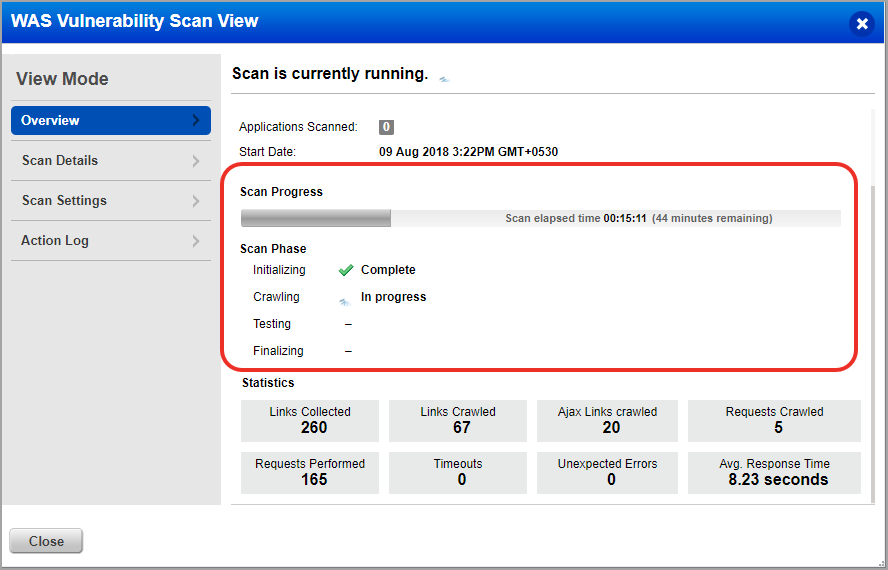
We display more information in the scan view to give you a better picture about the scan progress by displaying the scan phases along with the status.
Scan Phases
Once the scan is launched, go to the quick actions menu and select View. You can view the scan progress and the various phases it undergoes before the scan is completed.
We display the progress of each phase for you to know the scan status.
- Initializing
- Crawling
- Testing
- Finalizing
We also display the scan progress bar that tells you the time elapsed since the scan was launched. The elapsed time portrays a clear picture of how long the scan has been in progress from the time it has been launched. Show meShow me
How do I know when the scan is done? You'll know when the scan status shows Finished. At this time you can select View from the Quick Actions menu to get an overview of the scan results. Click the View Report button to launch a report with the full scan details.
Will I get en email notification when the scan is Finished? Yes if the Scan Completion notification is enabled in your account. To turn this on, go to VM/VMDR > Users and edit your account settings.
Scan StatisticsScan Statistics
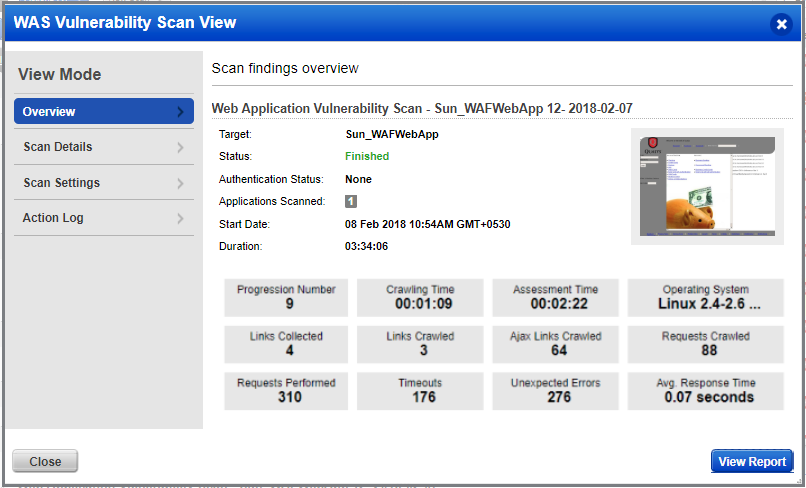
We display scan statistics to help you analyze your scan in a better manner.
Once the scan achieves Finished status, you can select View from quick actions menu and view the scan statistics. We also display: Ajax Links Crawled, Request Crawled, Timeout Errors, Unexpected Errors for the scan. Show meShow me
Verify that authentication workedVerify that authentication worked
The scan preview and results tell you whether authentication was successful. If authentication was successful, the authentication record name appears in green. If not successful, the name appears in red. Learn more
Schedule your scans
Schedule your scans to run automatically and you'll get results on a regular basis. Learn more
Do you want to create reports on your scans?
Launch a scan report on any number of scans that target the same web application. Once the report is created, you can edit the settings and filter the content. Learn more
We'll automatically run a malware scan every day if you select this option for an external web site.
The filters to the left of your scans list allow you to filter scans by web application, scan type, status and more.