EOL EOS Software Reporting
This topic is focused on,
- Viewing EOL/EOS Software Details
How Qualys can detect End Of Life (EOL) and End Of Support (EOS) software for images - Generating EOL/EOS Software Detail Report
How your software management or catalog team can generate reports - Enforcing Policies Based on EOL/EOS Software
How Qualys can enable governance to prevent unauthorized EOL/EOS software in image builds (CI/CD) and from getting deployed (Admission Controller)
Watch this video for a quick understanding of the EOL EOS Software Details feature.
Pre-requisites
EOL/EOS Software Detection requires the following.
- Qualys CSAM License
- Access to the following Qualys Container Security Sensors.
- QScanner
- Registry Sensor (a part of QCS Sensor)
- Container Runtime Sensor
How to view EOL/EOS software details in a container image?
Qualys Container Security provides the total number of images having EOL/EOS details.
A widget card for Images For Software EOL In 3 Months shows you the total number of images with EOL/EOS details. Click on it to view Images in this category.
Optionally, you can also use the software.lifecycle.eol QQL filter to see images that have EOL/EOS details. In the example below, we have filtered down to images with EOL/EOS Software in the Last 3 Months.
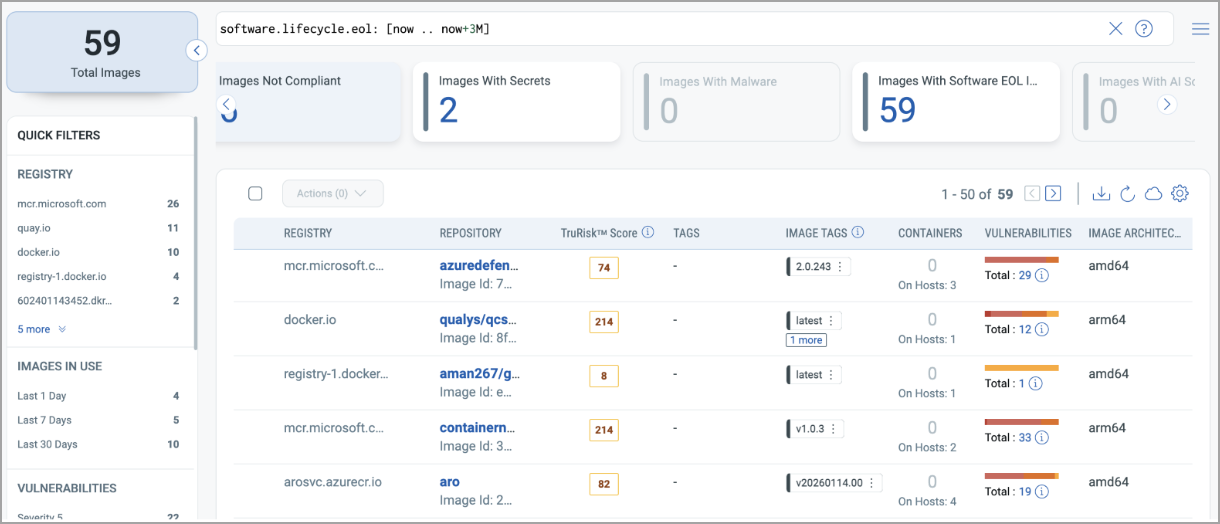
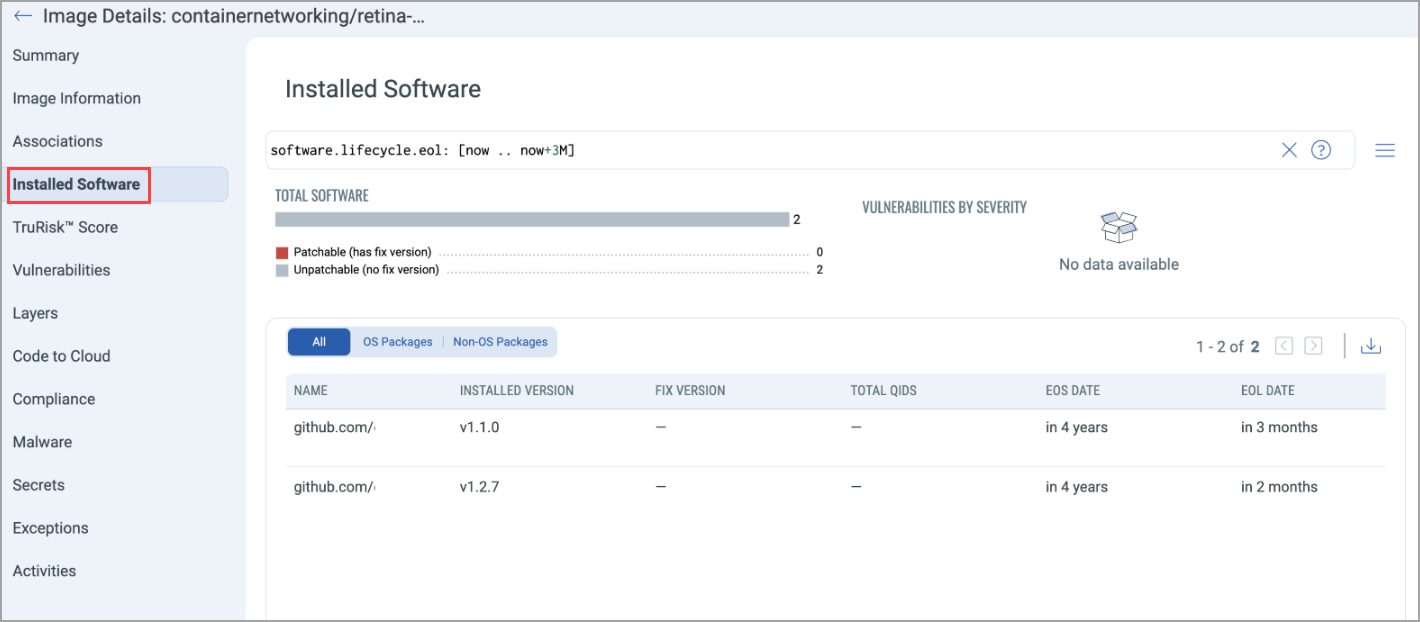
Click an entry in the list and navigate to Installed Software. Here, you can apply the same EOL/EOS QQL filters to see EOL/EOS Software.
How to generate EOL/EOS report for my images?
You can generate EOL/EOS Reports for Images using Qualys Container Security Reporting Service.
- Navigate to Qualys Enterprise TruRisk™ Platform > CS > Reports.
- Click New Report.
- Under Report Template, select Image Software.
- You can also add additional filters, for example, to filter by images with a specific repo, tag, risk factors, and so on.
-
Select how you want to generate the on-report (on-demand or schedule). For now, we can use Run Now.
-
Select all the attributes for the report.
The report starts being generated. You can use the refresh button in the top right grid view to see when the report will be completed.
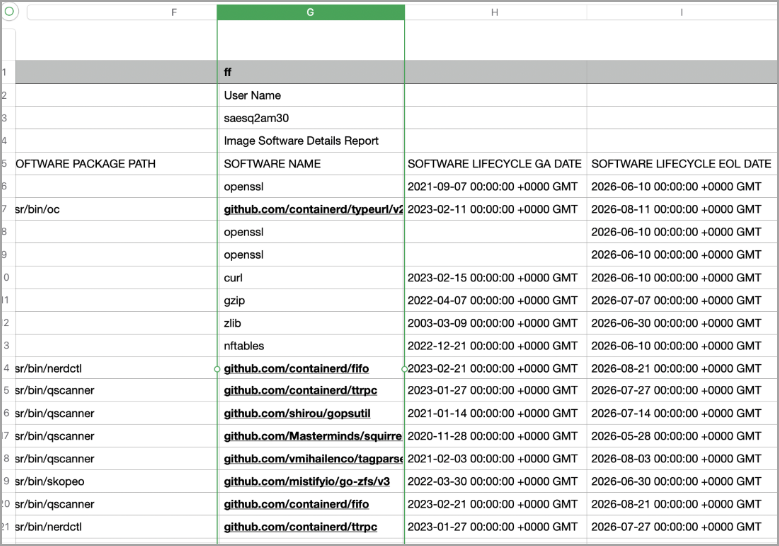
Upon report completion, you can download the report to see a comprehensive view of Software EOL/EOS Dates.
Enforce Policies Based on EOL/EOS Software
As part of the CI/CD build process, where images are built, or pre-deployment checks are performed using a Kubernetes Admission Controller, you can audit or enforce policies to not allow usage of EOL/EOS Software.
This part depends on either integrating QScanner (CI/CD Integration) or Setting Up an Admission Controller.
Once you’ve identified the software you want to block, follow the steps mentioned below.
- Login to Qualys Enterprise TruRisk™ Platform > Container Security.
- Navigate to the Policies tab.
- Create a new policy or update an existing one.
To know more, refer to Creating Security Policies. - Select where you want to scope the policy to
- For CI/CD policy, you do this using tags
- For the Kubernetes Admission Controller policy, you can select the Kubernetes content (For example, namespace) or enforce it at the Organization Level. - Create a new rule under the image security type. Select the rule subtype as 'Block Unauthorized Software'.
- Enter the software name(s).
- Save the policy.
Once the image is scanned in your CI/CD or pre-deployment in Kubernetes, you can validate audit or enforcement by navigating to Events on the left and seeing the audited or enforced policy and its associated rules.