CyberSecurity Asset Management/Global AssetView Release 3.7.0.0
January 07, 2026
 |
CyberSecurity Asset Management |
The following are the new features and updates available with the CSAM subscription.
Business Valuation of Organizations and Subsidiaries in External Attack Surface Management (EASM)
You can now view the business valuation of your organization and subsidiaries discovered by EASM. This enhancement provides clear visibility into the business impact of assets across your organization and subsidiaries, enabling more informed risk decisions.
With this feature, you can:
- View the total number of EASM assets associated with each organization or subsidiary.
- Prioritize remediation for assets based on TruRisk™ score and associated business valuation.
You can access this feature from Inventory > EASM > Organizations/Subsidiaries.
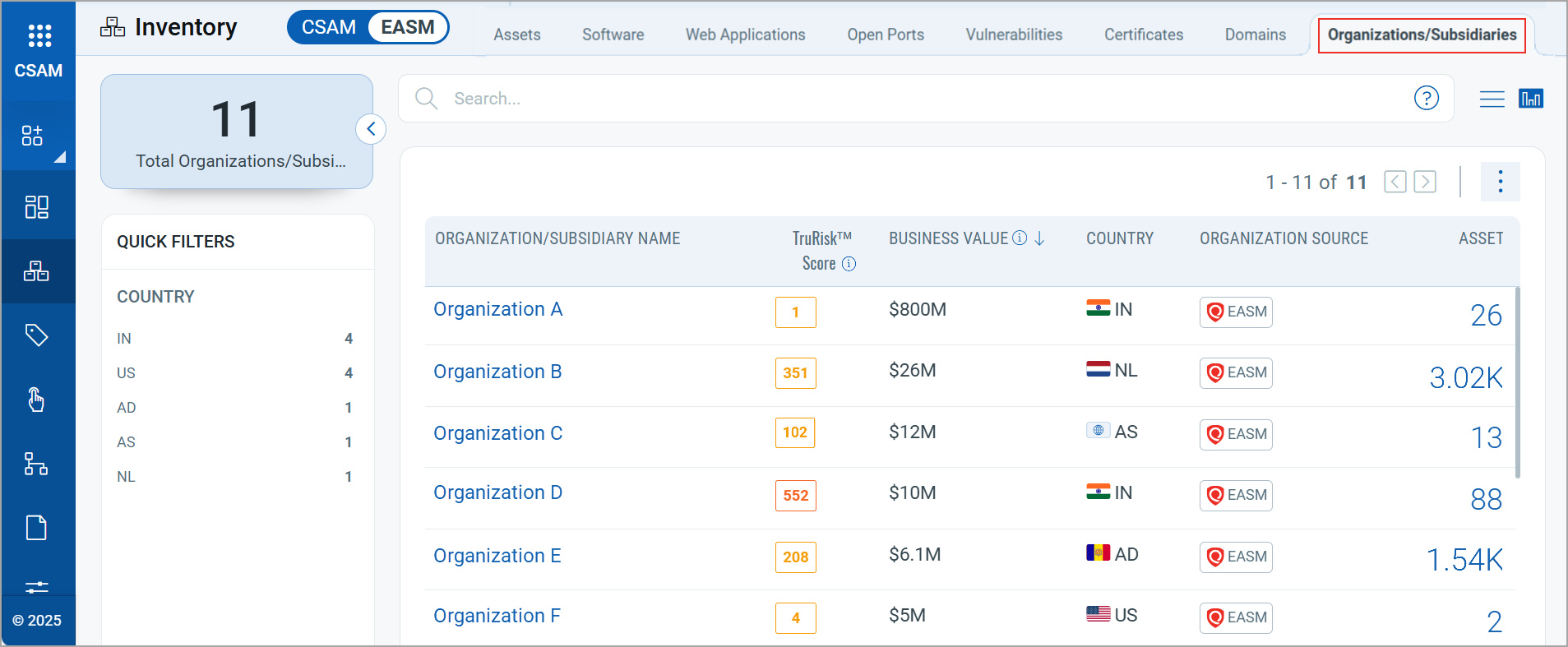
For more information, refer to CSAM Online Help.
Related Enhancements
The following enhancements are introduced to support business valuation visibility across your organizations and subsidiaries:
The EASM Organization/Subsidiary Business Value widget displays the asset risk trend across your organization or subsidiary by business valuation. You can configure this widget as a bar chart and sort the chart by Business Value, Asset Count, or Organization Name.
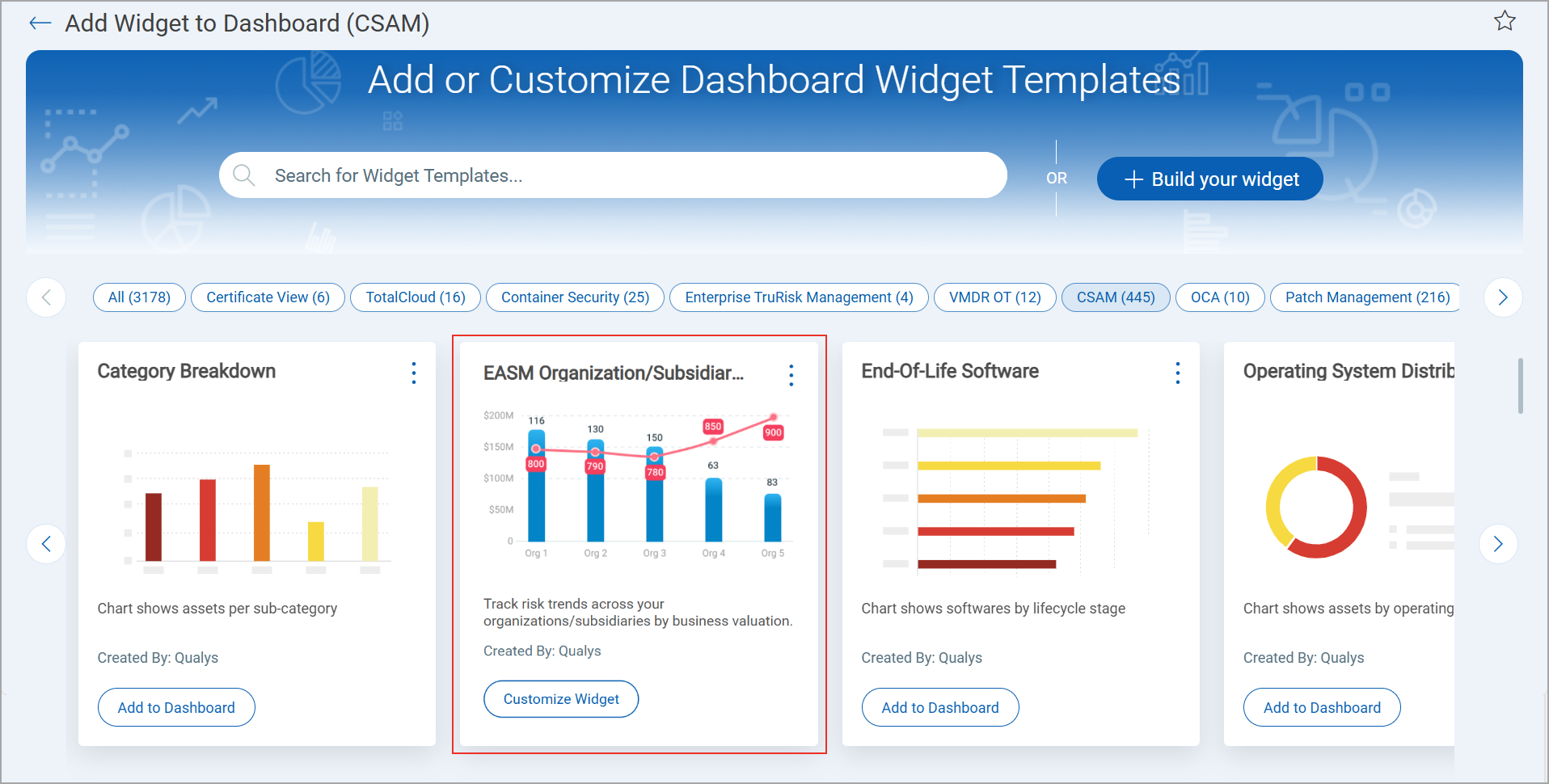
New Report: EASM Organization/SubsidiaryNew Report: EASM Organization/Subsidiary
The EASM Organization/Subsidiary report provides details about your organization and its subsidiaries, including their business values and TruRisk™ scores. You can generate this report on demand or schedule it to run automatically.
You can create this report in one of the following ways:
- Reports Tab:
On this tab, click Create Report > Externally Exposed Asset Details > EASM Organization/Subsidiary.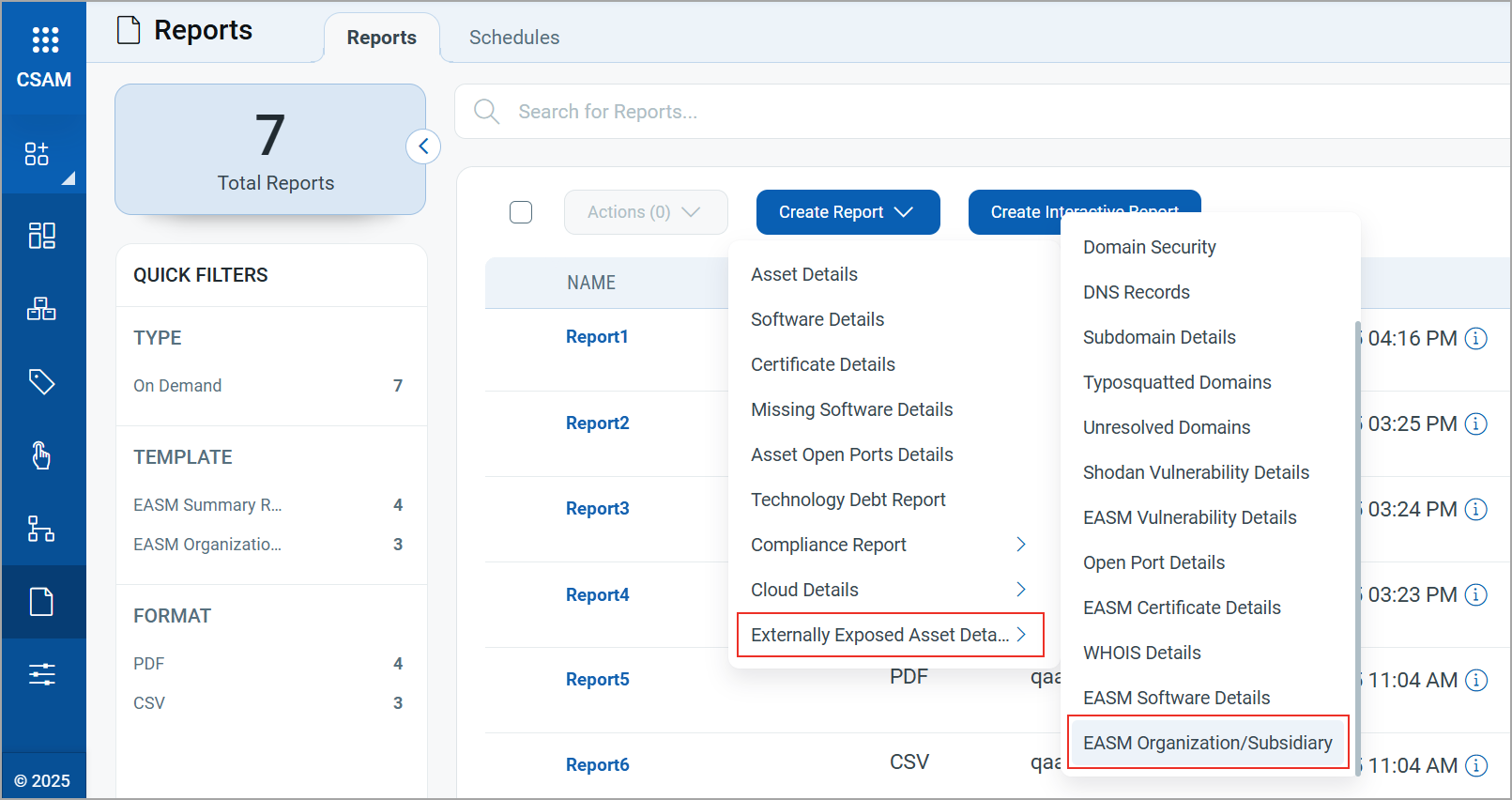
- Configuration Tab:
On this tab, navigate to EASM Configuration. Select an EASM profile, click on the required profile, and select Externally Exposed Asset Details > EASM Organization/Subsidiary.
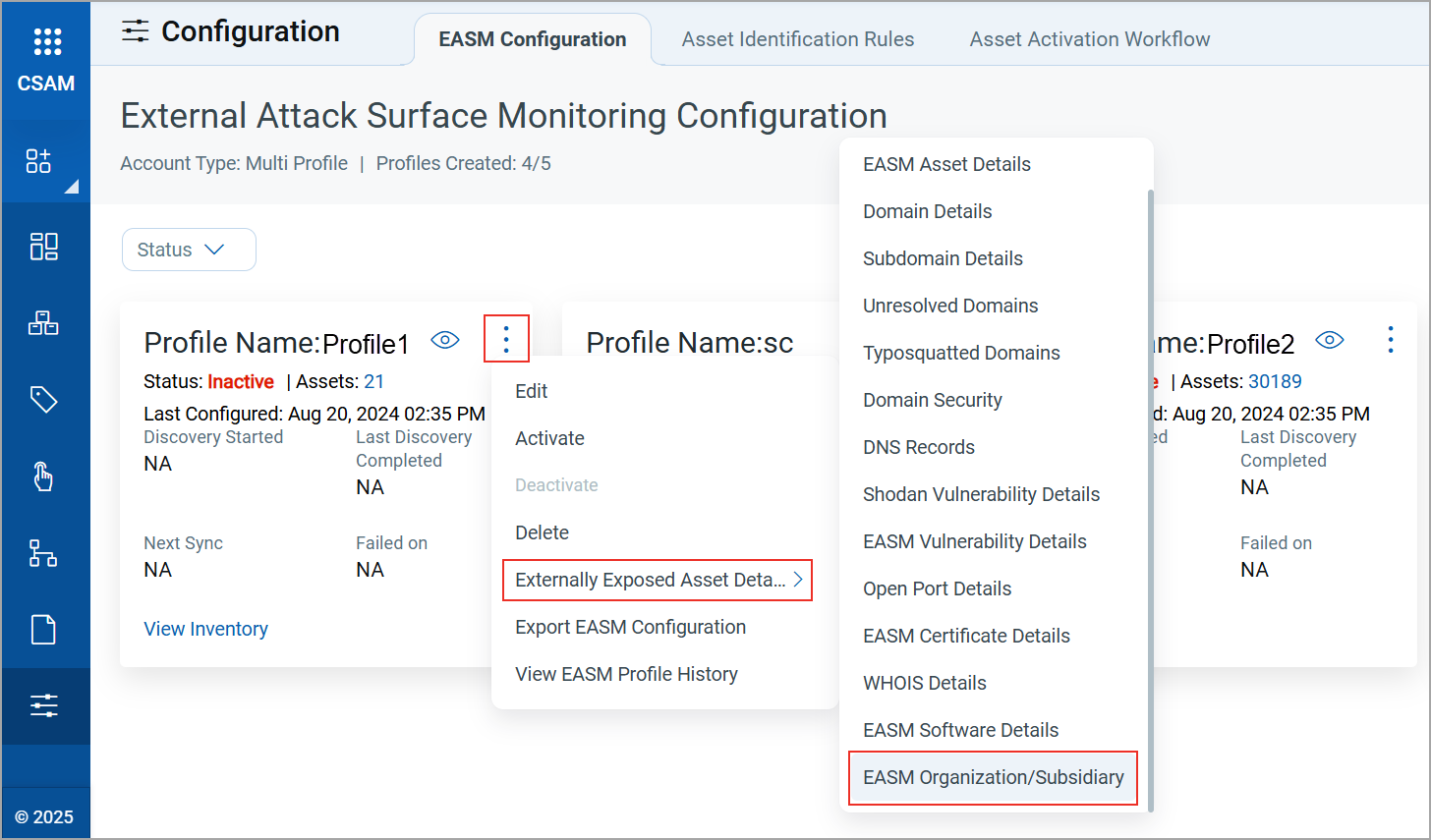
For more information on creating this report, refer to CSAM Online Help.
Enhanced Report: EASM Summary ReportEnhanced Report: EASM Summary Report
The EASM Summary Report is updated to provide you with visibility into your organizations and subsidiaries. You can now view the following information in the report:
- Business Valuation of Top Organizations:
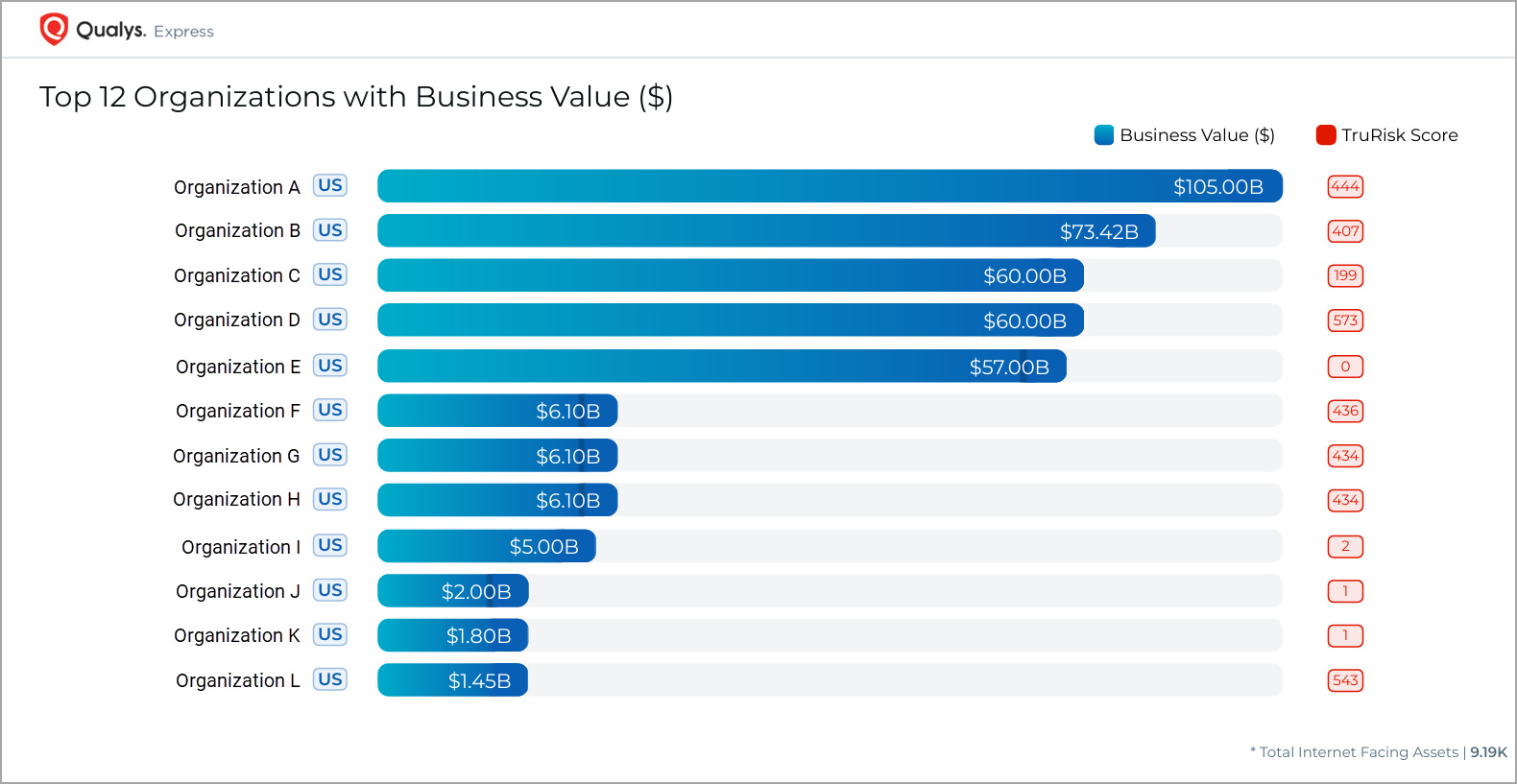
You can now view the business values and TruRisk™ score of your top organizations on the new Top 12 Organizations with Business Value ($) page. The organizations are automatically ranked from highest to lowest valuation.
- Country Flags for Top Organizations:
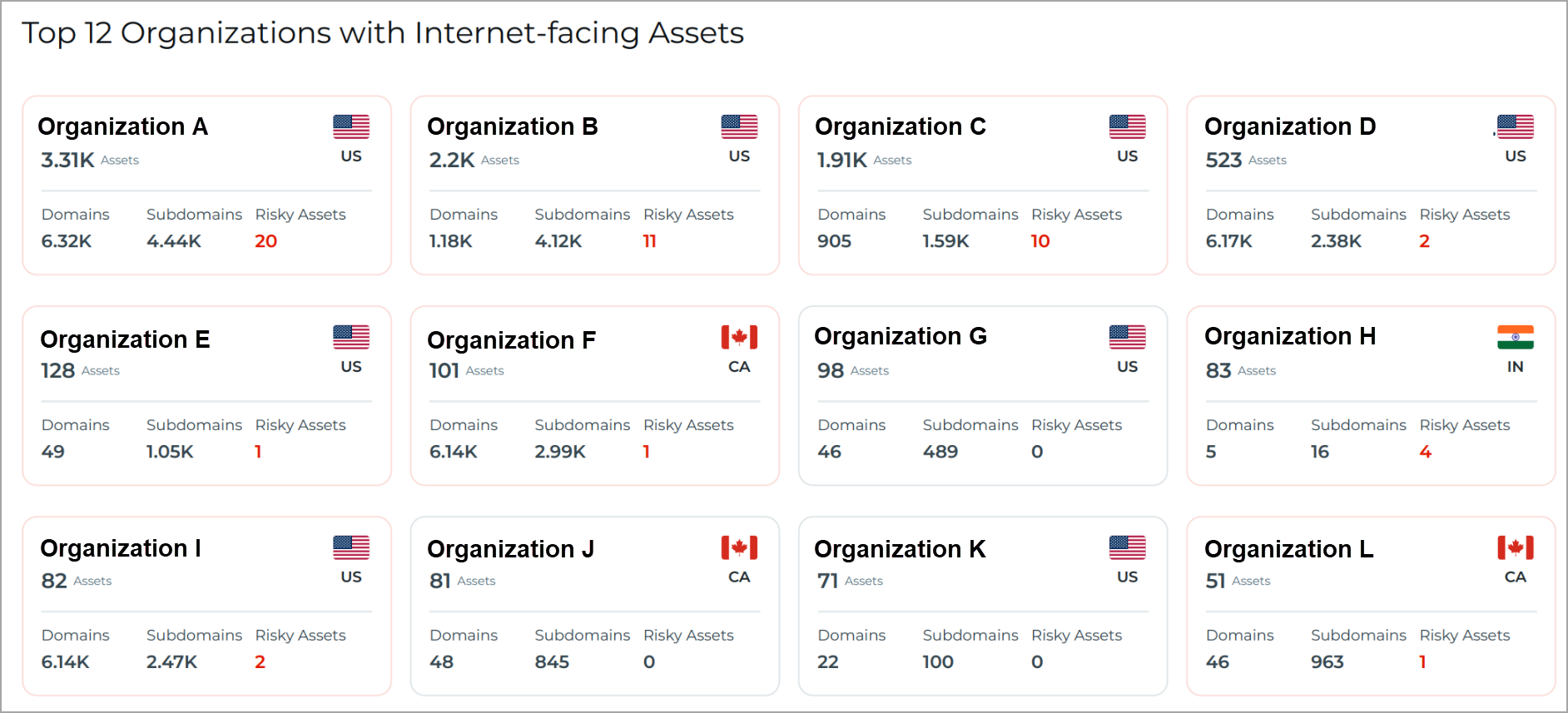
Country flags are now displayed for the top 12 organizations based on their registered country. You can view these flags on the Top 12 Organizations with Internet-facing Assets page of the report.
- This feature is enabled three weeks after the CSAM 3.7.0.0 release.
- If an EASM profile is currently inactive, then any organizations or subsidiaries that were discovered by that profile before it became inactive are not displayed on the Organizations/Subsidiaries tab. To view these organizations or subsidiaries and their business valuation, activate the required EASM profile. After activation, the organizations or subsidiaries will be displayed once two consecutive EASM discoveries are completed.
API Enhancements
We have introduced new APIs to fetch the organization or subsidiary details. For more information, refer to CyberSecurity Asset Management/Global AssetView Release 3.7.0.0 API.
DNS Records Report for Domain Visibility
We have introduced a new DNS Records report that provides visibility into the domains associated with your organization. This report includes detailed information of your organization's resolved, unresolved, and typosquatted domains.
You can create this report from Reports > Create Report > DNS Records.
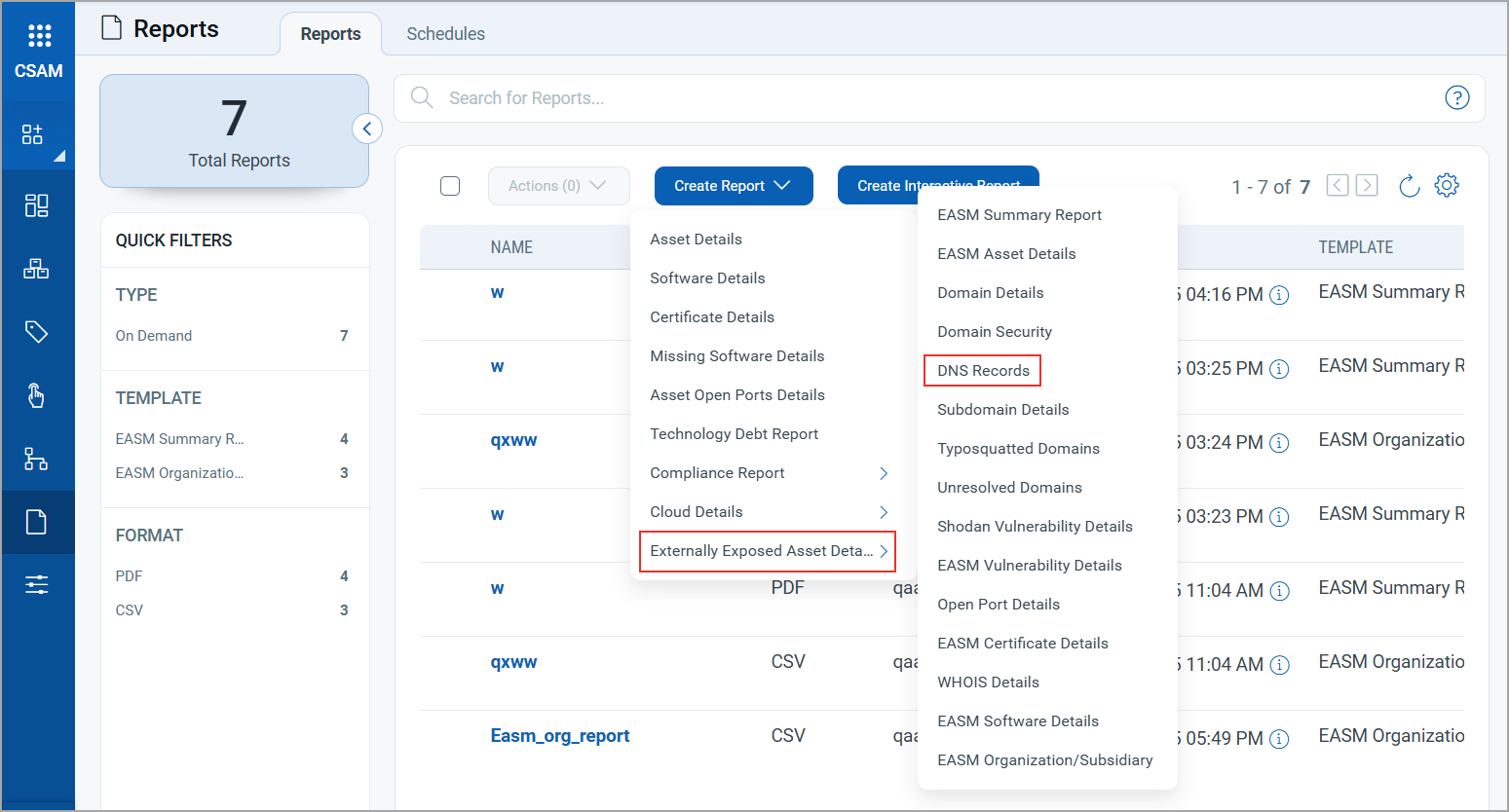
For more information on creating the DNS Records report, refer to CSAM Online Help.
Use the following tokens to fetch the required information in the report based on the DNS type, source, and IP address.
| Token | Description |
|---|---|
| dns:(type: | Use this token to filter domains based on the DNS record type. |
| dns:(source: | Use this token to filter domains based on the DNS source. |
| dns:(value: | Use this token to filter domains based on the DNS IP address. |
For more information on these tokens, refer to CSAM Online help.
Enhanced Asset Purge Behavior for EASM Assets
We have enhanced the asset purge workflow for EASM assets to ensure consistent asset data across applications.
With this release, when an EASM asset is deleted from the EASM inventory, its corresponding data is also removed from the VM container, provided the asset was originally discovered by EASM and the current tracking method is IP, DNS, or NetBIOS.
Automatic Tagging for Third-party Assets
When a new third-party asset is imported through a connector, it automatically receives the tags specified for that connector. Now, these tags are also applied to existing assets imported from the same connector. This ensures consistent tagging across all assets associated with a connector.
This enhancement is applicable to the assets imported through the following connectors:
- Qualys Webhook
- ServiceNow
- Active Directory
- VMware ESXi
- BMC Helix
For more information on third-party asset import, refer to CSAM Online Help.
You can add or remove tags when creating or updating a connection in the Connectors application. Once specified, the system applies the tags to the new and existing imported assets from that connector.
This functionality works with the Connector 2.5.0.
Tag Update Behavior for Existing Assets
Tags applied to existing assets are updated only when new tags are added. If you remove a tag, the change applies only to newly imported assets and does not affect assets that were previously imported.
Enhanced Activity Logs
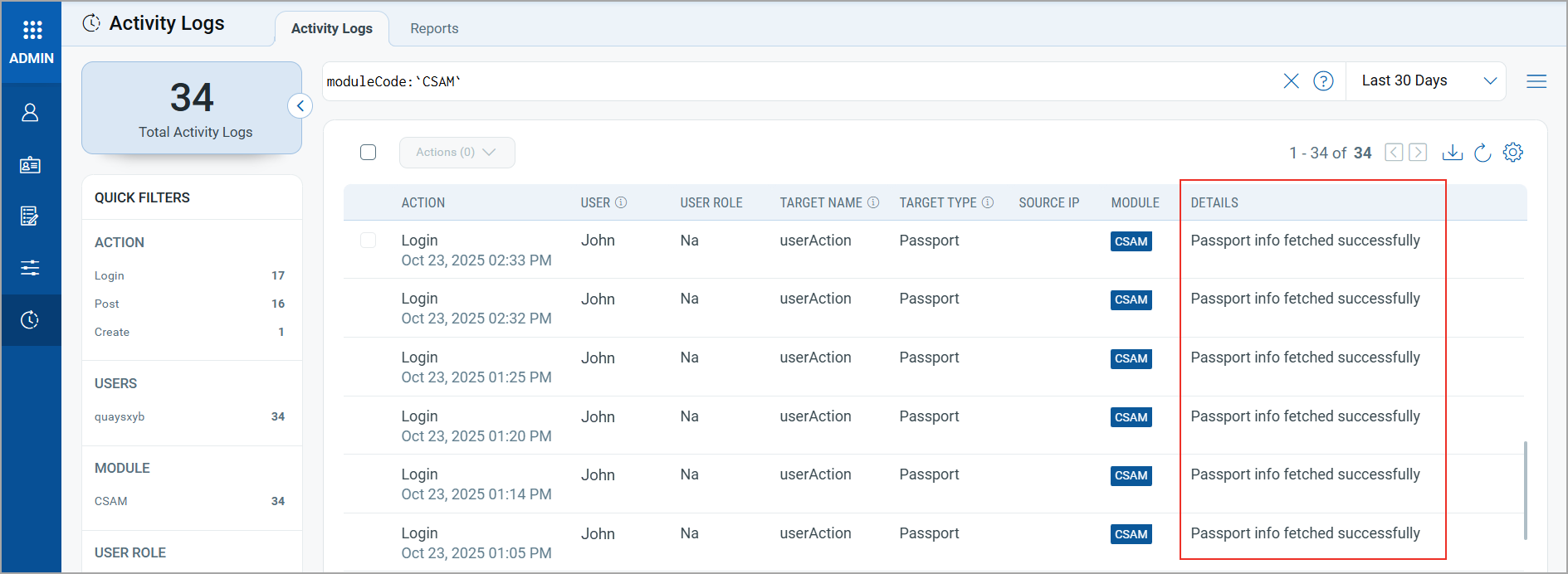
We have enhanced the Activity Logs to display detailed information for each user action. You can monitor, track, and review user actions across CSAM using these logs.
You can view the Details of all user actions on the Activity tab of the Administration module.
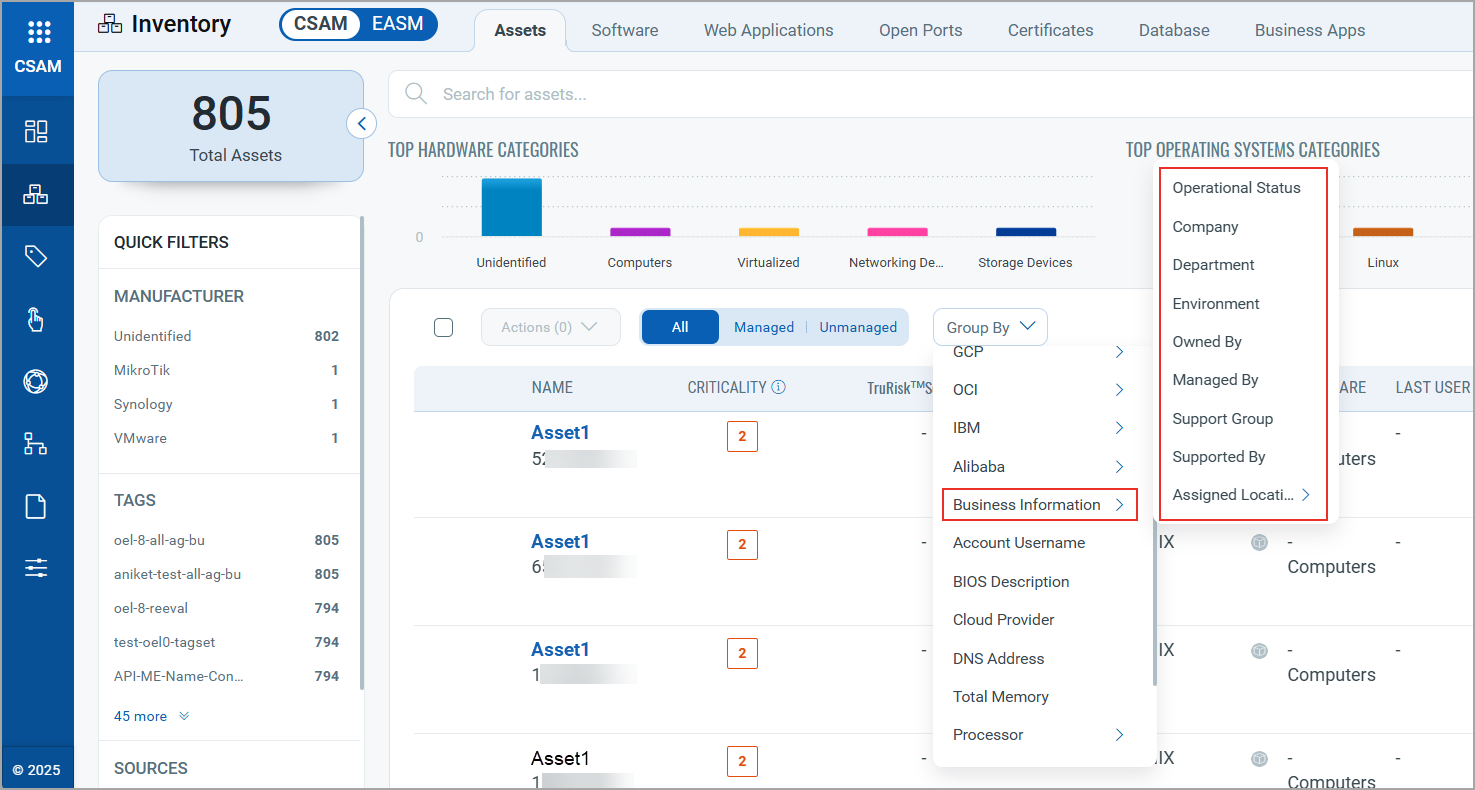
Group Assets by Business Information
We have introduced a new asset grouping capability on the Inventory > Assets tab to organize assets based on their business attributes. You can now filter and review assets based on their business information.
Assets can be grouped by the following business information:
- Operational Status
- Company
- Department
- Environment
- Owned By
- Managed By
- Support Group
- Supported By
- Assigned Location (City, Country, Name, State)
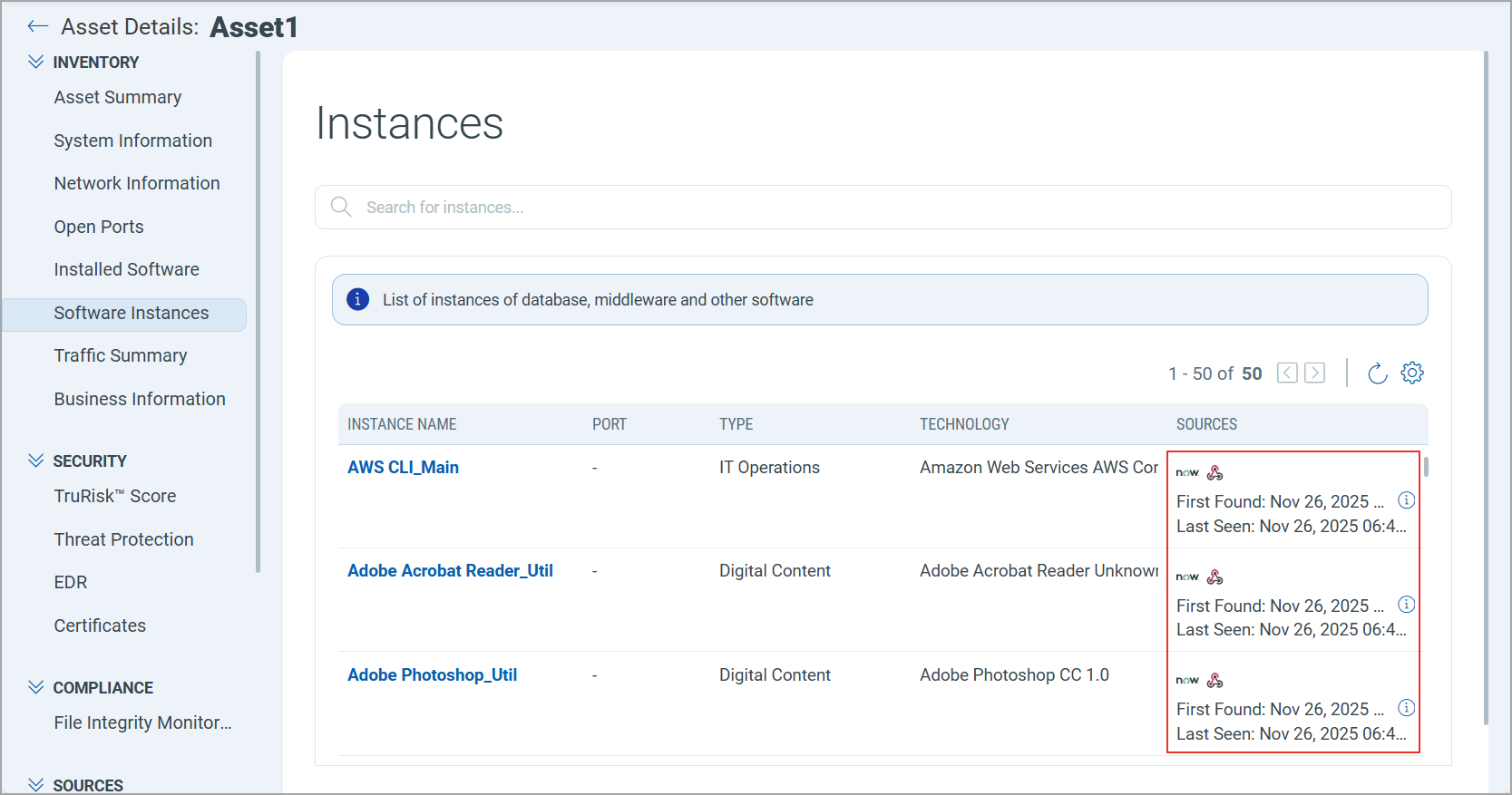
Software Instances Discovery Source in Asset Details
The Asset Details page now displays the discovery source for each software instance linked to an asset.
You can access this information by navigating to Asset Details > Software Instances.
 |
CyberSecurity Asset Management and Global AssetView |
The following are the new features and updates available with the CSAM and GAV subscription.
IPv6 Asset Activation Support
We have introduced support for activating IPv6 assets across the applications within your subscription. With this enhancement, you can now bring unmanaged IPv6 assets into the Address Management tab of VMDR and assign them to the appropriate IPv6 asset groups. After the asset is added and a scan is performed, it transitions from an unmanaged to a managed asset.
Additional configuration is required to enable this feature. Contact your Technical Account Manager (TAM) to enable IPv6 activation support for your account.
Key Capabilities
Activate a single IPv6 AssetActivate a single IPv6 Asset
You can activate IPv6 assets directly from the Assets tab.
Select the required IPv6 asset and click Activate from the Quick Actions menu. From the Asset Activation window, select the applications where the assets should be activated.
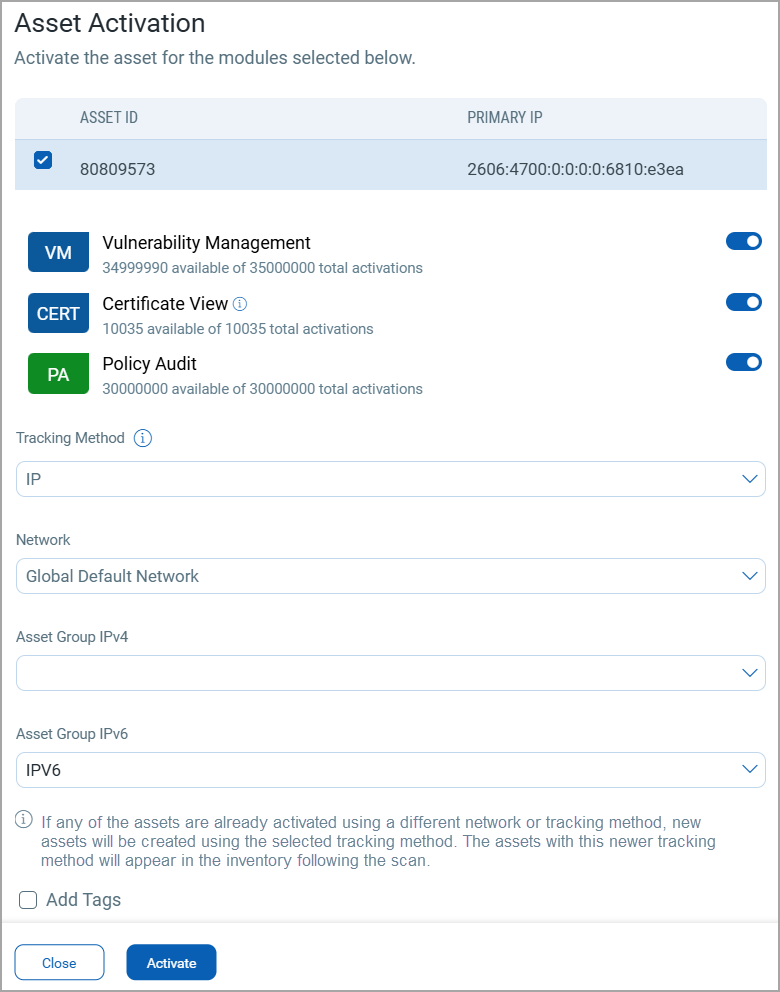
Selecting an IPv6 asset group assigns the activated IPv6 asset to that group, while selecting an IPv4 asset group has no impact on IPv6 assets.
Activate Multiple IPv6 AssetsActivate Multiple IPv6 Assets
You can activate multiple IPv6 assets at once from the Assets tab to quickly convert large sets of unmanaged assets into managed assets.
Select the required assets and click Activate from the Actions menu. From the Asset Activation window, select the applications where the assets should be activated.
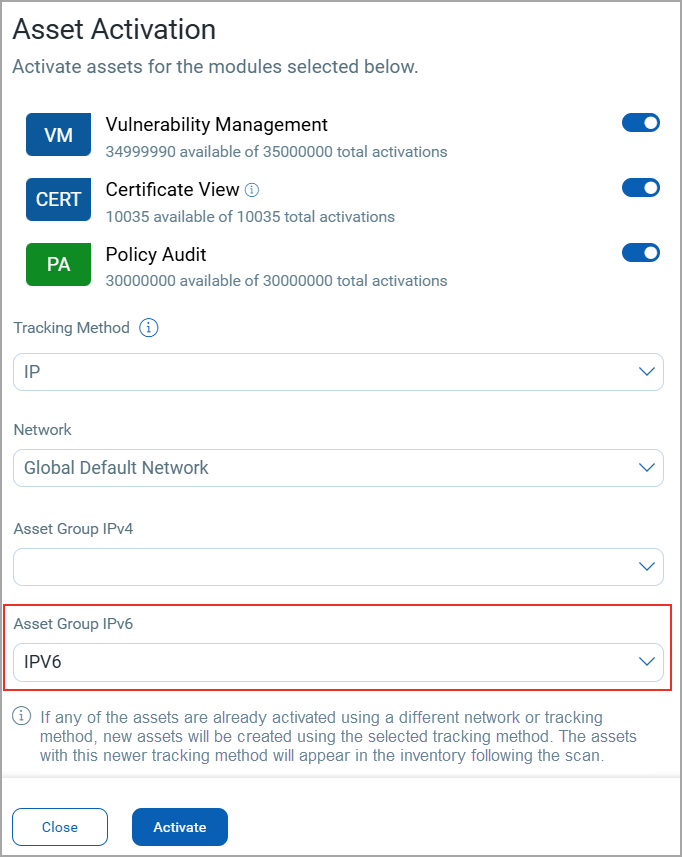
Selecting an IPv6 asset group assigns the activated IPv6 assets to that group, while selecting an IPv4 asset group has no impact on IPv6 assets.
Activate Multiple IPv6 and IPv4 Assets TogetherActivate Multiple IPv6 and IPv4 Assets Together
You can activate IPv4 and IPv6 assets in one single action.
Select the required IPv4 and IPv6 assets and click Activate from the Actions menu. From the Asset Activation window, select the applications where the assets should be activated.
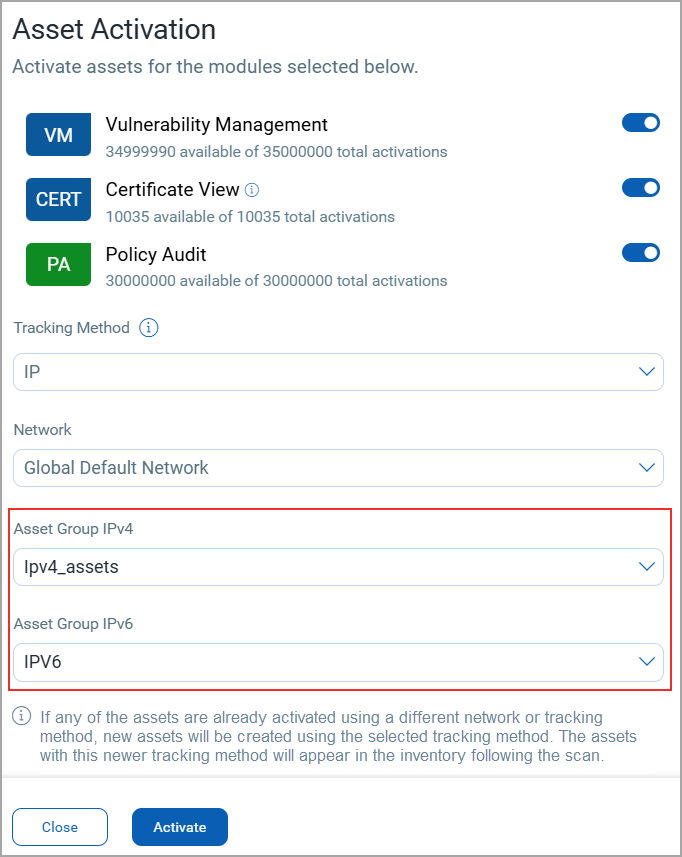
Selecting the IPv6 asset group adds the activated IPv6 assets to that group. Similarly, selecting an IPv4 asset group adds the activated IPv4 assets to that group.
Create an Asset Activation Rule for IPv6 AssetsCreate an Asset Activation Rule for IPv6 Assets
You can automate the activation of IPv6 assets by creating an asset activation rule. This ensures that IPv6 assets within the scope are activated automatically. Each activation rule can apply to only one asset type (IPv4 or IPv6).
To create a rule, navigate to Configuration > Asset Activation Workflow and click New Rule. On the Activation Settings step, select IPv6 and proceed.

Selecting an IPv6 asset group assigns the activated IPv6 asset to that group.
Related Information
- Only the IP tracking method is supported for IPv6 assets.
- A maximum of 10,000 assets can be activated in a single action.
Implementation of QQL Token Standardization
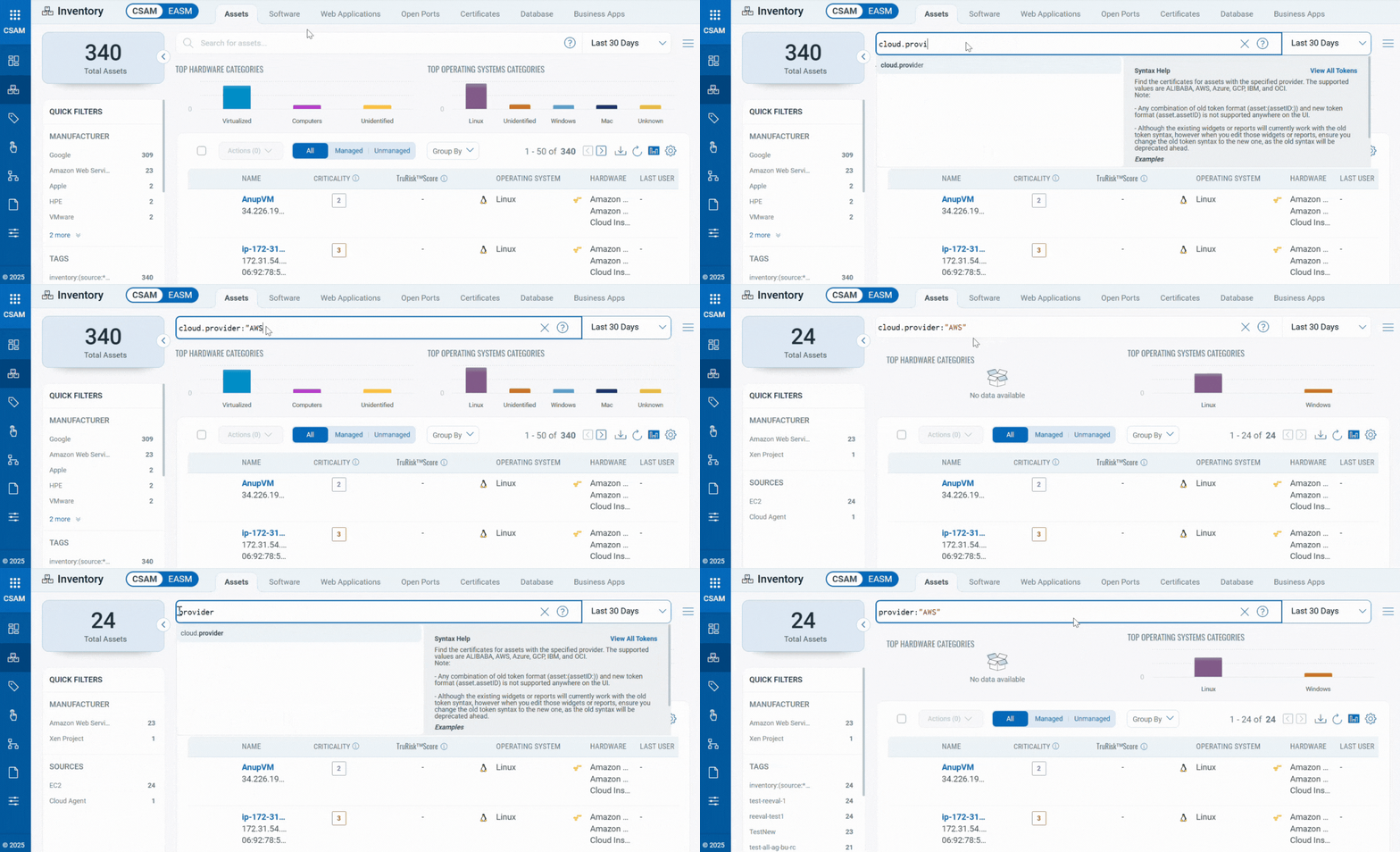
We have now implemented Qualys Query Language (QQL) token standardization across all Qualys applications. As part of this enhancement, both common and CSAM/GAV-specific tokens are updated with new token names that follow a standard, consistent nomenclature.
The new token format follows the syntax: entity.attribute
For example, in the new token, cloud.provider, cloud is the entity, and provider is the attribute.
Key Enhancements
- Standardized Token Naming: All tokens now adhere to a standardized naming convention. The tokens common to all Qualys applications have also been updated.
- Search Bar Updates: Only the new tokens are displayed in the auto-suggestion in the search bars within the UI. However, if you type the old token name manually, the QQL query still works. The old tokens will not be visible in the auto-suggestions on the UI.
- Backward Compatibility: The existing Dashboard widgets and Saved Search Queries will continue to support the old tokens in edit mode.
- Improved Interoperability: The standardized tokens make it easier to copy and reuse the search query from one application to another, eliminating the need to remember multiple token names for different applications and similar searches.
For the complete list of old and new token mappings, refer to CSAM Online Help.
New QQL Tokens in CSAM
The following sections provide the new QQL tokens introduced in this release:
| Token | Tab | Description |
|---|---|---|
| org:(country: | Inventory > Asset
and EASM > Organizations/ |
Use this token to search organizations based on their registered country name. Only country codes are supported for this token (for example, US, IN, GB). Example:
|
| org:(businessValue: | Inventory > Asset
and EASM > Organizations/ |
Use this token to search organizations based on their business valuation.
Example:
|
| org:(lastUpdated: | Inventory > Asset
and EASM > Organizations/ |
Use this token to search organizations based on the date they were last updated in the system.
Example:
|
| org:(updatedBy: | Inventory > Asset
and EASM > Organizations/ |
Use this token to search organizations based on the user who last updated the record.
Example:
|
| asset.inventory:(firstDiscoveredSource: | Inventory > Asset | Use this token to search for an asset based on its first discovery source.
Example:
|
| asset.primaryIpVersion: | Inventory > Asset | Use this token to filter assets based on their primary IP version. It allows you to identify whether an asset is tracked using IPv4 or IPv6.
Supported Values: Example:
|
Issues Addressed
The following reported and notable customer issues are fixed in this release:
| Component/Category | Description |
|---|---|
| CSAM+GAV - System Information | We fixed an issue where the Last System Boot date and time for certain assets were not displayed on the Asset Details > System Information page. |
| CSAM - Hardware Details | We fixed an issue where the hardware details of assets using NetApp OS were not displayed on the Hardware section of the Asset Details > System Information page. |
| CSAM+GAV - Trending Widget | We fixed an issue where trending widgets displayed incorrect counts. The trending widgets now accurately show the correct count for the selected date range. |
| CSAM+GAV - System Information | We fixed an issue where the BIOS Serial Number for assets using PAN-OS was not displayed on the Asset Details > System Information page. |