CyberSecurity Asset Management/Global AssetView Release 3.7.2.0
July 06, 2026
AI-powered Asset Criticality Score
You can now leverage Artificial Intelligence (AI) to calculate the criticality scores of your assets. This helps you identify potential high-criticality assets in your environment and prioritize remediation.
The AI-powered asset criticality score uses Machine Learning (ML) models trained on large asset datasets to analyze multiple attributes, such as asset category, business context, open ports, running services, installed software, and vulnerability exposure. Based on these parameters, the AI calculates the criticality score.
The AI continuously adapts to new inputs such as threat intelligence, incident patterns, and asset usage trends to keep the criticality scores current and relevant. This improves risk prioritization, remediation, and patching decisions.
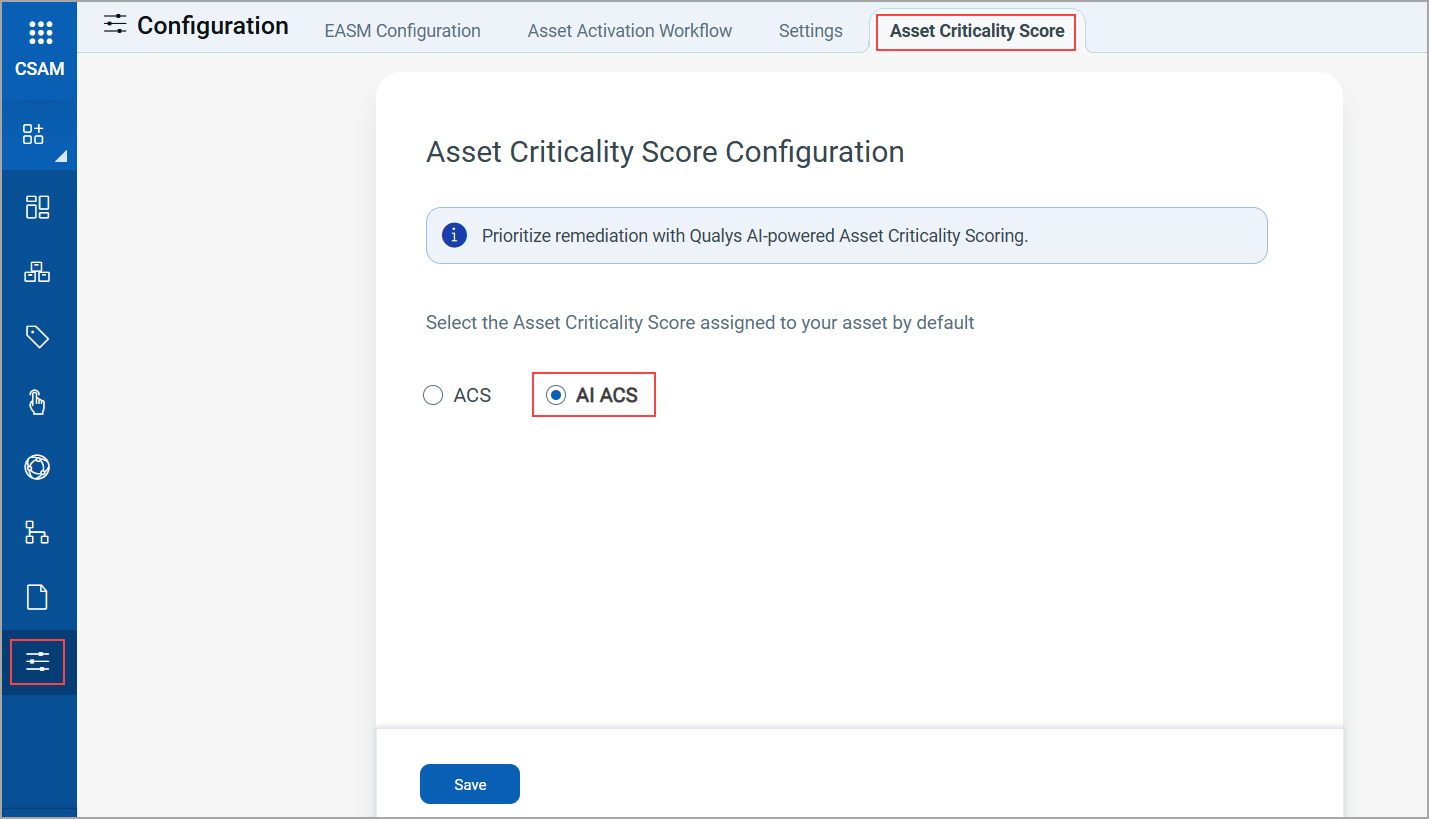
To configure the AI-powered asset criticality score, enable the AI ACS option on the Configuration > Asset Criticality Score tab.
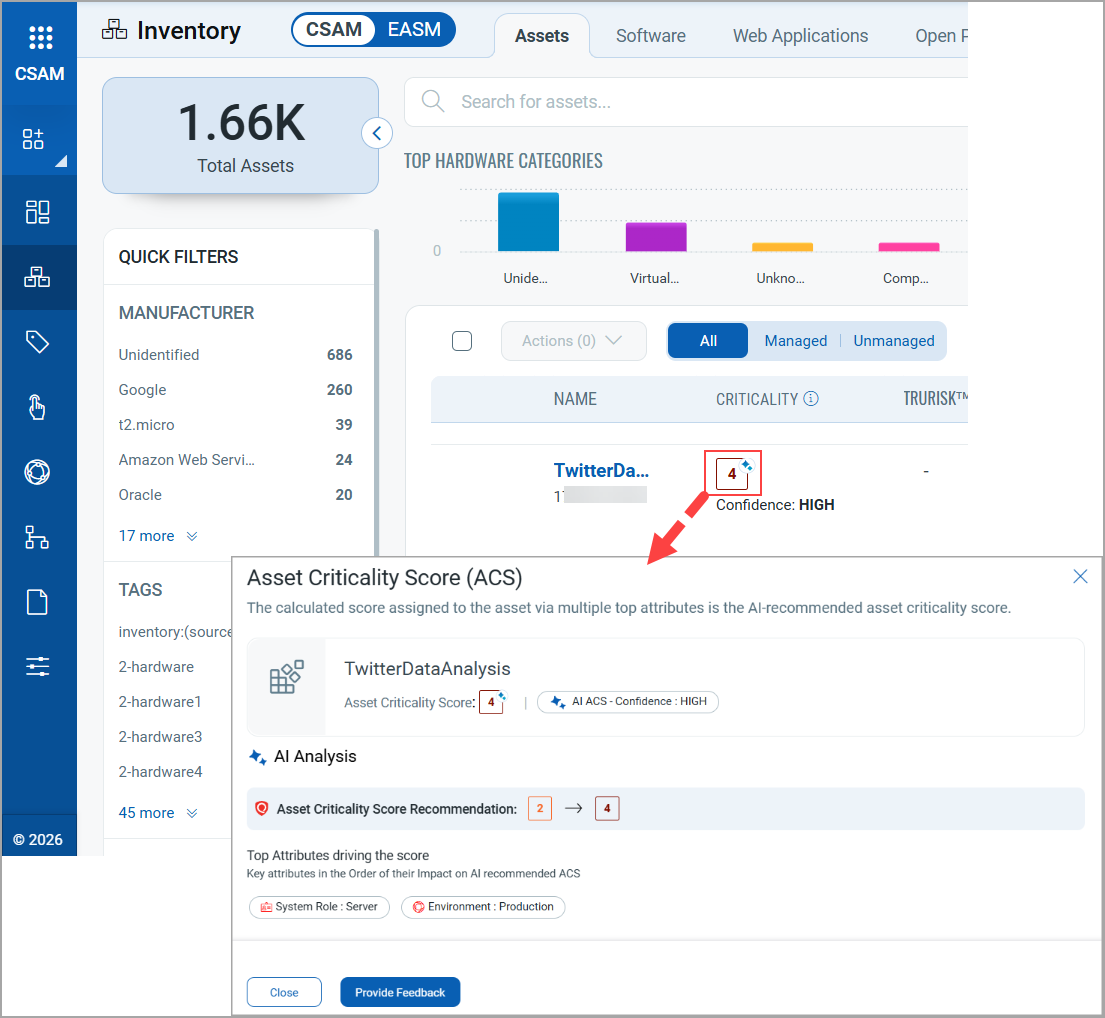
The following tabs display the AI-calculated scores:
- Inventory > Assets tab in the Criticality column
- Asset Details > Asset Summary
- Asset Details > TruRisk™ Score
The Asset Criticality Score (ACS) window is displayed when you click the criticality score. This window displays the top attributes used by the AI to calculate the score, along with the AI's confidence level for the calculation.
The AI ACS score is displayed only for assets with tags that use the default criticality score.
To enable this feature for your account, contact your Technical Account Manager (TAM).
For more information, refer to CSAM Online Help.
API Support
You can now fetch the AI ACS score of assets using the Asset Host Data APIs. For more information, refer to Support for AI-powered Asset Criticality Score in Asset Host Data APIs.
Support for IP with Virtual Host Tracking in Asset Activation
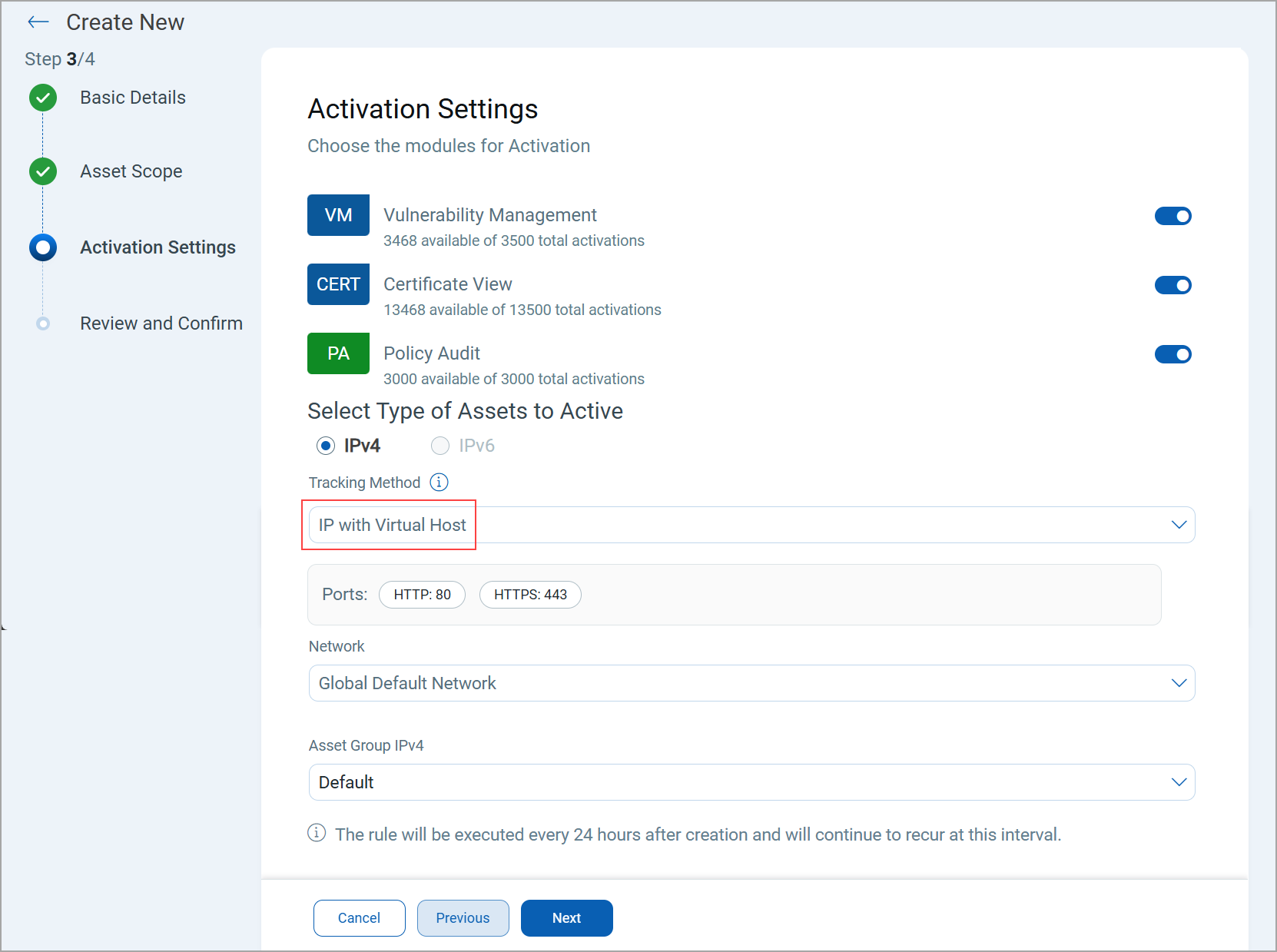
The Asset Activation workflow now includes support for IP with Virtual Host tracking method. This enables the system to create virtual hosts for IP addresses that host multiple websites or services and make them available for scanning. As a result, Qualys scanners can scan both the IP address and its associated virtual hosts to detect more vulnerabilities on the EASM assets.
This method is available only for the IPv4 asset type.
For more information on Virtual Host, refer to VMDR Online Help.
You can select the IP with Virtual Host tracking method when activating assets individually (on demand) or through asset activation rules.
The following image displays the IP with Virtual Host tracking method selected during asset activation rule creation.
To enable this feature for your account, contact your Technical Account Manager (TAM).
For more information, refer to CSAM Online Help.
Categorization for Asset Identification Rules
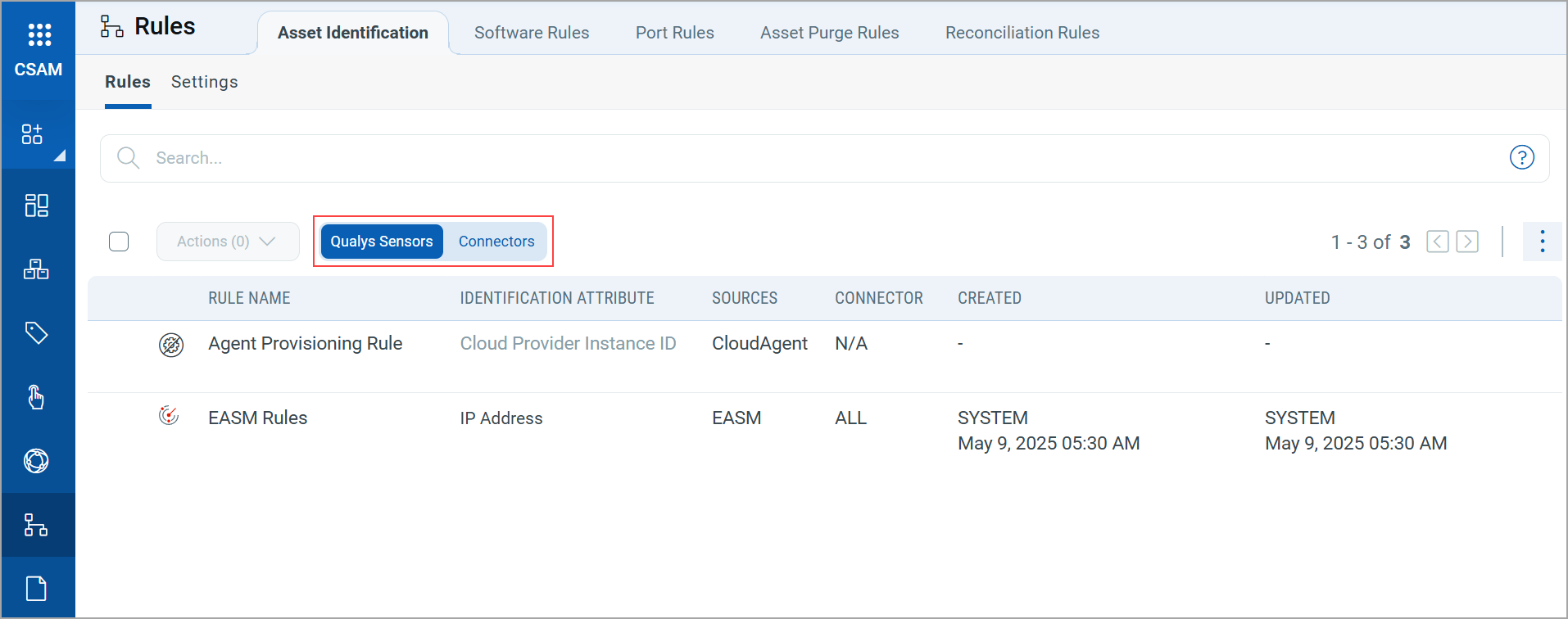
You can now easily find, view, and manage both system-defined and user-defined asset identification rules with the new Qualys Sensors and Connectors tabs under Rules > Asset Identification > Rules. This enhancement helps you quickly differentiate system-generated and user-defined rules. The categories are as follows:
- Qualys Sensors: Displays system-defined rules.
- Connectors: Displays user-defined rules.
The rule behavior and evaluation logic remain unchanged.
Activity Logs for Tagging and Alerting Actions
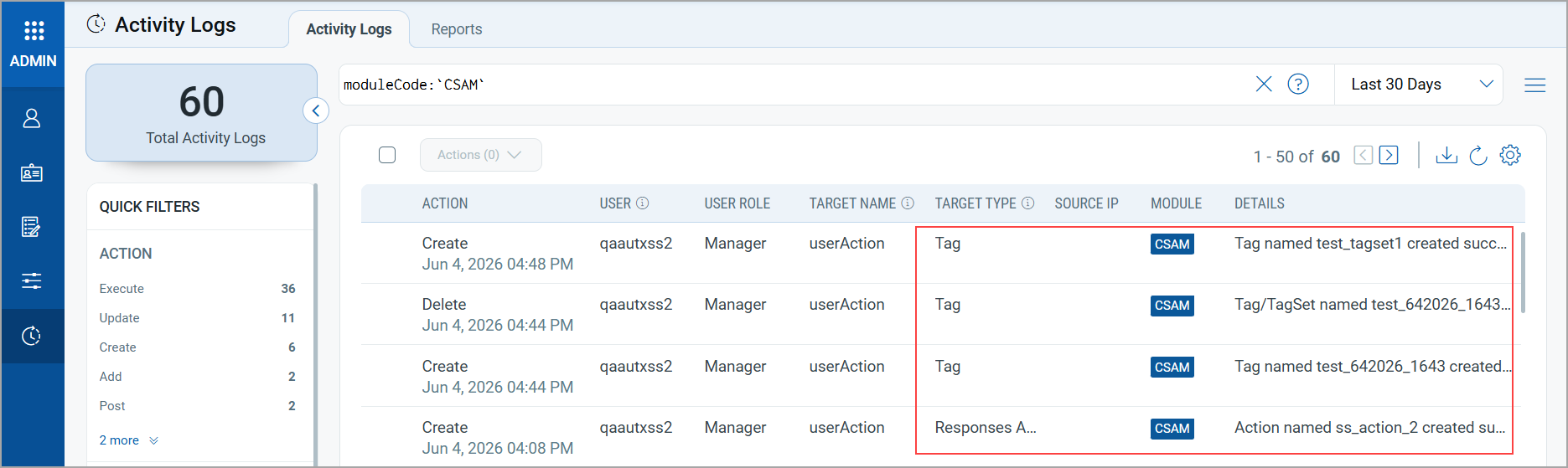
You can now track actions performed on tags and alerts in the CSAM application. This provides better visibility into user activities across tagging and alerting workflows. These actions are captured and displayed in the Administrator application under the Activity Logs tab.
The following image displays an example of a user action related to tags and alerts:
New Tokens in CSAM
We have introduced the following new tokens in CSAM:
| Token | Tab | Description |
|---|---|---|
| asset.hasAiCriticalityScore | Inventory > Assets | Use this token to search assets whose criticality score is calculated using AI ACS. Supported values are true and false.
Example:
|
| asset.aiCriticalityScoreConfidence | Inventory > Assets | Use this token to search assets based on the confidence level assigned to the AI ACS score. Supported values are HIGH and LOW.
Example:
|
New Tokens in CSAM and GAV
We have introduced the following new tokens in CSAM and GAV:
| Token | Tab | Description |
|---|---|---|
| connector:(sourceFirstFoundDate | Inventory > Assets and Software | Use this token to search assets based on the date the asset was first discovered by the connector source.
Example:
|
| connector:(sourceLastFoundDate | Inventory > Assets and Software | Use this token to search assets based on the date the asset was last updated by the connector source.
Example:
|
Issues Addressed
The following reported and notable customer issues are fixed in this release:
| Component/Category | Description |
|---|---|
|
CSAM - Scoped Tag |
We fixed an issue where users were unable to create a scope-based tag after the feature was enabled for their subscription. Now, you can successfully create scope-based tags when a parent tag is selected. |
|
CSAM - Software Instance Details |
We fixed an issue where opening Software Instance details from the VMDR Asset Details page resulted in a 404 Page Not Found error. Now, software instance details are displayed correctly when accessed from the VMDR UI. |
|
CSAM - EASM Scan |
We fixed an issue where sub-users with all required EASM permissions were unable to add any seed value, update, or delete EASM profiles when the Enable EASM Scan toggle was enabled for the profile. Now, sub-users can add seed values, update, and delete EASM profiles regardless of whether EASM scanning is enabled or disabled. |
|
CSAM - Installed Software |
We fixed an issue where the IBM Db2 database was incorrectly identified and displayed as IBM Db2 Server in the Asset Details > Installed Software tab. Now, IBM Db2 software is displayed correctly. |
|
CSAM - Asset Activation Rule |
We fixed an issue where editing an Asset Activation Workflow rule displayed the default asset group instead of the asset group originally selected during rule creation. Now, the Asset Activation Workflow displays the correct asset group that you selected during rule creation. |
|
CSAM - Operating System EOS |
We fixed an issue where the End-of-Support (EOS) date for some operating systems (OS) was displayed incorrectly, causing the EOS date to appear earlier than the vendor-supported lifecycle. Now, the EOS date is displayed correctly for the affected OS. |
|
CSAM - Trending Widget |
We fixed an issue where trending widgets on the dashboard displayed only the latest data, resulting in incomplete trend analysis. Now, trending widgets display historical data. |
|
CSAM - Asset Tagging |
We fixed an issue where static tags already assigned to an asset were not displayed in the tag selection list. Now, the tag selection list displays all the available static tags. |
|
CSAM - EASM Vulnerabilities |
We fixed an issue where date range filters in QQL tokens on the EASM > Vulnerabilities tab failed and returned an error. Now, you can successfully apply date-range filters to QQL tokens on the EASM > Vulnerabilities tab. |
|
CSAM - Software EOS |
We fixed an issue where CSAM displays software packages running on RHEL 7.9 systems as completed EOS even when extended support was active for those packages. Now, CSAM correctly recognizes extended support coverage and displays the correct EOS for affected packages. |
|
CSAM - Download Report |
We fixed an issue where downloading a CSV report failed when the Group By filter was applied on asset listing pages. Now, you can successfully download CSV reports from grouped views without encountering errors. |
|
CSAM - Software Installation Path |
We fixed an issue where installation path information was not displayed for certain EOS software. Now, software details include the correct installation path information, providing the visibility required to remediate affected software instances. |