ETM Identity Release 1.2.0
May 08, 2026
Support for New Connectors
We are expanding our connector ecosystem with three new integrations.
Active Directory
The Microsoft Active Directory Connector automatically pulls user and group identity data from on-premises Active Directory systems into Qualys Enterprise TruRisk Management, eliminating manual identity asset tracking and enabling centralized visibility into directory-based identities. For security teams managing hybrid environments, this integration surfaces identity assets alongside other risk data in a unified platform, allowing better visibility into who has access and when credentials were last changed.
Read more about the Active Directory (Users) Connector.
Microsoft Entra ID
The Microsoft Entra ID Connector integrates identity data from Microsoft's cloud directory into Qualys ETM Identity, enabling security teams to maintain a centralized inventory of users, groups, and roles across their organization. Synchronize identity assets into the Unified Asset Inventory for security practitioners to gain visibility into who has access to what resources and can correlate identity information with other security asset data.
Read more about the Microsoft Entra ID Connector.
Okta
The Okta Connector integrates identity data from Okta's Universal Directory into Qualys Enterprise TruRisk Management, enabling security teams to maintain a centralized inventory of users and groups. Synchronize identity assets into the Unified Asset Inventory for security practitioners to gain visibility into who has access to what resources and can correlate identity information with other security asset data.
Read more about the Okta Connector.
Integration with Unified Asset Inventory (UAI)
We have integrated Unified Asset Inventory (UAI) with ETM Identity. With help of UAI, the Identity Assets capability provides a centralized view of identities across your environment, including users, groups, and roles. This integration helps organizations understand how identities are defined, what permissions they hold, and how access is managed across systems, applications, and cloud platforms. The Identity tab provides visibility into identity-related assets, including their access classifications and overall security posture.
This feature is available on request; contact Qualys support or your Technical Account Manager (TAM) to activate it for your account.
Here are the benefits of Unified Asset Inventory:
- * Centralize viewing and management of all AD-related assets.
- Identify and prioritize high-risk assets using asset criticality and TruRisk™ scores.
- Enhance confidence in asset data through combined identity, system, network, and discovery information.
- Optimize day-to-day asset operations with built-in filtering, grouping, tagging, and bulk actions.
- Support governance and compliance by tracking authentication status, activity, and permissions.
- Improve audit readiness with consolidated user identity and access data.
AD Assets
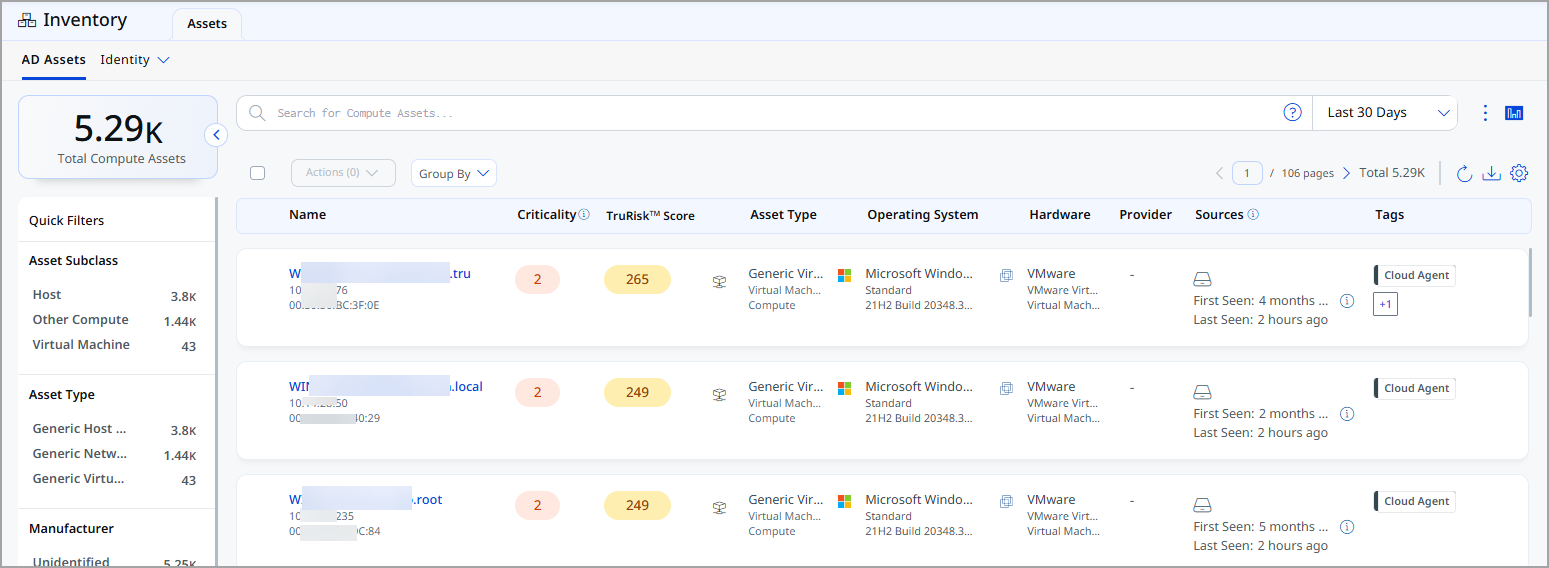
The AD Assets tab lists all Active Directory-related assets found in your environment. It combines identity, system, and security information so you can easily see your AD asset landscape.
To view the AD assets, navigate to Inventory > Assets > AD Assets.
You can browse assets, apply filters and view the assets by groups. You can take actions on one or many assets at once, and view more details.
Identity Group
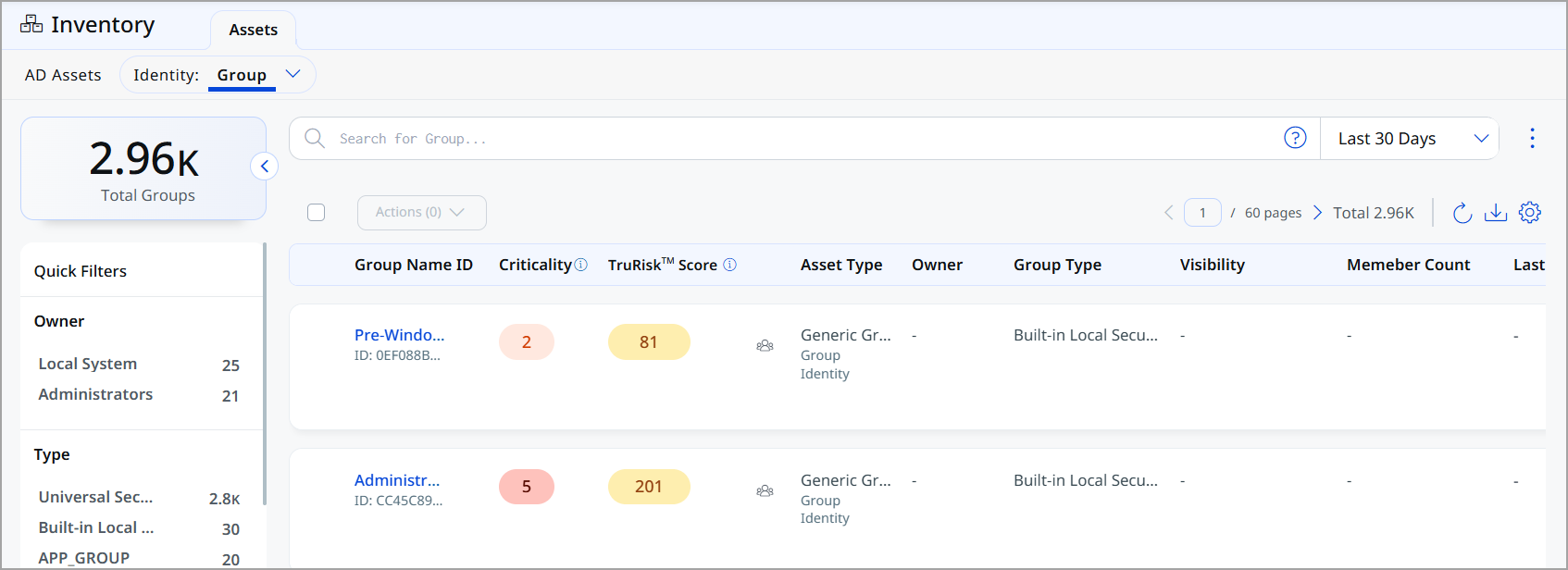
The Identity Group assets tab provides visibility into groups as managed identity assets within the environment. You can view, track, and assess groups, including their ownership, visibility, membership, permissions, and source systems, to understand how access is given across applications, resources, and platforms.
You can view the groups by navigating to Inventory > Assets > Identity > Group.
Identity User
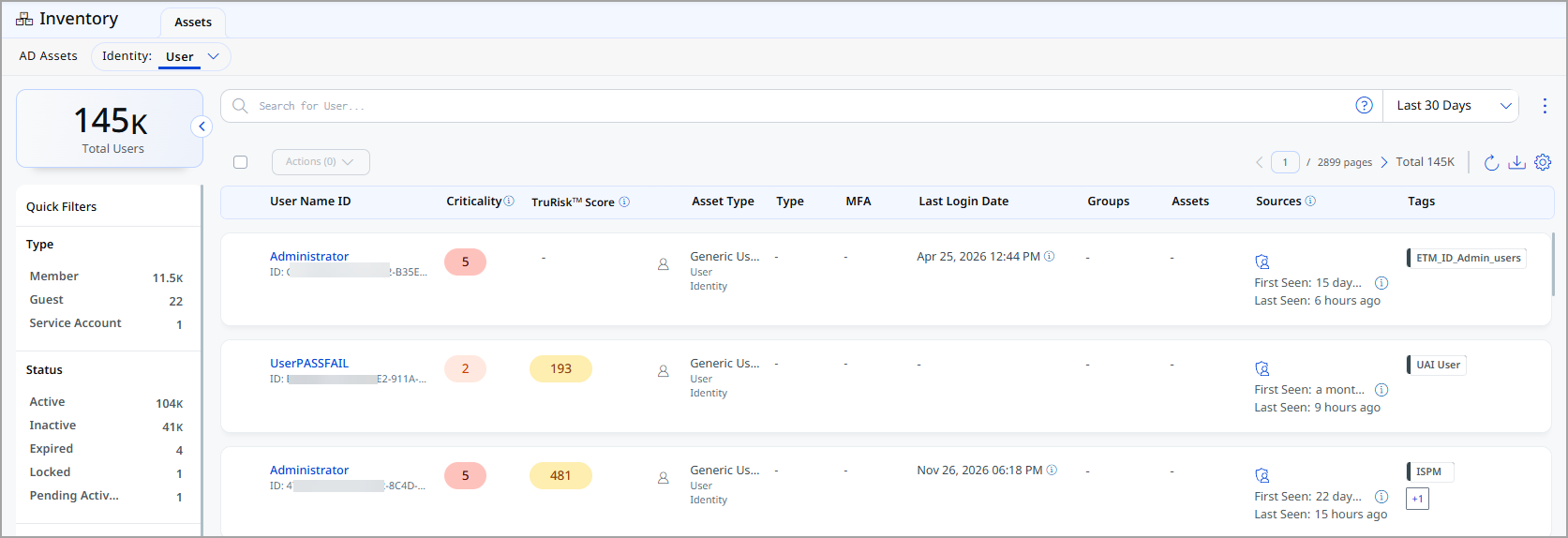
The Identity User tab provides visibility to all user identities in your environment in one place. You can check who users are, how they log in, what access they have, and their security risk. This helps you manage user access across applications, systems, and cloud resources.
You can view the users by navigating to Inventory > Assets > Identity > User.
Identity Role
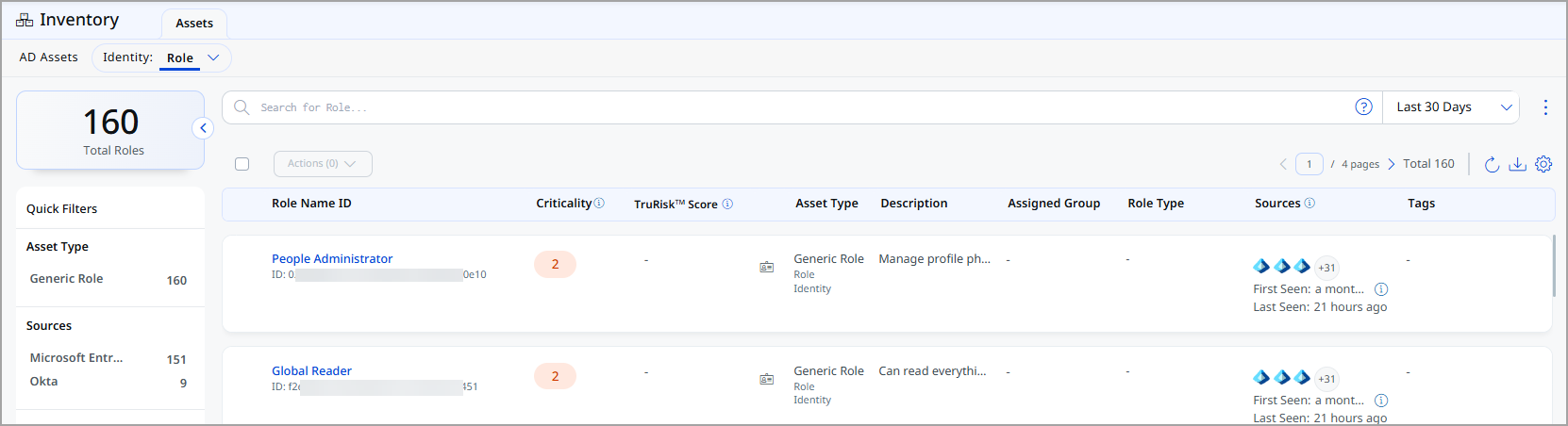
The Role Identity view shows all roles in your environment, each with its set of permissions. This helps you understand how access is assigned and managed for different roles, and see any related risks.
You can view the Role tab by navigating to Inventory > Assets > Identity > Role.
Integration with ETM for Unified Misconfiguration Experience
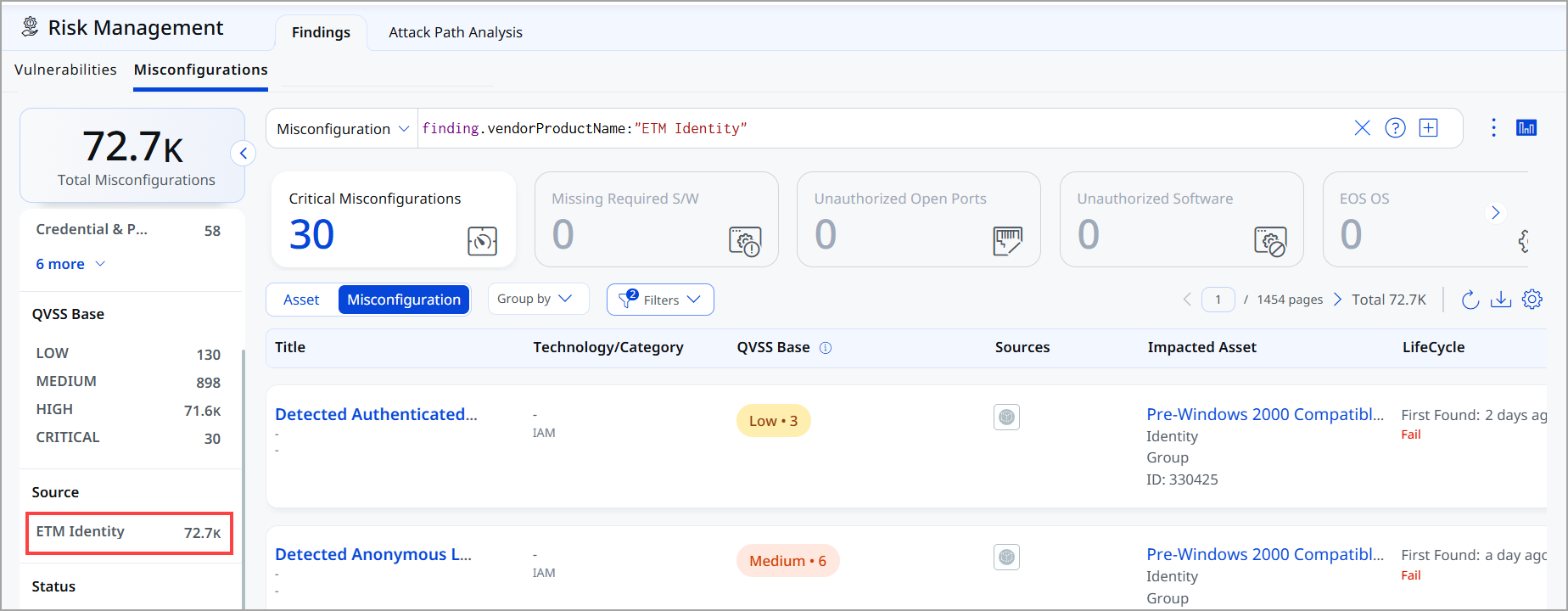
ETM Identity now integrates with ETM application, providing a unified platform for managing misconfigurations. Identity and infrastructure findings are now consolidated into one streamlined interface as the Misconfigurations tab.
This eliminates fragmentation, reduces context switching, and gives you a single, consistent view of all misconfigurations. Instead of navigating separate tabs for Misconfigurations and ID Misconfigurations, everything is now combined into a single Misconfigurations tab, making it easy to see and address all issues in one place.
This feature is available for a Unified Asset Inventory (UAI) -enabled account. Contact Qualys support or your Technical Account Manager (TAM) to activate UAI for your account.
This improvement provides:
- Single-pane visibility across all misconfigurations
- Consistent data model and UI behavior
- Improved filtering and correlation capabilities
To view the misconfigurations, navigate to Risk Management > Findings > Misconfigurations. You can view that in the Misconfiguration tab, a source from ETM Identity is added.
CSV Download Capability for Identity Tab Listing
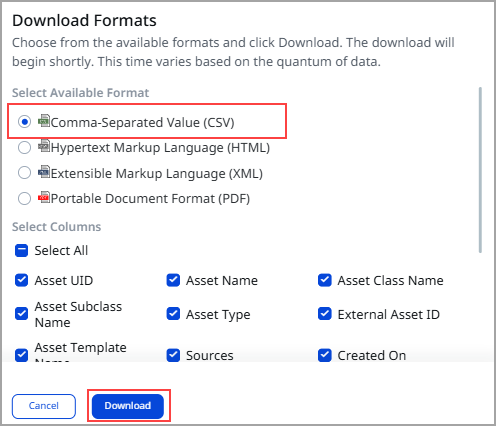
We introduced the capability to download data as a CSV file directly from the Identity tab. This feature is now available across all three tabs: User, Group, and Role.
This enhancement enables quicker data extraction, reporting, and offline analysis. CSV file contains all the details available on the listing page for example, if you download CSV from Role tab, the CSV contains Role name, Criticality, TruRisk™ scores and so on.
To download the Identity tab's data, navigate to Inventory > Assets > Identity. Choose the required tab like User, Group, and Role click the  icon.
icon.
TruRisk™ Score Widget in the Default Dashboard
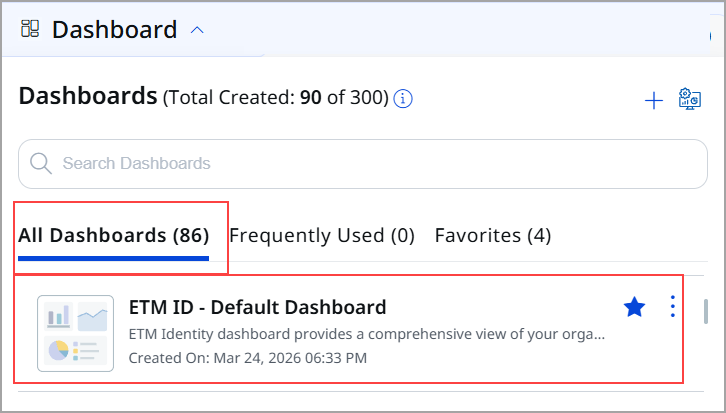
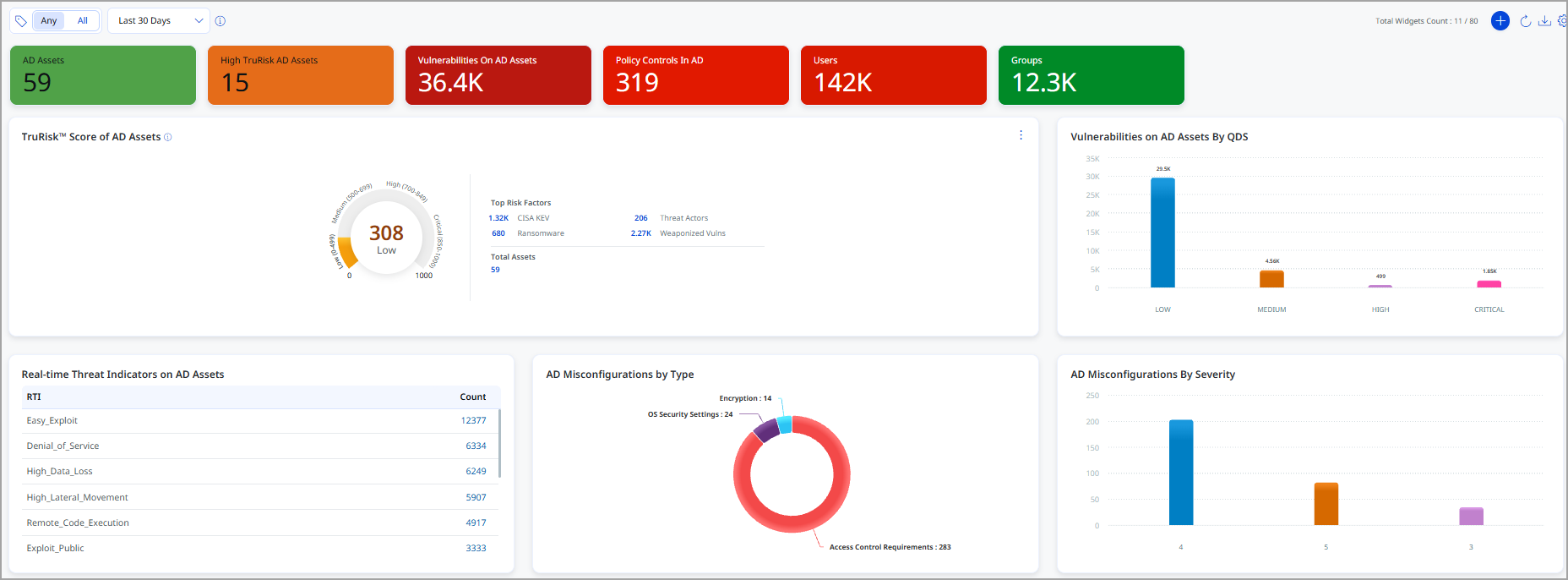
We have introduced the TruRisk of AD Assets widget in the default dashboard. This update provides visibility into Active Directory (AD) asset risk without requiring manual addition or configuration of the widget. You can edit the widget name after creating dashboard. The query and scoring logic are automatically applied, no manual configuration is required for score calculation.
Go to Dashboard, select the ETM ID - Default Dashboard from All Dashboards list.
The following screenshot displays the TruRisk™ Score of AD Assets widget in the ETM ID - Default Dashboard.
Issues Addressed
There are no notable customer issues in this release.