mROC Administration - Overview
Learn more about activities or functions that users can execute from the Qualys Managed Risk Operations Center (mROC) Administration tab.
You can see Users, Activity, Tags, and Security Setup tabs from where you can execute administration functions, such as user creation, viewing activity logs of the users, creating customer and partner tags, and setting up password security settings, respectively.
A user role or a persona who can see the Administration > Users tab and perform the user management activities:
|
User and Role |
Capabilities |
|---|---|
|
Partner with a Manager Role |
- Can view all main tabs - Customers, Administration, and tabs available after clicking the Administration tab - Users, Activity Logs, Tags, and Security Setup. |
|
Partner with a Sub Manager Role |
- Can view the Customers tabs. - Can view only assigned partners and customers but cannot add new customers or partners. - Can view only the Users and Activity Logs tabs from the Administration tab. |
|
Partner with a Manager Role |
- Can view all main tabs - Customers, Administration, and tabs available after clicking the Administration tab - Users, Activity Logs, Tags, and Security Setup. - Can add partners. - Can perform all actions from the Customers tab - Can perform all actions from the Users, Tags, and Security Setup that are under the Administration tab. |
|
Partner with a Sub Manager Role |
- Can view the Customers Tab and see the details of only the assigned customers. - Can view the Users and Activity Logs tab. |
Users Tab Details
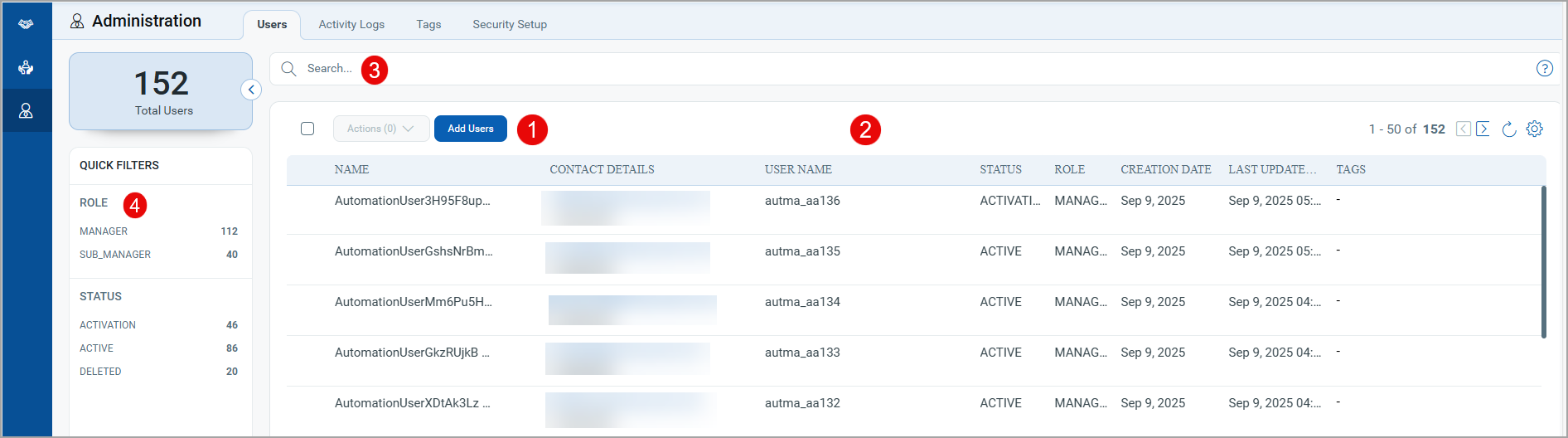
- A partner with the manager role can complete the following functions:
- Add users with a Manager or Sub Manager role
- Edit users
- Delete users
- Reset Password
- The edit users, delete users, and reset password actions can be performed from the Quick Actions menu of the respective user.
- The users with the Sub Manager role can only view the users. They cannot add, edit, or delete users. Also, they cannot reset the password.
For more information, see mROC Users Management.
- You can see a list of users added with the details, such as user name, contact details, the status of the user, user role, the user creation and updation dates, and tags assigned to the user.
- You can use Qualys Query Language (QQL) to filter users.
Examples:- You can find details of a particular user based on the Email ID.
- You can filter users based on their roles, such as MANAGER or SUB_MANAGER.
- You can filter users based on their status, such as ACTIVATION, ACTIVE, and DELETED.
- You can filter users based on their user names.
- You can use the Search criteria provided in the left pane to filter the users based on their roles and status.
- You can delete an individual or multiple users from the Actions list.
Tags Tab Details
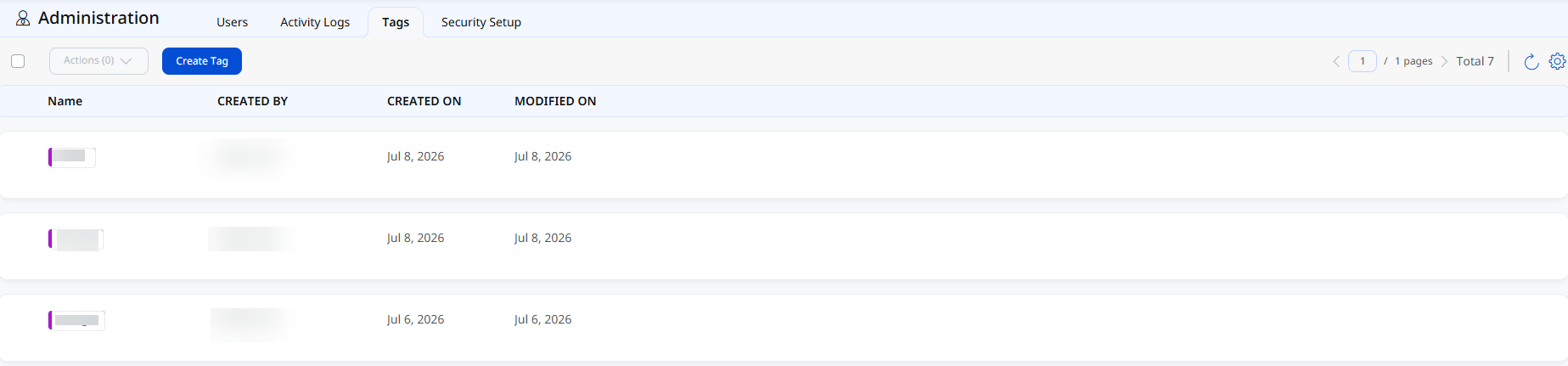
- You can create customer tags. When we choose to create a customer tag, you can assign the tag to the required customers. As a result, the customers are grouped using the tag.
- You can delete an individual or multiple tags.