Job Approval Overview
The Job Approval Workflow adds a review-and-approve step to Qualys TruRisk™ Eliminate deployment, mitigation, isolation, and rollback jobs. Instead of running as soon as it is saved and enabled, a job is held in a Pending Approval state until a second authorized user reviews and approves it. This lets you enforce change control and separation of duties before patches, mitigations, or rollbacks reach your assets.
Why use Job Approval Workflow
- Enforce change control: Require a second reviewer to validate the assets, patches, schedule, and pre/post-actions of a job before it can run, reducing deployment errors.
- Review before production: Approvers can inspect every job detail and either approve the deployment or reject it with comments, so nothing reaches production unreviewed.
- Track every decision: Each approval, rejection, and comment is recorded with the user and time stamp in the Job Approval History, giving you a complete audit trail.
- Find pending work quickly: Use the Approval Status quick filter to see, at a glance, which jobs are waiting on a decision.
How it works
When Job Approval Workflow is enabled, saving and enabling a job no longer starts it immediately. Instead:
- The job owner or a co-author creates or edits a job as usual and submits it; the job enters the Pending Approval state (the job itself stays disabled until approved).
- An authorized approver reviews the job's assets, patches, and pre/post-actions, then either approves or rejects it, optionally with comments.
- If approved, the job is enabled and runs on its configured schedule. If the job is rejected, the owner or co-author can edit it and resubmit it for approval.
See Submit and Approve Jobs for the complete step-by-step process.
Turn on the Job Approval Workflow
Job Approval Workflow is optional and disabled by default, so existing jobs continue to run exactly as before until you turn it on.
- Go to TE > Configuration > Setup.
- Use the Job Approval Workflow toggle to turn the feature On or Off.
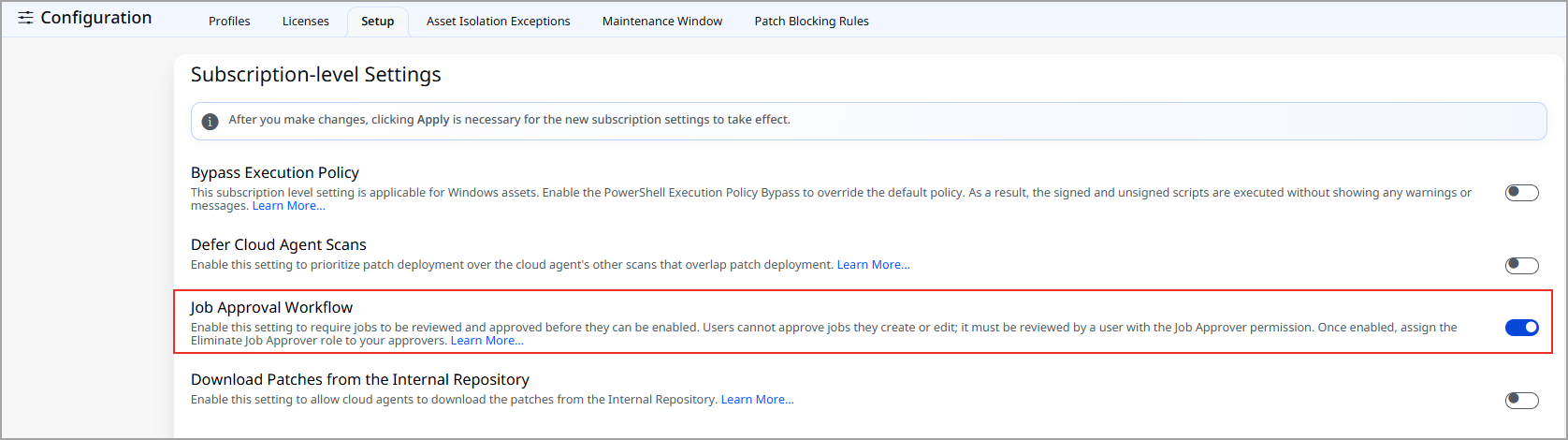
| Toggle state | Behavior |
|---|---|
| Off (default) | Jobs run through the existing process with no change — saving and enabling a job runs it immediately. |
| On | All new jobs must be approved before they can be enabled and run. |
This setting is visible only to Super Admin users and other users with the Eliminate Manage Job Approval permission, and there is no agent dependency — the workflow applies as soon as it is turned on, with no agent update required.
Permissions required
| Permission | What it allows |
|---|---|
| Eliminate Manage Job Approval | Lets a Super Admin (or another authorized user assigned this permission) turn the Job Approval Workflow on or off in Configuration > Setup. |
| Eliminate Job Approver | Lets a designated reviewer approve or reject jobs that have been submitted for approval. |
Approvers must also have the View Any Job permission for the corresponding job type. For example, a user cannot approve a mitigation job unless they can also view mitigation jobs. No special permission is required to submit a job for approval – any user who can create or edit the job (owner or co-author) can send it for review.
Where it applies
- Platforms: Windows, Linux, and Mac.
- Job types: Patch deployment (install), default jobs, mitigation, isolation, and rollback jobs.
Prerequisites
- A Super Admin (or a user with the Eliminate Manage Job Approval permission) has turned on the Job Approval Workflow toggle in Configuration > Setup.
- At least one user other than the job owner holds the Eliminate Job Approver permission, together with View Any Job permission for the job type being submitted.
Limitations
- A job's creator cannot approve their own job, even if they hold the Job Approver permission. A different authorized user must review and approve it, enforcing separation of duties.
- No email or push notifications are sent to approvers in this release. Approvers see a count of jobs awaiting their review when they log in, and can use the Approval Status filter or a QQL search to find pending jobs.
- No approval deadline is enforced. A job can remain in Pending Approval indefinitely. For an on-demand (Run Once) job, if its scheduled date passes while it is still awaiting approval, the job displays a Date Passed message; the owner or co-author must set a new date and resubmit it before it can be approved and run.