Merge Duplicate Assets
Configure the reconciliation rule to merge duplicate records for the same host into one managed asset. You choose whether the rule runs on demand or on a recurring schedule.
Navigate to: Inventory > Rules > Reconciliation
Use this to
- Merge duplicate records for the same host into one managed asset.
- Run the merge on demand or every 24 hours.
- Confirm that the duplicates were merged.
To learn when to merge and how the schedule works, see About Merging Duplicate Assets.
Before You Begin
REVIEWCheck that an asset identification rule covers the third-party source that reported the duplicate record. The reconciliation rule merges only the records your identification rules match. For details, see Identify Duplicate Assets.
Merge Duplicate Assets
To merge duplicate assets:
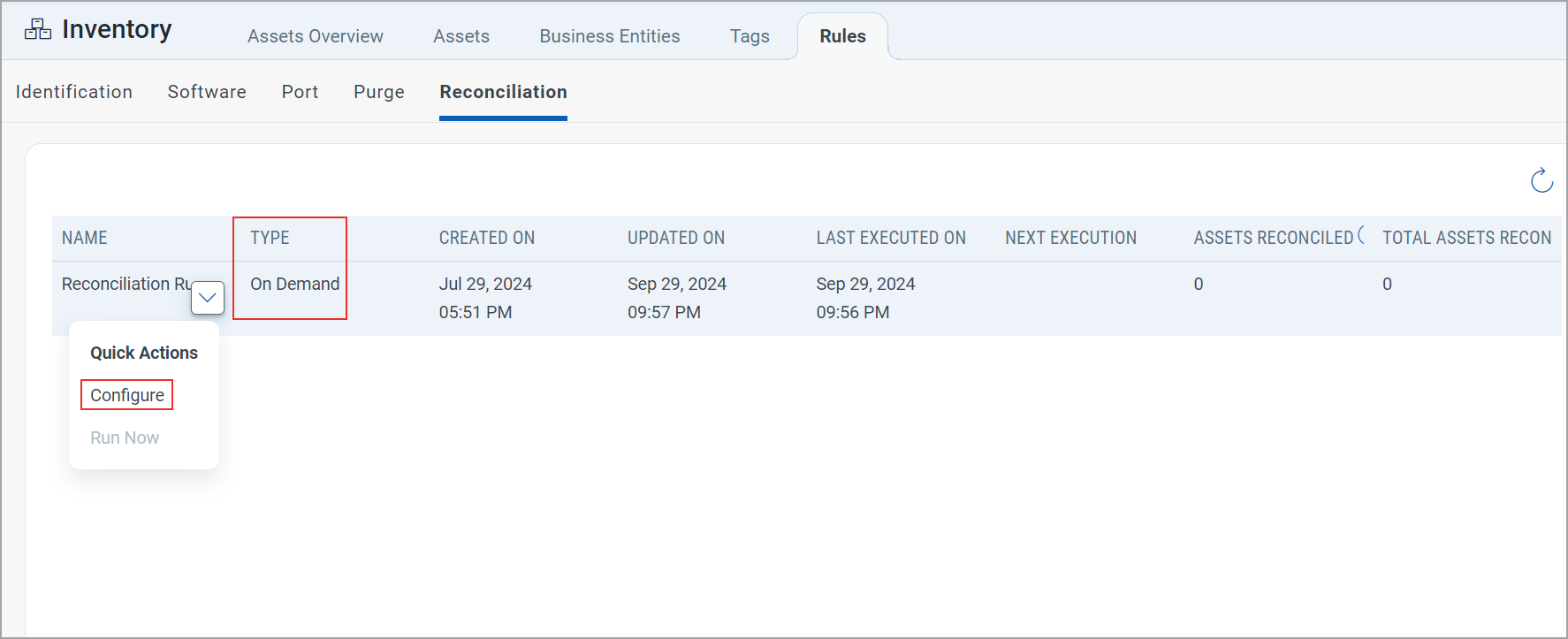
- Go to Inventory > Rules > Reconciliation, and click Configure from the Quick Actions menu.
- Choose how the rule runs:
- Recurring: the first merge runs 5 minutes after you save. After that, the rule runs every 24 hours.
- On Demand: the rule runs only when you click Run Now.
- Click Save.
- REVIEWIf you chose On Demand, click Run Now to start the merge.
After a run, Run Now is available again only after 24 hours have passed since the time in the LAST EXECUTED ON column. Until then, it appears dimmed.
The Type column shows Schedule for a recurring rule and On Demand for an on-demand rule.
Check the Result
After the rule runs, go to the Assets tab and check the asset list again to confirm that the duplicates were merged.
REVIEWIf a host still appears more than once:
- Check that the rule has run. Look at the date and time in the LAST EXECUTED ON column.
- Check the fields your identification rule matches on. A record must match all the selected fields to be merged.
- If one of the records belongs to a host that no source reports any more, remove it with a purge rule instead.