Manage Software Rule
The Quick Actions menu of a Software Rule is where you view, edit, delete, enable or disable a rule, and create an alert for it.
Navigate to: Inventory > Rules > Software > Reorder
Use this to
- View or edit the details of an existing software rule.
- Enable or disable a rule, or delete it.
- Create an alert for unauthorized software on the tagged assets.
Quick Actions options
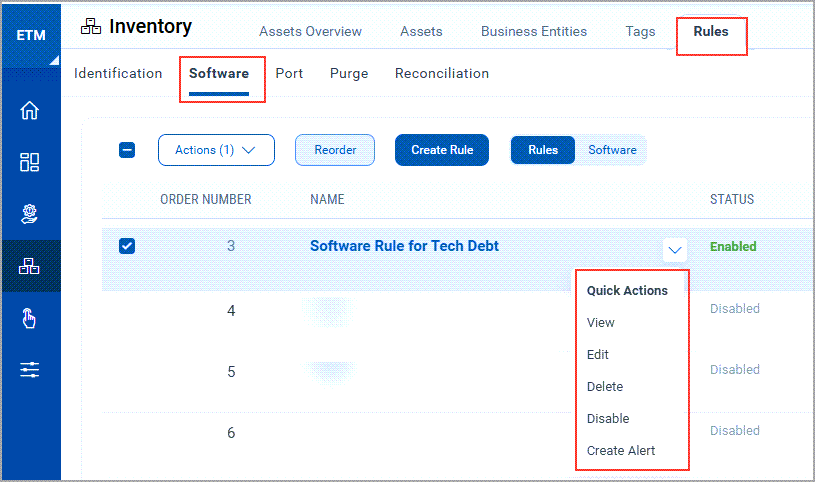
| Action | What it does |
|---|---|
| (1) View | Shows the rule details. |
| (2) Edit | Opens the rule so you can update it. |
| (3) Delete | Deletes the rule. A confirmation pop-up opens; click Yes to delete the selected rule. |
| (4) Enable / Disable | Turns the rule on or off. |
| (5) Create Alert | Creates an alert for unauthorized software installation on the assets that carry the tags in this rule. |
If you want to stop a rule from applying but keep its configuration, disable the rule instead of deleting it. You can enable it again later from the same menu.
Create an alert
Click Create Alert to create an alert for unauthorized software installation on the assets that carry the tags in this rule.
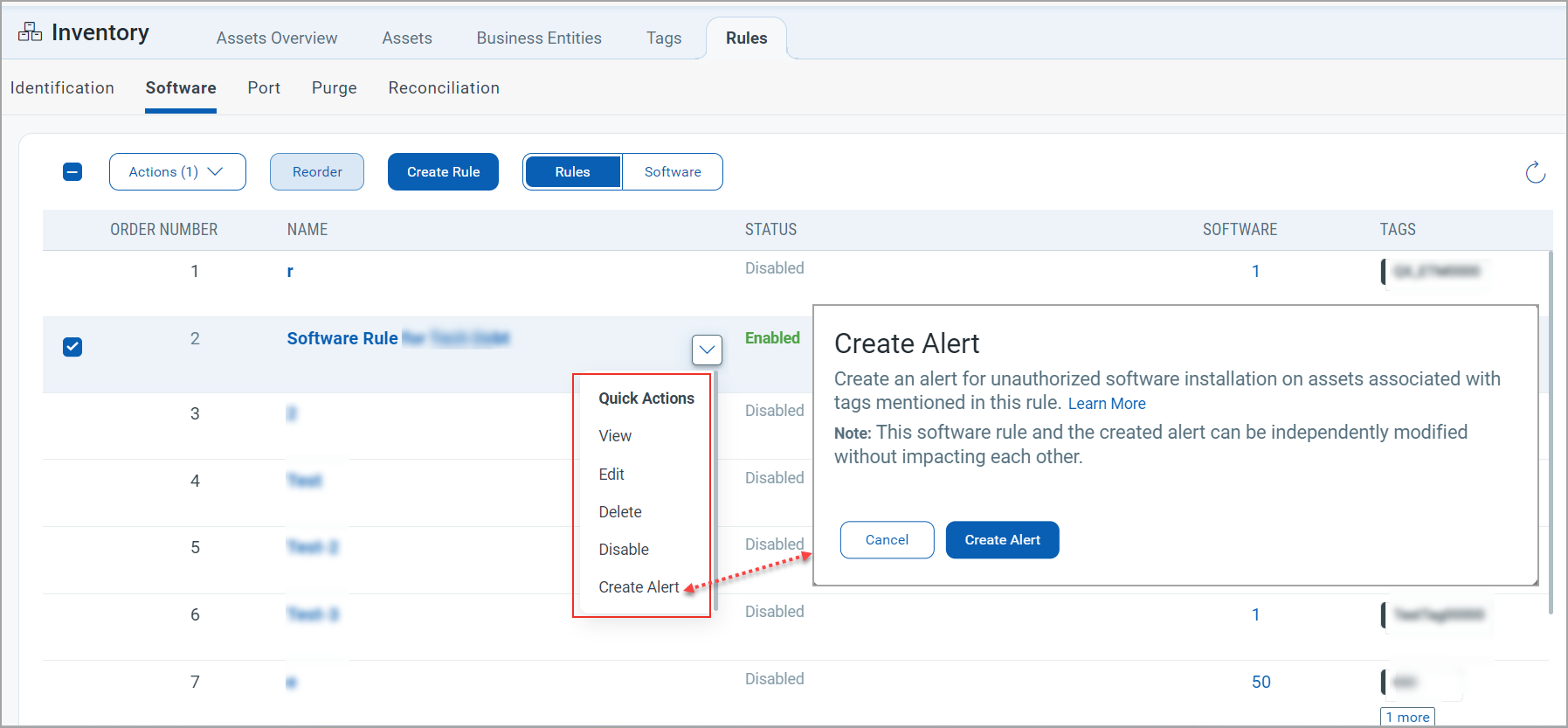
The software rule and the alert are modified independently of each other. If you create an alert named ‘rule_1’ from the software rule named ‘rule_1’ and then change the rule, the alert does not change with it, and the reverse is also true.