Create Software Rule
Create a software rule to mark software as authorized, unauthorized, or needs review for the assets you select with asset tags, and assign the QDS that applies when the software is installed or missing.
Navigate to: Inventory > Rules > Software > Create Rule
Use this to
- Mark software as authorized, unauthorized, or needs review.
- Scope the rule to the right assets with asset tags.
- Assign the QDS that applies when software is installed or missing.
- Narrow an entry to specific software versions or updates.
Before you begin: Create the asset tags you want to use for the rule scope, and decide which software you want to treat as authorized, unauthorized, or needs review, so that you can select them while you build the rule.
Create a software rule
Go to Inventory > Rules > Software > Create Rule, then complete these four steps.
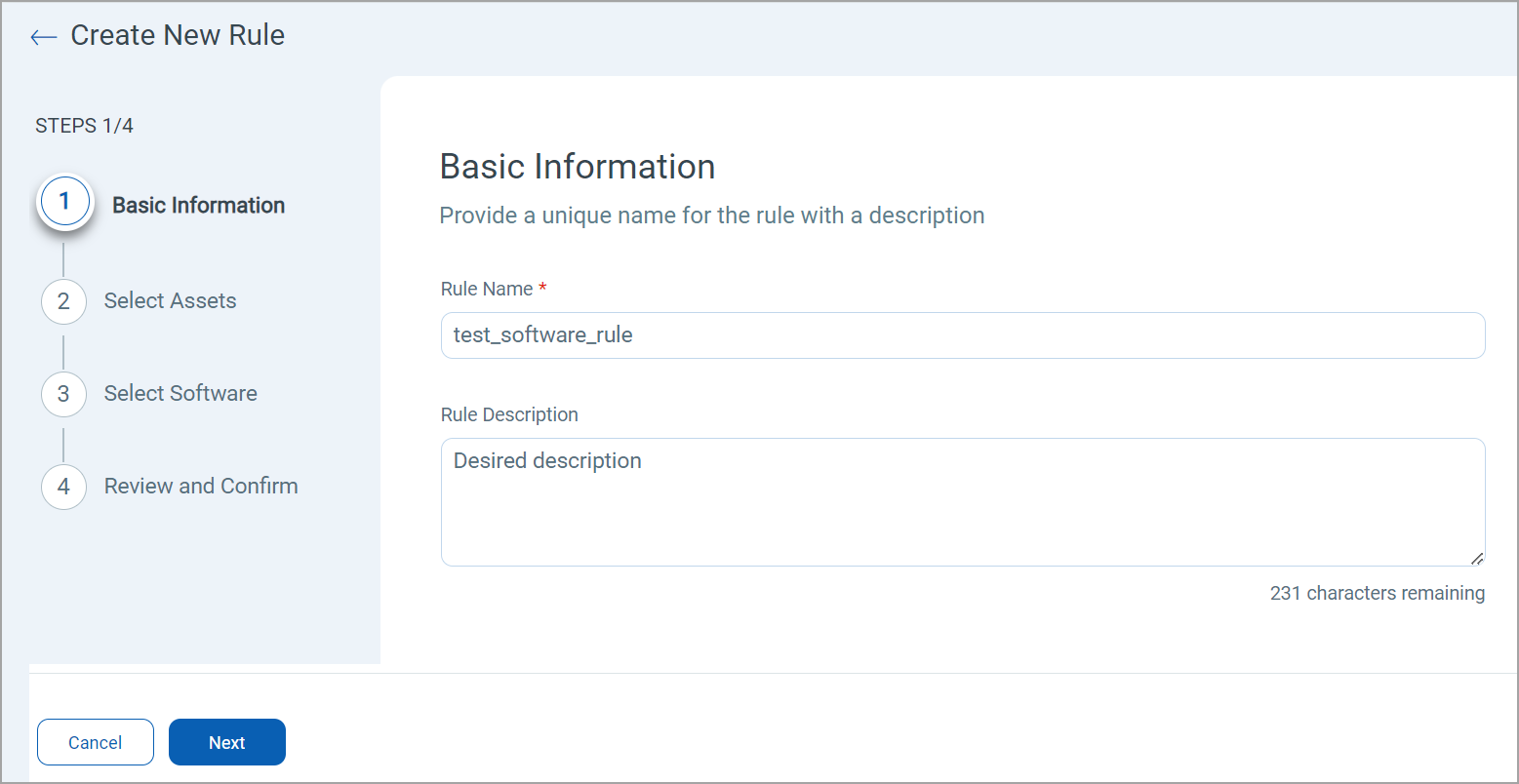
Step 1: Basic Information
Enter the rule name and description, then click Next.
Step 2: Select Assets
Select tags to include and exclude the assets from the rule.
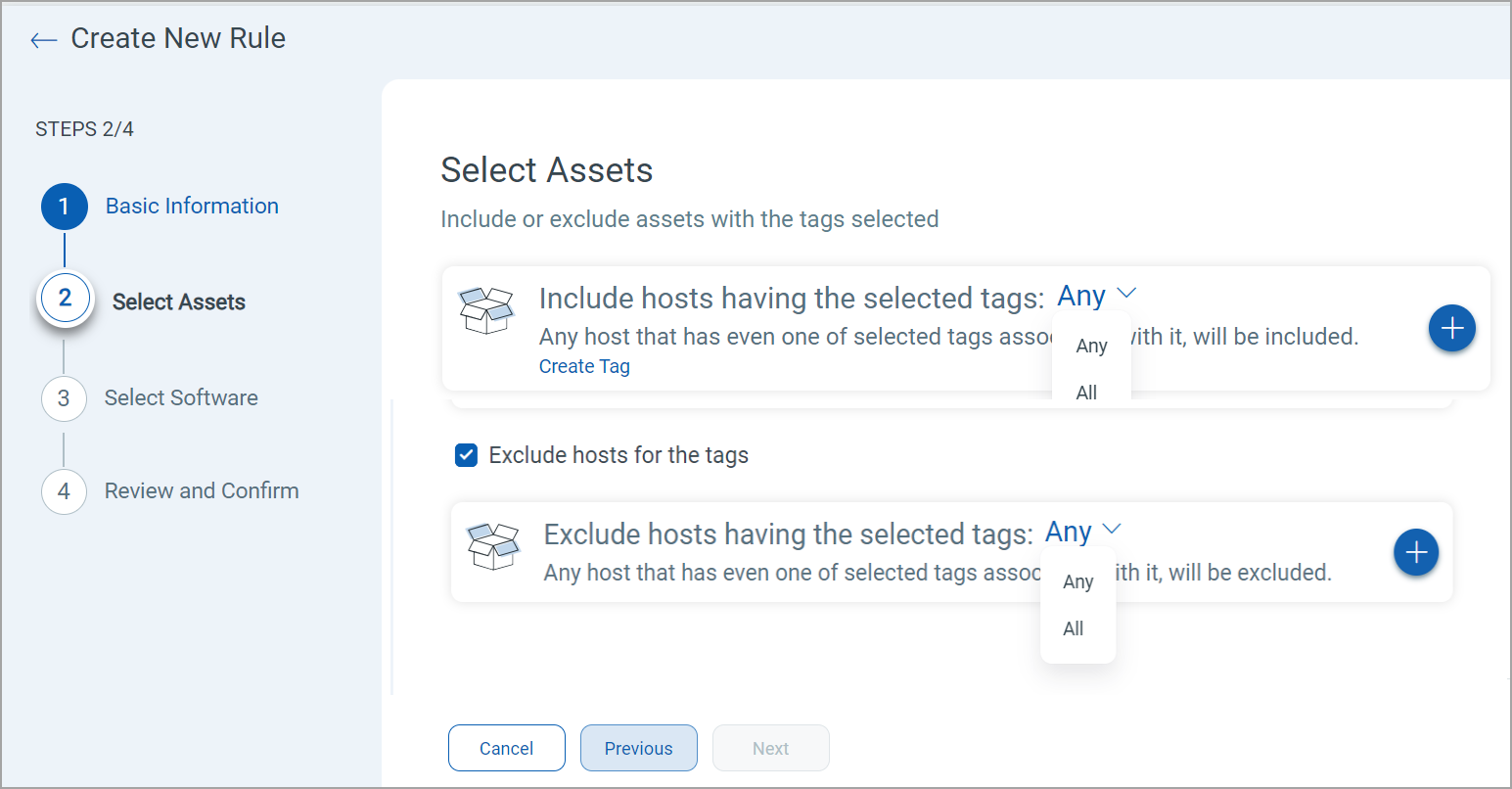
Click  to search for and select asset tags. The drop-down controls how the tags are matched:
- Any — an asset is included or excluded when it carries any one of the selected tags.
- All — an asset is included or excluded only when it carries every selected tag.
A software authorization rule does not apply to a newly created asset, because tag evaluation happens after the asset is created. The rule applies to the asset on the next scan.
Once you have selected the tags to include and exclude, click Next.
Step 3: Select Software
Add the software the rule covers: Authorized Software (1), Unauthorized Software (2), and Software that Needs Review (3). Click next to a bucket to select and add software to it.
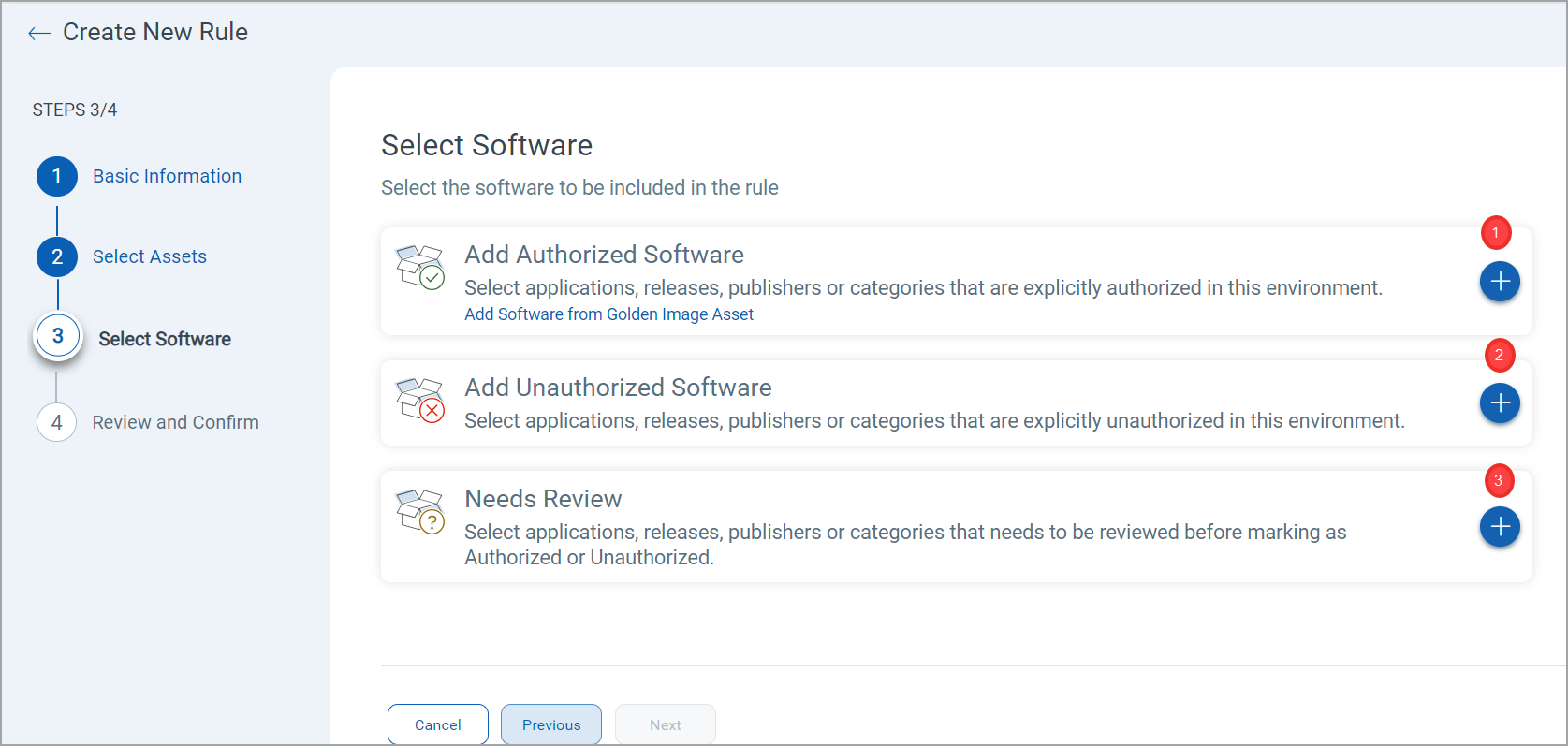
On the Software Selector page, the parameter you click decides how much software each entry covers:
| Parameter | What it adds to the rule |
|---|---|
| Product | An individual software product. |
| Publisher | All software from the selected publisher. |
| Category | All software in the selected category. |
Add Unauthorized SoftwareAdd Unauthorized Software
- On the Software Selector page, select the software to add as unauthorized software, then click Add to Rule.
- Select the QDS in the QDS(If Installed) column. This QDS is associated with the software you marked unauthorized.
The default QDS value is 80 (High). Existing software rules in your subscription are assigned the default value automatically, and you can edit any rule to change it.
To narrow an entry to specific versions or updates, see Modify version/update scope.
Add Authorized SoftwareAdd Authorized Software
- On the Software Selector page, select the software to add as authorized software, then click Add to Rule.
- To make the software mandatory, turn on the Required toggle and select the QDS in the QDS(If Missing) column. This QDS is associated with the software you marked required.
The default QDS value is 80 (High). Existing software rules in your subscription are assigned the default value automatically, and you can edit any rule to change it.
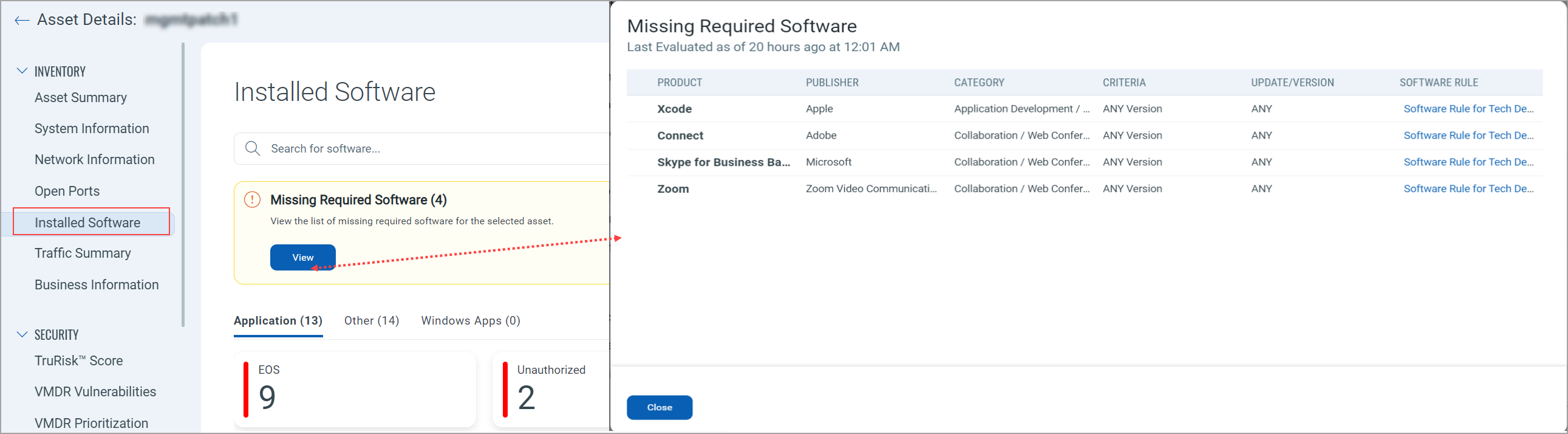
When required software is not installed on an asset, it is flagged as 'missing required software' for that asset.
To narrow an entry to specific versions or updates, see Modify version/update scope.
Add Software from Golden Asset ImageAdd Software from Golden Asset Image
Click Add Software from Golden Asset Image to open a pop-up and select software from your Golden Image assets.
Add Needs Review SoftwareAdd Needs Review Software
- On the Software Selector page, select the software to add as Needs Review software, then click Add to Rule.
To narrow an entry to specific versions or updates, see Modify version/update scope.
- Click Next once you have added the authorized, unauthorized, and needs review software you want.
Step 4: Review and Confirm
Review your selections. You can still edit the basic information, the selected assets, and the selected software from this step.
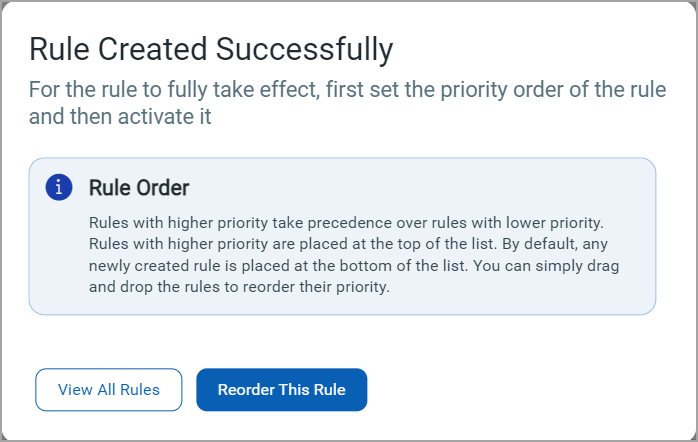
Click Finish. The following message is shown, and the software rule is created.
Modify Version/Update Scope
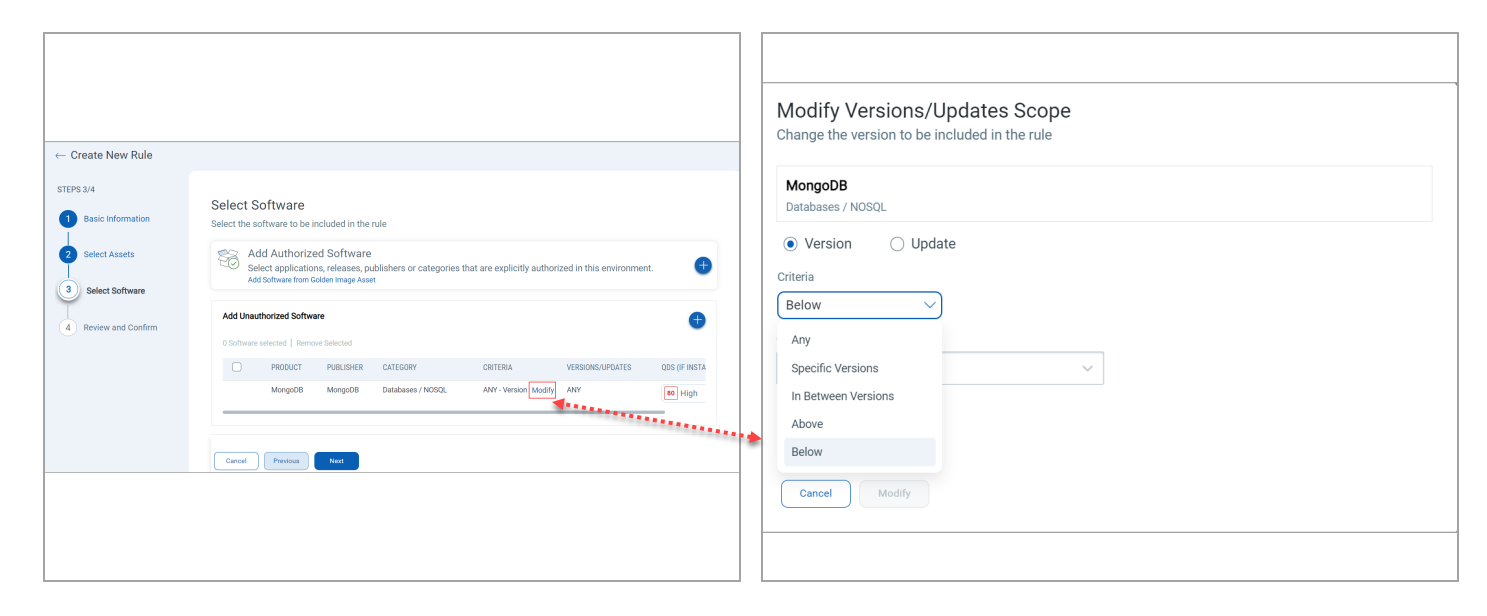
After you add software to the Authorized, Unauthorized, or Needs Review list, click Modify to set the version and update criteria for that entry.
The available criteria are:
- ANY
- Specific
- In Between
- Above
- Below
Two restrictions apply when you set these criteria:
- You cannot apply Version criteria and Update criteria to the same product in different categories. For example, you cannot select the 'Cloud Agent' product with 'Version' criteria in the 'Unauthorized' category and the same product with 'Update' criteria in the 'Authorized' category in one rule.
- Do not select the same specific software, with the same version or update, in two categories, because the rule then shows a conflict error. For example, 'Cloud Agent' with 'Specific - Version = 4.6' in the 'Unauthorized' category and 'Cloud Agent' with 'Below - Version = 5.0' in the 'Authorized' category both cover Cloud Agent 4.6, which conflicts.
What to do next
- Reorder This Rule — change where the rule sits in the evaluation order. See Reorder Software Rule.
- View All Rules — return to the list of software rules.
- Quick Actions — view, edit, delete, or disable the rule, and create alerts for it. See Manage Software Rule.
Tip: Rules are evaluated in order, so after you create a rule that overlaps with an existing one, reorder the rules to put the rule you want to take precedence higher in the list.
Default software rules
Software Rules lists these default rules in the 'Disabled' state:
| Rule | What it covers when enabled |
|---|---|
| Apps with Log4j | All software that uses Log4j and is vulnerable or potentially vulnerable, as documented by NCSC-NL.
The QLYS-CSAM - Log4j Risk dashboard shows the assets vulnerable to Log4j, with a count of apps, Log4j versions, OS distribution, and more. |
| Software Elevating CyberSecurity Risk for Data Center Assets | All software products that elevate cybersecurity risk for data center assets. |
| Most Common Ransomware Attack Vectors | All software products most commonly used as ransomware attack vectors.
The Ransomware (RW) Attack Vectors dashboard lets you examine assets for missing antivirus, cybersecurity risk for data center, the most common ransomware attack vectors, and threat exposure, reuse previous searches, and remediate the vulnerabilities that matter most to you. |
View software authorization and missing required software
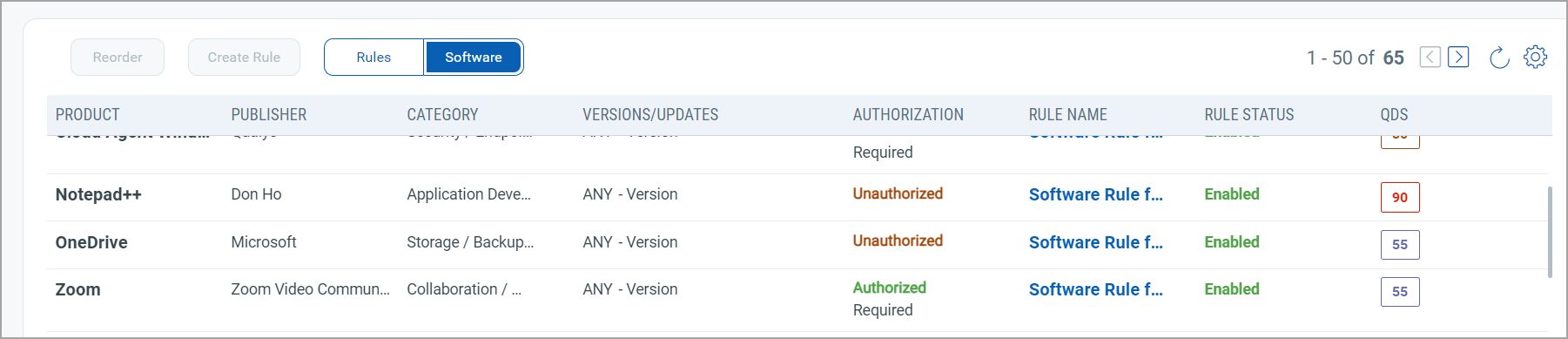
The Software tab lists each software product with its publisher, category, authorization status, rule name, and rule status.
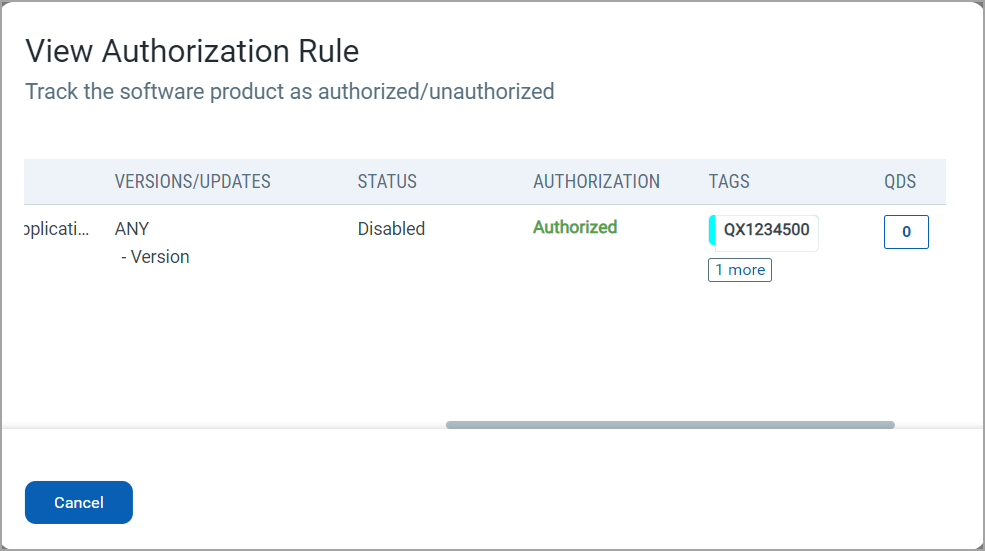
You can also see, per criteria, whether a rule authorizes the software, as highlighted in the following screenshot.
To check whether a software product is authorized, go to Inventory > Assets> Software > and click View Authorization Rule in the Quick Actions menu.
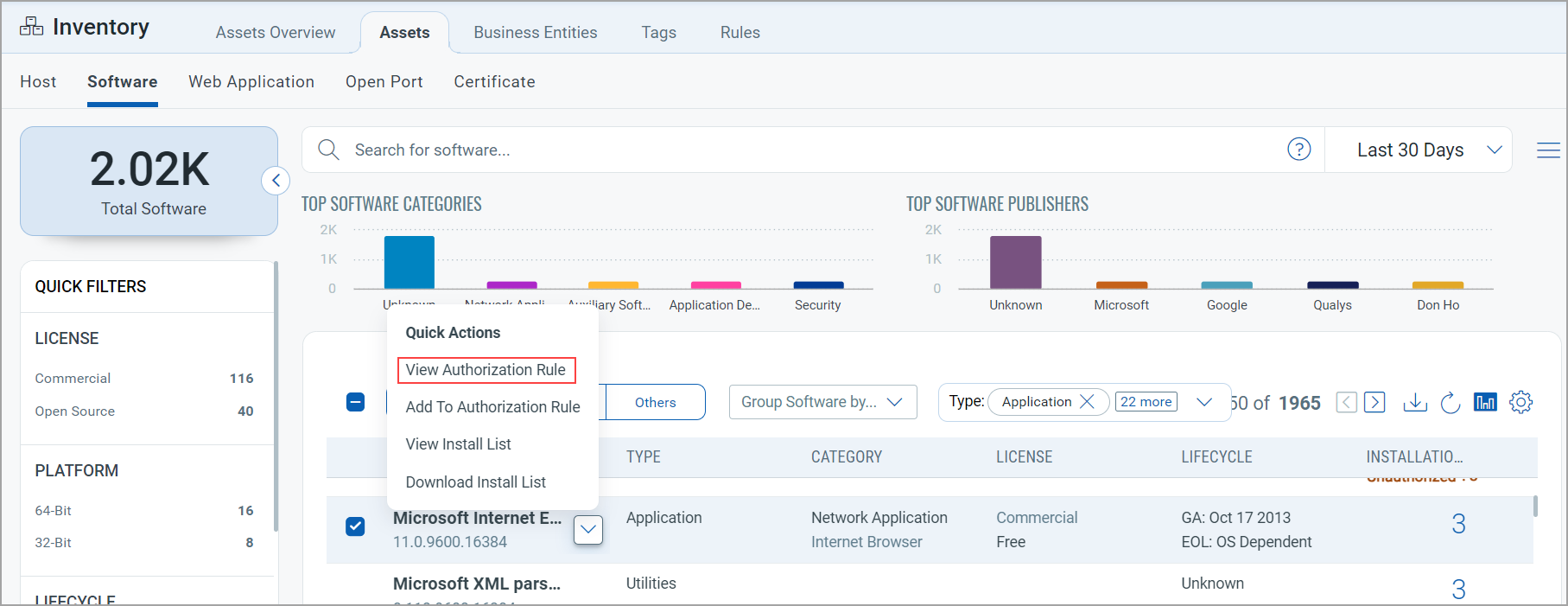
The rule tells you whether the software product is authorized.
To see the missing required software for an asset:
- Go to the Inventory > Assets > Software tab.
- Click View Install List in the Quick Actions menu for the software.
- Click the asset on the Installation Details page.
- On the Asset Details page, go to the Inventory > Installed Software tab. The missing required software is listed against the software rule and the product. Click the rule name to open the rule.