Execute Software Packages
You can execute a script only after it is approved. A new job is created when you execute a script and is listed under the Jobs > Software Package Jobs tab.
To execute, follow these steps:
1. Navigate to the Scripts > Software Packages tab. Select a package and click Run Now from the Quick Actions menu.
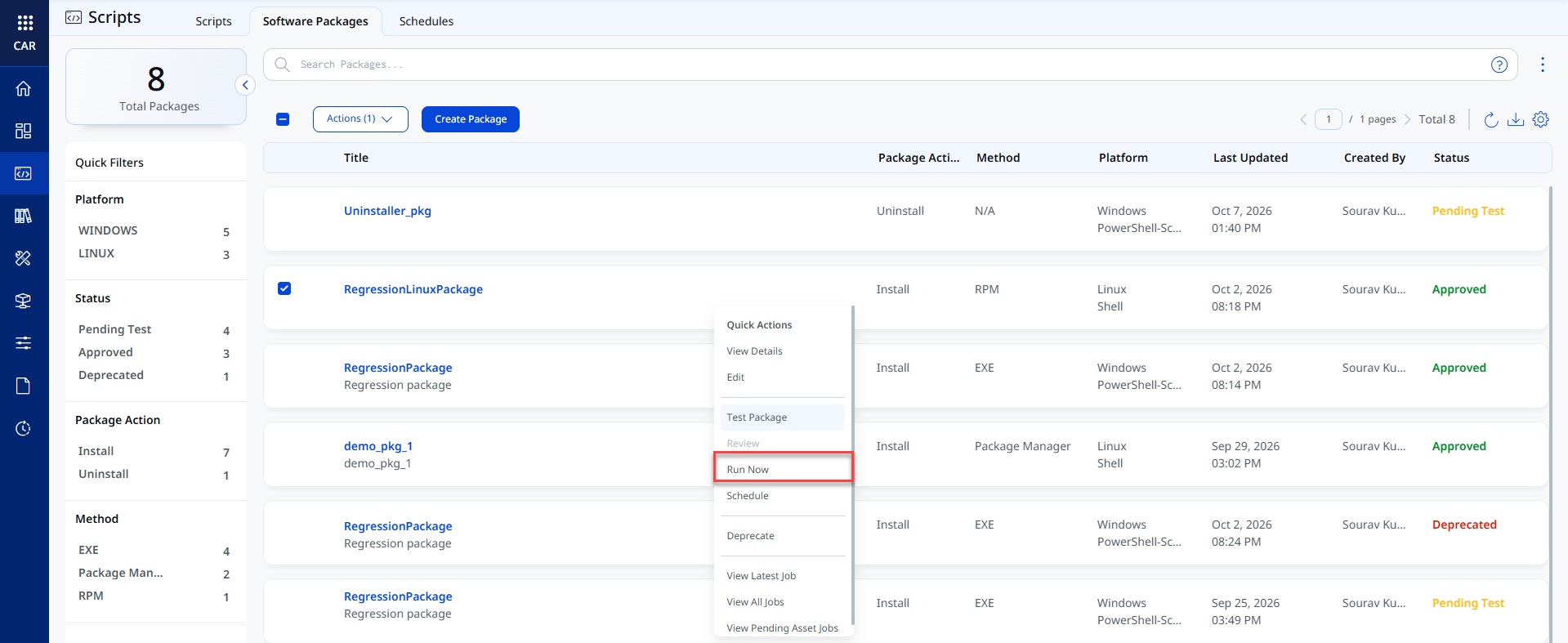
2. In the Select Assets screen, define the scope of your schedule by selecting assets and/or by including asset tags. Select assets on which you want to execute the package. You can select any of the following options for asset selection while executing a schedule:
- Manual Asset Selection
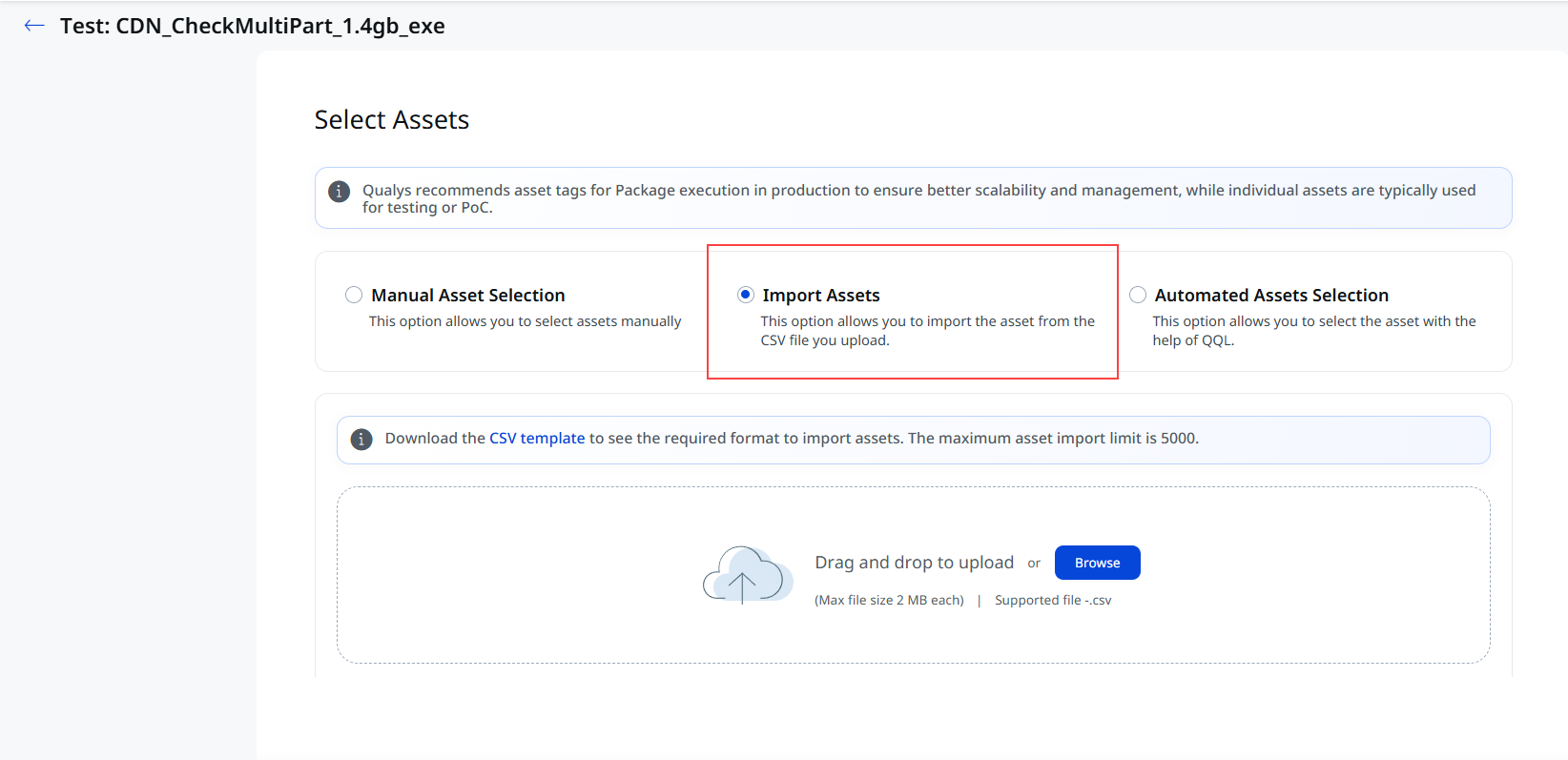
- Import Assets
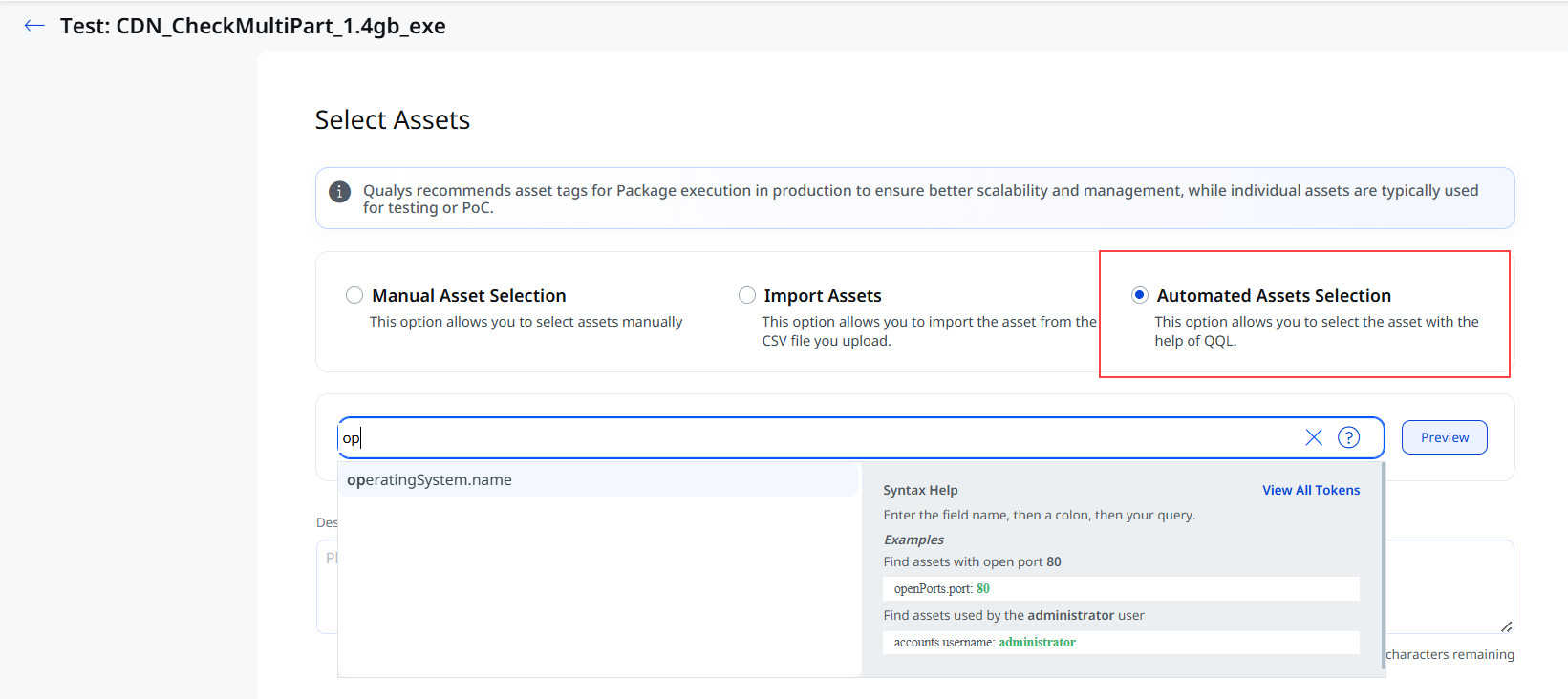
- Automated Assets Selection
a. Manual Asset Selection:
You can manually select the assets you want.
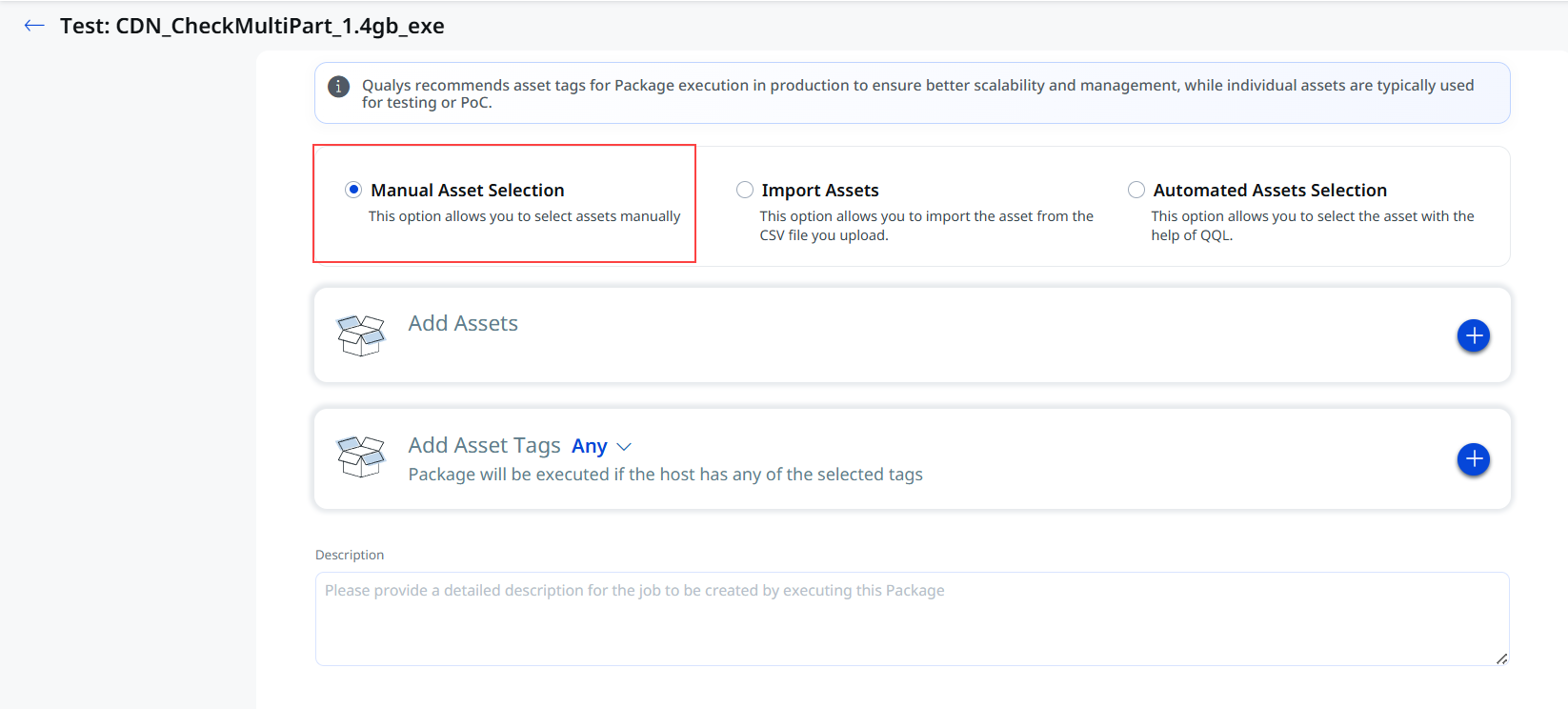
If you want to specify assets, follow these steps:
- In the Add Assets section of the Select Assets page, click the + sign.
- In the Select Assets page, select the assets that you want to include in the script run and then click Apply.
If you want to include asset tags, follow these steps:
-
In the Add Asset Tag section of the Select Assets page, click the + sign.
-
In the Select Tags page, select the tags that you want to include in the script run and then click Apply.
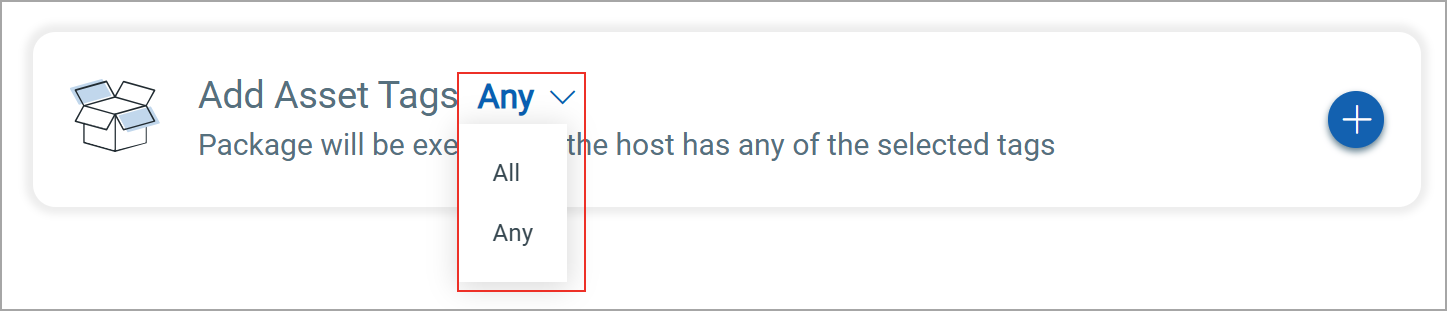
You can add All or Any asset tags.
These options determine how assets are filtered and included for execution based on selected tags.
- Any: When you select Any, the system executes the package on the lab asset if it has at least one of the selected tags.
- All: When you select All, the system executes the package on the lab asset if it has all the selected tags. This means that the asset must have all the tags you have selected.
Enter the Description for testing the packages and click Test Package.
b Import Assets:
- Upload a CSV file containing asset hostnames and use those assets to execute a package and schedule it. It helps you quickly target multiple assets at a time.
- Click Browse to upload the CSV file from your destination. Before execution, all imported assets are automatically validated to identify any errors or inconsistencies.
The feature supports both immediate execution and scheduled package execution workflows, providing flexibility in managing asset imports.- CSV file should be in the comma-delimited format.
- CSV files are allowed up to 2 MB in size and support up to 5,000 assets per import.
- The CSV file must contain only unique asset names. Any duplicate asset names found in the CSV file are marked as invalid with the reason Duplicate asset. Ensure each asset name appears only once in the file before uploading.
-
The package runs on the assets listed in the uploaded CSV file. After uploading the CSV file, you can download a report that lists the assets that failed validation. Each entry includes the asset name and a validation message that explains why the asset was excluded.
The CSV file includes possible reasons for validation failures and their corresponding conditions:
Validation Message Description Not found The asset name does not exist in your account. Lab asset The asset is a lab asset and is only available in test mode. Blocked asset The asset is in the global exclusion list and cannot be scheduled. Platform is invalid The asset's operating system does not match the script's platform. This is not lab asset In test mode, only lab assets are eligible for validation. Duplicate asset The same asset name appears more than once in the CSV file. Limitations
- Asset hostnames must exist in the database to pass the validation.
- Failed asset download information is available for a limited duration after validation.
C. Automated Assets Selection
- Use the Automated Asset Selection option to automatically identify and select assets for software package execution based on a QQL query. The QQL query allows you to filter and target assets that match the specified criteria.
Example:operatingSystem.name:windows
This helps you to quickly target the required assets while reducing manual selection effort. - Enter a valid QQL query in the Search field and click Preview to view the assets that match the query.
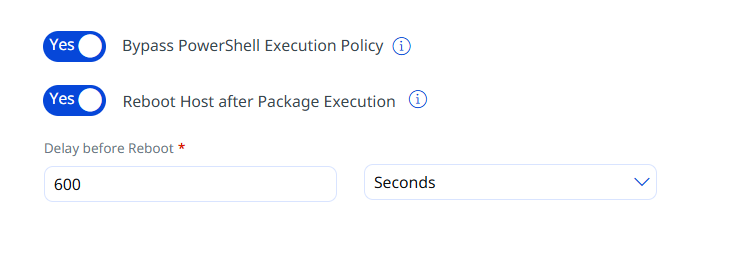
3. Select the following toggle switch as required:
- Bypass PowerShell Execution Policy: Use this toggle to specify if you want to override the PowerShell execution policy on Windows agents.
This option is displayed only when you execute a Windows PowerShell script.
- Reboot Host after Script Execution: If you turn this toggle to Yes and set a delay, the system waits for the selected duration after the package execution completes and then initiates the reboot process.
You can view the execution status on the Jobs > Software Package Jobs tab.