Create Software Package
To create a package, follow these steps:
- Navigate to Scripts > Software Packages.
- Click Create Package.
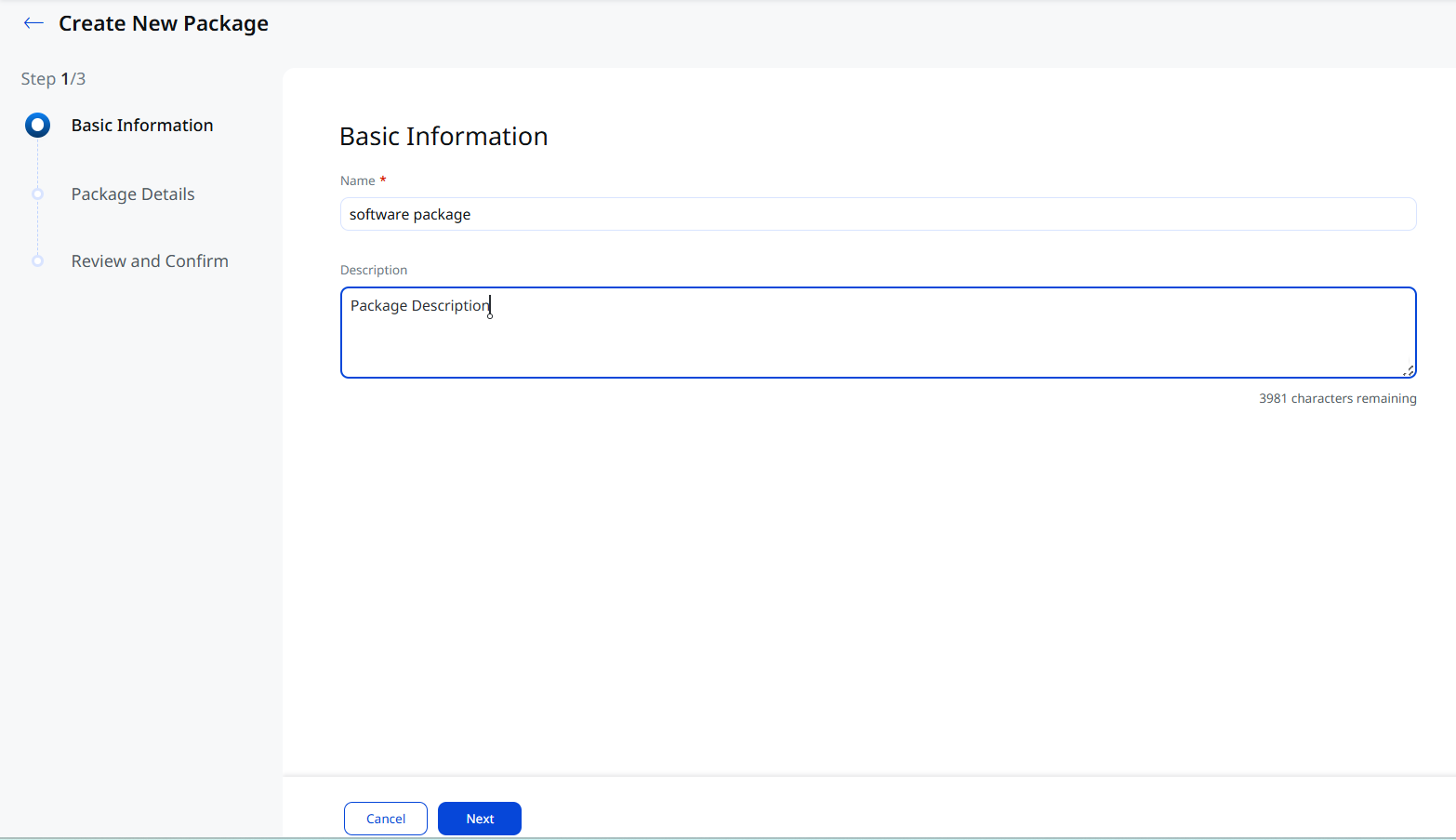
- Enter Basic Information, such as Name and Description of the package.
- On the Package Details page, provide the package information to install or uninstall the software from your Windows or Linux system.
The information required to create a package varies according to the platform and operation performed. Click the respective drop-downs below to view the required field details:
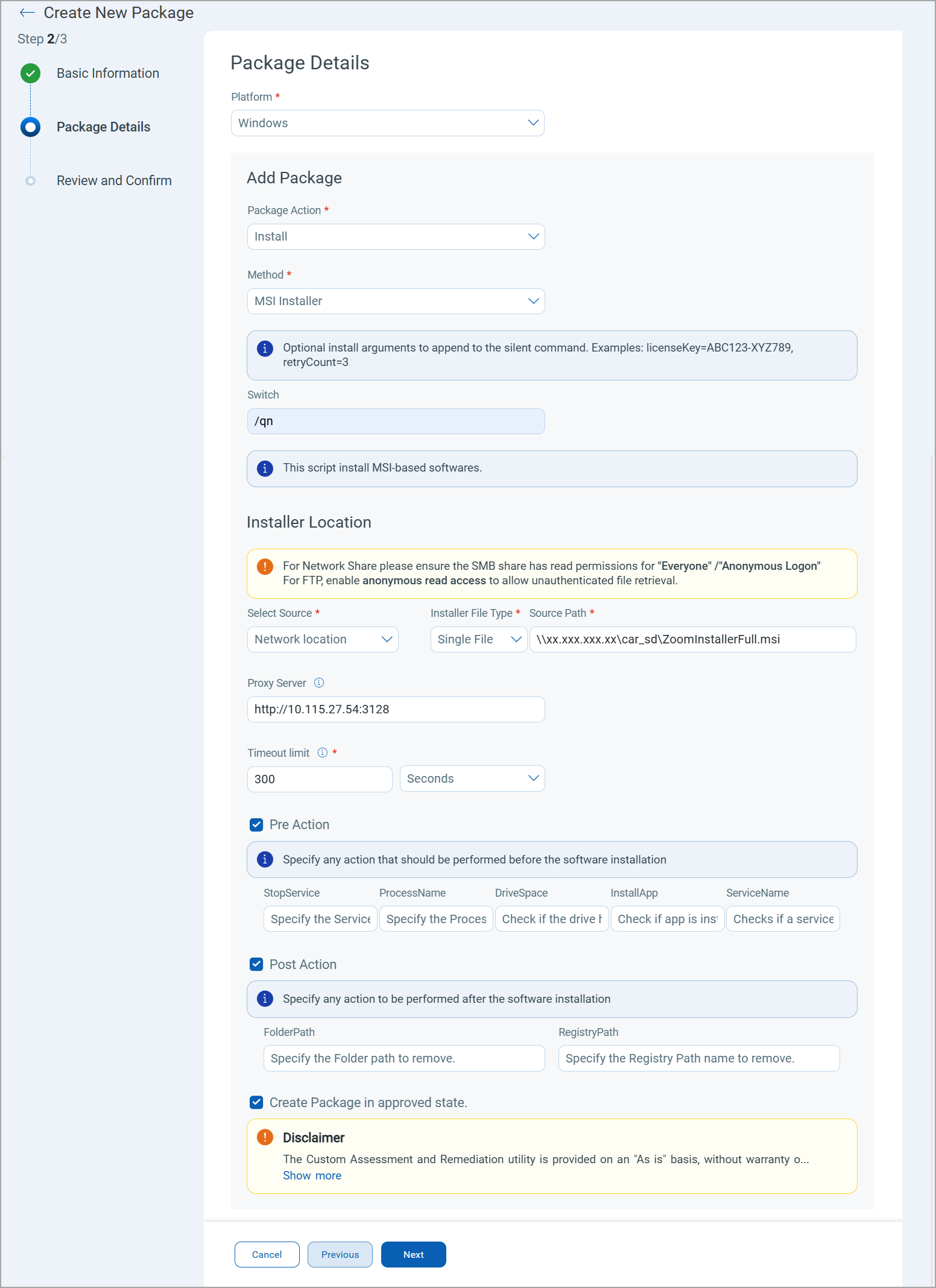
Field Description Add Package Details Platform Windows Package Action Install Method Select the installer: MSI Installer or EXE Installer Switch Enter the silent switch command to install the software without user interaction. Example:
The following commands can be used:/qnor/quiet: Runs the MSI installer in silent mode with no user interface./Sor/SILENT: Runs the EXE installer silently without showing dialogs or requiring input.
For installations that trigger User Account Control (UAC), the
/Sswitch may not always work. Each software package has its own installer type (for example, Inno Setup, NSIS, MSI). The correct silent switch depends on the installer. Refer to the particular software’s documentation or run the installer with/?, --helpcommand to find the right silent switch command.Installer Location Select Source Select the location of the installer : - Network Location: Select this option to provide the network path of your installer.
- Vendor URL: Select this option to provide the web address from where you can download the installer package.
Installer File Type Select the installer file type: - Single File: Select this option to provide a single file for installation.
- ZIP Archive: Select this option to provide a
.zipfile containing multiple installation files.
Source Path Enter the network path/vendor URL of the installer file. Example:
\\Server\Share\AppSetup.msiftp://username:[email protected]/folder/file.ziphttps://vendor.com/app/setup.exe
Installer File Name Enter the exact file name of the installer. This is used to identify the installer located in the ZIP Archive. Example:
AppSetup.exeProxy Server Enter the proxy server URL and port number, if required. Example:
http://xx.xxx.xx.xx:8080Timeout Limit Select the timeout limit in seconds, minutes, or hours. The timeout limit lets you specify how long the installation must be in execution. Qualys recommends setting the timeout limit to a minimum of 10 minutes.
Pre Action Specify any actions to perform before installation of the package. Example:
- Service name or process name that should be stopped before installation.
- Check if the drive has the minimum available space for installation.
Post Action Specify any actions to perform after installation of the package. Example: A folder or the registry files that should be removed after the installation.
Create Package in Approved State Select this checkbox to create the package in the Approved state. 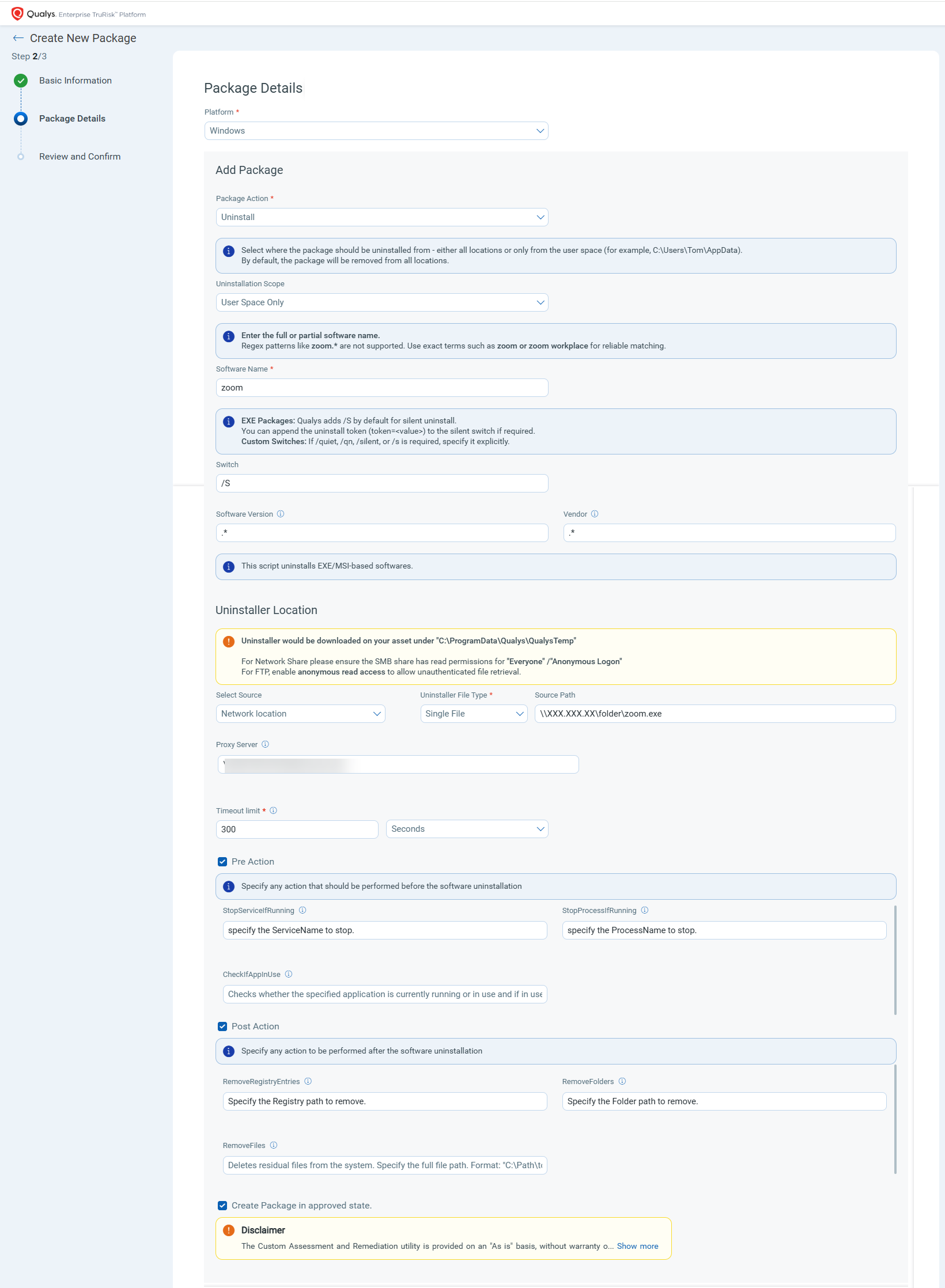
Field Description Add Package Details Platform Windows Package Action Uninstall Uninstallation Scope Select the scope of Uninstallation:
- All Locations: Uninstalls the software packages from all locations within the system.
- User Scope Only: Uninstalls the software package from the user space only.
The default Uninstallation Scope is All Locations. When you do not select an Uninstallation Scope, the system automatically uninstalls the software package from all locations within the system.
Software Name Enter the full or partial software name. Regex patterns such as
zoom.*are not supported. Use terms such asZoomorZoom Workplace.Switch Enter the silent switch command to uninstall the software without user interaction. Example:
The following commands can be used:/qnor/quiet: Uninstalls the software in silent mode with no user interface./S: Uninstalls the software without showing dialogs or requiring input.
Qualys automatically applies
/Sfor silent uninstalls.
If needed, you can append the uninstall token (token=<value>) to the silent switch.
Custom Switches: When specific switches such as/quiet,/qn,/silent, or/sare required, make sure to specify them explicitly.Software Version Enter a specific software version you want to uninstall, or enter .*to uninstall any version.Vendor Enter a vendor name of a specific software you want to uninstall, or enter .*to uninstall software of any vendor.Uninstaller Location Select Source Select the location of the uninstaller: - Network Location: Select this option to provide the network path of the uninstaller.
- Vendor URL: Select this option to provide the web URL from where you can download the uninstaller package.
Uninstaller File Type Select the uninstaller file type: - Single File: Select this option to provide a path to the location of the file you want to uninstall.
- ZIP Archive: Select this option to provide a path to the location of the ZIP file containing multiple
Source Path Enter the network path/vendor URL of the software you want to uninstall. Example:
\\Server\Share\AppSetup.msiftp://username:[email protected]/folder/file.ziphttps://vendor.com/app/setup.exe
Uninstaller File Name Enter the exact file name of the uninstaller. This is used to identify the uninstaller located in the ZIP Archive. Example:
AppSetup.exeProxy Server Enter the proxy server URL and port number, if required. Example:
http://xx.xxx.xx.xx:8080Timeout Limit Select the timeout limit in seconds, minutes, or hours. The timeout limit lets you specify the maximum time limit required for the uninstallation process. Qualys recommends setting the timeout limit to a minimum of 10 minutes.
Pre Action Specify any actions to perform before the uninstallation of the package. Example: Service name or process name that should be stopped before uninstallation.
Post Action Specify any actions to perform after uninstallation of the package. Example: A folder or the registry files that should be removed after the installation.
Create Package in Approved State Select this checkbox to create the package in the Approved state. 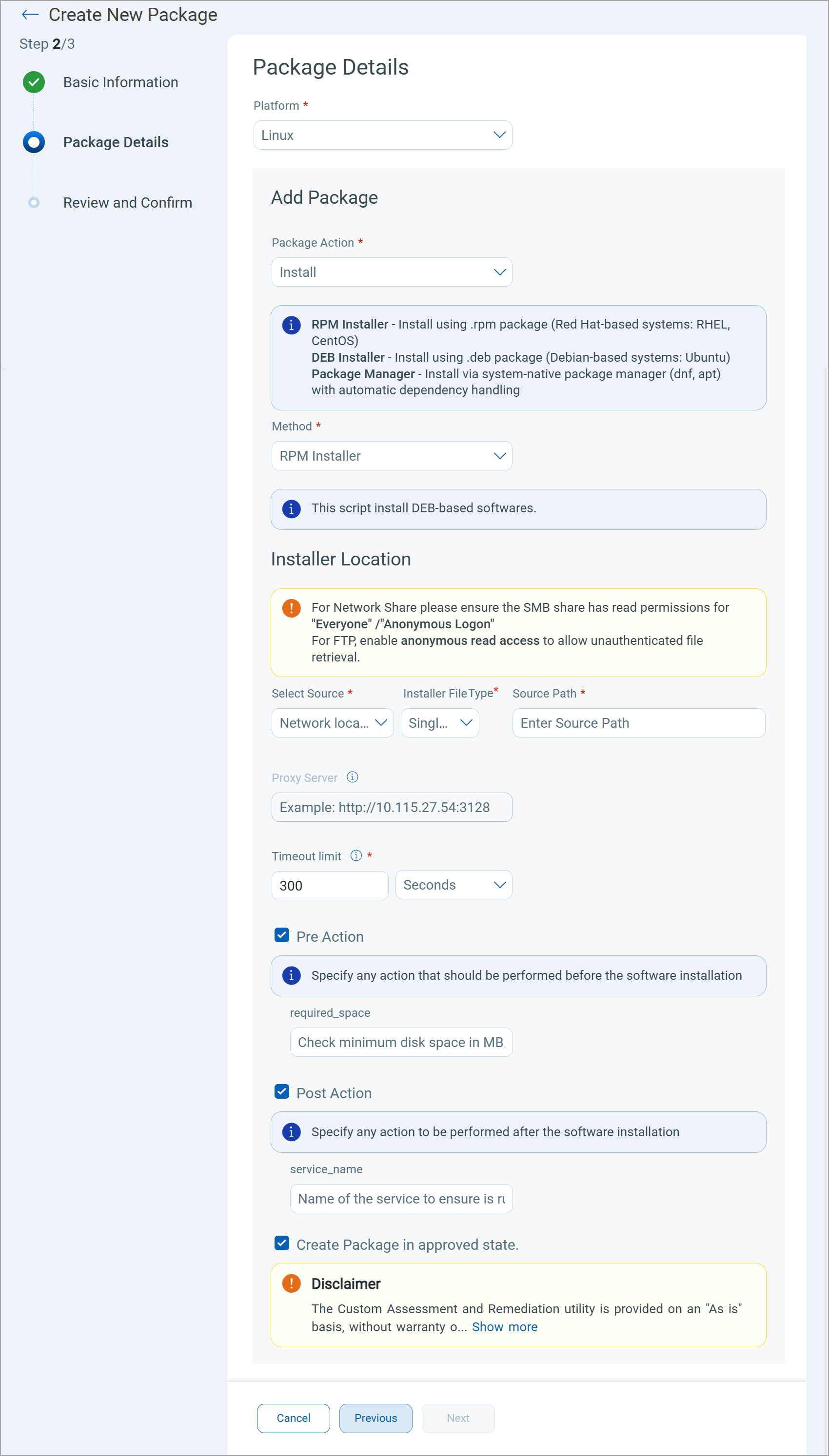
Field Description Add Package Details Platform Linux Package Action Install Method Select the installer method: - RPM Installer: Install software using .rpm packages on the Red Hat-based systems, such as RHEL and CentOS.
- DEB Installer: Install software using .deb packages on the Debian-based systems, such as Ubuntu.
- Package Manager: Install software using system-native package managers, such as dnf and apt.
Software Name Enter the exact package name. This option is only applicable when you select the method as Package Manager.
Installer Location Select Source Choose the installer source: - Network Location: Select this option to provide the network path of the installer package.
- Vendor URL: Select this option to provide the web address from where you can download the installer package.
Installer File Type Select the installer file type: - Single File: Select this option to provide a path to the location of the file you want to install.
- ZIP Archive: Select this option to provide a path to the location of the ZIP file containing multiple installer packages.
- TAR Archive (tarball): Select this option to provide a path to the location of the TAR file containing multiple installer packages.
Source Path Enter the network path/vendor URL of the software you want to uninstall. Installer File Name Enter the exact file name of the installer. This is used to identify the installer inside the uploaded .zip or .tar file. Proxy Server Enter the proxy server URL and port number, if required. Timeout Limit Select the timeout limit in seconds, minutes, or hours. The timeout limit lets you specify the maximum time limit for the installation process. Qualys recommends setting the timeout limit to a minimum of 10 minutes.
Pre Action Specify any actions to perform before the installation of the package. Example: Check the required storage available before installation.
Post Action Specify any actions to perform after installation of the package. Example: A service that should be started after the installation.
Create Package in Approved State Select this checkbox to create the package in the Approved state. 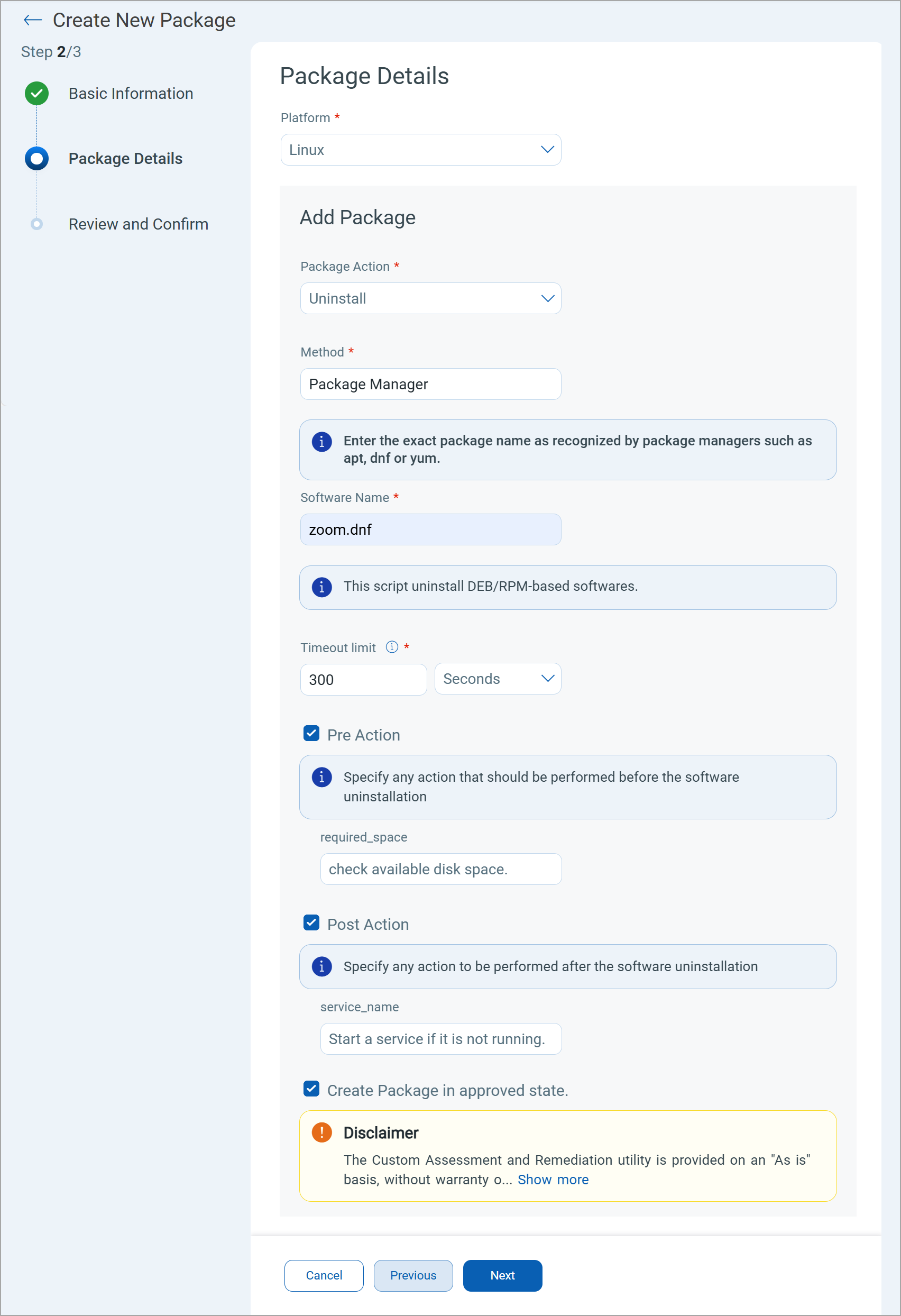
Field Description Add Package Details Platform Linux Package Action Uninstall Method By default, the Package Manager method is selected. Software Name Enter the exact package name. Timeout Limit Select the timeout limit in seconds, minutes, or hours. The timeout limit lets you specify how long the uninstallation must take to execute. Qualys recommends setting the timeout limit to a minimum of 10 minutes.
Pre Action Specify any actions to perform before the uninstallation of the package. Example: Check the required storage available before uninstallation.
Post Action Specify any actions to perform after uninstallation of the package. Example: A service that should be started after the uninstallation.
Create Package in Approved State Select this checkbox to create the package in the Approved state. - Click Next.
- On the Review and Confirm step, review all the details and click Confirm & Save.
The package has been created successfully and is listed in the Software Packages tab.