External Attack Surface Management Discovery Profile
In each Discovery EASM Profile, you can enter seed values for organization, Domain, IP addresses, IP address ranges, CIDR blocks, certificate subject, and ASNs known to you. If you already have a list of domains, IPs, and/or ASNs, you can also import CSV files for most seed types as well. The assets discovered by each profile are automatically assigned a tag with the name of the EASM Profile that discovered them, helping you manage results from each profile separately if needed.
If you need more than three profiles, contact your Qualys Technical Account Manager to discuss the request and use case.
User Roles: View and Edit EASM Profile
The Configuration tab is shown for super users and users assigned the Edit EASM Configuration and View EASM Configuration permissions. Super users can create and edit the EASM profile. They can also assign Edit EASM Configuration and View EASM Configuration permissions to users with a specific user role to restrict the EASM profile management actions, such as creating, viewing, editing, and deleting the EASM profile.
EASM Multiple Profiles
EASM supports multiple discovery profiles, allowing you to manage different external discovery scopes within the same subscription. Multiple profiles help you organize discovery, ownership, and analysis of internet-facing assets more effectively.
Multiple profiles:
- Enables you to control the external attack surface of global organizations with distributed IT owners and support centers.
- Allows you to assess the external attack surfaces and security postures of potential Mergers & Acquisitions.
- Provides greater flexibility to administrators to manage profiles independently by creating, updating, and deleting profiles individually.
For more information on EASM multiple profiles, refer to EASM Multiple Profiles.
EASM Profiles View
The following details are displayed on the EASM Configuration tab:
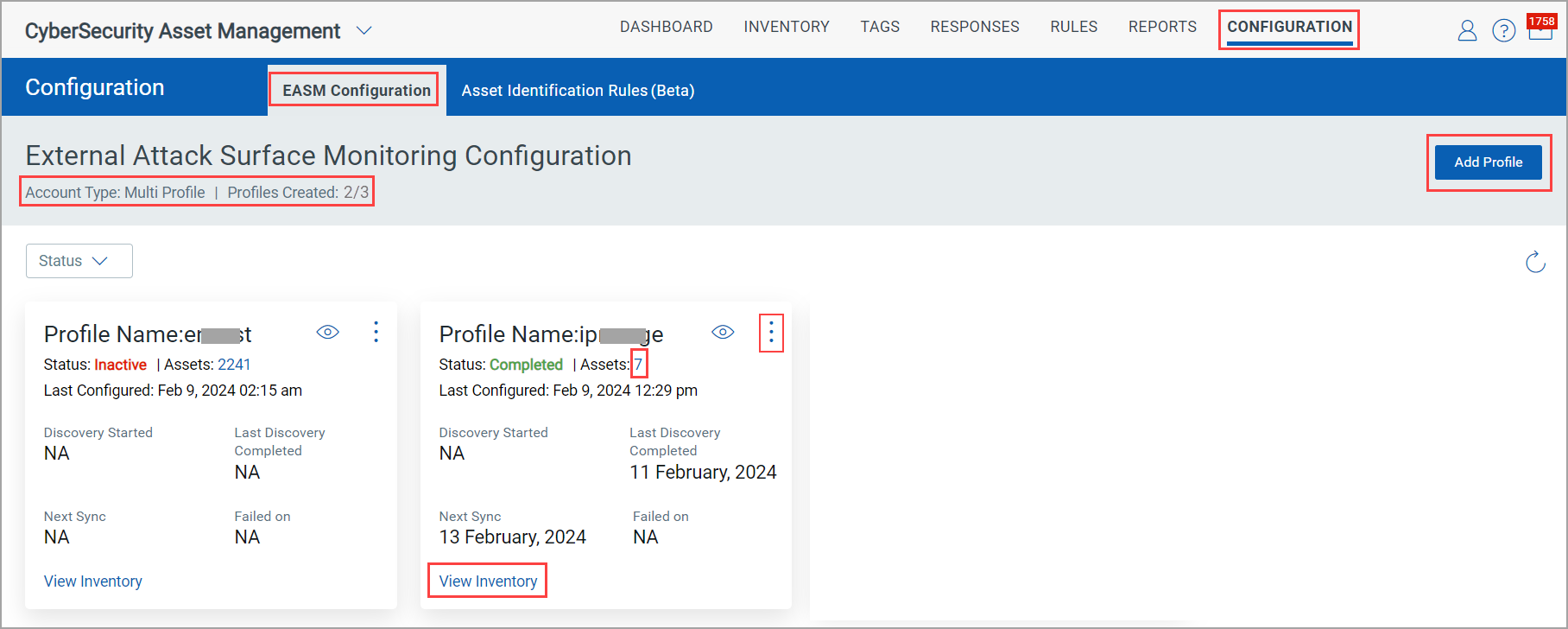
| Field | Description |
|---|---|
| Account Type | Displays Multi Profile when multiple EASM profiles are supported for the account. |
| Profile Created | Shows X/Y, where X is the number of profiles already created and Y is the maximum number of profiles allowed.
The maximum number of EASM profiles allowed to create based on the license type is as follows:
If you require more than three profiles, contact your Qualys Technical Account Manager (TAM) for the request. |
| Add Profile | Becomes disabled when the maximum number of EASM profiles has been reached. For more information on EASM profile limit, refer to EASM Profile Limits by License. |
| Status | Filters profiles based on discovery status such as Inactive, Scheduled, Queued, In Progress, Completed, or Failed. |
| EASM Profile Tile Details | |
| Profile Name | Name of the EASM discovery profile. |
| Status | Current state of the profile, such as Inactive, Scheduled, In Progress, or Completed. |
| Assets |
Number of assets discovered by the profile. Clicking the count opens the Inventory filtered to that profile’s assets. |
| Last Configured | Date and time when the profile configuration was last updated. |
| Discovery Started | Date and time when the last discovery run started. |
| Last Discovery Completed | Status of the most recent discovery run. |
| Next Sync | Scheduled time for the next discovery run. |
| Failed On | Date and time of the last failed discovery run. |
| View Inventory | Opens the Inventory page filtered to assets discovered by the selected profile. |
View  |
Opens the profile configuration in read-only view. |
Actions menu  |
Provides options to manage profile. Availability depends on user role permissions.
|