CyberSecurity Asset Management / Global AssetView Release 3.8.0.0
November 18, 2026
This release includes enhancements that help you uncover the parts of your external attack surface that open ports do not reveal, such as silent hosts, exposed Model Context Protocol (MCP) servers, and misconfigured email and DNS records that attackers can exploit. This release also brings your Oracle Cloud Infrastructure (OCI) assets and IPv6 hosts into your vulnerability and compliance programs.
New Feature
Discover Internet-Facing Assets Without Open Ports
What's New for You
You can now discover and view internet-facing assets that do not expose any services or open ports in your External Attack Surface Management (EASM) inventory. This helps reduce blind spots and provides better visibility into your organization's external attack surface.
Some internet-facing assets respond on the internet but do not run any services or expose any open ports. These assets are still part of your external attack surface. Discovering these assets helps you maintain a complete view of the IP addresses that your organization exposes on the internet.
During discovery, EASM uses Shodan data to identify IP addresses within the ranges configured in your EASM profile and adds the assets to your EASM inventory.
To discover internet-facing assets that do not expose any services or open ports, create or edit the required EASM profile and configure the include seeds for your organization.
For more information on creating an EASM profile, refer to CSAM Online Help.
New Feature
Include VMDR Map Scan Assets in EASM Discovery
What's New for You
You can now include assets discovered from your VMDR map scan in your EASM discovery. This helps you identify additional assets.
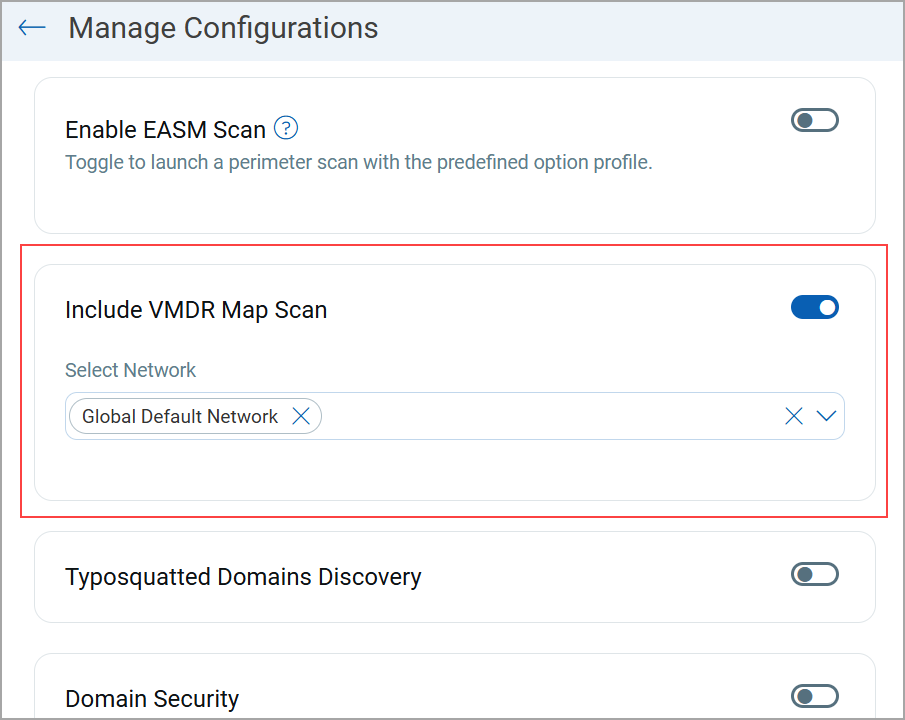
VMDR map scans identify live hosts on your networks by probing the IP addresses and domains you specify. If your organization runs VMDR map scans from the Qualys VMDR application, EASM can use the scan results to identify assets that other EASM discovery methods do not detect. EASM then enriches these assets and adds them to your EASM inventory.
EASM adds the asset from the map scan results when the following conditions are satisfied:
- The map scan ran on one of the networks selected in the EASM profile. If you do not select a network, EASM uses the Global Default Network.
- The map scan results are from the last 48 hours.
- Assets detected through DNS lookups are not included.
- EASM has not already discovered the asset from Shodan data.
To use VMDR map scan results in EASM discovery, switch the Include VMDR Map Scan toggle to ON in your EASM profile and select the required networks.
Only a user with the Manager role can switch the Include VMDR Map Scan toggle.
For more information on creating an EASM profile, refer to CSAM Online Help.
API Support
The EASM Profile APIs now support including VMDR map scan results in EASM discovery. For more information, refer to Include Assets from VMDR Map Scan through EASM Profile APIs.
New Feature
Discover MCP Servers on Your Internet-Facing Assets
What's New for You
You can now discover Model Context Protocol (MCP) servers running on your internet-facing assets in the EASM inventory. This enhancement provides visibility into MCP servers exposed to the internet, helping you identify potential security risks associated with externally accessible AI integrations.
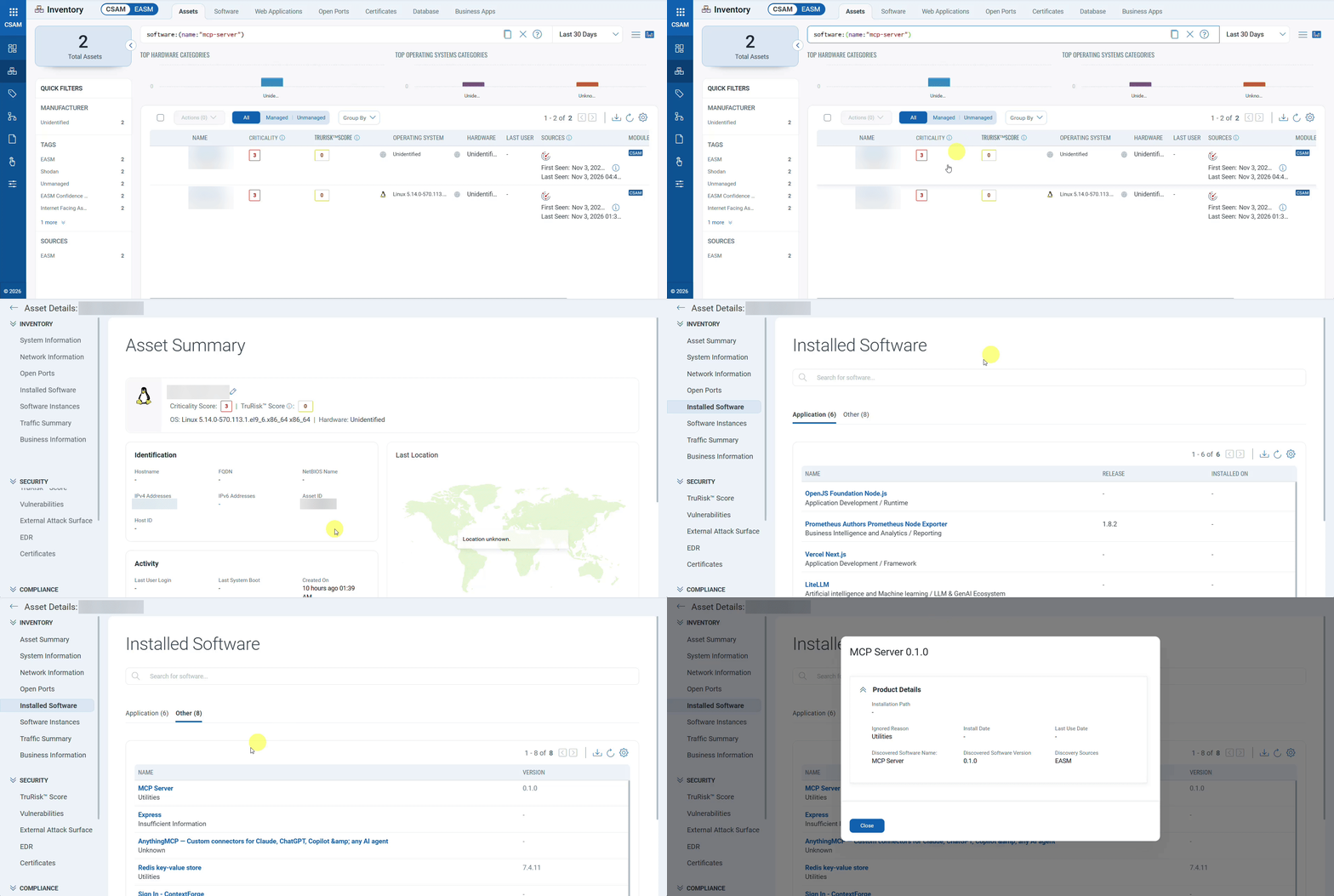
MCP servers enable AI applications to interact with external systems, such as databases, files, and other tools, through a standardized protocol. However, internet-accessible MCP servers without appropriate authentication and access controls can expose connected resources to unauthorized access or allow unintended actions. Identifying these servers helps you assess your external attack surface and investigate potential exposure risks.
EASM uses service banner data collected by Shodan from open ports on your internet-facing assets to identify MCP servers. EASM analyzes the banner data to detect services that identify themselves as MCP servers and determines their versions when version information is available.
After EASM detects an MCP server, EASM:
- Displays MCP Server as installed software on the corresponding asset.
- Displays MCP Server as the detected service on the associated open port.
- Adds the AI tag under the EASM tags for the respective assets.
You can find assets running MCP servers in EASM > Inventory > Assets using the following QQL query: software:(name:"mcp-server")
To view details about the MCP server, open the corresponding asset details window and navigate to Inventory > Installed Software > Other. The detected MCP server software is listed on this tab.
For more information, refer to CSAM Online Help.
New Feature
Exclude Cloud Assets from EASM Lightweight Scans
What's New for You
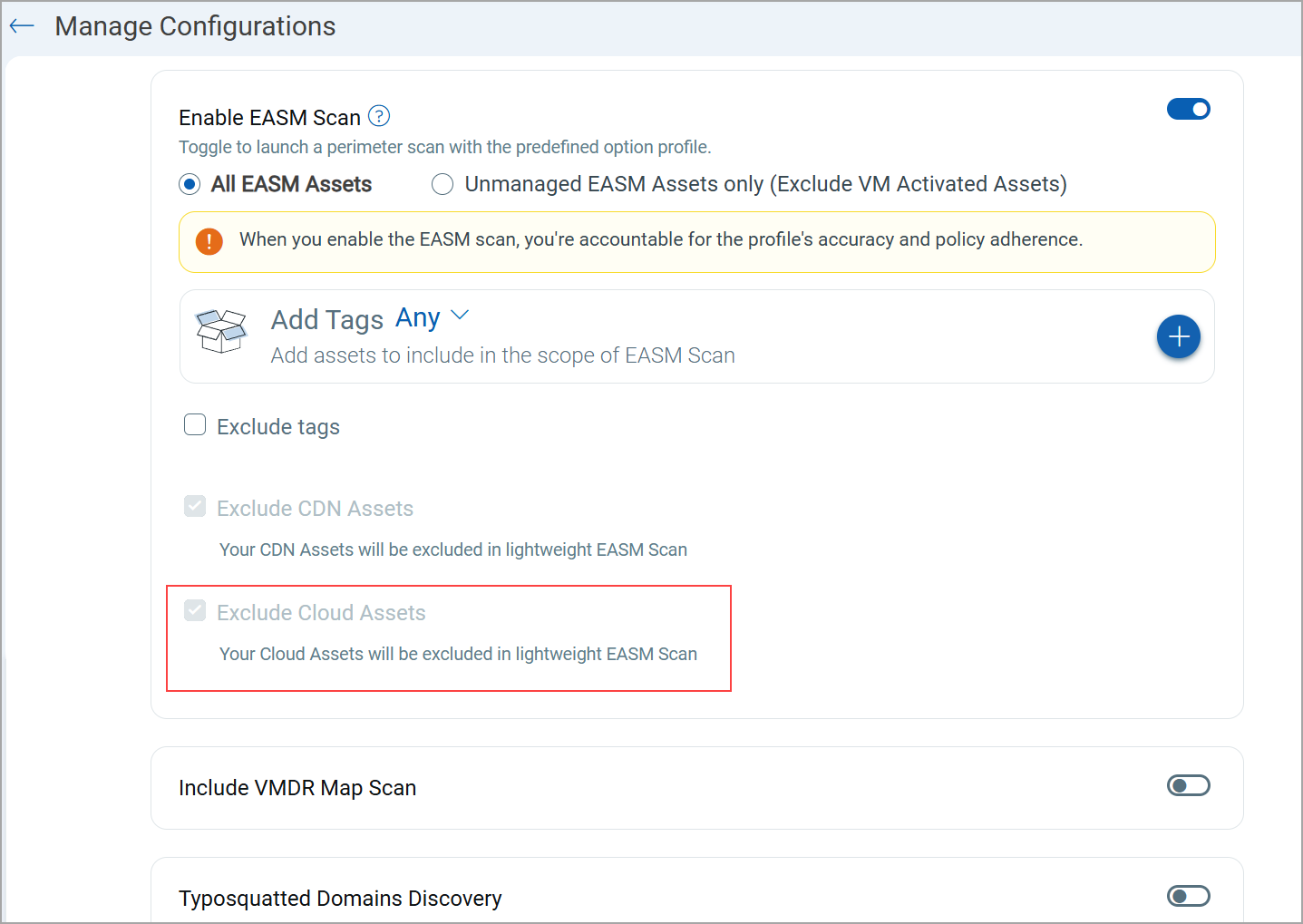
You can now exclude cloud-hosted assets from EASM lightweight scans using the new Exclude Cloud Assets checkbox in EASM configuration profiles. This helps prevent unauthorized scans of IP addresses that cloud providers might have reassigned to other organizations.
For assets discovered from sources other than Shodan, EASM uses public IP registration data to identify their hosting category. This allows EASM to identify your internet-facing cloud-hosted assets across discovery sources. For more information on hosting categories, refer to View Hosting Categories for EASM Assets Not Discovered from Shodan.
To exclude cloud assets from EASM lightweight scans, create or edit an EASM configuration profile and select the Exclude Cloud Assets checkbox under Optional Settings > Enable EASM Scan. After you select the checkbox, EASM excludes cloud assets from the next EASM lightweight scan.
For more information on creating an EASM profile, refer to CSAM Online Help.
By default, the system excludes cloud and content delivery network (CDN) assets from lightweight scans, and you cannot edit these settings. To include these assets in lightweight scans, contact your Technical Account Manager (TAM).
View Asset Inclusion Settings
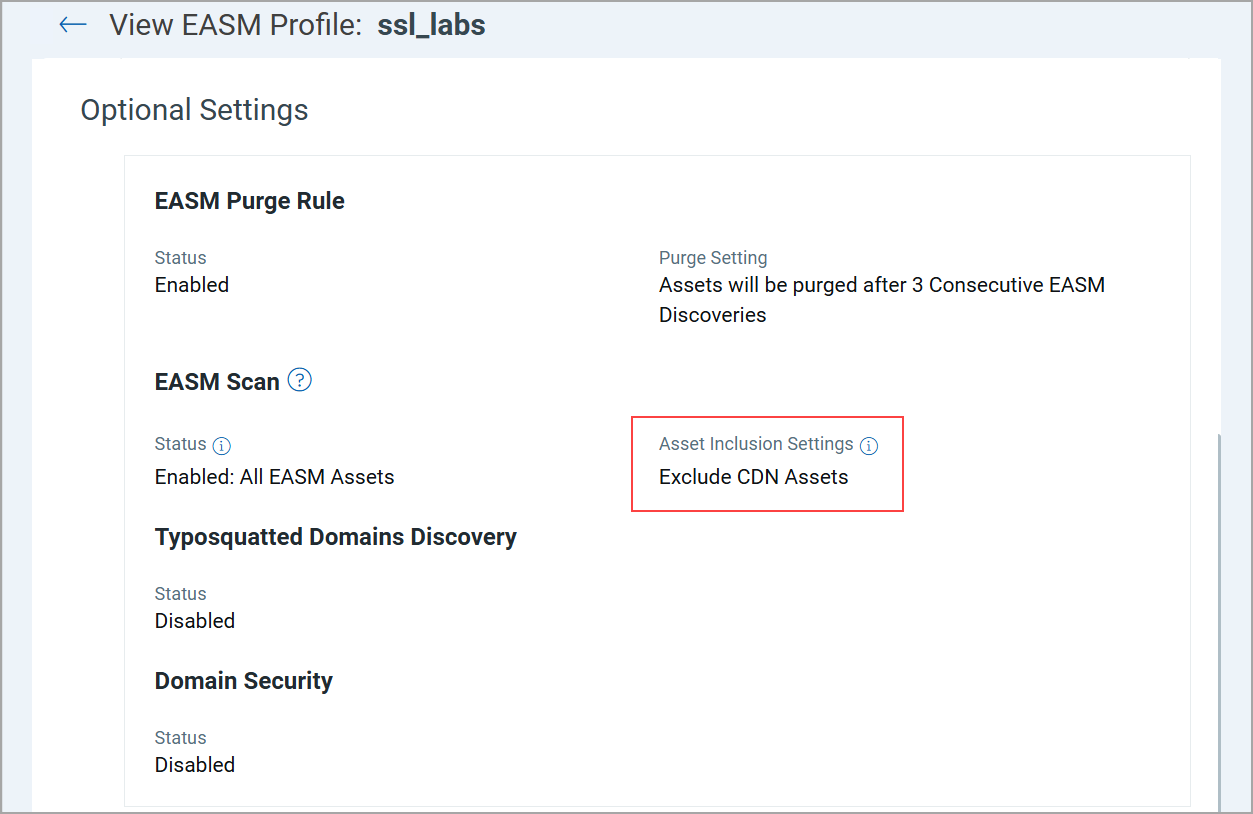
The View EASM Profile window displays the asset inclusion settings of an EASM configuration profile. Click the eye icon for a profile to open this window. Under Optional Settings > EASM Scan, the Asset Inclusion Settings field displays the Exclude CDN Assets and Exclude Cloud Assets settings, along with the number of CDN and cloud assets in the profile. Click a count to view these assets.
Impact on Existing EASM Profiles
This release affects existing EASM profiles as follows:
- After this release, EASM excludes cloud assets from lightweight scans in all existing and new EASM profiles, regardless of the previous configuration.
- Existing EASM profiles in which the Exclude CDN Assets checkbox is not selected continue to include CDN assets in lightweight scans.
API Support
The EASM Profile APIs now support excluding cloud-hosted assets from EASM lightweight scans. For more information, refer to Exclude Cloud Assets from EASM Lightweight Scans through EASM Profile APIs.
Enhancement
Understand AI Footprint Across Your External Attack Surface
What Changed for You
You can now view a summary of the MCP servers and AI workloads on your internet-facing assets on the new AI Discovery page in the EASM Summary Report. This helps you understand the AI footprint of your external attack surface and identify the AI services that require review.
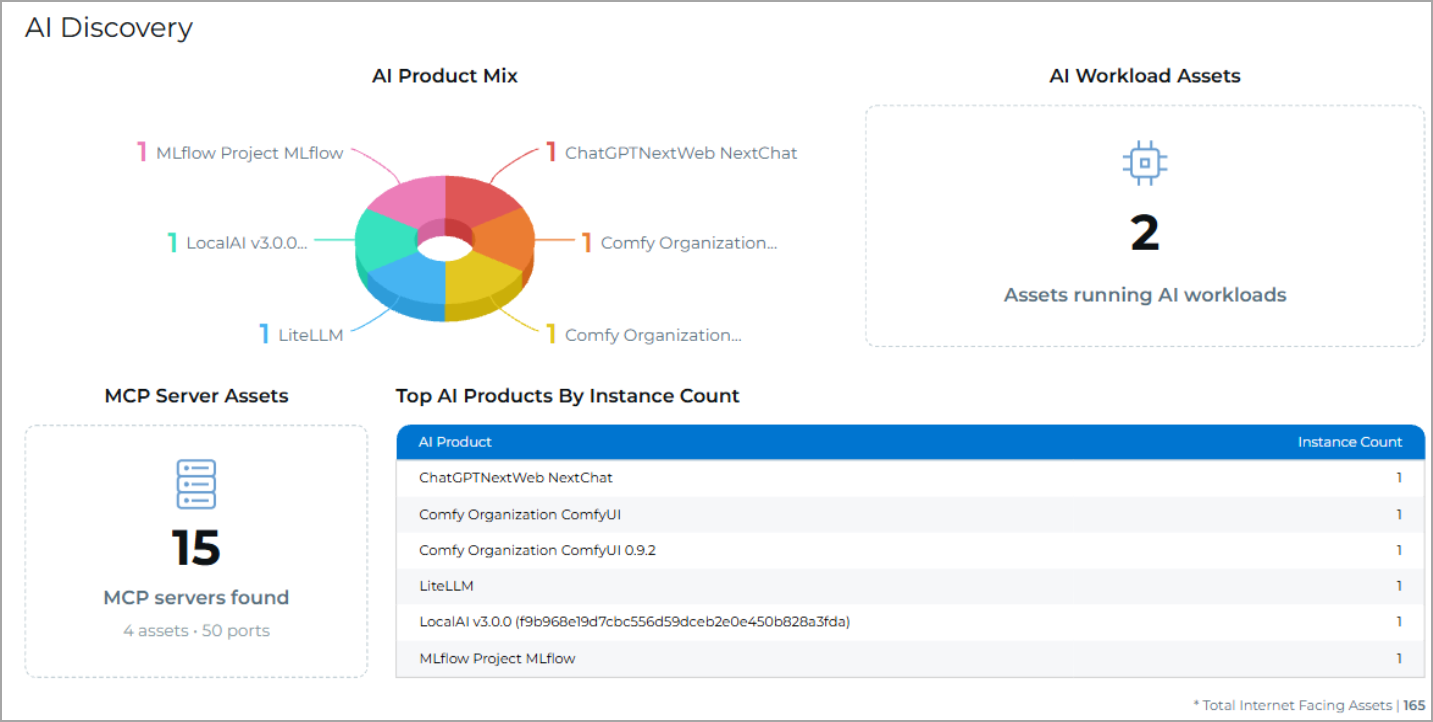
As organizations adopt AI applications, more AI workloads and MCP servers run on internet-facing assets. The AI Discovery page consolidates information about these assets in one place, so you can assess the AI exposure of your external attack surface.
The AI Discovery page displays the following details:
- MCP Server Assets: Displays the total number of detected MCP servers and the number of assets and ports on which they run. This information helps identify MCP servers that may expose tools and data connected to AI applications.
- AI Workload Assets: Displays the total number of assets running AI workloads. This count helps you measure the extent of AI adoption across your internet-facing assets.
- AI Product Mix: Displays a pie chart of the top six AI products and their respective instance counts. This chart helps you identify the AI products most widely deployed across your internet-facing assets.
- Top AI Products By Instance Count: Displays the top six AI products, sorted by instance count.
You can create the EASM Summary Report from the Reports tab. Navigate to Create Report > Externally Exposed Asset Details Report and select EASM Summary Report. For more information on creating reports, refer to CSAM Online Help.
Enhancement
View Hosting Categories for EASM Assets Not Discovered from Shodan
What Changed for You
You can now view the hosting category of internet-facing assets discovered by EASM from sources other than Shodan. This helps you understand where these assets are hosted and identify which of these assets belong to your organization.
EASM discovers internet-facing assets from multiple sources. For assets discovered from Shodan, EASM determines the hosting category from Shodan data. For assets discovered from sources other than Shodan, EASM now evaluates the hosting category by using public IP registration data, such as the registrant organization and the Autonomous System Number (ASN). Based on this data, EASM classifies each of these assets into one of the following hosting categories:
- Cloud: The IP address is registered to a known cloud provider.
- CDN: The IP address is registered to a known content delivery network (CDN) provider.
- OnPrem: The registrant organization or ASN of the IP address matches your organization.
- ThirdParty: The IP address is registered to a third-party organization.
- Unknown: The available registration data is not sufficient to determine the hosting category.
An asset can match more than one hosting category, for example, when multiple EASM profiles evaluate the same IP address. EASM then assigns the category with the highest priority, in the following order: Cloud, CDN, OnPrem, ThirdParty, and Unknown.
To search and view assets by hosting category, use the asset.hostingCategory1 token as follows on the Inventory > Assets tab:
|
|
|
|
|
Impact on Existing Assets
EASM evaluates the hosting category of your existing assets that are not discovered from Shodan during the next EASM discovery. After the evaluation is complete, you can view the hosting category of these assets in your inventory.
For more information on hosting categories, refer to CSAM Online Help.
Enhancement
Detect Email Authentication and DNS Misconfigurations on Your Domains
What Changed for You
You can now detect missing or misconfigured DMARC, BIMI, MX, and NS records, along with additional Sender Policy Framework (SPF) and DomainKeys Identified Mail (DKIM) issues, on your domains. This helps you identify gaps that expose your organization to email spoofing, phishing, and email delivery failures, and prioritize remediation.
Domain Security in External Attack Surface Management (EASM) evaluates the DNS records of your domains and reports missing or misconfigured records as findings. Domain Security now evaluates the following records:
- Domain-based Message Authentication, Reporting, and Conformance (DMARC): Defines how mail servers handle email that fails SPF and DKIM checks.
- Brand Indicators for Message Identification (BIMI): Displays the verified brand logo of your organization in recipient inboxes. EASM evaluates the BIMI record only when the DMARC policy of the domain is set to
quarantineorreject. - Mail Exchange (MX): Identifies the mail servers that receive email for the domain.
- Name Server (NS): Identifies the name servers that are authoritative for the domain.
EASM assigns a Qualys Detection Score (QDS) to each finding to help you assess the risk and prioritize remediation. These findings are displayed on the Domain Security tab. Navigate to Inventory > EASM > Domains > Domain Security.
To view the findings, switch the Domain Security toggle to ON in the EASM profile.
For more information, refer to CSAM Online Help.
Enhancement
Identify Cloud Asset Ownership Using Aliases
What Changed for You
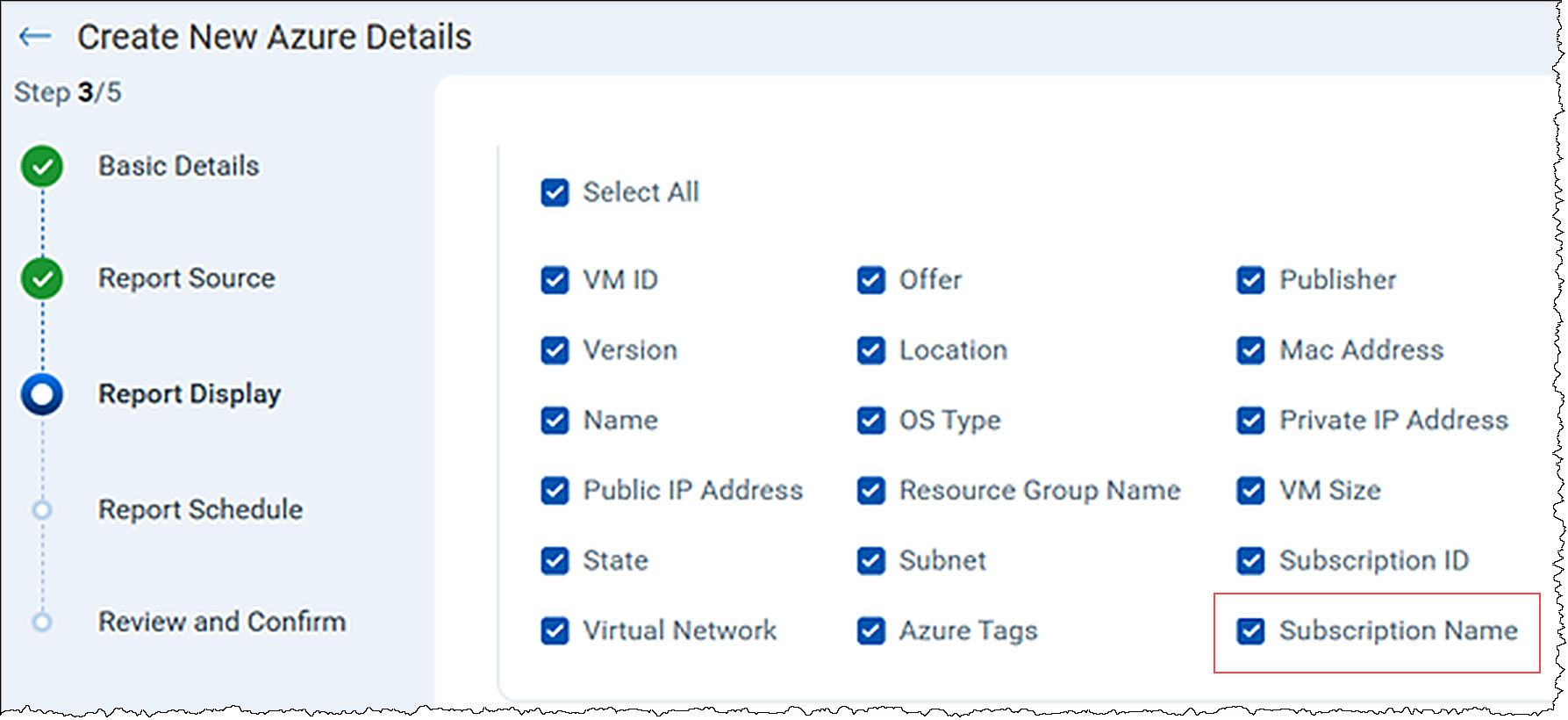
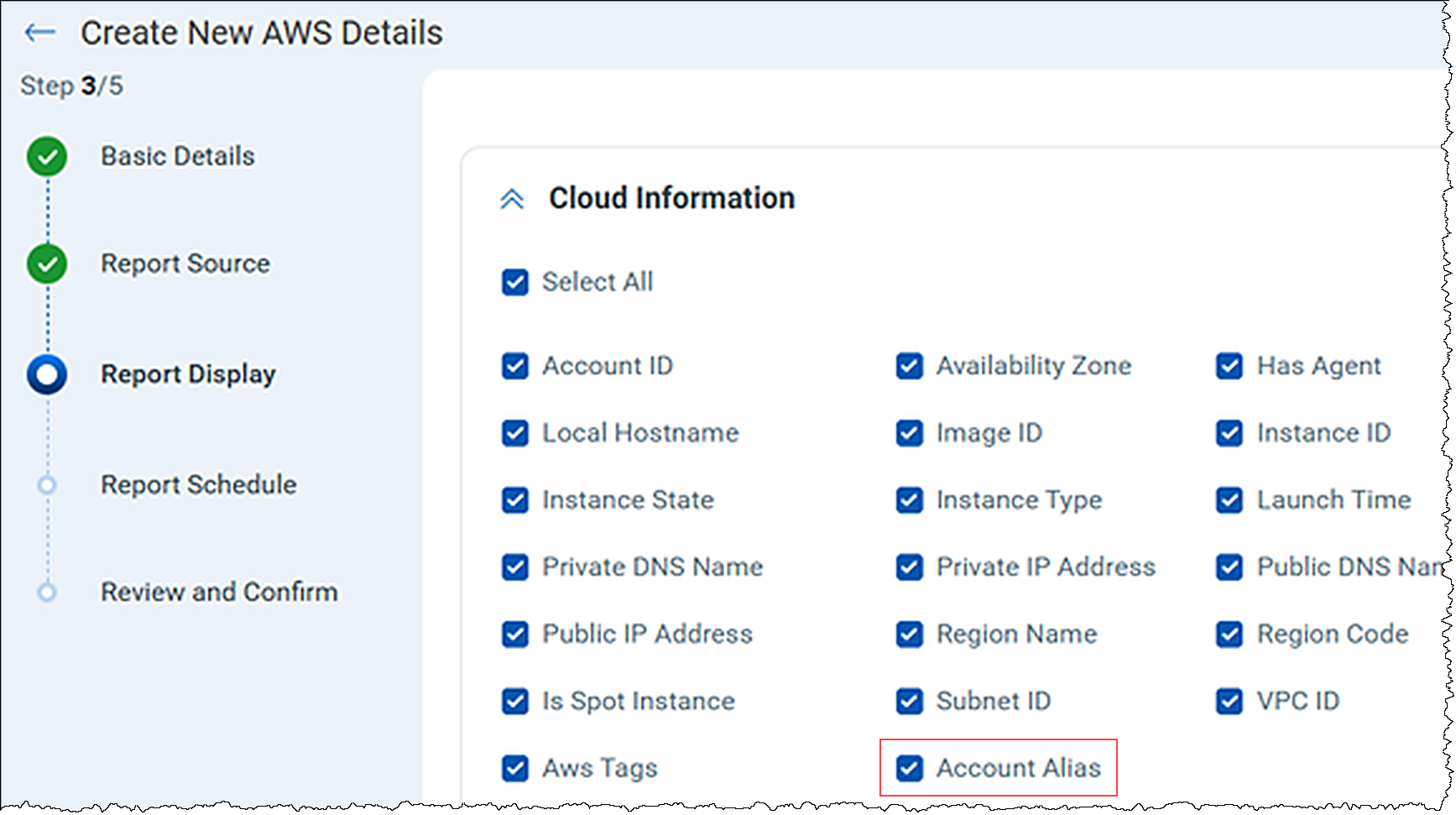
You can now identify the AWS account or Azure subscription associated with your assets from Cloud Details reports. This helps you distinguish assets across multiple AWS accounts or Azure subscriptions and identify the team or environment associated with each.
| Azure Details Report |
|---|
 |
| AWS Details Report |
 |
Cloud providers identify accounts and subscriptions with system-generated IDs, such as a 12-digit AWS account ID or a globally unique identifier (GUID) for an Azure subscription. These IDs are difficult to recognize, especially in environments with many accounts or subscriptions. Account aliases and subscription names are readable names your organization assigns, making it easier to identify the account or subscription an asset belongs to.
The AWS Details and Azure Details reports now include the following data:
- Account Alias: The alias of the AWS account associated with the asset.
- Subscription Name: The name of the Azure subscription associated with the asset.
If your organization uses account aliases or subscription names to represent teams or environments, this information can also help you associate assets with their respective owners.
Navigate to Reports > Create Report > Cloud Details, and select AWS Details or Azure Details. In the Report Display step:
- For AWS assets, select Account Alias to include the AWS account alias in the report.
- For Azure assets, select Subscription Name to include the Azure subscription name in the report.
The generated report displays the account alias or subscription name for each asset.
For more information on creating these reports, refer to CSAM Online Help.
Enhancement
Extend Vulnerability and Compliance Detection to OCI Assets
What Changed for You
You can now activate Oracle Cloud Infrastructure (OCI) assets in VMDR, Policy Audit (PA), and Certificate View (CERT). This helps you detect vulnerabilities, assess compliance, and monitor certificates on your OCI assets.
OCI assets discovered are available in your CSAM inventory, along with their network details, such as public and private IPv4 and IPv6 addresses. You can activate these assets in the following ways:
- Asset Activation Workflow Rule: Navigate to Configuration > Asset Activation Workflow and click New Rule. Define the asset scope to include your OCI assets, and on the Activation Settings step, select the required Qualys applications. The rule automatically activates matching OCI assets, including newly discovered ones.
- Individual Activation: On the Inventory tab, select the required OCI asset and activate it for the required Qualys applications.
You can activate OCI instances for the VM, CERT, and PA applications. Tracking methods and network selection are not applicable for cloud assets.
For more information on activating cloud assets, refer to CSAM Online Help.
Enhancement
Activate IPv6 Assets Based on Their DNS Hostnames
What Changed for You
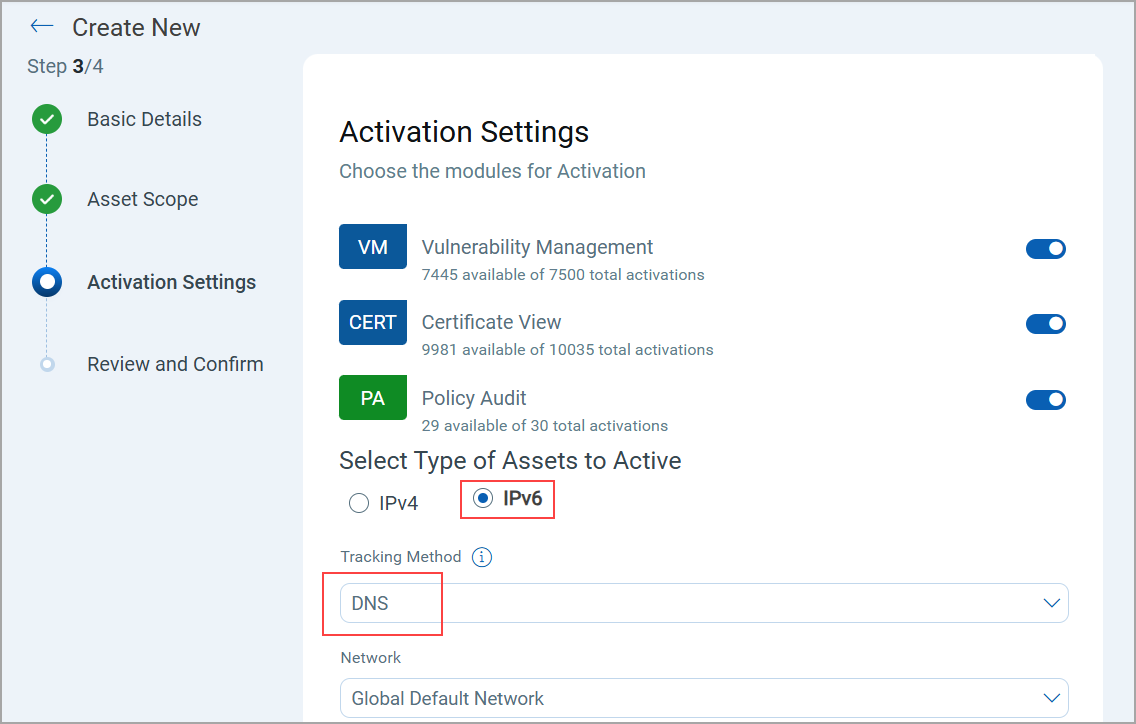
You can now activate IPv6 assets using their DNS hostnames as the tracking method. This helps maintain consistent asset identification even when an asset's IPv6 address changes.
| Asset Activation Workflow Rule |
|---|
 |
| Individual Activation |
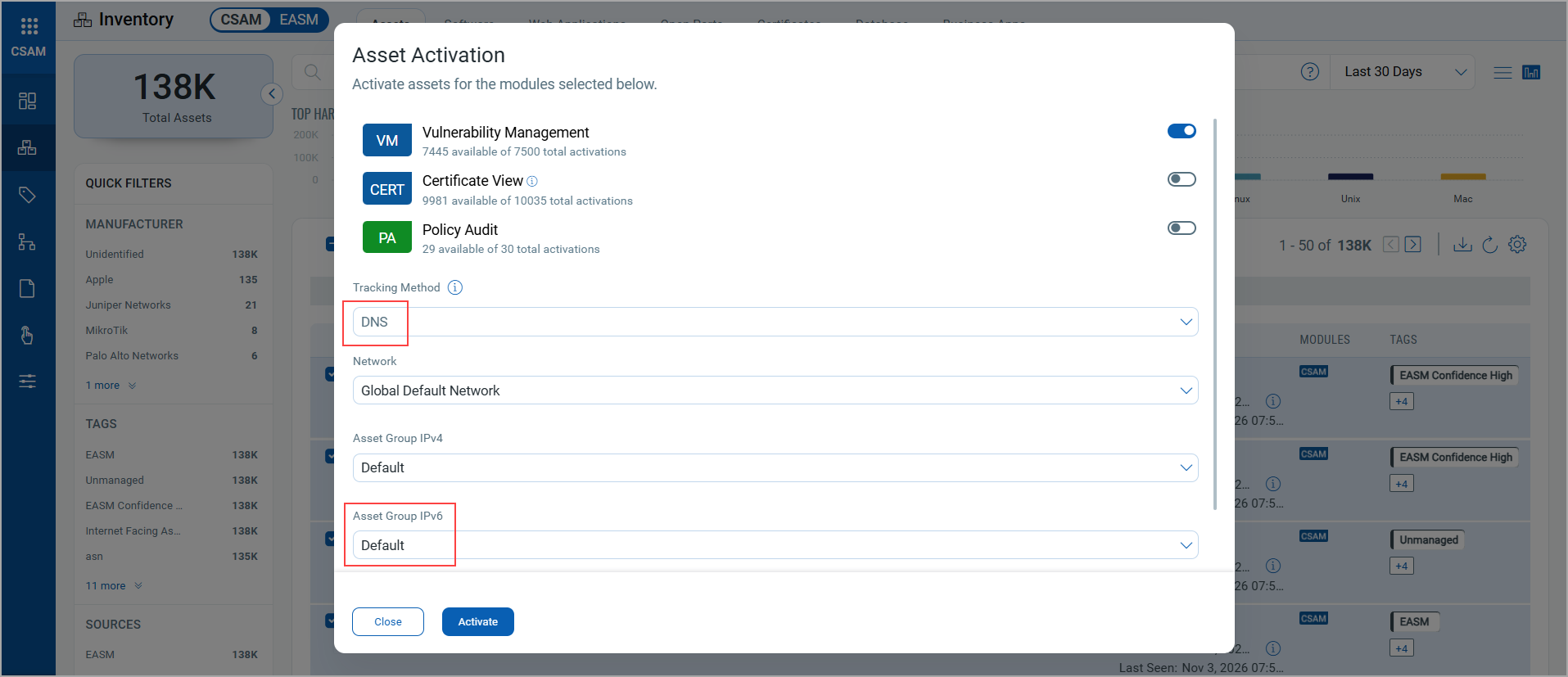 |
When you activate CSAM assets in VMDR, Certificate View, or Policy Audit (PA), the tracking method determines the identifier used to recognize an asset during subsequent scans. You can select DNS as the tracking method for IPv6 assets.
With DNS tracking, Qualys identifies an asset by its DNS hostname instead of its IP address. This helps maintain asset identity across IP address changes and reduces duplicate asset records.
You can activate IPv6 assets using DNS tracking using the following options:
- Asset Activation Workflow Rule: Select IPv6 as the asset type and DNS as the tracking method on the Activation Settings step.
- Individual Activation: On the Inventory tab, select DNS as the tracking method when activating an IPv6 asset.
For more information on the supported tracking methods, refer to CSAM Online Help.
Token
Search Cloud Assets by IPv6 Addresses and OCI Network Details
You can now use the following tokens to search for your AWS, Azure, GCP, and OCI assets by their IPv6 addresses, and for your OCI assets by their IPv4 addresses and DNS names:
| Token | Tab | Description |
|---|---|---|
| aws.ec2.privateIpv6Address | Inventory > Assets | Use this token to search assets based on the private IPv6 address of the AWS EC2 instance.
Example:
|
| aws.ec2.publicIpv6Address | Inventory > Assets | Use this token to search assets based on the public IPv6 address of the AWS EC2 instance.
Example:
|
| azure.vm.privateIpv6Address | Inventory > Assets | Use this token to search assets based on the private IPv6 address of the Azure virtual machine.
Example:
|
| azure.vm.publicIpv6Address | Inventory > Assets | Use this token to search assets based on the public IPv6 address of the Azure virtual machine.
Example:
|
| gcp.compute.privateIpv6Address | Inventory > Assets | Use this token to search assets based on the private IPv6 address of the GCP compute instance.
Example:
|
| gcp.compute.publicIpv6Address | Inventory > Assets | Use this token to search assets based on the public IPv6 address of the GCP compute instance.
Example:
|
| oci.compute.privateDns | Inventory > Assets | Use this token to search assets based on the private DNS name of the OCI compute instance.
Example:
|
| oci.compute.privateIpAddress | Inventory > Assets | Use this token to search assets based on the private IPv4 address of the OCI compute instance.
Example:
|
| oci.compute.privateIpv6Address | Inventory > Assets | Use this token to search assets based on the private IPv6 address of the OCI compute instance.
Example:
|
| oci.compute.publicDns | Inventory > Assets | Use this token to search assets based on the public DNS name of the OCI compute instance.
Example:
|
| oci.compute.publicIpAddress | Inventory > Assets | Use this token to search assets based on the public IPv4 address of the OCI compute instance.
Example:
|
| oci.compute.publicIpv6Address | Inventory > Assets | Use this token to search assets based on the public IPv6 address of the OCI compute instance.
Example:
|
For more information on these tokens, refer to CSAM Online Help.
Token
Tokens Update
As part of the QQL Token Standardization introduced in CSAM/GAV Release 3.7.0.0, the following scan tokens now use the qualys.scan prefix:
| Old Token | New Token |
|---|---|
| scan:(type | qualys.scan:(type |
| scan:(firstScanDate | qualys.scan:(firstScanDate |
| scan:(lastScanDate | qualys.scan:(lastScanDate |
For more information on these tokens, refer to CSAM Online Help.
Fix
Fixes
The following reported and notable customer issues are fixed in this release:
| Component / Category | Description |
|---|---|
| CSAM - Hardware Identification | Issue: The hardware product model was incorrect for some Lenovo systems because two hardware keys shared the same identifier. Fix: The correct hardware product model is now displayed for these Lenovo systems. |
| CSAM - Asset Details | Issue: An incorrect serial number was displayed for some assets. Fix: The correct serial number is now displayed for these assets. |
| CSAM - Reports | Issue: The Last Synced Date for Agent field in the asset details report did not reflect recent agent activity. Fix: The field now displays the latest from the following Cloud Agent dates:
|
| CSAM - Search | Issue: An exact match search with the customAttributes token did not return the expected results. Fix: Exact match searches with this token now return the correct assets. |
| CSAM - Search | Issue: A nested query that combined the lastUpdatedDate and source attributes of the asset.inventory token, such as asset.inventory:(lastUpdatedDate<now-45d and source:`MS Defender`), did not return the expected results.Fix: The query now returns the assets that match both conditions. |
| CSAM - Connectors | Issue: The application crashed while accessing the AWS Security Hub connector in Enterprise TruRisk Management (ETM), because the inventory source was not recorded for some assets discovered by this connector. Fix: The inventory source is now recorded for all assets discovered by the AWS Security Hub connector, and you can access the connector without the application crashing. |
| CSAM - Installed Software | Issue: The same software was listed twice in the software inventory. Fix: Each software title is now listed once in the software inventory. |
| CSAM - Installed Software | Issue: The Zabbix software installed on an asset was not displayed in the Assets Details > Installed Software window. Fix: The Zabbix software is now correctly displayed in the Assets Details > Installed Software window. |
| CSAM - Software Lifecycle | Issue: The lifecycle status of Juniper Junos OS on EX4300-48P devices did not reflect the extended End-of-Support (EOS) dates that apply to this model, because the operating system was identified without the hardware model. Fix: CSAM now includes the EX4300-48P hardware model when it identifies the Junos OS version, so the lifecycle information that applies to this model can be displayed. |
| CSAM+GAV - Reports | Issue: The software count in the software report was incorrect. Fix: The software report now displays the correct software count. |
| CSAM - Reports | Issue: Certificate data in CSAM reports did not match the data in Certificate Inventory reports. Fix: Certificate data is now consistent across both reports. |
| CSAM - Asset Search API | Issue: The asset count API and the asset search API returned significantly different results for the same query. Fix: Both APIs now return consistent results for the same query. |
| CSAM - Data Feed (CIPS) | Issue: The CSAM asset data delivered to Amazon S3 through the CIPS integration did not include the agent activation key title, the IP address from which the agent connected (connectedFrom), and the last system reboot date. Fix: The CIPS data feed now includes these fields. |
| CSAM - Activity Logs | Issue: On-demand report activity was missing from the Activity Logs in the Administration module. Fix: On-demand report activity is now recorded in the Activity Logs. |
| CSAM+GAV - Tags | Issue: EASM was not available in the values list for the asset.inventory:(source:) token in the dynamic tag rule editor. Fix: You can now select EASM as a value for this token in dynamic tag rules. |
| CSAM+GAV - Tags | Issue: Business application tags were removed from assets when a third-party connector, such as CrowdStrike or Microsoft Defender, sent updates that contained only custom attributes, because these updates triggered a re-evaluation of the Business Information tagging rules. The tags were applied again only after the next full import. Fix: Updates that contain only custom attributes no longer trigger this re-evaluation, so business application tags remain applied to assets that match the Business Information dynamic tagging rules. |
| CSAM - Home Page | Issue: Broken images were displayed on the landing page for new subscriptions without assets. Fix: The images on the landing page are now displayed correctly. |