Configure users and roles
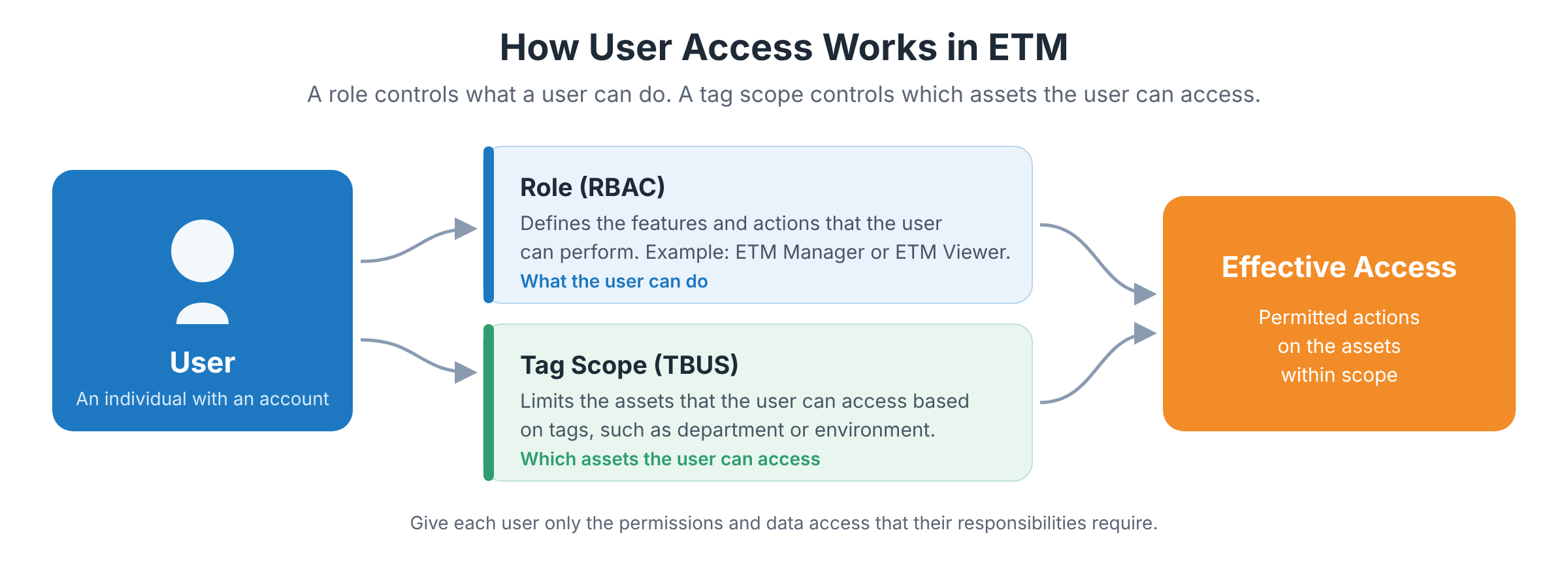
ETM uses Role-Based Access Control (RBAC) and Tag-Based User Scoping (TBUS) to manage user permissions and restrict access to relevant data. These controls work together to ensure that users have the capabilities and data access required for their responsibilities.
RBAC determines what actions a user can perform, while TBUS determines which assets a user can access based on their assigned tag scope, where supported.
Role-Based Access Control (RBAC)
Role-Based Access Control (RBAC) is a security mechanism that manages user access by assigning permissions through predefined roles. In ETM, each role specifies the features and actions a user is authorized to perform, such as viewing risk information or managing configurations.
ETM provides the following default roles:
| Role | Best For | Access Level |
|---|---|---|
| ETM Manager | Security leaders and administrators | Full access, including configuration and response actions |
| ETM Viewer | Analysts and auditors | View-only access to the application |
ETM permissions are organized into the following groups. You can include any of these permissions in a custom role.
| Permission Group | What It Controls | ETM Manager | ETM Viewer |
|---|---|---|---|
| Application access | Access to the ETM user interface and the ETM API | UI and API access | UI access only |
| Configuration | The company profile and the company risk appetite | View and edit | View |
| Business entity | Business entities, their risk appetite, and their risk quantification | Create, view, edit, and delete | View |
| Prioritization | Prioritization plans and reports | Create, view, delete, and download reports | View and download reports |
| Response management | Response rules and actions | Create, edit, and delete | Not available |
| Finding rules | Finding identification, merge, and purge rules | View, edit, and delete | View |
| Custom attributes | Custom attributes | View and update | View |
| Agentic AI | AI agents and their tasks | Hire and offboard agents, and create, run, and manage tasks | View agents and tasks |
| Cyber Risk AI Assistant ROCky | Access to ROCky | View | Not available |
For the complete list of permissions, refer to User Roles and Permissions for ETM.
Tag-Based User Scoping (TBUS)
Tag-Based User Scoping (TBUS) is an access-control mechanism that manages user access to assets based on the tags assigned to their user scope. In ETM, TBUS helps restrict the assets a user can access according to the configured tags, such as department, environment, or business function.
You define the scope of a user in the Roles and Scopes settings of the user:
- Full scope: Select Allow user full permissions and scope to give the user access to all assets.
- Restricted scope: Clear Allow user full permissions and scope, and then add tags to the scope of the user. The user can access only the assets that carry these tags.
Example: The Finance team owns the assets that carry the Finance tag. To limit a Finance analyst to these assets, assign the ETM Viewer role to the analyst and add the Finance tag to the scope of the analyst. The analyst can view risk information only for the Finance assets.
For more information, refer to Managing Users.
Why Configure Users and Roles?
A well-defined user and role configuration helps organizations control access to ETM while providing users with the capabilities required for their responsibilities.
Access configuration addresses two requirements:
- Capability management: Determines which ETM features and actions a user can access, such as viewing risk insights, managing configurations, or performing response-related actions.
- Data access management: Determines which assets and other supported data the user can access through applicable scope settings.
Role
A role is a predefined set of permissions that determines the features and actions a user is authorized to access in Enterprise TruRisk Management (ETM). It controls what a user can do within the application, such as viewing risk insights, accessing security information, or managing specific configurations, based on the permissions assigned to the role.
Assign roles according to the user's responsibilities and the level of access required to perform their tasks.
User
A user is an individual authorized to access ETM based on the permissions and role assigned to their account.
Administrators can configure user accounts by assigning appropriate roles and permissions according to the user's responsibilities.
Recommended Role Assignments
The following table lists common responsibilities and the access that suits each one. Adapt these recommendations to your organization.
| Responsibility | Recommended Role | Recommended Scope |
|---|---|---|
| Security leader or ETM administrator | ETM Manager | Full scope |
| Security analyst who reviews and prioritizes risk | ETM Viewer, or a custom role that adds permissions to create prioritization plans | Full scope, or the tags of the business areas that the analyst covers |
| Remediation owner for a business area | A custom role with the response management permissions that the owner needs | The tags of the assets that the owner is responsible for |
| Auditor or compliance reviewer | ETM Viewer | The tags of the assets in audit scope |
| Integration or automation account | A role with ETM API access | The scope that the integration requires |
Configure Users and Roles
To configure access, you need administrator permissions. Complete the following tasks in order:
- Plan access: List the people who need ETM access, their responsibilities, and the assets that they need to work with.
- Create or choose roles: Use the default ETM Manager and ETM Viewer roles, or create a custom role on the Users > Role Management tab. For more information, refer to Creating a Role.
- Create users: On the User Management tab, click Create User, and then enter the user details. For more information, refer to Creating a User.
- Assign roles: Assign the required roles to each user. For more information, refer to Managing Roles and Permissions.
- Define scope: Give the user full scope, or add tags to the scope of the user. For more information, refer to Managing Users.
- Verify access: Ask the user to sign in again, because updated permissions take effect after the user signs in again. Confirm that the user can access the expected features and assets.
Best Practices
- Grant the least access required: Give each user only the permissions and scope that their responsibilities require.
- Limit ETM Manager assignments: Assign the ETM Manager role only to the users who configure ETM or manage response actions.
- Align scope with business entities: Use the same tags that define your business entities to scope users, so that each team accesses the assets that it owns.
- Secure user accounts: Enable two-factor authentication or SAML single sign-on (SSO) for user accounts in the Security settings of the user.
- Review access regularly: Review roles and scopes when responsibilities change, and remove access that users no longer need.
- Monitor activity: Use activity logs to track changes to the company profile, business entities, and other ETM configurations. For more information, refer to Viewing Activity Logs.
Related Topics
User Roles and Permissions for ETM