View Software Packages
The Software Packages tab, available under the Scripts section, provides a consolidated view of all the software packages you have created.
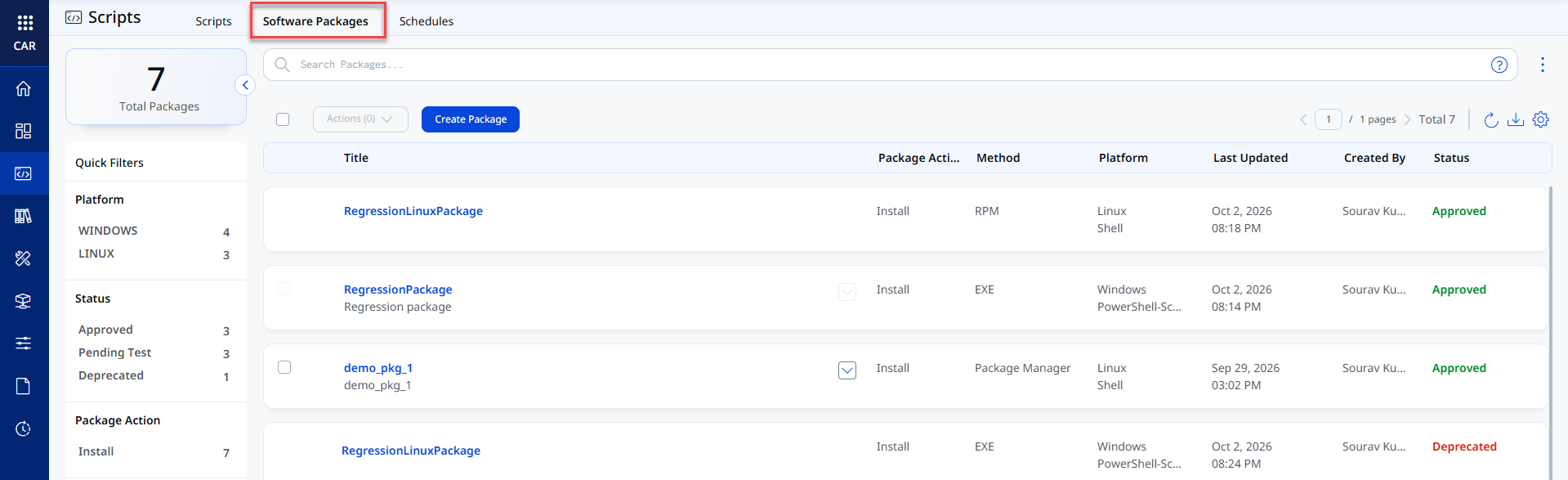
The tab displays the following details for each package:
| Package Detail | Description |
|---|---|
| Title | The name of the software package. |
| Package Action | Indicates whether the package performs an installation or uninstallation. |
| Method | Displays the installation method.
The methods are:
|
| Platform | The operating system of the package.
Supported operating systems are:
|
| Last Updated | The date and time when the package was last modified. |
| Created By | The user who created the package. |
| Status | The current status of the package. A package progresses through the following statuses:
|
Search Using Tokens
Use search tokens in the search bar for advanced searches. This enables you to use complex queries beyond quick filters.
For more information on supported tokens, refer to Search Software Packages.
Quick Actions
Depending on the package status, you can perform the following actions on a package:
| Quick Action | Description |
|---|---|
| View Details | Display complete information about the selected package. |
| Edit | Modify the package details. |
| Test Package | Execute the package on a lab asset to test installation/uninstallation behavior. |
| Review | Approve or reject the package after review. |
| Run Now | Execute the package immediately on selected assets. |
| Deprecate | Delete the package. |
| View Latest Job | View the most recent job associated with the package. |
| View All Jobs | View the full history of jobs associated with the package. |
| View Pending Asset Jobs | View asset jobs that are in pending status. |