Get Started with mROC
Qualys Support focal creates or onboards the first administrator user with a Partner role. An activation email is sent to the user's registered Email ID. The activation email includes the Partner name, the randomly generated user name, the OTP, and the attachment link.
This user needs to log in to the Managed Risk Operations Center (mROC) portal, and thereafter can proceed with partner, customer, and administration management functions.
Logging in to mROC Portal for the First Time
To get started with using the Managed Risk Operations Center (mROC) portal, the user needs to complete:
1. OTP Verification and Redirection to Login Page
OTP Verification and Redirection to Login Page
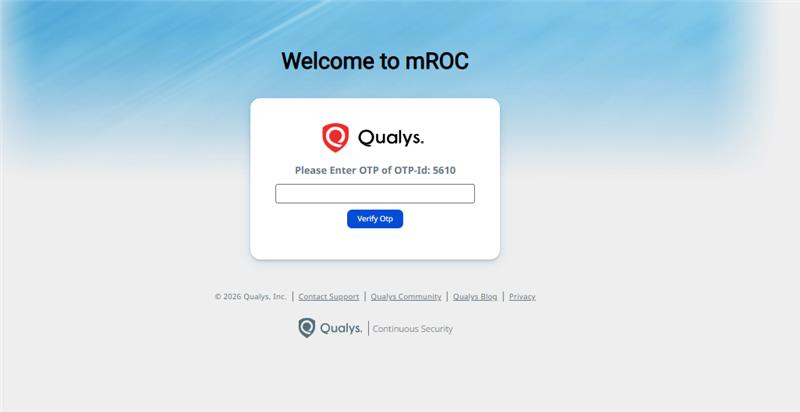
1. Click the Attachment Link from your email, copy the OTP received, enter the OTP in the field provided on the Welcome to mROC Portal pop-up, and click Verify Otp.
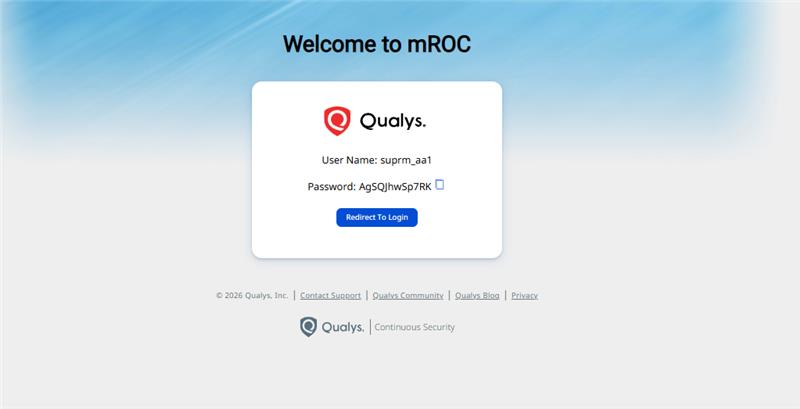
2. Copy the password to the clipboard by clicking the icon next to the password and then click Redirect to Login.
If you want, you can also paste the password to a Notepad file for reference.
3. Enter the user name and password and click Log In.
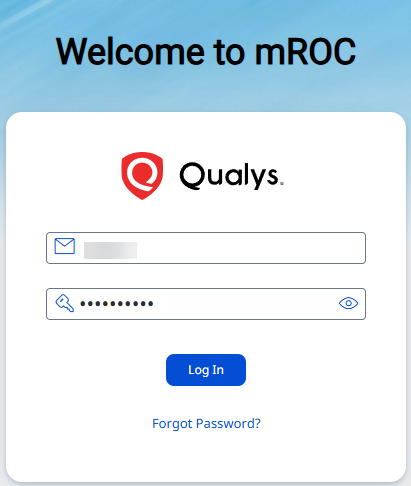
If you forgot the password, you can get a new password by clicking the Forgot Password link.
VIP Registration
1. (Optional) If the VIP Two Factor Authentication Security Setting is enabled at the time of user creation, you must complete the two-part process to activate the credentials to log in to the mROC portal. This step is alternatively called registering for Symantec VIP. Click here to learn more about Symantec VIP authentication details.
i. Open the Symantec VIP, copy the Credential ID from the VIP Access pop-up, and paste it into the Credential ID field.
ii. Copy the Security Code from the VIP Access pop-up and paste it to the Security Code 1 field, wait for the security code to get refreshed, and then
copy the Security Code and paste it into the Security Code 2 field.
iii. Click Activate.
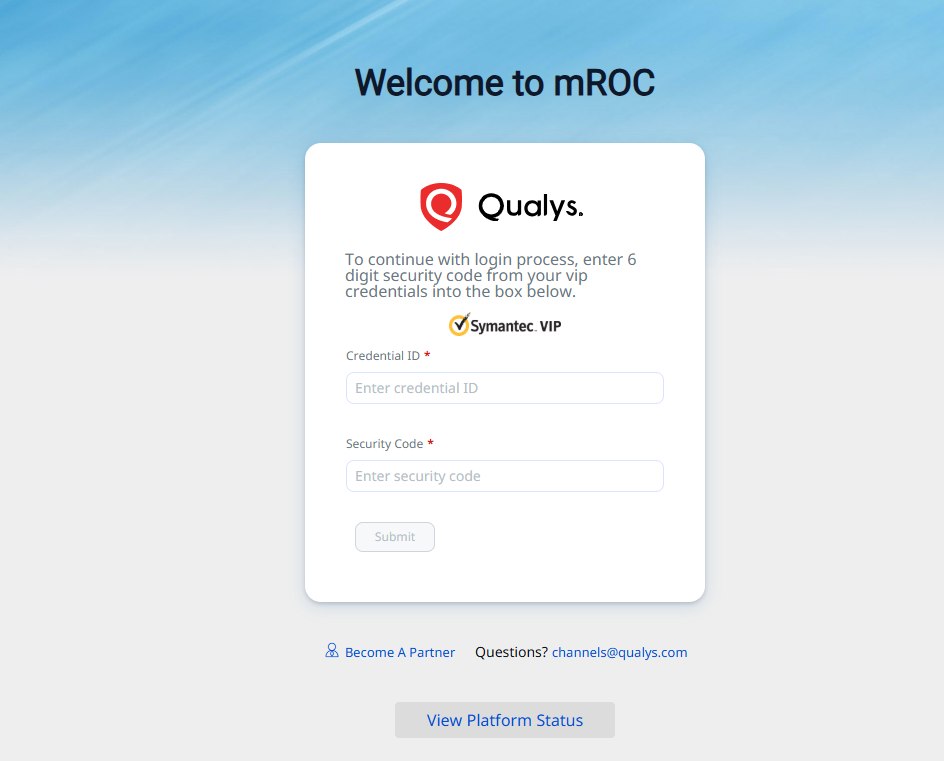
Note: The VIP registration is now complete, and you need to provide the security code again to continue with the login process.
2. Copy the Security Code (after it's refreshed) from the VIP Access pop-up, paste it to the Security Code field, and click Submit.
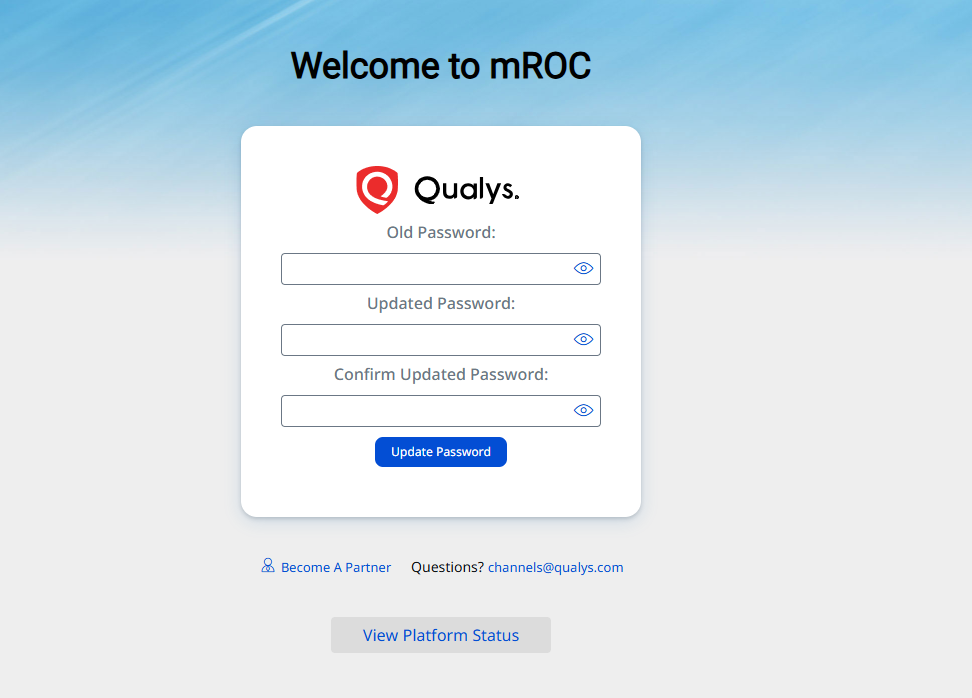
Password Update/Change
Complete the following steps to update the password:
i. Copy the password you received in the activation email and paste it into the Old Password field.
ii. Enter the new password in the Updated Password and Confirm Updated Password fields, and click Update Password.
What to do Next?
Now, you are set to log in to mROC and can proceed with the partner, customer, and administration management functions.
1. To log in to the mROC portal, enter the user name and the updated password and click Log In.
2. (Optional) Copy the Security Code (after it's refreshed) from the VIP Access pop-up, paste it to the Security Code field, and click Submit.
You are required to complete this step only If the VIP Two Factor Authentication Security Setting is enabled at the time of user creation.
Related Topics
- Partner Management Functions
- Customer Management Functions